Cursor vs GitHub Copilot: Which One Fits Your Workflow
The debate between Cursor and GitHub Copilot comes up constantly in developer forums. Both tools promise to make you write code faster, but they approach the problem differently. This guide compares them on the dimensions that actually matter for daily work, based on real developer feedback and hands-on usage.
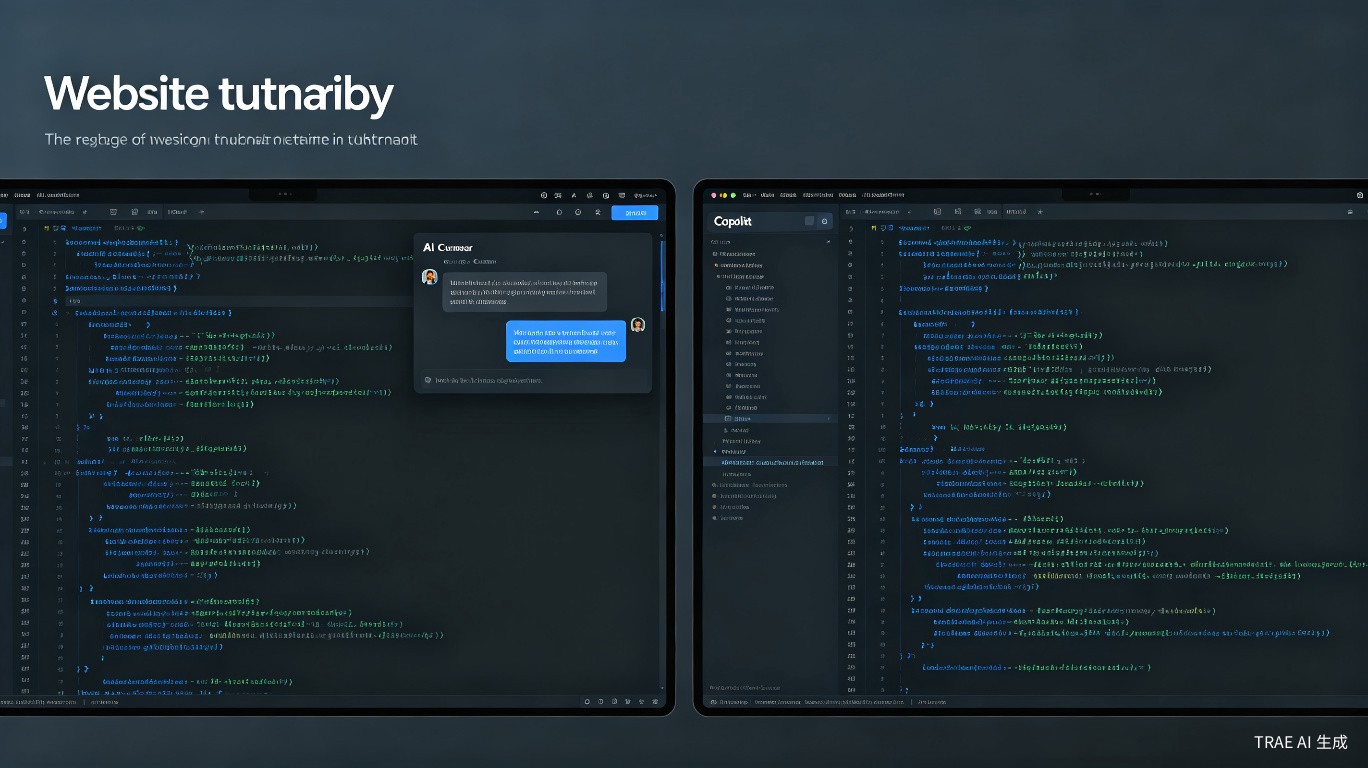
At a Glance: What Each Tool Does Best
| Aspect | Cursor | GitHub Copilot |
|---|---|---|
| Primary strength | AI chat + multi-file editing | Inline code completion |
| Code completion | Good (Cursor Tab) | Excellent (industry standard) |
| Chat interface | Full-featured, context-aware | Basic (Copilot Chat) |
| Multi-file changes | Composer handles complex refactors | Limited to single-file suggestions |
| Context awareness | Deep codebase indexing | File-level + some repo context |
| Pricing | $20-40/mo | $10-39/mo |
| IDE | VS Code fork (dedicated app) | Plugin for VS Code, JetBrains, etc. |
This comparison focuses on Copilot and Copilot Chat as they exist in mid-2025. Both tools evolve rapidly, so specific features may have changed since this writing.
The short version: Copilot is better at predicting the next line of code as you type. Cursor is better at understanding your entire project and making large-scale changes through conversation.
Code Completion: Copilot Still Leads
When it comes to pure autocomplete -- predicting what you type next -- GitHub Copilot remains the benchmark.
Copilot's Strengths
- Latency: Copilot's suggestions appear almost instantly. Cursor Tab is fast but occasionally lags on large files.
- Accuracy: Copilot has been trained on more code and often predicts exactly what you were about to type, including comments and variable names.
- Subtlety: Copilot is better at small, contextual completions -- finishing a function call, suggesting a loop variable, completing a regex.
Cursor Tab
Cursor's autocomplete (powered by their Cheetah model) has improved significantly:
- It's free and unlimited on all plans
- It handles multi-line completions well
- It integrates with Cursor's broader context understanding
But in side-by-side tests, developers consistently report that Copilot's suggestions feel more natural and require fewer corrections.
If your primary use case is "I want the AI to finish my sentences while I type," Copilot is still the better choice. Cursor Tab is good, but Copilot is great.
Chat and Conversational Coding: Cursor Wins
This is where the gap widens. Cursor's chat interface is not an add-on -- it's the core of the product.
Cursor Chat Features
- Full codebase context: Ask "where is authentication handled?" and Cursor searches your project, finds relevant files, and explains the flow.
- Multi-file Composer: Describe a feature and Cursor modifies multiple files simultaneously, showing you a diff before applying.
- Inline editing (Cmd+K): Select code, describe the change, and Cursor edits in place.
- Agent mode: Cursor can run terminal commands, install dependencies, and iterate on errors automatically.
Copilot Chat Limitations
Copilot Chat exists, but it's more limited:
- Context is primarily the current file or selected code
- It struggles with questions that require understanding multiple files
- Multi-file edits are not supported -- you get suggestions you must apply manually
- The chat feels like a sidebar feature, not the main event
A common sentiment from forum discussions:
"Copilot is great for writing code. Cursor is great for thinking about code."
Context Awareness: Deep vs Wide
Both tools try to understand your project, but they do it differently.
Cursor's Codebase Indexing
Cursor indexes your entire codebase:
- It builds an understanding of file relationships, imports, and architecture
- You can ask questions like "why does this API call fail in production but work locally?" and it will trace through relevant files
- The
@syntax lets you reference specific files, folders, or symbols in chat
Example Cursor chat:
User: @auth.ts why is the token refresh failing?
Cursor: [Analyzes auth.ts, finds the refresh logic, checks where it's called,
         identifies the missing error handler in api/client.ts]
Copilot's Context
Copilot's context is more limited:
- It sees the current file and recently opened files
- It has some repository-wide understanding through GitHub's code search
- Copilot Workspace (experimental) attempts multi-file changes but is not widely available
For small scripts or single-file changes, the difference is negligible. For large projects with complex architecture, Cursor's deep context is a significant advantage.
Pricing Comparison
| Plan | Copilot | Cursor |
|---|---|---|
| Individual | $10/mo (Copilot Pro) | $20/mo (Pro) |
| Individual + Chat | Included in Pro | Included in Pro |
| Team/Business | $19/user/mo | $40/user/mo |
| Enterprise | $39/user/mo | $40/user/mo |
| Free tier | 30-day trial | 50 requests/mo |
Copilot is cheaper for individuals. Cursor is more expensive but includes chat and multi-file editing in the base price. Copilot's advanced features (like Copilot Workspace) may require higher-tier plans.
Hidden Costs
Cursor:
- The Pro plan's 500-request limit can be a bottleneck
- Heavy users may need Business ($40/mo) or Claude Max ($100-200/mo) for API keys
Copilot:
- Requires a GitHub account and works best with GitHub-hosted repos
- Some features (like Copilot Chat in JetBrains) lag behind VS Code support
When to Use Which
Choose Copilot If:
- You want the best autocomplete experience
- You primarily work in a single file at a time
- You're already deep in the GitHub ecosystem
- You want the cheapest option that still boosts productivity
- You use JetBrains IDEs (Copilot support is better there)
Choose Cursor If:
- You frequently need to understand or modify multiple files
- You want to ask questions about your codebase in natural language
- You do a lot of refactoring and architectural work
- You want AI to run commands and fix errors automatically
- You're willing to switch to a VS Code-based editor
Using Both Together
Some developers use both tools simultaneously:
- Copilot for autocomplete: Keep Copilot enabled for inline suggestions
- Cursor for chat and refactoring: Use Cursor's chat and Composer for larger tasks
This setup works but requires running two editors or switching between them. It's overkill for most developers, but power users report good results.
If you're trying to decide, start with Copilot's free trial. If you find yourself wanting to ask the AI questions about your project or make multi-file changes, that's your signal to try Cursor.
Switching Between Them
Moving from one tool to the other is relatively painless.
From Copilot to Cursor
- Install Cursor (it's a VS Code fork, so settings and extensions transfer)
- Import your VS Code settings and extensions
- Disable Copilot in Cursor if you don't want competing autocomplete
- Start using Cmd+L for chat and Cmd+K for inline edits
From Cursor to Copilot
- Install the GitHub Copilot extension in VS Code
- Sign in with your GitHub account
- Cursor's chat features won't be available, but Copilot autocomplete will work
- Consider keeping Cursor installed for occasional complex tasks
Real Developer Workflows
Frontend Developer (React/TypeScript)
With Copilot:
- Writes components quickly with autocomplete
- Copilot suggests prop types and CSS
- For larger refactors, manually edits multiple files
With Cursor:
- Asks "refactor this component to use the new hook pattern"
- Cursor updates the component, the hook file, and the tests
- Uses chat to understand legacy code before modifying it
Backend Developer (Python/Go)
With Copilot:
- Autocomplete helps with standard library calls
- Writes boilerplate quickly
- Debugging is manual
With Cursor:
- Asks "why is this endpoint returning 500?"
- Cursor traces through middleware, handlers, and database calls
- Uses Composer to add authentication to multiple routes at once
The Bottom Line
Copilot and Cursor are not direct competitors -- they're different tools for different workflows.
- Copilot is an autocomplete tool that happens to have chat. It's better at the small stuff.
- Cursor is a chat-first AI editor that happens to have autocomplete. It's better at the big stuff.
If you write a lot of code in short bursts and value speed, Copilot is probably enough. If you spend significant time understanding, refactoring, or debugging large codebases, Cursor's chat and Composer features are hard to give up once you've used them.
The good news: both offer trials. Test them on your actual projects, not demo code, and let your workflow decide.
Summary
GitHub Copilot excels at inline code completion and is cheaper, making it ideal for developers who want AI assistance without changing their workflow. Cursor excels at conversational coding, multi-file editing, and codebase understanding, making it ideal for developers working on complex projects who need more than autocomplete.
The choice depends on what you do most: typing new code (Copilot) or thinking about and restructuring existing code (Cursor). Both are excellent tools. Neither is universally better.