Cursor for Teams: Enterprise Features and Admin Controls
Moving from individual Cursor usage to a team setup raises questions about billing, privacy, and control. This guide covers what team administrators need to know: what the admin can see, how billing works, what privacy protections exist, and how to configure Cursor for a multi-developer environment.
Team Plans Overview
Cursor offers two team-oriented tiers:
| Feature | Pro (Individual) | Business (Team) | Enterprise (Custom) |
|---|---|---|---|
| Price | $20/mo | $40/user/mo | Custom pricing |
| Min seats | 1 | 2 | 25+ |
| Unlimited fast requests | No (500/mo) | Yes | Yes |
| Admin dashboard | No | Yes | Yes |
| SSO / SAML | No | Yes | Yes |
| Audit logs | No | Yes | Yes |
| Custom contracts | No | No | Yes |
| Priority support | No | Yes | Yes |
| Data residency | No | No | Available |
The Business plan is the standard team offering for most organizations. Enterprise is for larger companies with custom compliance or procurement requirements.
What the Admin Can and Cannot See
This is the most common concern when teams adopt Cursor. Let's be explicit about what is visible to administrators.
What Admins Can See
| Data | Visible to Admin? | Details |
|---|---|---|
| Seat usage | Yes | Who has a license, when they joined |
| Request counts | Yes | Aggregate usage per user, per team |
| Billing info | Yes | Invoices, payment methods, billing history |
| Login activity | Yes | SSO login events, session data |
| AI model usage | Partial | Which models are used, not the content |
| Code content | No | Admins cannot see prompts or code sent to AI |
| Chat history | No | Admins cannot read chat messages |
| File contents | No | Admins cannot access project files |
The short answer to "does the admin see what I'm working on?" is no. Cursor's admin dashboard shows usage metrics and billing data, not the actual code or prompts you send to the AI.
What the Admin Dashboard Shows
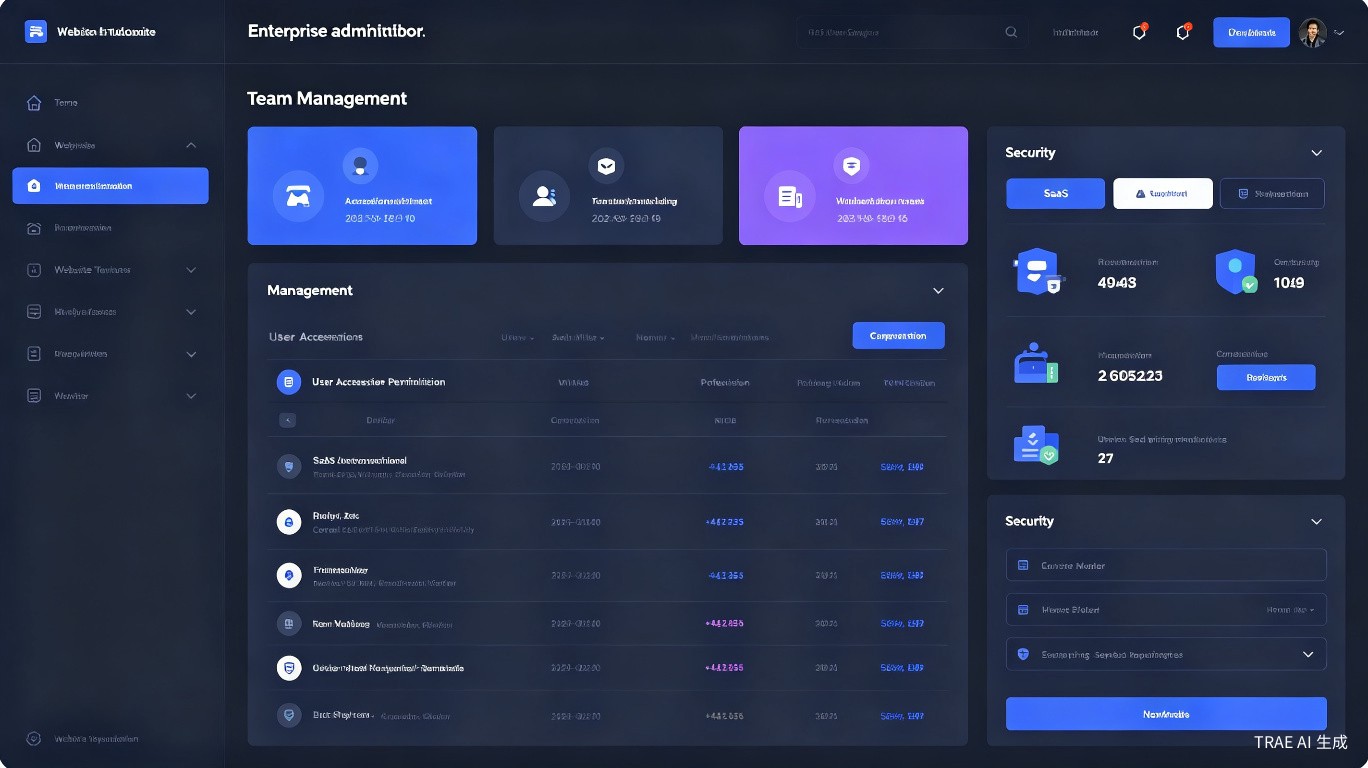
The Business plan admin dashboard includes:
- User management: Add/remove seats, invite users, deactivate accounts
- Usage analytics: Total requests, per-user breakdown, model distribution
- Billing overview: Current spend, invoice history, upcoming charges
- Security settings: SSO configuration, session policies
Example admin view:
- Team: Engineering
- Seats: 12/15 used
- Requests this month: 34,200 (unlimited plan)
- Top models: Claude Sonnet 4 (68%), GPT-4o (22%), o3-mini (10%)
- User activity: [Redacted -- shows counts only, not content]
Team Billing Explained
Cursor team billing is seat-based and straightforward, but there are details worth understanding.
How Billing Works
- Prorated seats: Add a user mid-month, pay a prorated amount for the current cycle
- Annual discounts: Enterprise plans may offer annual billing with discounts
- Invoice frequency: Monthly by default; annual available for Enterprise
- Payment: Credit card or invoice (Enterprise only)
Seat Management
Adding a team member:
1. Admin opens Cursor dashboard
2. Navigates to Team > Members
3. Clicks "Invite Member"
4. Enters email address
5. User receives invite link
6. User accepts and joins the team
Removing a user:
- Deactivating a seat frees it up for reassignment
- You are not charged for deactivated seats in the next billing cycle
- The deactivated user's data is retained for a grace period (typically 30 days)
If you have seasonal hiring or contractors, plan seat additions and removals around your billing cycle to minimize waste. Deactivate seats promptly when team members leave.
Cost Comparison: Individual vs Team
| Scenario | Cost |
|---|---|
| 5 developers on individual Pro | 5 x $20 = $100/mo (2,500 total requests) |
| 5 developers on Business | 5 x $40 = $200/mo (unlimited requests) |
| 20 developers on Business | 20 x $40 = $800/mo |
| 20 developers on Enterprise | Custom (typically $30-35/user/mo at scale) |
The Business plan is roughly 2x the individual plan per seat, but unlimited requests often justify the cost for active teams.
Single Sign-On (SSO) Setup
Business and Enterprise plans support SSO through SAML 2.0 providers.
Supported Identity Providers
- Okta
- Azure AD / Entra ID
- Google Workspace
- OneLogin
- Generic SAML 2.0
Configuration Steps
-
In Cursor admin dashboard:
- Navigate to Security > SSO
- Select your identity provider
- Copy the ACS URL and Entity ID
-
In your identity provider:
- Create a new SAML application
- Paste the ACS URL and Entity ID
- Download the SAML certificate
-
Back in Cursor:
- Upload the SAML certificate
- Map user attributes (email, first name, last name)
- Enable SSO and test login
<!-- Example SAML configuration metadata -->
<md:EntityDescriptor entityID="cursor-team-yourcompany">
  <md:SPSSODescriptor>
    <md:AssertionConsumerService
      Location="https://cursor.com/auth/saml/callback"
      Binding="urn:oasis:names:tc:SAML:2.0:bindings:HTTP-POST"/>
  </md:SPSSODescriptor>
</md:EntityDescriptor>
SSO enforcement is optional. You can allow both SSO and password login during migration, then disable password login once everyone is transitioned.
SSO Benefits
- Centralized access control: Onboard and offboard through your existing identity system
- Password policy compliance: Inherit your organization's password requirements
- MFA enforcement: Require multi-factor authentication through your IdP
- Session management: Control session duration and re-authentication requirements
Privacy in Team Mode
Privacy concerns escalate when AI tools enter a team environment. Here's how Cursor handles team privacy.
Code Privacy
| Question | Answer |
|---|---|
| Can teammates see my chats? | No, chats are private to your account |
| Can the admin read my prompts? | No, prompt content is not exposed |
| Is my code used to train models? | No, Cursor states they do not train on user code |
| Where does my code go? | To model providers (Anthropic, OpenAI) for inference only |
Privacy Mode in Teams
Individual users can still enable Privacy Mode on team plans:
Settings > General > Privacy Mode
This disables:
- Telemetry and analytics sent to Cursor
- Crash reporting with code snippets
- Usage metadata logging
Privacy Mode does not prevent code from being sent to LLM providers for inference. It only affects Cursor's own telemetry. For teams with strict data handling requirements, review the Cursor Privacy & Security Guide.
Team Data Handling Policies
Consider establishing a team policy:
## Team Cursor Usage Policy

1. Do not paste production secrets, API keys, or PII into AI chat
2. Use .cursorignore to exclude sensitive files from indexing
3. Enable Privacy Mode for all team members
4. Review AI-generated code before committing
5. Report any suspected data leakage to the admin immediately
Audit Logs
Business and Enterprise plans include audit logging for compliance and security monitoring.
What Gets Logged
| Event | Logged Data |
|---|---|
| User login | Timestamp, IP address, SSO provider |
| Seat changes | Who added/removed seats, when |
| Settings changes | Admin configuration modifications |
| Billing events | Invoice generation, payment success/failure |
| Model usage | Aggregate counts per model (not content) |
Accessing Audit Logs
- Open the Cursor admin dashboard
- Navigate to Security > Audit Logs
- Filter by date range, event type, or user
- Export to CSV or JSON for external analysis
Export audit logs monthly and store them in your organization's security documentation system. This simplifies compliance audits and incident investigation.
Setting Up Team Policies
Beyond the technical configuration, successful team adoption requires clear policies.
Onboarding Checklist
For each new team member:
- Provision seat: Admin adds user in dashboard
- SSO setup: User logs in via organization's identity provider
- Privacy settings: User enables Privacy Mode
- Project access: Grant access to relevant repositories
- Training: Walk through
.cursorignoresetup and safe usage practices - Model defaults: Set team-preferred default models in settings
Standardizing Model Usage
Teams benefit from consistent model choices:
// Recommended team defaults (shared via documentation)
{
  "cursor.defaultModel": "claude-sonnet-4",
  "cursor.tabModel": "claude-sonnet-4",
  "cursor.fallbackModel": "gpt-4o"
}
Document which models to use for which tasks so junior developers don't burn premium requests on trivial questions.
Shared .cursorrules
For consistent AI behavior across the team, maintain a shared .cursorrules file in your repository:
# .cursorrules for Team Project

## Code Style
- Follow existing patterns in the codebase
- Use TypeScript strict mode
- Prefer functional components in React

## Testing
- Write tests for all new functions
- Use Jest and React Testing Library
- Aim for 80%+ coverage

## Documentation
- Add JSDoc comments for public APIs
- Update README.md for architectural changes
Security Best Practices for Teams
File Exclusions with .cursorignore
Every team project should have a .cursorignore file:
# .cursorignore
.env
.env.local
.env.production
secrets/
config/production.yml
*.key
*.pem
tokens/
credentials.json
This prevents sensitive files from being indexed and accidentally included in AI context.
API Key Management
If team members bring their own API keys:
- Discourage it: Centralize on the team plan instead
- If necessary: Store keys in environment variables, never in code
- Rotate regularly: Set a policy for API key rotation
Compliance Considerations
| Regulation | Cursor Team Considerations |
|---|---|
| SOC 2 | Audit logs available, but verify with your auditor |
| GDPR | User data can be exported/deleted on request |
| HIPAA | Cursor is not HIPAA-certified; avoid PHI in prompts |
| ISO 27001 | Review Cursor's security documentation |
Cursor does not offer a self-hosted or air-gapped deployment. If your compliance requirements mandate data never leaves your infrastructure, Cursor's cloud-based AI features may not be suitable.
Troubleshooting Team Issues
User Cannot Join Team
- Verify the invite email was sent to the correct address
- Check that SSO is configured correctly if enforced
- Ensure the team has available seats
Usage Spikes
If request usage is unexpectedly high:
- Check the admin dashboard for per-user breakdown
- Identify if one user is consuming disproportionate resources
- Review whether background agents or Composer are being overused
- Set team guidelines for request-efficient workflows
Billing Discrepancies
- Prorated charges for mid-month seat additions are normal
- Deactivated seats stop billing at the next cycle, not immediately
- Contact Cursor support for invoice questions
Summary
Cursor's team features are functional but not as mature as dedicated enterprise AI platforms. The Business plan covers the essentials: unlimited requests, SSO, audit logs, and admin controls. The admin cannot see your code or chat content, but can see usage metrics and manage seats.
Key takeaways for team administrators:
- Set up SSO early for centralized access control
- Establish
.cursorignoreand privacy policies before onboarding - Use audit logs for compliance and security monitoring
- Document model usage guidelines to control costs
- Understand that Cursor is cloud-based and plan accordingly for sensitive projects
For most development teams, the Business plan strikes the right balance between capability and cost. Enterprise is worth exploring only if you need custom contracts, data residency, or dedicated support.