Using Cursor for Swift and iOS Development
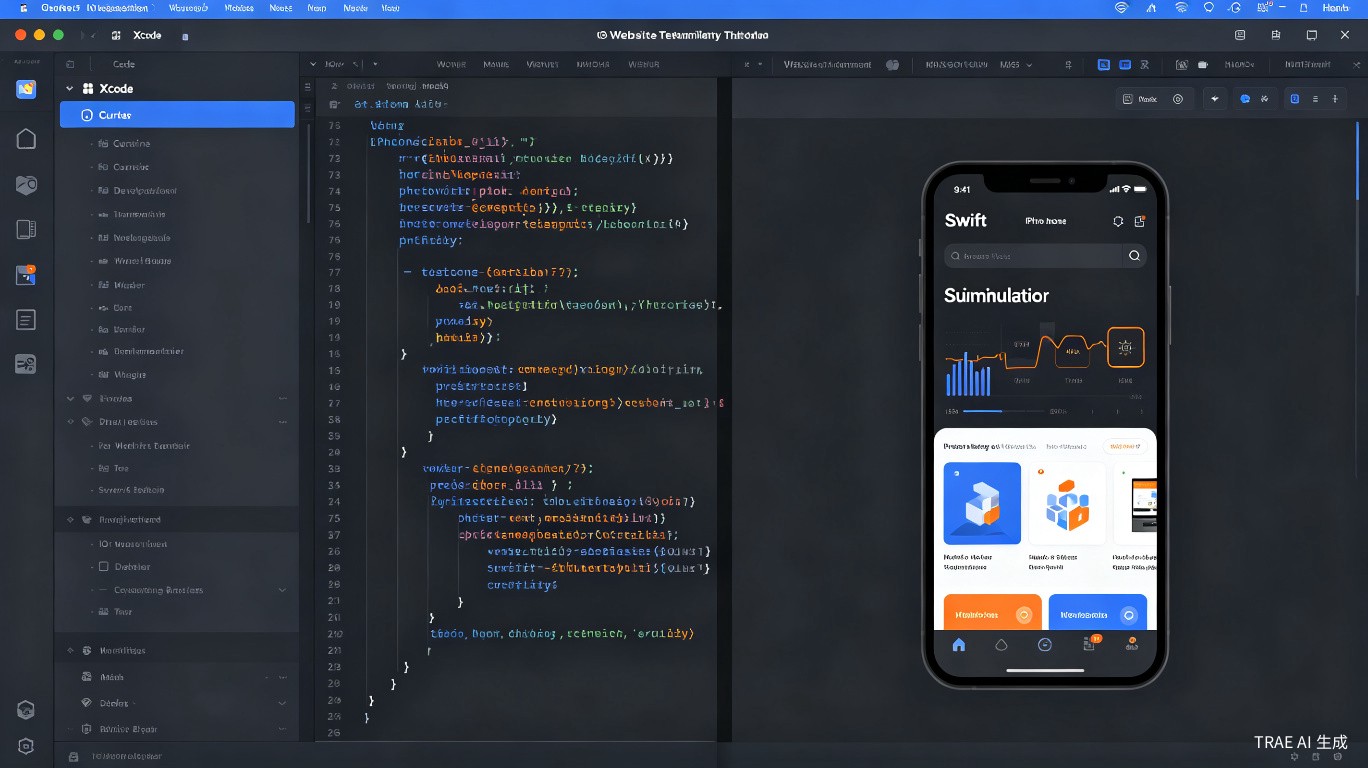
Cursor is a powerful AI-assisted editor, but Swift and iOS development come with unique challenges. Unlike JavaScript or Python projects, iOS apps rely heavily on Xcode's build system, Interface Builder, and the iOS Simulator. This guide explains how to set up Cursor for Swift development, integrate it with Xcode, and work around the current limitations.
Why Use Cursor for Swift?
Xcode is the official IDE for Apple platforms, and it is required for many tasks. However, Cursor offers advantages that Xcode does not:
- AI-powered code generation for boilerplate SwiftUI and UIKit code
- Intelligent refactoring across multiple files
- Natural language chat for understanding legacy Objective-C or complex Swift code
- Composer for multi-file edits and scaffolding new features
- Better text editing experience with VS Code keybindings and extensions
The most productive workflow is not Cursor or Xcode -- it is Cursor and Xcode used together.
Setting Up Cursor for Swift
1. Install Swift Language Support
Cursor is built on VS Code, so you can install extensions from the marketplace. For Swift development, install the following:
- Open Cursor
- Go to Extensions (Ctrl+Shift+X / Cmd+Shift+X)
- Search for and install:
- Swift by
sswg.swift-lang-- provides syntax highlighting, diagnostics, and code navigation - SwiftFormat -- for automatic code formatting
- Xcode Keymap (optional) -- if you prefer Xcode shortcuts
- Swift by
// Recommended extensions in .vscode/extensions.json
{
  "recommendations": [
    "sswg.swift-lang",
    "vknabel.vscode-swiftformat",
    "apple-swift.swift-vscode"
  ]
}
2. Open Your Xcode Project in Cursor
You can open an Xcode project directly in Cursor, but with caveats:
# Navigate to your project directory
cd ~/Projects/MyiOSApp

# Open in Cursor
cursor .
Cursor can read .swift files, but it cannot parse .xcodeproj or .xcworkspace files directly. The project structure will appear as a flat file tree. You will still need Xcode for storyboards, asset catalogs, and project configuration.
3. Configure Build Tasks
Since Cursor cannot trigger Xcode builds natively, set up a custom task:
// .vscode/tasks.json
{
  "version": "2.0.0",
  "tasks": [
    {
      "label": "Build iOS App",
      "type": "shell",
      "command": "xcodebuild",
      "args": [
        "-project", "MyApp.xcodeproj",
        "-scheme", "MyApp",
        "-destination", "platform=iOS Simulator,name=iPhone 15",
        "build"
      ],
      "group": {
        "kind": "build",
        "isDefault": true
      }
    }
  ]
}
Run the build with Ctrl+Shift+B (Cmd+Shift+B on macOS).
The Dual-Editor Workflow
The workflow that works best, based on community feedback, is running both editors side by side:
| Task | Tool | Why |
|---|---|---|
| Write and edit Swift code | Cursor | AI assistance, better editing |
| Build and run | Xcode | Native simulator integration |
| Storyboard / SwiftUI preview | Xcode | Visual editing required |
| Asset management | Xcode | .xcassets handling |
| Debugging with breakpoints | Xcode | Superior LLDB integration |
| Git commits | Either | Cursor has good Git UI too |
Recommended Workflow Steps
- Create the project in Xcode -- set up targets, signing, and dependencies
- Open the same folder in Cursor -- edit
.swiftfiles there - Enable codebase indexing in Cursor (click the gears icon in the top right)
- Edit in Cursor -- use chat, Composer, or Tab for code generation
- Save in Cursor -- changes are written to disk immediately
- Switch to Xcode -- the file change is detected automatically; build and run
Both editors watch the same files on disk. You do not need to manually sync. Just save in Cursor and build in Xcode. Git handles versioning if something goes wrong.
Building Without Xcode
For developers who want to minimize Xcode usage, xcodebuild is the answer. It is Apple's command-line build tool and supports everything Xcode does.
Basic Build Commands
# Build for simulator
xcodebuild -project MyApp.xcodeproj -scheme MyApp -destination 'platform=iOS Simulator,name=iPhone 15' build

# Build for device
xcodebuild -project MyApp.xcodeproj -scheme MyApp -destination 'generic/platform=iOS' build

# Run tests
xcodebuild -project MyApp.xcodeproj -scheme MyApp -destination 'platform=iOS Simulator,name=iPhone 15' test

# Clean build folder
xcodebuild -project MyApp.xcodeproj -scheme MyApp clean
Using Swift Package Manager
If your project uses SPM instead of Xcode projects, Cursor works even better:
# Build
swift build

# Run tests
swift test

# Generate Xcode project (if needed)
swift package generate-xcodeproj
SPM-based projects are more "Cursor-friendly" because they do not rely on .xcodeproj files.
Hot Reloading with Inject
A community-favorite tool for Swift development in Cursor is Inject by Krzysztof Zablocki. It enables hot reloading for Swift applications, reducing the need to constantly rebuild in Xcode.
// Add to your AppDelegate or main entry point
#if DEBUG
import Inject
#endif

// In your view controller or SwiftUI view
#if DEBUG
@ObservedObject var inject = Inject.observer
#endif
With Inject, you can build once in Xcode and see code changes reflected immediately as you edit in Cursor.
Limitations and Workarounds
What Cursor Cannot Do for iOS Development
| Limitation | Workaround |
|---|---|
| No Interface Builder support | Use SwiftUI or edit storyboards in Xcode |
| No iOS Simulator integration | Build and run from Xcode or xcodebuild |
No .xcodeproj parsing | Manage project files in Xcode |
| No asset catalog preview | Use Xcode for image and color assets |
| No code signing UI | Configure signing in Xcode |
| No SwiftUI live preview | Preview in Xcode, edit in Cursor |
Common Issues
Issue: Cursor does not recognize UIKit imports
Solution: Ensure the Swift extension is installed and the project is indexed. Sometimes a restart of Cursor is needed after installing extensions.
Issue: Build errors do not show inline
Solution: Use the Terminal panel in Cursor to run xcodebuild and see errors, or switch to Xcode for the build phase.
Issue: Autocomplete for Apple frameworks is weak
Solution: Cursor's Tab autocomplete works well for Swift, but Apple framework documentation is not as deeply integrated as in Xcode. Use Cursor chat to ask about specific APIs.
Best Practices
1. Keep Xcode as the Build Authority
Always verify your app builds and runs in Xcode before committing. Cursor is excellent for writing code, but Xcode is the source of truth for whether it compiles.
2. Use Git Branches for AI-Assisted Changes
When using Cursor's Composer or Agent mode for large refactors, create a branch first:
git checkout -b cursor-refactor
git add .
git commit -m "Checkpoint before Cursor refactoring"
This lets you revert if the AI-generated changes break the build.
3. Index Your Codebase
Before asking Cursor to make changes, index the project:
- Open the Chat panel
- Click the Index button (gears icon)
- Wait for indexing to complete
This improves the quality of AI suggestions because Cursor understands the full project structure.
4. Structure Prompts for Swift
When asking Cursor to generate Swift code, be specific about the framework:
Good: "Create a SwiftUI view that displays a list of users with async image loading"

Bad: "Make a user list screen"
Summary
Cursor is a valuable addition to the iOS developer's toolkit, but it is not a replacement for Xcode. The most effective approach is a dual-editor workflow: write and refactor code in Cursor using AI assistance, then build, preview, and debug in Xcode.
Key takeaways:
- Install the
sswg.swift-langextension for Swift support in Cursor - Use
xcodebuildfor command-line builds when you want to stay in Cursor - Run both editors simultaneously -- they sync through the filesystem
- Use Git branches before large AI-assisted refactors
- Be aware of limitations: no storyboard editing, no simulator, no code signing UI
As the ecosystem evolves, tighter integration may become available. For now, the combination of Cursor's AI features and Xcode's platform tools offers the best of both worlds.
Last updated: June 2025