Cursor での Vue.js 開発:完全ガイド
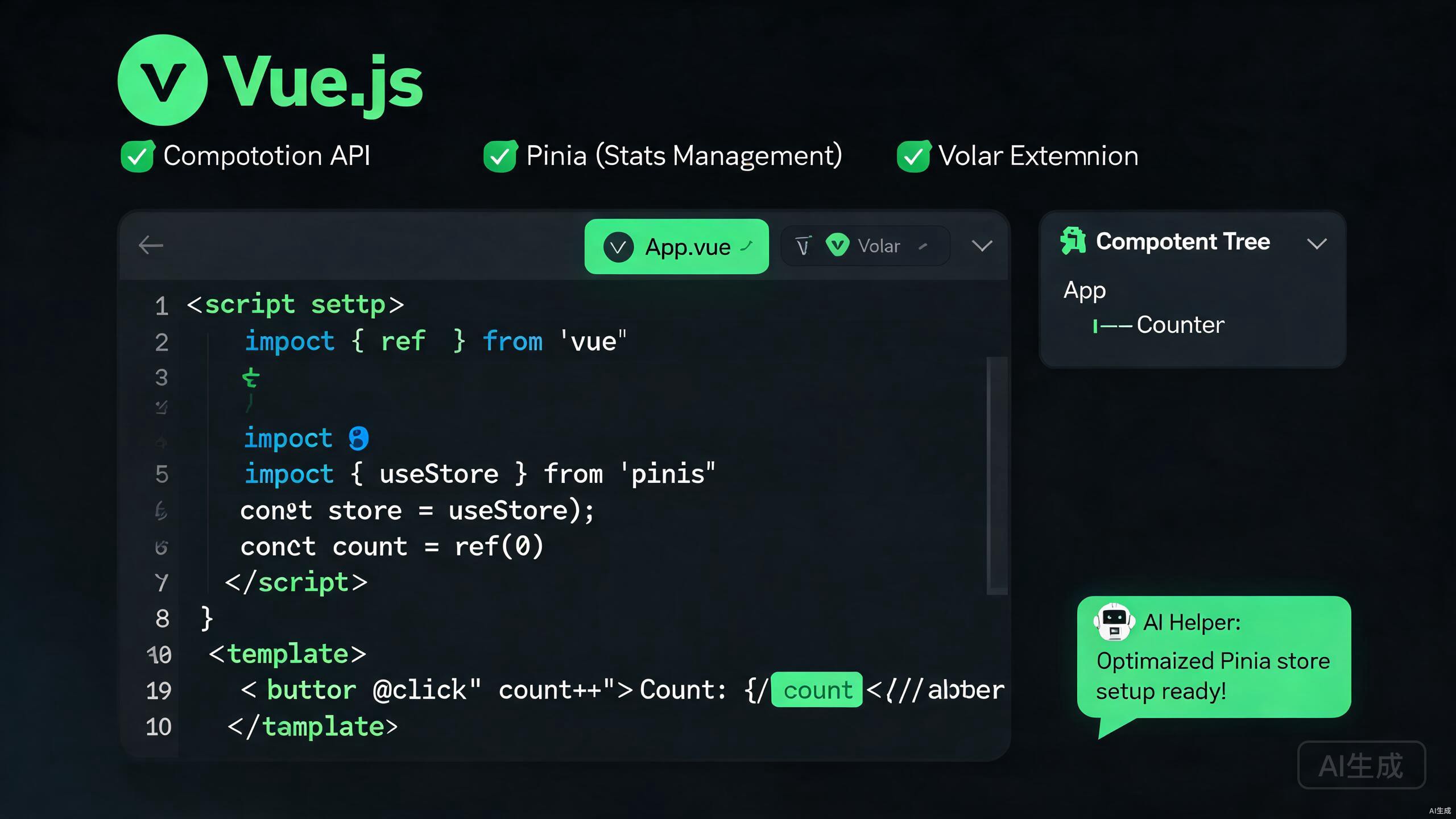
Vue.js は、ユーザーインターフェースを構築するための最も人気のあるプログレッシブ JavaScript フレームワークの一つとなっています。Vue 3 で Composition API、<script setup>、そして書き直されたリアクティビティシステムが導入されたことで、開発者はモダンな Vue エコシステムを深く理解するエディタを必要としています。Cursor は VS Code 互換の基盤と第一級の AI サポートを組み合わせており、Vue.js 開発に優れた環境を提供します。
本ガイドでは、プロジェクトのスキャフォールディングから状態管理、ルーティング、AI支援によるコンポーネント生成まで、Cursor での生産的な Vue.js ワークフローの構築を順を追って説明します。Options API のコードベースを Vue 3 に移行する場合でも、新しい SFC(Single File Component)プロジェクトを始める場合でも、以下のテクニックはコードをクリーンで保守しやすく保ちながら、開発を高速化するのに役立ちます。
Cursor での Vue.js 環境セットアップ
前提条件と Node.js のセットアップ
Vue コードを書く前に、システムに適切な基盤があることを確認してください。Cursor はマシンにインストールされた Node.js を継承するため、まずバージョンを確認します。
node --version
npm --version
Vue 3 と Volar ツールチェーンには Node.js 18 以上が必要です。古いバージョンを使用している場合は、nvm や fnm などのバージョンマネージャーでアップグレードしてください:
# fnm を使用(高速なので推奨)
fnm install 20
fnm use 20

# nvm を使用
nvm install 20
nvm use 20
Cursor の統合ターミナルはすべての一般的なシェルツールをサポートしています。Ctrl+`(Windows/Linux)または Cmd+`(macOS)で開き、エディタを離れることなく任意の CLI コマンドを実行できます。
Volar 拡張機能のインストール
Cursor で Vue.js 開発を行う上で最も重要な拡張機能は Volar(公式の Vue.js 言語サポート、現在は Vue - Official 拡張機能として配布)です。.vue ファイルの型チェック、IntelliSense、フォーマット、診断を提供します。
インストール手順:
- Cursor で
Ctrl+Shift+X(macOS の場合はCmd+Shift+X)で拡張機能ビューを開きます。 - "Vue - Official" を検索します。
- Install をクリックします。
旧式の Vetur 拡張機能を Volar と同時に有効にしないでください。Vetur は Vue 2 向けに設計されており、モダンなツールチェーンと競合します。インストールしている場合は、重複診断や不正確な IntelliSense の提案を防ぐために無効化またはアンインストールしてください。
ワークフローを補完するために、以下の拡張機能もオプションでインストールできます:
- ESLint —
.vueおよび.js/.tsファイルのリント用。 - Prettier — 一貫したフォーマット用。
- TypeScript Vue Plugin (Volar) — テンプレート内の型解決を改善。
新しい Vue 3 プロジェクトのスキャフォールディング
新しい Vue プロジェクトを作成する推奨方法は、公式の create-vue スキャフォールディングツールを使用することです。これは Vue コアチームが保守しており、Vite、TypeScript、Router、Pinia をオプションで統合します。
npm create vue@latest my-vue-app
インタラクティブなプロンプトで機能を選択できます:
Vue.js - The Progressive JavaScript Framework

? Project name: my-vue-app
? Add TypeScript? Yes
? Add JSX Support? No
? Add Vue Router for Single Page Application development? Yes
? Add Pinia for state management? Yes
? Add Vitest for Unit Testing? Yes
? Add ESLint for code quality? Yes
? Add Prettier for code formatting? Yes
スキャフォールディングが完了したら、Cursor でプロジェクトを開きます:
cd my-vue-app
cursor .
依存関係をインストールして開発サーバーを起動します:
npm install
npm run dev
Cursor は Vite 開発サーバーを自動的に認識します。npm run dev を実行すると、Cursor のターミナルにローカル URL(通常は http://localhost:5173)が表示されます。URL を Ctrl+Click して、デフォルトブラウザで実行中のアプリを開くことができます。
Vue 3 Composition API の習得
<script setup> 構文の理解
<script setup> 構文は Vue 3 コンポーネントを作成するための推奨される方法です。コンパイル時のシンタックスシュガーであり、Options API と比較してボイラープレートを大幅に削減します。
<script setup lang="ts">
import { ref, computed } from 'vue'

interface Props {
  title: string
  count?: number
}

const props = withDefaults(defineProps<Props>(), {
  count: 0,
})

const emit = defineEmits<{
  (e: 'update', value: number): void
}>()

const doubled = computed(() => props.count * 2)

function increment() {
  const next = props.count + 1
  emit('update', next)
}
</script>

<template>
  <div class="counter">
    <h2>{{ title }}</h2>
    <p>Count: {{ count }} (doubled: {{ doubled }})</p>
    <button @click="increment">Increment</button>
  </div>
</template>

<style scoped>
.counter {
  padding: 1rem;
  border: 1px solid #e2e8f0;
  border-radius: 0.5rem;
}
</style>
defineProps と defineEmits はコンパイラマクロです。インポート不要で、<script setup> 内でのみ使用できます。setup のない通常の <script> ブロックで使用しようとするとコンパイルエラーが発生します。
ref と reactive によるリアクティブ状態
Vue 3 ではリアクティブ状態を宣言する主な方法が2つあります。どちらを選ぶかは初心者によくある混乱の原因です。
<script setup lang="ts">
import { ref, reactive } from 'vue'

// ref はプリミティブ値とオブジェクトの両方で動作
const count = ref(0)
const user = ref({ name: 'Ada', age: 36 })

// reactive はオブジェクト/配列でのみ動作
const settings = reactive({
  theme: 'light',
  notifications: true,
})

function toggleTheme() {
  settings.theme = settings.theme === 'light' ? 'dark' : 'light'
}
</script>

<template>
  <button @click="count++">{{ count }}</button>
  <p>{{ user.name }} — theme: {{ settings.theme }}</p>
  <button @click="toggleTheme">Toggle Theme</button>
</template>
実用的な目安:プリミティブ値や完全に再代入する可能性のあるオブジェクトには ref を使用し、その場で変更するグループ化された状態オブジェクトには reactive を使用します。テンプレートでは ref は自動的にアンラップされるため、{{ count.value }} ではなく {{ count }} と書きます。
再利用可能なロジックのための Composables
Composables は再利用可能なリアクティブロジックをカプセル化する関数です。useSomething の命名規則に従います。Cursor の AI アシスタントは自然言語の記述から composables を生成するのが得意です。
// composables/useFetch.ts
import { ref, watchEffect, type Ref } from 'vue'

export function useFetch<T>(url: Ref<string>) {
  const data = ref<T | null>(null) as Ref<T | null>
  const error = ref<string | null>(null)
  const loading = ref(false)

  watchEffect(async () => {
    loading.value = true
    error.value = null
    try {
      const response = await fetch(url.value)
      if (!response.ok) throw new Error(`HTTP ${response.status}`)
      data.value = (await response.json()) as T
    } catch (err) {
      error.value = err instanceof Error ? err.message : 'Unknown error'
    } finally {
      loading.value = false
    }
  })

  return { data, error, loading }
}
コンポーネントでの使用例:
<script setup lang="ts">
import { ref } from 'vue'
import { useFetch } from '../composables/useFetch'

interface Post {
  id: number
  title: string
  body: string
}

const endpoint = ref('https://jsonplaceholder.typicode.com/posts/1')
const { data: post, error, loading } = useFetch<Post>(endpoint)
</script>

<template>
  <div v-if="loading">Loading...</div>
  <div v-else-if="error" class="error">{{ error }}</div>
  <article v-else-if="post">
    <h2>{{ post.title }}</h2>
    <p>{{ post.body }}</p>
  </article>
</template>
Volar 拡張機能の活用
型チェックテンプレート
Volar の最も強力な機能の一つは、<template> ブロック内での型チェックです。これにより、コンポーネントの props、イベント名、式のエラーを実行時ではなくコンパイル時にキャッチできます。
<script setup lang="ts">
import Counter from './Counter.vue'
</script>

<template>
  <!-- prop が存在しない場合、Volar がフラグを立てます -->
  <Counter title="Clicks" :count="5" @update="handleChange" />
</template>
Counter が count prop を宣言していない場合、Volar はその属性の下に赤い波線を表示し、問題パネルに診断メッセージを表示します。
CI パイプラインの一部として vue-tsc --noEmit を実行し、プロジェクト全体でテンプレートの型チェックを強制します。package.json スクリプトに追加します:
{
  "scripts": {
    "type-check": "vue-tsc --noEmit"
  }
}
ワークスペース設定
.vscode/settings.json ファイル(Cursor と共有)を作成して、チーム全体の Volar 設定を固定します:
{
  "editor.formatOnSave": true,
  "editor.defaultFormatter": "Vue.volar",
  "vue.codeActions.askNewComponentName": false,
  "vue.inlayHints.missingProps": true,
  "vue.inlayHints.inlineHandlerLeading": true,
  "typescript.tsdk": "node_modules/typescript/lib"
}
Take Over Mode(スタンドアロン TypeScript)
Volar は組み込みの TypeScript 拡張機能を「テイクオーバー」して、.ts と .vue ファイルの両方でより優れた Vue 対応 IntelliSense を提供できます。ワークスペースに .vscode/settings.json を作成します:
{
  "typescript.preferences.importModuleSpecifier": "relative",
  "vue.server.includeLanguages": ["vue"]
}
Take Over Mode はそのワークスペースの標準 TS 拡張機能を無効にします。Vue 以外の TypeScript ライブラリを含む混合プロジェクトで作業する場合は、外部の型解決が期待通りに動作することを慎重にテストしてください。
Pinia による状態管理
Vuex ではなく Pinia を選ぶ理由
Pinia は Vue 3 の公式状態管理ライブラリです。Vuex の後継であり、以下の利点があります:
- mutations なしのシンプルで型安全な API(状態を直接変更できます)。
- 完全な自動補完を備えたファーストクラスの TypeScript サポート。
- モジュール性 — 各ストアは独立して定義されます。
- 優れた DevTools 統合。
ストアの定義
// stores/counter.ts
import { defineStore } from 'pinia'
import { computed, ref } from 'vue'

export const useCounterStore = defineStore('counter', () => {
  const count = ref(0)
  const doubled = computed(() => count.value * 2)

  function increment() {
    count.value++
  }

  async function incrementAsync() {
    await new Promise((resolve) => setTimeout(resolve, 200))
    count.value++
  }

  return { count, doubled, increment, incrementAsync }
})
コンポーネントでのストア使用
<script setup lang="ts">
import { storeToRefs } from 'pinia'
import { useCounterStore } from '../stores/counter'

const counter = useCounterStore()

// リアクティブ状態を安全にデストラクチャ
const { count, doubled } = storeToRefs(counter)
// actions は直接デストラクチャ可能
const { increment, incrementAsync } = counter
</script>

<template>
  <div class="counter">
    <p>Count: {{ count }} / Doubled: {{ doubled }}</p>
    <button @click="increment">+1</button>
    <button @click="incrementAsync">+1 (async)</button>
  </div>
</template>
ストア状態をプレーンな const { count } = counter でデストラクチャしないでください — リアクティビティが失われます。state と getters には常に storeToRefs を使用し、actions は通常の関数なので直接デストラクチャできます。
複数ストアの整理
大きなアプリケーションでは、ドメインごとにストアを分割します:
src/stores/
  ├── auth.ts
  ├── cart.ts
  ├── products.ts
  └── ui.ts
クロスストアパターンにより、あるストアが別のストアを呼び出せます:
// stores/cart.ts
import { defineStore } from 'pinia'
import { useProductsStore } from './products'

export const useCartStore = defineStore('cart', () => {
  const items = ref<{ id: number; qty: number }[]>([])

  function addToCart(productId: number) {
    const products = useProductsStore()
    if (!products.exists(productId)) {
      throw new Error('Product not found')
    }
    items.value.push({ id: productId, qty: 1 })
  }

  return { items, addToCart }
})
Vue Router によるルーティング
ルートの設定
// router/index.ts
import { createRouter, createWebHistory, type RouteRecordRaw } from 'vue-router'
import HomeView from '../views/HomeView.vue'

const routes: RouteRecordRaw[] = [
  { path: '/', name: 'home', component: HomeView },
  {
    path: '/about',
    name: 'about',
    component: () => import('../views/AboutView.vue'),
  },
  {
    path: '/users/:id',
    name: 'user-detail',
    component: () => import('../views/UserDetailView.vue'),
    props: true,
  },
]

const router = createRouter({
  history: createWebHistory(import.meta.env.BASE_URL),
  routes,
})

export default router
ナビゲーションとルートパラメータ
<script setup lang="ts">
import { useRoute, useRouter } from 'vue-router'
import { computed } from 'vue'

const route = useRoute()
const router = useRouter()

const userId = computed(() => route.params.id as string)

function goHome() {
  router.push({ name: 'home' })
}
</script>

<template>
  <div>
    <p>Viewing user #{{ userId }}</p>
    <button @click="goHome">Back to Home</button>
  </div>
</template>
すぐに必要ないルートセグメントには遅延ロードコンポーネント(() => import(...))を使用します。これにより初期バンドルが小さくなり、初回レンダリングが高速化されます。モバイルネットワークでは特に重要です。
ナビゲーションガード
router.beforeEach((to, from) => {
  const isAuthenticated = localStorage.getItem('token') !== null
  if (to.meta.requiresAuth && !isAuthenticated) {
    return { name: 'login', query: { redirect: to.fullPath } }
  }
})
ルートごとに meta フィールドを適用します:
{
  path: '/dashboard',
  component: () => import('../views/DashboardView.vue'),
  meta: { requiresAuth: true },
}
Cursor での AI 支援コンポーネント生成
プロンプトから SFC を生成
Cursor の AI アシスタントは、平易な英語の記述から完全な Single File Component を生成できます。コマンドパレット(Ctrl+Shift+P)を開いて Cursor: New Chat を選択するか、Ctrl+K でインライン編集を使用します。
プロンプトの例:
Create a Vue 3 component using script setup and TypeScript for a paginated
data table. It should accept a columns prop (array of { key, label }),
a rows prop (array of records), and emit a page-change event with the new
page number. Include scoped styles and show empty-state messaging.
Cursor は3つのブロックすべてを含むスキャフォールディングされた .vue ファイルを生成します。出力を確認し、反復的に洗練させます — ローディングスケルトン、ソート、スティッキーヘッダーの追加を要求します。
プロンプトで Vue のバージョンと構文スタイルを明確に指定してください。「Vue 3 with <script setup lang="ts"> and Composition API」と指定することで、モデルが Options API コードや Vue 2 パターンを出力するのを防げます。
既存コンポーネントのリファクタリング
Cursor は古い Options API コンポーネントを Composition API の同等物にリファクタリングできます。コンポーネントをハイライトし、Ctrl+K を押して、プロンプトを入力します:
Convert this Options API component to script setup using the Composition API.
Keep all existing props, emits, and methods. Use composables for any logic
that could be reused elsewhere.
AI は動作を保持したままファイルを書き直します。その後、必ずテストスイートを実行してパリティを確認してください。
AI によるテスト生成
Vue コンポーネントと Cursor が生成した Vitest テストをペアにします:
// Counter.spec.ts
import { describe, it, expect } from 'vitest'
import { mount } from '@vue/test-utils'
import Counter from './Counter.vue'

describe('Counter.vue', () => {
  it('renders the title prop', () => {
    const wrapper = mount(Counter, { props: { title: 'Clicks', count: 0 } })
    expect(wrapper.text()).toContain('Clicks')
  })

  it('emits update with incremented value on click', async () => {
    const wrapper = mount(Counter, { props: { title: 'Clicks', count: 5 } })
    await wrapper.find('button').trigger('click')
    expect(wrapper.emitted('update')?.[0]).toEqual([6])
  })
})
Cursor にプロンプトを入力:"Generate Vitest unit tests for Counter.vue covering the increment behavior and empty-state rendering."
Cursor での Vue アプリのデバッグとプロファイリング
Vue DevTools 統合
Vue.js devtools ブラウザ拡張機能をインストールするか、スタンドアロンの Electron アプリを使用します。Cursor 自体は DevTools UI をホストしませんが、Volar 拡張機能はコンポーネントの診断をインラインで表示します。
Pinia ストアの状態をデバッグするには、Vue DevTools の「Pinia」タブが各ストア、その現在の状態、actions のタイムラインを表示します — 古い状態のバグを追跡するのに非常に役立ちます。
ソースマップと Vite
Vite はデフォルトで開発用のソースマップを生成します。vite.config.ts でオンのままにしておきます:
import { defineConfig } from 'vite'
import vue from '@vitejs/plugin-vue'

export default defineConfig({
  plugins: [vue()],
  build: {
    sourcemap: true,
  },
})
ソースマップを本番環境に出荷すると、元のソースコードが露出する可能性があります。本番ビルドでは sourcemap: 'hidden' を設定するか、ホスト型ソースマップサービスを使用し、.map ファイルを公開リポジトリにコミットしないでください。
パフォーマンスプロファイリング
Chrome のパフォーマンスタブを Cursor と併用します。vite-plugin-vue-inspector(または unplugin-vue-source)を使用すると、ブラウザ内の任意の要素をクリックして Cursor のソース行に直接ジャンプできます — 大規模なコードベースのナビゲーションにおいて大きな生産性向上をもたらします。
npm install -D vite-plugin-vue-devtools
// vite.config.ts
import { defineConfig } from 'vite'
import vue from '@vitejs/plugin-vue'
import VueDevTools from 'vite-plugin-vue-devtools'

export default defineConfig({
  plugins: [vue(), VueDevTools()],
})
Cursor での Vue.js のベストプラクティス
プロジェクト構造の規約
スケーラブルなレイアウトは以下のようになります:
src/
  ├── assets/
  ├── components/
  │   ├── common/
  │   └── forms/
  ├── composables/
  ├── layouts/
  ├── router/
  ├── stores/
  ├── views/
  ├── App.vue
  └── main.ts
リントとフォーマット
package.json で ESLint と Prettier のバージョンを固定し、チーム全体が同一のルールを共有します:
{
  "devDependencies": {
    "eslint": "^9.0.0",
    "eslint-plugin-vue": "^9.0.0",
    "prettier": "^3.0.0",
    "@vue/eslint-config-typescript": "^13.0.0"
  }
}
.eslintrc.cjs を作成します:
module.exports = {
  root: true,
  env: { browser: true, node: true },
  extends: [
    'plugin:vue/vue3-recommended',
    '@vue/eslint-config-typescript',
  ],
  rules: {
    'vue/multi-word-component-names': 'off',
    'vue/component-tags-order': ['error', { order: ['script', 'template', 'style'] }],
  },
}
settings.json に以下を追加して、保存時に Cursor がリントエラーを自動修正するように設定します:
{
  "editor.codeActionsOnSave": {
    "source.fixAll.eslint": "explicit"
  }
}
Vue ワークフローのキーボードショートカット
Ctrl+K— インライン AI 編集/リファクタリング。Ctrl+Shift+P→ "Cursor: New Chat" — コンポーネント生成用の AI チャットを開く。Alt+Clickでコンポーネントタグ — 定義へジャンプ(Volar が駆動)。Ctrl+.— Volar 診断のクイックフィックスメニュー。
よくある落とし穴と回避方法
デストラクチャ後のリアクティビティ消失
Vue 3 で最もよくある間違いは、リアクティブオブジェクトや ref を直接デストラクチャすることです:
// 間違い — リアクティビティが失われる
const { count } = useCounterStore()

// 正しい
const { count } = storeToRefs(useCounterStore())
Props の変更
Props は読み取り専用です。子コンポーネントが値を変更する必要がある場合は、代わりにイベントを発火します:
<script setup lang="ts">
const props = defineProps<{ modelValue: string }>()
const emit = defineEmits<{ (e: 'update:modelValue', v: string): void }>()

// v-model パススルー用の computed setter
import { computed } from 'vue'
const proxy = computed({
  get: () => props.modelValue,
  set: (val) => emit('update:modelValue', val),
})
</script>
v-for での :key 忘れ
Vue がノードを効率的に追跡できるよう、常に一意の :key をバインドします:
<template>
  <li v-for="item in items" :key="item.id">{{ item.label }}</li>
</template>
配列のインデックスを :key として使用すると、リストが並び替えられたりフィルタリングされたりした際に微妙なバグを引き起こす可能性があります。データベース ID などの安定した一意識別子を優先してください。
まとめ
Cursor は Vue.js 開発者に、公式 Vue ツールチェーンと相性の良いモダンで AI 拡張されたワークスペースを提供します。型安全な作成のための Volar、クリーンな状態管理のための Pinia、ナビゲーションのための Vue Router、そしてコンポーネント生成とリファクタリングのための Cursor の AI を組み合わせることで、より少ないバグでより速く Vue 3 アプリケーションを出荷できます。create-vue でプロジェクトをスキャフォールディングし、ESLint とフォーマットルールを固定してから、Cursor の AI に繰り返しのスキャフォールディングを任せ、あなたはプロダクトロジックとユーザー体験に集中しましょう。