Cursor Cloud Agents API と SDK の使用
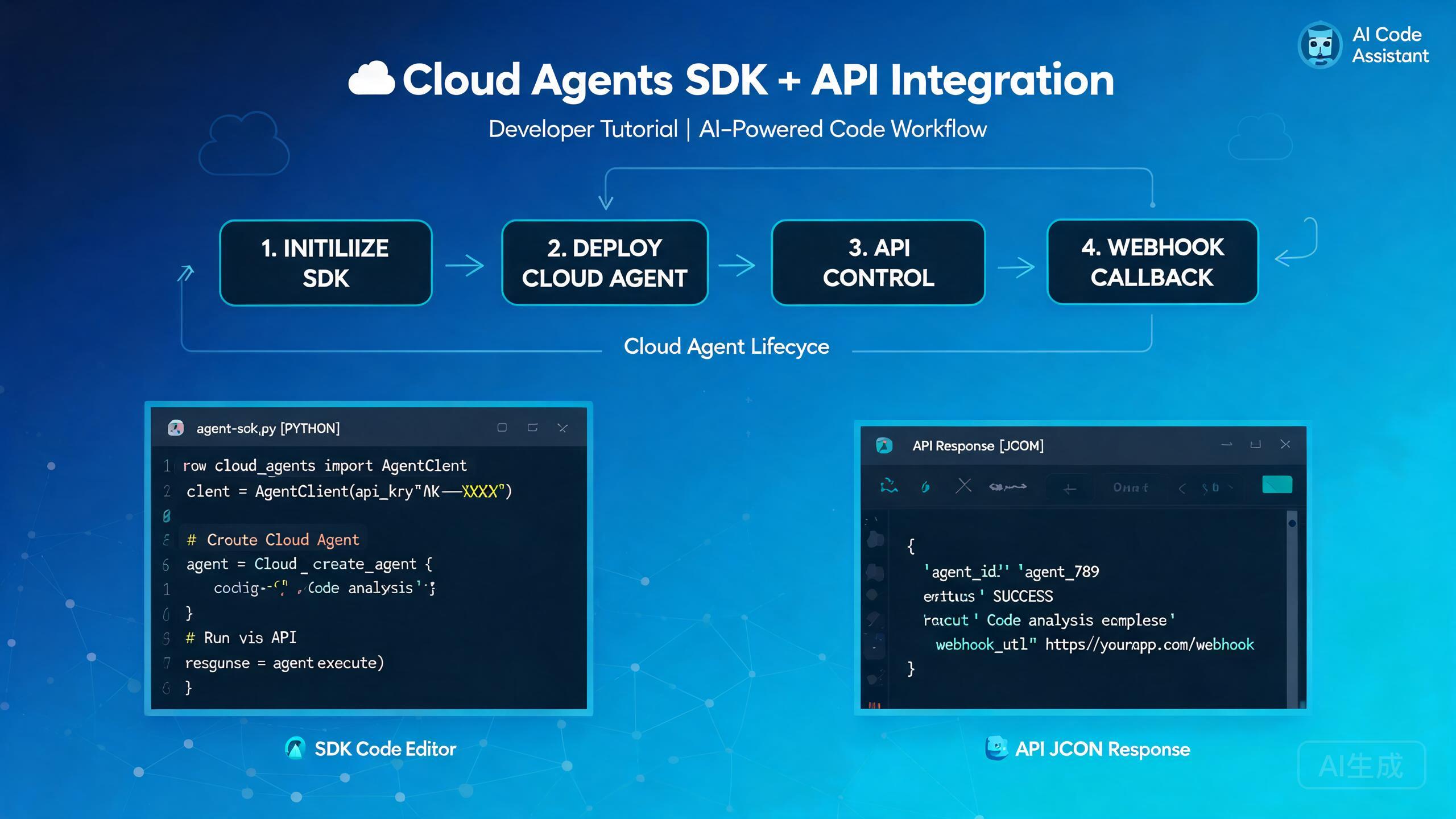
Cursor Cloud Agents API と SDK を使用すると、クラウドベースのコーディングエージェントをプログラムで制御できます。エディタから手動でエージェントを起動して監視する代わりに、起動、実行中のステアリング、画面出力のキャプチャ、タスク完了時の Webhook コールバックの受信が可能です。本ガイドでは、認証、ライフサイクル管理、SDK 統合パターン、実際の開発者体験から得たトラブルシューティングのヒントを解説します。
前提条件とセットアップ
Cloud Agents API を統合する前に、以下の条件を満たしていることを確認してください:
- Cloud Agents アクセスが有効な Cursor アカウント
- Cursor 設定ダッシュボードから生成された API キー
- Node.js 18 以上(TypeScript/JavaScript SDK 用)
- 非同期プログラミングパターンの基本的な理解
API キーはコードにハードコードせず、環境変数に格納してください。開発時は .env ファイルを、本番環境ではシークレットマネージャーを使用してください。
SDK のインストール
公開レジストリから Cursor Cloud Agents SDK をインストールします:
npm install @cursor/cloud-agents-sdk
# or
yarn add @cursor/cloud-agents-sdk
# or
pnpm add @cursor/cloud-agents-sdk
パッケージバージョンを確認してインストールを検証します:
npx @cursor/cloud-agents-sdk --version
API 認証
Cloud Agents API へのすべてのリクエストには Bearer トークンが必要です。SDK はクライアントの初期化時にこれを自動的に処理します:
import { CursorCloudClient } from "@cursor/cloud-agents-sdk";

const client = new CursorCloudClient({
  apiKey: process.env.CURSOR_API_KEY,
  // オプション:デフォルトの API エンドポイントを上書き
  endpoint: "https://api.cursor.sh/v1",
  // オプション:すべての操作のデフォルトタイムアウトを設定
  timeout: 300000, // 5 分
});
SDK ではなく生の HTTP コールを使用する場合は、ヘッダーを手動で含めます:
import os
import requests

headers = {
    "Authorization": f"Bearer {os.environ['CURSOR_API_KEY']}",
    "Content-Type": "application/json",
}

response = requests.post(
    "https://api.cursor.sh/v1/agents",
    headers=headers,
    json={
        "repo": "https://github.com/my-org/my-repo",
        "branch": "feature/auth-refactor",
        "task": "Refactor the authentication module to use JWT",
    },
)
print(response.json())
API キーをバージョン管理にコミットしないでください。キーが漏洩した場合は、Cursor ダッシュボードから即座に取り消し、新しいキーを生成してください。定期的にキーをローテーションしてください。
クラウドエージェントのライフサイクル
クラウドエージェントは明確に定義されたライフサイクルを経て進行します。各状態を理解することで、堅牢な自動化パイプラインを構築できます。
ライフサイクル状態
| 状態 | 説明 |
|---|---|
queued | エージェントが作成され、クラウドスロットを待機中 |
running | エージェントがアクティブにタスクを実行中 |
paused | 実行中ステアリングまたは手動介入によりエージェントが一時停止 |
completed | エージェントがタスクを正常に完了 |
failed | エージェントが回復不能なエラーに遭遇 |
cancelled | ユーザーまたはタイムアウトによりエージェントがキャンセル |
新しいエージェントの作成
const agent = await client.agents.create({
  repo: "https://github.com/my-org/my-repo",
  branch: "feature/payment-gateway",
  task: "Integrate Stripe payment gateway with proper error handling",
  // オプション設定
  model: "cursor-agent-pro",
  maxSteps: 50,
  autoMerge: false,
  environment: {
    STRIPE_SECRET_KEY: process.env.STRIPE_SECRET_KEY,
  },
});

console.log(`Agent created with ID: ${agent.id}`);
console.log(`Initial status: ${agent.status}`);
エージェントステータスの監視
エージェントステータスをポーリングするか、リアルタイム更新にサブスクライブできます:
// ポーリングアプローチ
async function waitForCompletion(agentId: string) {
  while (true) {
    const status = await client.agents.get(agentId);
    console.log(`[${new Date().toISOString()}] Status: ${status.state}`);

    if (status.state === "completed") {
      return status;
    }
    if (status.state === "failed" || status.state === "cancelled") {
      throw new Error(`Agent ended in state: ${status.state}`);
    }

    await new Promise((resolve) => setTimeout(resolve, 10000)); // 10 秒ポーリング
  }
}

// ストリーミングアプローチ(推奨)
const stream = await client.agents.stream(agent.id, (event) => {
  console.log(`Event: ${event.type}`, event.data);
});

stream.on("step", (data) => {
  console.log(`Agent step: ${data.description}`);
});

stream.on("file_change", (data) => {
  console.log(`File modified: ${data.path}`);
});

stream.on("error", (data) => {
  console.error(`Agent error: ${data.message}`);
});
ポーリングよりもストリーミングアプローチを優先してください。API 呼び出しを減らし、より低遅延の更新を提供し、長時間実行されるタスク中のレート制限問題を回避できます。
実行中ステアリング
Cloud Agents API の最も強力な機能の1つは、エージェントがアクティブに実行されている間にステアリングできることです。これにより、やり直すことなく、方向の修正、コンテキストの追加、方向転換が可能になります。
ステアリングメッセージの送信
const steerResult = await client.agents.steer(agent.id, {
  message: "Stop using the mock data approach. Please connect to the real database using the connection string in the .env file.",
  // オプション:ファイル参照を添付
  attachments: ["src/config/database.ts"],
  // オプション:実行中にモデルを変更
  model: "cursor-agent-pro",
});

console.log(`Steer accepted: ${steerResult.accepted}`);
console.log(`Agent now running with updated context`);
一般的なステアリングシナリオ
実行中ステアリングは以下の状況で有用です:
- 間違ったアプローチの修正:エージェントがモックテストを書き始めたが、統合テストが必要な場合
- 不足コンテキストの追加:エージェントが先週作成した共有ユーティリティモジュールを知らない場合
- スコープの変更:エージェントが書いたコードのドキュメントも追加したい場合
- 制約の強制:エージェントが意図したスコープ外のファイルを変更しようとしている場合
// 例:ドキュメントスコープの追加をステアリング
await client.agents.steer(agent.id, {
  message: "Great progress on the API endpoints. Now also add JSDoc comments to every exported function and update the README with the new endpoint list.",
});

// 例:セキュリティ境界の強制をステアリング
await client.agents.steer(agent.id, {
  message: "Do not modify any files in the src/legacy/ directory. Those are deprecated modules scheduled for removal.",
});
ステアリングメッセージは非同期で処理されます。ステアリングの送信からエージェントが反映するまでの間に短いウィンドウがあります。矛盾するステアリングメッセージを短時間に連続して送信しないでください。エージェントが混乱し、一貫性のない動作を引き起こす可能性があります。
エージェントの一時停止と再開
// 実行中のエージェントを一時停止
await client.agents.pause(agent.id);
console.log("Agent paused");

// 現在の状態を確認
const state = await client.agents.get(agent.id);
console.log("Files changed so far:", state.filesChanged);

// 準備ができたら再開
await client.agents.resume(agent.id);
console.log("Agent resumed");
RecordScreen API
RecordScreen API は、特定の瞬間にクラウドエージェントの画面の視覚的スナップショットをキャプチャします。これはデバッグ、監査、視覚的ダッシュボードの構築に非常に役立ちます。
スクリーンショットのキャプチャ
// 単一のスクリーンショットをキャプチャ
const screenshot = await client.agents.recordScreen(agent.id, {
  format: "png",
  // オプション:特定の領域のみキャプチャ
  region: { x: 0, y: 0, width: 1920, height: 1080 },
  // オプション:カーソル位置のオーバーレイを含める
  showCursor: true,
});

// スクリーンショットは base64 文字列として返される
const fs = require("fs");
fs.writeFileSync(`agent-${agent.id}-screenshot.png`, Buffer.from(screenshot.data, "base64"));
console.log(`Screenshot saved. Size: ${screenshot.width}x${screenshot.height}`);
動画クリップの録画
// 画面録画を開始
const recording = await client.agents.recordScreen(agent.id, {
  mode: "video",
  duration: 30000, // 30 秒
  fps: 15,
  format: "webm",
});

// 録画はダウンロード可能な URL を返す
console.log(`Recording available at: ${recording.url}`);
console.log(`Recording expires at: ${recording.expiresAt}`);
RecordScreen のトラブルシューティング
RecordScreen の呼び出しはいくつかの理由で失敗する可能性があります。以下は最も一般的な問題とその解決策です:
エージェントが running 状態でない場合、RecordScreen は 409 Conflict エラーを返します。画面をキャプチャする前に、エージェントがアクティブに実行されていることを確認してください。エージェントが一時停止または完了している場合、画面を録画することはできません。
// エラーハンドリング付きの安全な RecordScreen ラッパー
async function safeRecordScreen(agentId: string, options: any) {
  const agent = await client.agents.get(agentId);

  if (agent.state !== "running") {
    console.warn(`Cannot record screen: agent is in ${agent.state} state`);
    return null;
  }

  try {
    return await client.agents.recordScreen(agentId, options);
  } catch (error: any) {
    if (error.code === "SCREEN_CAPTURE_UNAVAILABLE") {
      console.error("Screen capture is not available for this agent configuration.");
      console.error("Make sure the agent was launched with screen capture enabled.");
    } else if (error.code === "RATE_LIMITED") {
      console.error("Too many screen capture requests. Please wait before retrying.");
      console.log(`Retry after: ${error.retryAfter} seconds`);
    } else {
      throw error;
    }
    return null;
  }
}
エージェントの作成時に画面キャプチャを有効にするには、screenCapture オプションを設定します:
const agent = await client.agents.create({
  repo: "https://github.com/my-org/my-repo",
  branch: "main",
  task: "Fix the flaky integration tests",
  screenCapture: {
    enabled: true,
    autoCapture: true, // 各ステップで自動キャプチャ
    captureInterval: 5000, // 5 秒ごとにキャプチャ
  },
});
autoCapture を有効にすると、エージェントの作業の視覚的タイムラインが生成されます。デバッグやコンプライアンスレビューのために、後でセッション全体を再生できます。ただし、ストレージ使用量が増加し、エージェントのパフォーマンスにわずかに影響する可能性があることに注意してください。
Webhook コールバック
Webhook を使用すると、エージェントイベントが発生した際にリアルタイム通知を受信できます。これは自動化された CI/CD パイプラインと監視ダッシュボードの構築に不可欠です。
Webhook の登録
const webhook = await client.webhooks.create({
  url: "https://my-app.com/api/cursor-webhook",
  events: [
    "agent.created",
    "agent.step_completed",
    "agent.completed",
    "agent.failed",
    "agent.steer_received",
  ],
  // オプション:署名検証用のシークレットを追加
  secret: process.env.WEBHOOK_SECRET,
});

console.log(`Webhook registered with ID: ${webhook.id}`);
Webhook ペイロードの処理
以下は Webhook コールバックを受信して検証する Express エンドポイントの例です:
const express = require("express");
const crypto = require("crypto");
const app = express();
app.use(express.raw({ type: "application/json" }));

app.post("/api/cursor-webhook", (req, res) => {
  // Webhook 署名を検証
  const signature = req.headers["x-cursor-signature"];
  const expectedSignature = crypto
    .createHmac("sha256", process.env.WEBHOOK_SECRET)
    .update(req.body)
    .digest("hex");

  if (signature !== expectedSignature) {
    return res.status(401).send("Invalid signature");
  }

  const event = JSON.parse(req.body.toString());

  switch (event.type) {
    case "agent.created":
      console.log(`Agent ${event.data.agentId} created for repo ${event.data.repo}`);
      break;

    case "agent.step_completed":
      console.log(`Agent ${event.data.agentId} completed step ${event.data.stepNumber}`);
      console.log(`  Files changed: ${event.data.filesChanged.join(", ")}`);
      break;

    case "agent.completed":
      console.log(`Agent ${event.data.agentId} completed successfully`);
      console.log(`  Pull request: ${event.data.pullRequestUrl}`);
      // 下流の CI パイプラインをトリガー
      triggerCIPipeline(event.data.agentId);
      break;

    case "agent.failed":
      console.error(`Agent ${event.data.agentId} failed: ${event.data.error}`);
      // チームチャンネルにアラートを送信
      sendAlert(event.data);
      break;
  }

  // 常に 200 で応答して受信を確認
  res.status(200).send("OK");
});

app.listen(3000, () => {
  console.log("Webhook server listening on port 3000");
});
常に Webhook 署名を検証してください。署名検証がない場合、攻撃者が偽造された Webhook ペイロードをエンドポイントに送信する可能性があります。x-cursor-signature ヘッダーには、Webhook シークレットで署名された生のリクエストボディの HMAC-SHA256 ハッシュが含まれています。
Webhook 再試行動作
エンドポイントが 10 秒以内に 200 ステータスで応答しない場合、API は配信を再試行します。再試行スケジュールは以下の通りです:
| 試行回数 | 遅延 |
|---|---|
| 第 1 回再試行 | 1 分 |
| 第 2 回再試行 | 5 分 |
| 第 3 回再試行 | 30 分 |
| 第 4 回再試行 | 2 時間 |
| 最終 | 12 時間 |
最終試行の後、Webhook 配信は失敗とマークされ、API 経由でエージェントステータスを手動で確認する必要があります。
Webhook 処理が長時間実行される操作を伴う場合は、直ちに 200 で応答し、作業をバックグラウンドキューにプッシュしてください。これによりタイムアウトを回避し、信頼性の高い Webhook 配信を確保できます。
SDK 統合パターン
パターン 1:CI/CD パイプライン統合
Pull Request が開かれたときにクラウドエージェントを自動的に生成します:
import { CursorCloudClient } from "@cursor/cloud-agents-sdk";

const client = new CursorCloudClient({
  apiKey: process.env.CURSOR_API_KEY,
});

export async function onPullRequestOpened(pr: any) {
  const agent = await client.agents.create({
    repo: pr.repositoryUrl,
    branch: pr.headBranch,
    task: `Review and improve this pull request. Focus on: ${pr.description}`,
    autoMerge: false,
    screenCapture: { enabled: true },
  });

  // PR にエージェントリンクをコメント
  await pr.addComment(
    `A Cursor Cloud Agent is now reviewing this PR. ` +
    `Track progress: https://cursor.sh/agents/${agent.id}`
  );

  return agent;
}
パターン 2:マルチエージェントオーケストレーション
異なるタスクで複数のエージェントを並行実行します:
async function runParallelAgents(repo: string) {
  const tasks = [
    "Write unit tests for the authentication module",
    "Write unit tests for the payment module",
    "Write integration tests for the API endpoints",
    "Update API documentation with OpenAPI specs",
  ];

  const agents = await Promise.all(
    tasks.map((task) =>
      client.agents.create({
        repo,
        branch: "main",
        task,
        model: "cursor-agent-pro",
      })
    )
  );

  console.log(`Launched ${agents.length} agents in parallel`);

  // すべてのエージェントの完了を待機
  const results = await Promise.allSettled(
    agents.map((agent) => waitForCompletion(agent.id))
  );

  // 結果の集計
  results.forEach((result, index) => {
    if (result.status === "fulfilled") {
      console.log(`Task ${index + 1}: Completed - ${result.value.filesChanged.length} files changed`);
    } else {
      console.error(`Task ${index + 1}: Failed - ${result.reason.message}`);
    }
  });
}
複数のエージェントを並行実行すると、クラウドリソースを急速に消費します。使用量を監視し、コストを制御するために各エージェントに合理的な maxSteps 制限を設定してください。大規模なバッチを起動する前に、プランの同時エージェント制限を確認してください。
パターン 3:ヒューマンインザループレビュー
Webhook と実行中ステアリングを組み合わせて、ヒューマンレビューチェックポイントを作成します:
// エージェントが特定のステップに到達したら、ヒューマンレビューのために一時停止
const stream = await client.agents.stream(agent.id, async (event) => {
  if (event.type === "step" && event.data.stepNumber === 10) {
    // ヒューマンレビューのためにエージェントを一時停止
    await client.agents.pause(agent.id);

    // レビューチャンネルに通知を送信
    await sendSlackNotification({
      channel: "#code-review",
      text: `Agent ${agent.id} has paused for review. Check the changes before resuming.`,
    });

    // ヒューマンレビューアーが手動でエージェントを再開またはステアリング
  }
});
パターン 4:自動エラー復旧
async function runWithRetry(repo: string, task: string, maxRetries = 3) {
  for (let attempt = 1; attempt <= maxRetries; attempt++) {
    const agent = await client.agents.create({
      repo,
      branch: "main",
      task,
      maxSteps: 30,
    });

    try {
      const result = await waitForCompletion(agent.id);

      if (result.state === "completed") {
        return result;
      }
    } catch (error) {
      console.error(`Attempt ${attempt} failed: ${error.message}`);

      if (attempt < maxRetries) {
        // エラーコンテキストで次の試行をステアリング
        task = `${task}\n\nPrevious attempt failed with: ${error.message}. Please avoid this approach.`;
      }
    }
  }

  throw new Error(`Agent failed after ${maxRetries} attempts`);
}
一般的な問題のトラブルシューティング
エージェントがキュー状態でスタック
エージェントが長期間 queued 状態のままの場合、通常はすべてのクラウドスロットが占有されていることを意味します。
// アカウントの現在の使用量を確認
const usage = await client.usage.get();
console.log(`Active agents: ${usage.activeAgents}/${usage.maxConcurrentAgents}`);
console.log(`Queue length: ${usage.queueLength}`);

if (usage.activeAgents >= usage.maxConcurrentAgents) {
  console.log("All slots are in use. Consider upgrading your plan or waiting for agents to complete.");
}
SDK 認証エラー
401 Unauthorized エラーが発生した場合は、以下を確認してください:
- API キーが有効であり、取り消されていない
- キーに
cloud-agentsスコープが有効になっている - 正しいエンドポイント URL を使用している
- 環境変数が正しく読み込まれている
// 認証のデバッグ
const client = new CursorCloudClient({
  apiKey: process.env.CURSOR_API_KEY,
});

try {
  const me = await client.auth.verify();
  console.log("Authentication successful");
  console.log(`Account: ${me.accountName}`);
  console.log(`Plan: ${me.plan}`);
  console.log(`Scopes: ${me.scopes.join(", ")}`);
} catch (error) {
  console.error("Authentication failed:", error.message);
  console.log("Check your API key and ensure it has the 'cloud-agents' scope.");
}
Webhook 配信の失敗
Webhook がエンドポイントに到達しない場合:
- Webhook URL が公開アクセス可能であることを確認(localhost ではない)
- サーバーが 10 秒以内に 200 を返すことを確認
- SSL 証明書が有効であることを確認
- ファイアウォールが Cursor の IP 範囲からのインバウンド接続を許可していることを確認
// Webhook エンドポイントの到達性をテスト
const test = await client.webhooks.test(webhook.id);
console.log(`Test result: ${test.status}`);
console.log(`Response time: ${test.responseTime}ms`);
if (test.error) {
  console.error(`Error: ${test.error}`);
}
開発中は webhook.site や ngrok などのサービスを使用して、完全なサーバーをデプロイせずに Webhook 配信をすばやくテストできます。これは問題がエンドポイントにあるか Webhook 設定にあるかを切り分けるのに役立ちます。
ベストプラクティスのまとめ
Cursor Cloud Agents API と SDK を使用して構築する際のベストプラクティスのチェックリストは以下の通りです:
- API キーは常に環境変数またはシークレットマネージャーに格納する
- リアルタイム更新にはポーリングではなくストリーミングを使用する
- すべてのエンドポイントで Webhook 署名検証を実装する
- コストを制御し、エージェントの暴走を防ぐために合理的な
maxSteps制限を設定する - エージェントを再起動するのではなく、実行中ステアリングで方向を修正する
- デバッグと監査トレイルのために重要なタスクで画面キャプチャを有効にする
- 失敗した API 呼び出しの再試行時に指数バックオフを実装する
- キュー枯渇を避けるために同時エージェント使用量を監視する
- 本番移行前に組み込みのテストエンドポイントで Webhook エンドポイントをテストする
- 事後分析とコンプライアンスのためにすべてのエージェントイベントをログに記録する
レート制限に注意してください。API はデフォルトで分間 100 リクエストの制限を適用します。この制限を超えると、429 Too Many Requests レスポンスを受け取ります。ジッター付きの指数バックオフを実装して、レート制限の再試行を適切に処理してください。
まとめ
Cursor Cloud Agents API と SDK は、コーディングタスクを大規模に自動化するための強力なプログラマティックインターフェースを提供します。エージェントライフサイクル管理、実行中ステアリング、RecordScreen API、Webhook コールバックを組み合わせることで、既存の開発ワークフローとシームレスに統合される洗練された自動化パイプラインを構築できます。
まずはシンプルな単一エージェントのセットアップから始め、自信がついたら Webhook 統合、並行オーケストレーション、ヒューマンインザループレビューチェックポイントを徐々に追加してください。SDK の TypeScript ファースト設計により、モダンな Node.js アプリケーションへの統合が容易であり、生の HTTP API は任意のプログラミング言語をサポートします。