Cursor での AWS デプロイ:完全ガイド
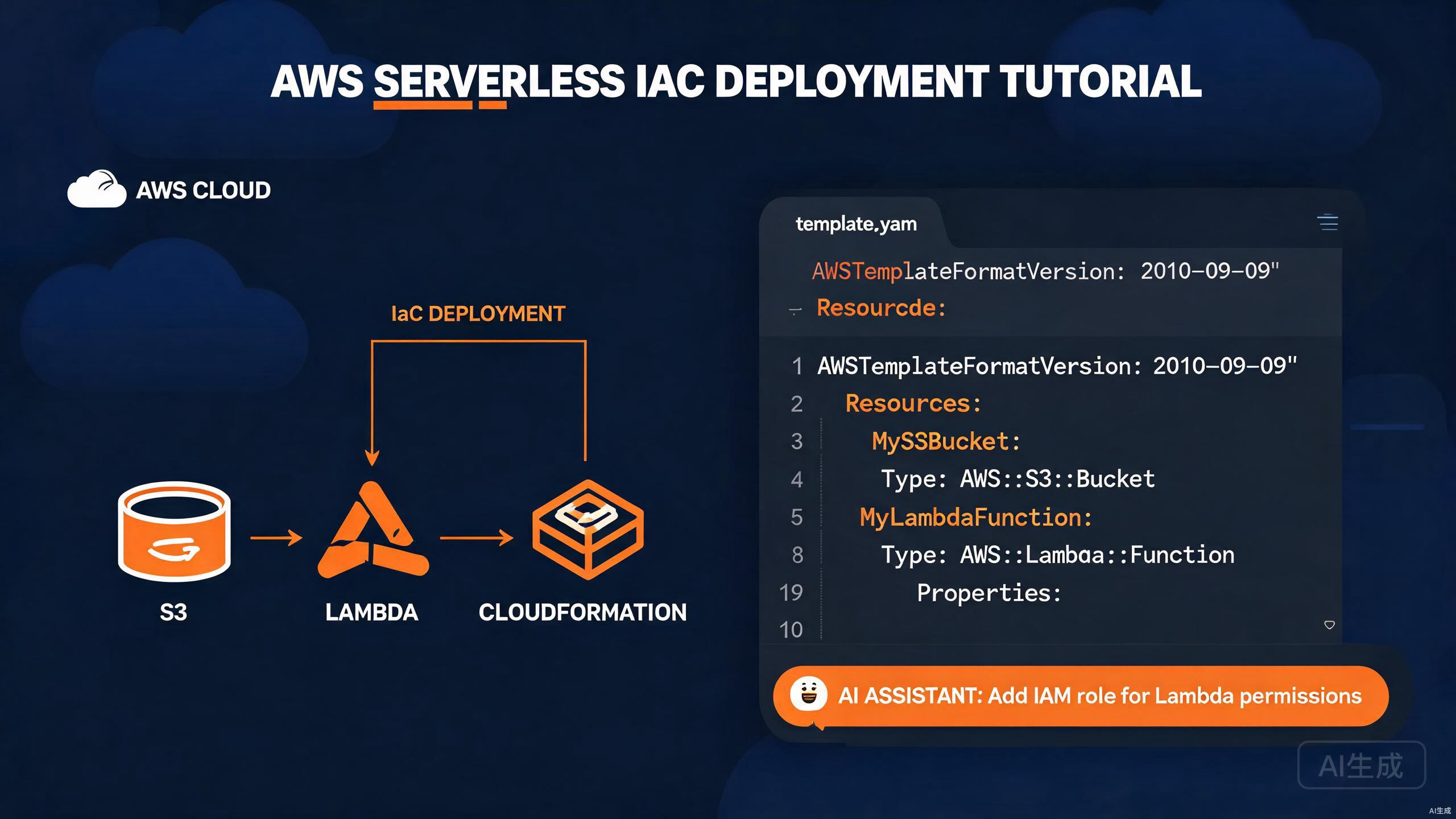
Amazon Web Services(AWS)は最も広く採用されているクラウドプラットフォームであり、コンピューティング、ストレージ、データベース、数十の高度なマネージドサービスを提供しています。AWS へのアプリケーションデプロイには、インフラストラクチャコードの記述、関数のパッケージング、ストレージの管理、リリースワークフローの調整が含まれます。Cursor は、AI アシスタントと豊富な拡張機能エコシステムにより、AWS 開発の強力な環境です。自然言語プロンプトから Lambda ハンドラー、CloudFormation テンプレート、デプロイスクリプトを生成できます。
このガイドでは、Cursor での完全な AWS デプロイワークフローを説明します:AWS SDK の統合、Lambda 関数のビルドとデプロイ、S3 を使ったストレージ、CloudFormation による Infrastructure as Code、そして AI を使った各ステップの加速。
Cursor での AWS ツールチェーンのセットアップ
AWS Toolkit 拡張機能のインストール
AWS Toolkit 拡張機能は、AWS リソースの参照、Lambda のローカル実行、CloudWatch Logs の表示、SAM(Serverless Application Model)サポートを Cursor に直接提供します。
- 拡張機能ビューを開く(
Ctrl+Shift+X)。 - 「AWS Toolkit」を検索。
- Install をクリック。
インストール後、アクティビティバーに AWS アイコンが表示されます。この拡張機能は以下を提供します:
- Lambda、S3、CloudFormation、DynamoDB のリソースブラウザ。
- SAM CLI を使ったローカル Lambda 呼び出し。
- Step Functions ビジュアライザー。
- CloudWatch Logs のストリーミング。
- CDK および SAM プロジェクトのスキャフォールディング。
AWS Toolkit は、マシンに AWS 認証情報が設定されている必要があります。Cursor は AWS CLI と同じ認証情報ファイル(~/.aws/credentials)を読み取るため、既存のプロファイルはすぐに使用できます。
AWS 認証情報の設定
AWS CLI を使って認証情報プロファイルを作成します:
npm install -g aws-cli
aws configure
対話式プロンプトで以下を入力します:
AWS Access Key ID [None]: AKIAIOSFODNN7EXAMPLE
AWS Secret Access Key [None]: wJalrXUtnFEMI/K7MDENG/bPxRfiCYEXAMPLEKEY
Default region name [None]: us-east-1
Default output format [None]: json
マルチアカウント設定の場合、名前付きプロファイルを作成します:
# ~/.aws/credentials
[default]
aws_access_key_id = AKIAIOSFODNN7EXAMPLE
aws_secret_access_key = wJalrXUtnFEMI/K7MDENG/bPxRfiCYEXAMPLEKEY

[production]
aws_access_key_id = AKIAPRODUCTIONKEY
aws_secret_access_key = productionsecretkeyexample
# ~/.aws/config
[profile production]
region = us-west-2
output = json
AWS 認証情報をバージョン管理にコミットしないでください。.aws/ を .gitignore に追加し、長期間有効なアクセスキーより IAM ロールまたは短期 STS トークンを優先してください。本番環境では、aws-vault を使って MFA 付きの認証情報を管理します。
AWS SAM CLI のインストール
Serverless Application Model(SAM)CLI を使うと、Lambda ベースのアプリケーションをビルド、ローカルテスト、デプロイできます:
# Windows(winget を使用)
winget install AWS.SAM-CLI

# macOS(Homebrew を使用)
brew install aws-sam-cli

# 確認
sam --version
AWS SDK の統合
JavaScript 用 SDK のインストール
Node.js アプリケーションの場合、モジュラー式の AWS SDK v3 をインストールします:
npm install @aws-sdk/client-s3 @aws-sdk/client-lambda @aws-sdk/client-dynamodb
AWS SDK v3 はモジュラー式です。必要なクライアントのみをインストールするため、モノリシックな v2 SDK に比べてバンドルサイズが大幅に削減されます。各サービスは @aws-sdk/client-* 配下の個別パッケージです。
SDK クライアントの設定
// lib/aws/clients.ts
import { S3Client } from '@aws-sdk/client-s3';
import { LambdaClient } from '@aws-sdk/client-lambda';
import { DynamoDBClient } from '@aws-sdk/client-dynamodb';

const region = process.env.AWS_REGION ?? 'us-east-1';

export const s3Client = new S3Client({ region });
export const lambdaClient = new LambdaClient({ region });
export const dynamoClient = new DynamoDBClient({ region });
環境固有の認証情報(CI で便利)の場合:
import { fromIni } from '@aws-sdk/credential-providers';

export const s3Client = new S3Client({
  region,
  credentials: fromIni({ profile: 'production' }),
});
Lambda 関数のビルドとデプロイ
Lambda ハンドラーのスキャフォールディング
Cursor の AI を使って Lambda ハンドラーをスキャフォールディングします。Ctrl+K を開いてプロンプトを入力:
Create an AWS Lambda handler in TypeScript using the @types/aws-lambda
package. It should accept an API Gateway proxy event, validate the JSON body
against a Zod schema, and return a 200 response with the processed result.
Include structured logging and error handling.
生成されたハンドラー:
// src/handlers/createUser.ts
import { APIGatewayProxyEvent, APIGatewayProxyResult } from 'aws-lambda';
import { z } from 'zod';

const userSchema = z.object({
  name: z.string().min(1),
  email: z.string().email(),
  age: z.number().int().min(0).optional(),
});

export const handler = async (
  event: APIGatewayProxyEvent
): Promise<APIGatewayProxyResult> => {
  console.log('Received event:', JSON.stringify(event, null, 2));

  try {
    const body = JSON.parse(event.body ?? '{}');
    const parsed = userSchema.parse(body);

    const user = {
      id: crypto.randomUUID(),
      ...parsed,
      createdAt: new Date().toISOString(),
    };

    return {
      statusCode: 201,
      headers: { 'Content-Type': 'application/json' },
      body: JSON.stringify(user),
    };
  } catch (error) {
    console.error('Error processing request:', error);

    if (error instanceof z.ZodError) {
      return {
        statusCode: 400,
        body: JSON.stringify({ message: 'Validation failed', errors: error.errors }),
      };
    }

    return {
      statusCode: 500,
      body: JSON.stringify({ message: 'Internal server error' }),
    };
  }
};
SAM でのローカルテスト
SAM 用に template.yaml を作成します:
AWSTemplateFormatVersion: '2010-09-09'
Transform: AWS::Serverless-2016-10-31
Description: User service Lambda

Resources:
  CreateUserFunction:
    Type: AWS::Serverless::Function
    Properties:
      CodeUri: dist/handlers
      Handler: createUser.handler
      Runtime: nodejs20.x
      MemorySize: 256
      Timeout: 30
      Events:
        CreateUser:
          Type: Api
          Properties:
            Path: /users
            Method: POST
      Environment:
        Variables:
          TABLE_NAME: !Ref UsersTable

  UsersTable:
    Type: AWS::DynamoDB::Table
    Properties:
      TableName: users
      BillingMode: PAY_PER_REQUEST
      AttributeDefinitions:
        - AttributeName: id
          AttributeType: S
      KeySchema:
        - AttributeName: id
          KeyType: HASH

Outputs:
  ApiUrl:
    Value: !Sub 'https://${ServerlessRestApi}.execute-api.${AWS::Region}.amazonaws.com/Prod/users'
サンプルイベントで関数をローカル呼び出しします:
sam build
sam local invoke CreateUserFunction --event events/createUser.json
サンプルイベントファイル例:
{
"httpMethod": "POST",
"headers": { "Content-Type": "application/json" }
}
Cursor の AWS Toolkit 拡張機能は Lambda 関数に「Run Locally」コマンドを追加します。AWS Explorer パネルで関数を右クリックし、Invoke on AWS または Run Locally を選択して、エディターを離れることなくテストできます。
SAM でのデプロイ
# 初回デプロイ(ガイド付き)
sam deploy --guided

# 以降のデプロイ
sam deploy --stack-name user-service --capabilities CAPABILITY_IAM
ガイド付きプロンプトで以下を入力します:
Stack Name [sam-app]: user-service
AWS Region [us-east-1]: us-east-1
Confirm changes before deploy [Y/n]: Y
Allow SAM CLI IAM role creation [Y/n]: Y
Disable rollback [Y/n]: n
Save arguments to configuration file [Y/n]: Y
SAM デプロイは IAM ロールを自動的に作成します。確認前に変更セットサマリーを慎重にレビューしてください。設定ミスのロールは過度に広い権限を付与し、本番環境で最小権限の原則に違反する可能性があります。
S3 を使ったストレージ
S3 へのファイルアップロード
// src/storage/upload.ts
import { s3Client } from '../aws/clients';
import { PutObjectCommand, GetObjectCommand } from '@aws-sdk/client-s3';
import { getSignedUrl } from '@aws-sdk/s3-request-presigner';

const BUCKET = process.env.UPLOAD_BUCKET ?? 'my-app-uploads';

export async function uploadFile(
  key: string,
  body: Buffer,
  contentType: string
): Promise<string> {
  const command = new PutObjectCommand({
    Bucket: BUCKET,
    Key: key,
    Body: body,
    ContentType: contentType,
  });

  await s3Client.send(command);
  return `s3://${BUCKET}/${key}`;
}

export async function getDownloadUrl(key: string, expiresIn = 3600): Promise<string> {
  const command = new GetObjectCommand({ Bucket: BUCKET, Key: key });
  return getSignedUrl(s3Client, command, { expiresIn });
}
大きなファイルのストリーミング
大きなアップロードにはマルチパートアップロードを使用します:
// src/storage/multipart.ts
import { s3Client } from '../aws/clients';
import {
  CreateMultipartUploadCommand,
  UploadPartCommand,
  CompleteMultipartUploadCommand,
} from '@aws-sdk/client-s3';
import { createReadStream } from 'fs';

const BUCKET = process.env.UPLOAD_BUCKET ?? 'my-app-uploads';

export async function uploadLargeFile(key: string, filePath: string): Promise<void> {
  const create = await s3Client.send(
    new CreateMultipartUploadCommand({ Bucket: BUCKET, Key: key })
  );
  const uploadId = create.UploadId!;

  const partSize = 5 * 1024 * 1024; // 5 MB minimum
  const stream = createReadStream(filePath, { highWaterMark: partSize });
  const parts: { ETag: string; PartNumber: number }[] = [];
  let partNumber = 1;

  for await (const chunk of stream) {
    const upload = await s3Client.send(
      new UploadPartCommand({
        Bucket: BUCKET,
        Key: key,
        UploadId: uploadId,
        PartNumber: partNumber,
        Body: chunk,
      })
    );
    parts.push({ ETag: upload.ETag!, PartNumber: partNumber });
    partNumber++;
  }

  await s3Client.send(
    new CompleteMultipartUploadCommand({
      Bucket: BUCKET,
      Key: key,
      UploadId: uploadId,
      MultipartUpload: { Parts: parts },
    })
  );
}
Cursor の AI を使って署名付き URL フローを生成します。プロンプト:「S3 アップロード用の署名付き URL を生成し、ファイル拡張子を検証し、メタデータを DynamoDB に保存する Lambda 関数を作成してください。」
CloudFormation による Infrastructure as Code
CloudFormation テンプレートの記述
CloudFormation を使うと、インフラストラクチャ全体を宣言型の YAML または JSON で定義できます。Cursor の AI は説明からテンプレートを生成するのに優れています。
Web アプリケーションスタックのテンプレート例:
# templates/webapp.yaml
AWSTemplateFormatVersion: '2010-09-09'
Description: Production web application stack

Parameters:
  Environment:
    Type: String
    Default: production
    AllowedValues: [staging, production]

  DomainName:
    Type: String
    Description: Custom domain name

Resources:
  ApplicationBucket:
    Type: AWS::S3::Bucket
    Properties:
      BucketName: !Sub '${AWS::StackName}-app-${Environment}'
      VersioningConfiguration:
        Status: Enabled
      LifecycleConfiguration:
        Rules:
          - Id: ExpireOldVersions
            Status: Enabled
            NoncurrentVersionExpirationInDays: 90
      PublicAccessBlockConfiguration:
        BlockPublicAcls: true
        BlockPublicPolicy: true
        IgnorePublicAcls: true
        RestrictPublicBuckets: true

  CloudFrontDistribution:
    Type: AWS::CloudFront::Distribution
    Properties:
      DistributionConfig:
        Enabled: true
        DefaultRootObject: index.html
        Origins:
          - DomainName: !GetAtt ApplicationBucket.RegionalDomainName
            Id: S3Origin
            S3OriginConfig: {}
        DefaultCacheBehavior:
          TargetOriginId: S3Origin
          ViewerProtocolPolicy: redirect-to-https
          AllowedMethods: [GET, HEAD]
          CachedMethods: [GET, HEAD]
          ForwardedValues:
            QueryString: false
        PriceClass: PriceClass_100
        ViewerCertificate:
          CloudFrontDefaultCertificate: true

  ApiGateway:
    Type: AWS::ApiGateway::RestApi
    Properties:
      Name: !Sub '${AWS::StackName}-api'
      EndpointConfiguration:
        Types: [REGIONAL]

Outputs:
  WebsiteUrl:
    Value: !Sub 'https://${CloudFrontDistribution.DomainName}'
    Description: URL of the deployed website
CloudFormation スタックのデプロイ
# テンプレートの検証
aws cloudformation validate-template --template-body file://templates/webapp.yaml

# スタックの作成
aws cloudformation create-stack \
  --stack-name webapp-production \
  --template-body file://templates/webapp.yaml \
  --parameters ParameterKey=Environment,ParameterValue=production \
               ParameterKey=DomainName,ParameterValue=app.example.com \
  --capabilities CAPABILITY_NAMED_IAM

# デプロイの監視
aws cloudformation describe-stacks --stack-name webapp-production

# スタックの更新
aws cloudformation update-stack \
  --stack-name webapp-production \
  --template-body file://templates/webapp.yaml \
  --parameters ParameterKey=Environment,ParameterValue=production \
               ParameterKey=DomainName,ParameterValue=app.example.com \
  --capabilities CAPABILITY_NAMED_IAM
CloudFormation の更新はリソースを置き換える可能性があります。UpdateReplacePolicy: Retain を持つリソースは置き換え後も存続しますが、それを持たないリソースはスタック削除時に削除されます。適用前に常に変更セットをレビューしてください:
aws cloudformation create-change-set --stack-name webapp-production --change-set-name my-change --template-body file://templates/webapp.yaml
aws cloudformation describe-change-set --stack-name webapp-production --change-set-name my-change
代替としての CDK の使用
AWS Cloud Development Kit(CDK)を使うと、TypeScript でインフラストラクチャを記述できます。Cursor の AI は CDK コンストラクトを自然に生成します。
// lib/webapp-stack.ts
import * as cdk from 'aws-cdk-lib';
import * as s3 from 'aws-cdk-lib/aws-s3';
import * as cloudfront from 'aws-cdk-lib/aws-cloudfront';
import * as lambda from 'aws-cdk-lib/aws-lambda';
import * as apigateway from 'aws-cdk-lib/aws-apigateway';
import { Construct } from 'constructs';

export class WebappStack extends cdk.Stack {
  constructor(scope: Construct, id: string, props?: cdk.StackProps) {
    super(scope, id, props);

    const bucket = new s3.Bucket(this, 'AppBucket', {
      versioned: true,
      encryption: s3.BucketEncryption.S3_MANAGED,
      blockPublicAccess: s3.BlockPublicAccess.BLOCK_ALL,
      lifecycleRules: [
        { id: 'ExpireOldVersions', noncurrentVersionExpiration: cdk.Duration.days(90) },
      ],
    });

    const distribution = new cloudfront.CloudFrontWebDistribution(this, 'Distribution', {
      originConfigs: {
        s3: {
          s3OriginSource: { s3BucketSource: bucket },
          behaviors: [{ isDefaultBehavior: true }],
        },
      },
    });

    const api = new apigateway.LambdaRestApi(this, 'Api', {
      handler: new lambda.Function(this, 'Handler', {
        runtime: lambda.Runtime.NODEJS_20_X,
        code: lambda.Code.fromAsset('dist/handlers'),
        handler: 'index.handler',
      }),
    });

    new cdk.CfnOutput(this, 'WebsiteUrl', {
      value: `https://${distribution.distributionDomainName}`,
    });
  }
}
CDK でデプロイ:
cdk synth
cdk deploy
AI 支援によるインフラストラクチャ生成
プロンプトからテンプレートを生成
Cursor は自然言語の説明をインフラストラクチャコードに変換するのに優れています。チャットを開き(Ctrl+Shift+P → "Cursor: New Chat")、必要な内容を記述します:
Generate a CloudFormation template for a serverless blog API. It should
include: an API Gateway with /posts and /posts/{id} routes, Lambda
functions for CRUD operations, a DynamoDB table with a GSI on the
authorId attribute, and an S3 bucket for media uploads with CORS
configured. Use least-privilege IAM roles.
Cursor が完全な YAML テンプレートを生成します。IAM ポリシーを慎重にレビューし、より厳格な権限や追加リソースを要求して改善します。
AI で IAM ポリシーを生成する場合、常に「最小権限」ポリシーを明示的に要求してください。曖昧なプロンプトは Resource: '*' に対して Action: '*' のポリシーを生成する傾向があり、深刻なセキュリティリスクとなります。
CDK コンストラクトの生成
TypeScript ネイティブなチームの場合、生の CloudFormation の代わりに CDK コードの生成を Cursor に指示します:
Create a CDK construct called ServerlessApi that provisions an API
Gateway, three Lambda functions (get, create, delete), and a DynamoDB
table with on-demand billing. Expose the API URL as a construct property.
インフラストラクチャのリファクタリング
Cursor は既存のインフラストラクチャをリファクタリングできます。一般的な変換:
- 生の CloudFormation YAML を CDK TypeScript に変換。
- モノリシックテンプレートをネストされたスタックに分割。
- ステートフルリソースに
DeletionPolicy: Retainを追加してドリフト検出に対応。 - インライン IAM ポリシーを管理ポリシーに置き換え。
デプロイワークフローと CI 統合
GitHub Actions デプロイ
.github/workflows/deploy.yml を作成し、main へのプッシュ時にデプロイします:
name: Deploy to AWS

on:
  push:
    branches: [main]

jobs:
  deploy:
    runs-on: ubuntu-latest
    permissions:
      id-token: write
      contents: read

    steps:
      - uses: actions/checkout@v4

      - name: Configure AWS credentials
        uses: aws-actions/configure-aws-credentials@v4
        with:
          role-to-assume: arn:aws:iam::123456789012:role/github-actions-deploy
          aws-region: us-east-1

      - name: Setup Node.js
        uses: actions/setup-node@v4
        with:
          node-version: 20
          cache: npm

      - name: Install dependencies
        run: npm ci

      - name: Build
        run: npm run build

      - name: Run tests
        run: npm test

      - name: SAM build
        run: sam build

      - name: Deploy
        run: sam deploy --stack-name ${{ vars.STACK_NAME }} --no-confirm-changeset --no-fail-on-empty-changeset --capabilities CAPABILITY_IAM
AWS アクセスキーを GitHub Actions シークレットとして保存しないでください。上記のように OIDC フェデレーションと role-to-assume を使用します。これにより長期間有効な認証情報が不要になり、AWS セキュリティのベストプラクティスに準拠します。
Lambda エイリアスを使ったブルーグリーンデプロイ
Lambda エイリアスはバージョン間のトラフィック移行を可能にし、ブルーグリーンデプロイを実現します:
# 新しいバージョンの公開
aws lambda publish-version --function-name user-service

# エイリアスを更新し、10% を新バージョンに転送
aws lambda update-alias \
  --function-name user-service \
  --name production \
  --routing-config AdditionalVersionWeights='{"2":0.1}'

# 検証後に 100% に昇格
aws lambda update-alias \
  --function-name user-service \
  --name production \
  --function-version 2 \
  --routing-config AdditionalVersionWeights='{}'
監視とデバッグ
CloudWatch Logs のストリーミング
AWS Toolkit は CloudWatch Logs を Cursor にストリーミングします。AWS Explorer で:
- CloudWatch Logs を展開。
- ロググループを選択(例:
/aws/lambda/user-service)。 - 右クリックして View Log Stream を選択。
ログは読み取り専用エディタータブにリアルタイム更新で表示されます。
Lambda ハンドラーで構造化ログを使用してください。JSON 形式のログは CloudWatch Logs Insights でクエリ可能です:
console.log(JSON.stringify({
  level: 'info',
  message: 'User created',
  userId: user.id,
  timestamp: new Date().toISOString(),
}));
X-Ray トレーシング
Lambda で X-Ray トレーシングを有効化し、リクエストフローを可視化します:
Resources:
  CreateUserFunction:
    Type: AWS::Serverless::Function
    Properties:
      CodeUri: dist/handlers
      Handler: createUser.handler
      Runtime: nodejs20.x
      Tracing: Active
トレーシング SDK をインストール:
npm install @aws-lambda-powertools/tracer
// src/handlers/createUser.ts
import { Tracer } from '@aws-lambda-powertools/tracer';
import { captureLambdaHandler } from '@aws-lambda-powertools/tracer/middleware';

const tracer = new Tracer({ serviceName: 'user-service' });

export const handler = captureLambdaHandler(tracer)(
  async (event) => {
    // ... handler logic
  }
);
Cursor での AWS 開発のベストプラクティス
プロジェクト構成
project/
  ├── src/
  │   ├── handlers/        # Lambda エントリーポイント
  │   ├── lib/             # 共有ビジネスロジック
  │   ├── aws/             # SDK クライアント設定
  │   └── storage/         # S3 およびストレージユーティリティ
  ├── templates/           # CloudFormation YAML
  ├── lib/                 # CDK コンストラクト(CDK 使用時)
  ├── events/              # サンプル Lambda イベントペイロード
  ├── tests/
  ├── template.yaml        # SAM テンプレート
  └── samconfig.toml       # SAM 設定
環境管理
開発、ステージング、本番で個別の AWS アカウントを使用します。プロファイルで管理します:
export AWS_PROFILE=production
sam deploy --stack-name webapp-production
コスト最適化
- トラフィックが予測不可能な DynamoDB テーブルには
PAY_PER_REQUEST課金を使用。 - S3 ライフサイクルルールを設定し、低頻度アクセスオブジェクトをより安価なストレージクラスに移行。
- レイテンシが重要な関数にのみ Lambda Provisioned Concurrency を有効化。
Cursor の AI は CloudFormation テンプレートのコスト監査が可能です。プロンプト:「このテンプレートをレビューし、コスト最適化の提案をしてください。過剰プロビジョニングされたリソースを特定し、適正サイズ化を推奨してください。」
セキュリティチェックリスト
- すべてのバケットで S3 Block Public Access を有効化。
- 機密データの保管に KMS 暗号化を使用。
- 最小権限 IAM ポリシーを適用。
Action: '*'は使用しない。 - 監査ログのために CloudTrail を有効化。
- アクセスキーは 90 日ごとにローテーション、または IAM ロールで排除。
よくある落とし穴と回避策
ARN とリージョンのハードコード
ARN をコードに直接埋め込むのは避けてください。アカウントやリージョンをまたぐと機能しなくなります:
// 誤り
const tableArn = 'arn:aws:dynamodb:us-east-1:123456789012:table/users';

// 正しい — 環境変数で渡す
const tableName = process.env.TABLE_NAME!;
IAM 権限の忘れ
よくあるデプロイ失敗は、Lambda 関数がリソースにアクセスする権限がないことです。関数はデプロイに成功しますが、実行時に AccessDenied エラーで失敗します。常に SAM でローカルテストを行い、デプロイ後に CloudWatch Logs を確認してください。
コールドスタートの無視
Lambda コールドスタートはアイドル後の最初のリクエストにレイテンシを追加する可能性があります。以下で軽減します:
- より小さなデプロイパッケージを使用。
- レイテンシ敏感な関数にプロビジョニングされた同時実行を設定。
- 初期化コードをハンドラー関数の外に配置。
プロビジョニングされた同時実行はリクエストが処理されなくても課金されます。使用状況を慎重に監視し、開発環境では無効化してください。
まとめ
Cursor は、リソース管理のための AWS Toolkit、ローカルテストのための SAM CLI、Infrastructure as Code のための CloudFormation と CDK、そしてハンドラー、テンプレート、デプロイワークフローを生成する AI アシスタントを組み合わせることで、AWS デプロイを簡素化します。まず AWS Toolkit と SAM CLI をインストールし、Lambda 関数をスキャフォールディングし、Cursor の AI でインフラストラクチャの記述を加速させましょう。常に IAM ポリシーを最小権限でレビューし、CI デプロイで OIDC を使用し、CloudWatch Logs と X-Ray で監視して、AWS アプリケーションを安全かつ観察可能に保ちます。