Cursor での Tauri デスクトップアプリ開発:Rust バックエンド、コマンド、セキュリティ
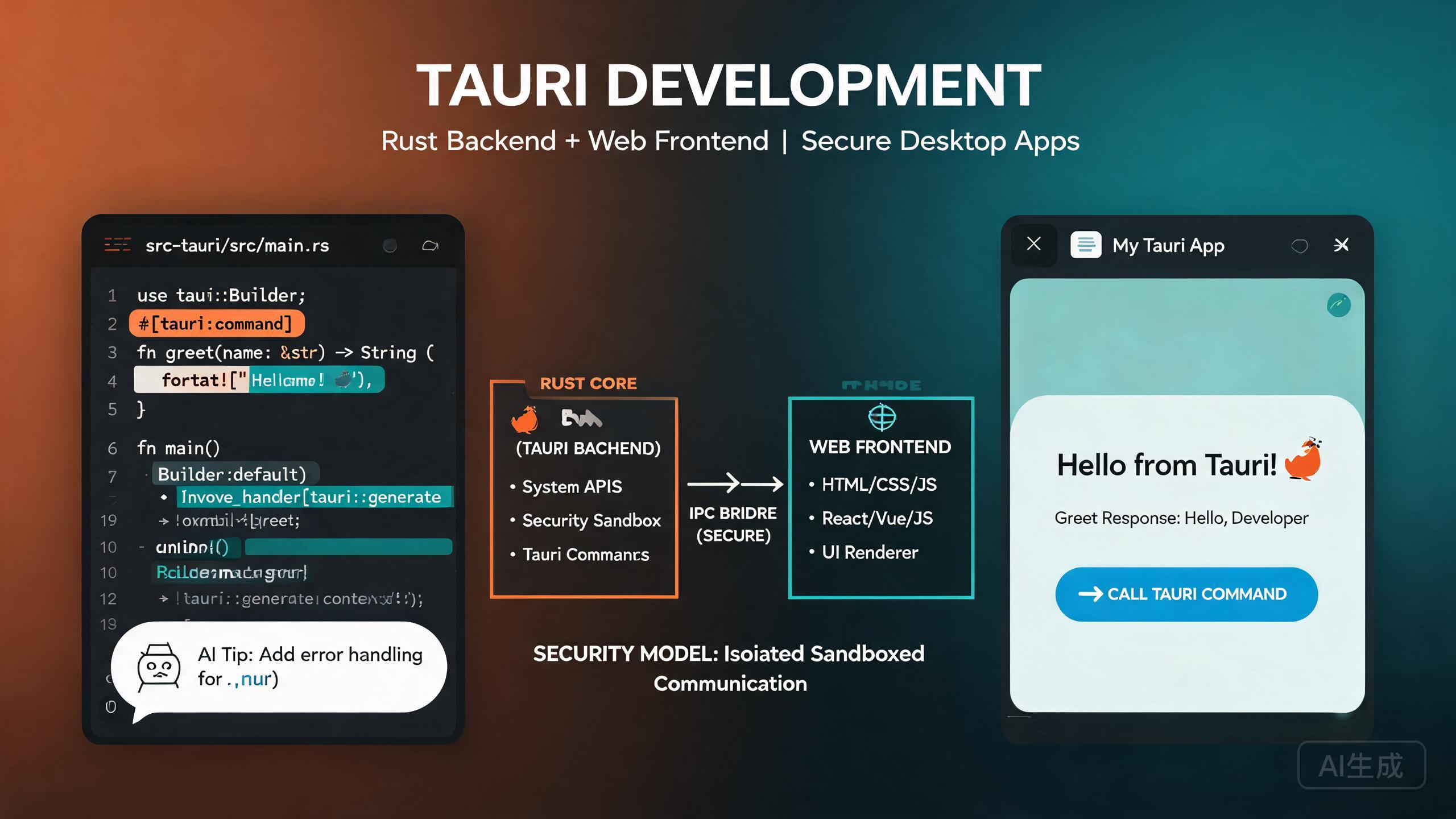
Tauri は、Rust バックエンドと選択した Web フロントエンドを組み合わせて、小さく、高速で、安全なデスクトップアプリを構築するためのフレームワークです。Electron とは異なり、Tauri は Chromium をバンドルする代わりに、オペレーティングシステムのネイティブ WebView を使用するため、バイナリサイズとメモリ使用量が劇的に小さくなります。Cursor は AI 駆動の IDE エディターとして、プロジェクトのスキャフォールディング、Rust コマンドの生成、型安全な TypeScript バインディングの作成、セキュリティ設定の監査により Tauri 開発を加速します。本ガイドでは、Tauri アーキテクチャ、Rust コマンド、プラグインシステム、セキュリティモデル、AI 支援によるデスクトップ統合をカバーします。
前提条件
開始する前に、以下の条件を満たしていることを確認してください:
- Cursor(最新バージョン推奨)を IDE エディターとして使用
- Rust ツールチェーン(rustup でインストール)、stable コンパイラ
- Node.js 18 以上(フロントエンドツール用)
- システム依存関係:Linux では
webkit2gtk、build-essential、関連パッケージをインストール、macOS では Xcode Command Line Tools をインストール、Windows では Visual Studio C++ Build Tools をインストール
Rust を書いたことがない場合は、Cursor に Tauri コマンドハンドラーの例を使って所有権、借用、ライフタイムの説明を依頼してください。これらの概念を早く理解することで、JavaScript から Rust に移行する開発者が不可解に感じるコンパイラエラーを防ぐことができます。
Tauri アーキテクチャの理解
Tauri アプリケーションは 3 つの層で構成されています:
- フロントエンド:Web アプリケーション(React、Vue、Svelte、またはプレーン HTML)。OS ネイティブ WebView で実行されます。
- コア(Rust):Rust で記述された Tauri ランタイムは、ウィンドウ、アプリケーションライフサイクル、ネイティブシステムコールを管理します。
- コマンド:フロントエンドが Tauri の IPC 層を通じて呼び出すカスタム Rust 関数。これが Web UI がファイルシステム、データベース、OS API と対話する方法です。
Electron との主な違いは、Rust コアが完全なシステムアクセスを持つのに対し、フロントエンドは WebView でサンドボックス化されている点です。通信は明示的に宣言されたコマンドとイベントのみを通じて行われます。
Cursor でのプロジェクトスキャフォールディング
Cursor に Tauri + React + TypeScript プロジェクトのスキャフォールディングを依頼します:
Create a Tauri 2.0 project with React and TypeScript.
Set up the frontend with Vite, configure the Rust backend,
and include the tauri-plugin-fs and tauri-plugin-dialog plugins.
Cursor は標準的な Tauri プロジェクト構造を生成します:
my-tauri-app/
  src/                    # Frontend source
    App.tsx
    main.tsx
  src-tauri/              # Rust backend
    src/
      main.rs
      lib.rs
    Cargo.toml
    tauri.conf.json
    capabilities/
      default.json
  package.json
  vite.config.ts
Tauri 2.0 は Tauri 1.x から重大な変更を導入しました。新しい権限システム、capabilities ファイル、再設計されたプラグイン API などが含まれます。古いチュートリアルを参考にしている場合は、API 呼び出しが Tauri 2.0 構文に一致することを確認してください。Cursor に遭遇した Tauri 1.x コードの移行を依頼してください。
Rust バックエンドとコマンド
コマンドは Rust バックエンドと Web フロントエンド間のブリッジです。Rust 関数を定義し、#[tauri::command] でアノテーションを付け、JavaScript から呼び出します。
コマンドの定義
// src-tauri/src/lib.rs
use serde::{Deserialize, Serialize};
use std::fs;
use std::path::PathBuf;
use tauri::{Manager, State};

// A shared application state managed by Tauri
pub struct AppState {
    pub config_dir: PathBuf,
}

#[derive(Serialize, Deserialize)]
pub struct FileEntry {
    pub name: String,
    pub path: String,
    pub is_dir: bool,
    pub size: u64,
}

/// List files in a directory
#[tauri::command]
pub async fn list_files(dir: String) -> Result<Vec<FileEntry>, String> {
    let entries = fs::read_dir(&dir).map_err(|e| e.to_string())?;

    let mut files: Vec<FileEntry> = entries
        .filter_map(|entry| entry.ok())
        .filter_map(|entry| {
            let metadata = entry.metadata().ok()?;
            Ok(FileEntry {
                name: entry.file_name().to_string_lossy().to_string(),
                path: entry.path().to_string_lossy().to_string(),
                is_dir: metadata.is_dir(),
                size: metadata.len(),
            })
        })
        .collect();

    files.sort_by(|a, b| b.is_dir.cmp(&a.is_dir).then(a.name.cmp(&b.name)));
    Ok(files)
}

/// Save content to a file
#[tauri::command]
pub async fn save_file(path: String, content: String) -> Result<(), String> {
    fs::write(&path, content).map_err(|e| e.to_string())
}

/// Read a file's content
#[tauri::command]
pub async fn read_file(path: String) -> Result<String, String> {
    fs::read_to_string(&path).map_err(|e| e.to_string())
}

/// Get the app data directory
#[tauri::command]
pub fn get_data_dir(state: State<AppState>) -> String {
    state.config_dir.to_string_lossy().to_string()
}

#[cfg_attr(mobile, tauri::mobile_entry_point)]
pub fn run() {
    tauri::Builder::default()
        .plugin(tauri_plugin_fs::init())
        .plugin(tauri_plugin_dialog::init())
        .plugin(tauri_plugin_shell::init())
        .manage(AppState {
            config_dir: tauri::api::path::app_config_dir(
                &tauri::generate_context!(),
            ).unwrap_or_else(|_| PathBuf::from(".")),
        })
        .invoke_handler(tauri::generate_handler![
            list_files,
            save_file,
            read_file,
            get_data_dir,
        ])
        .run(tauri::generate_context!())
        .expect("error while running tauri application");
}
フロントエンドからのコマンド呼び出し
// src/lib/tauri-api.ts
import { invoke } from '@tauri-apps/api/core';

export interface FileEntry {
  name: string;
  path: string;
  is_dir: boolean;
  size: number;
}

export async function listFiles(dir: string): Promise<FileEntry[]> {
  return invoke<FileEntry[]>('list_files', { dir });
}

export async function saveFile(path: string, content: string): Promise<void> {
  await invoke('save_file', { path, content });
}

export async function readFile(path: string): Promise<string> {
  return invoke<string>('read_file', { path });
}

export async function getDataDir(): Promise<string> {
  return invoke<string>('get_data_dir');
}
Cursor に Rust 構造体とミラーリングする TypeScript インターフェースの生成を依頼してください。「Tauri コマンドハンドラーのすべての構造体の TypeScript 型を作成し、共有型ファイルに配置して」というプロンプトで、フロントエンドとバックエンドの同期を保ち、コンパイル時に型の不一致を検出できます。
Rust の Result 型は JavaScript の Promise 拒否に直接マッピングされます。コマンドが Result<T, String> を返す場合、フロントエンドはエラー文字列を伴う拒否された promise を受け取ります。未処理の promise 拒否を避けるため、フロントエンドでは常に .catch() または try/catch でエラーを処理してください。
プラグインシステム
Tauri 2.0 はモジュラー式のプラグインアーキテクチャを使用します。ファイルシステムアクセス、ダイアログ、シェルコマンド、HTTP リクエストなどのコア機能は公式プラグインによって提供されます。カスタムプラグインを作成してアプリ間で機能を共有することもできます。
公式プラグインのインストール
# File system access
npm install @tauri-apps/plugin-fs
cargo add tauri-plugin-fs --manifest-path src-tauri/Cargo.toml

# Native dialogs (open, save)
npm install @tauri-apps/plugin-dialog
cargo add tauri-plugin-dialog --manifest-path src-tauri/Cargo.toml

# Shell commands (open URLs, run scripts)
npm install @tauri-apps/plugin-shell
cargo add tauri-plugin-shell --manifest-path src-tauri/Cargo.toml

# HTTP client
npm install @tauri-apps/plugin-http
cargo add tauri-plugin-http --manifest-path src-tauri/Cargo.toml
各プラグインは Tauri builder に登録し、capabilities ファイルで権限を付与する必要があります。
ダイアログプラグインの使用
// src/components/FileBrowser.tsx
import { open, save } from '@tauri-apps/plugin-dialog';
import { readFile, writeFile } from '@tauri-apps/plugin-fs';
import { useState } from 'react';

export function FileBrowser() {
  const [content, setContent] = useState('');
  const [filePath, setFilePath] = useState<string | null>(null);

  async function handleOpen() {
    const selected = await open({
      multiple: false,
      filters: [{ name: 'Markdown', extensions: ['md'] }],
    });

    if (typeof selected === 'string') {
      setFilePath(selected);
      const bytes = await readFile(selected);
      setContent(new TextDecoder().decode(bytes));
    }
  }

  async function handleSave() {
    if (!filePath) return;
    await writeFile(filePath, new TextEncoder().encode(content));
  }

  async function handleSaveAs() {
    const target = await save({
      filters: [{ name: 'Markdown', extensions: ['md'] }],
    });
    if (target) {
      setFilePath(target);
      await writeFile(target, new TextEncoder().encode(content));
    }
  }

  return (
    <div className="flex flex-col h-full">
      <div className="flex gap-2 p-2">
        <button onClick={handleOpen} className="rounded px-3 py-1 bg-blue-600 text-white">
          Open
        </button>
        <button onClick={handleSave} className="rounded px-3 py-1 bg-green-600 text-white">
          Save
        </button>
        <button onClick={handleSaveAs} className="rounded px-3 py-1 bg-gray-600 text-white">
          Save As
        </button>
      </div>
      <textarea
        value={content}
        onChange={(e) => setContent(e.target.value)}
        className="flex-1 p-4 font-mono text-sm"
        placeholder="Select a file or start typing..."
      />
    </div>
  );
}
Cursor にカスタム Tauri プラグインのスキャフォールディングを依頼してください。「システム環境変数を読み取る Rust 関数を公開する Tauri プラグインを作成し、アプリに登録して」というプロンプトで、プラグインコードの構造化、権限の登録、API のフロントエンドへの公開方法を示します。
セキュリティモデル
Tauri 2.0 は capabilities に基づくきめ細かい権限システムを導入しました。すべてのコマンド、プラグイン API、リソースアクセスポイントは capabilities ファイルで明示的に許可される必要があります。
capabilities 設定
// src-tauri/capabilities/default.json
{
  "$schema": "../gen/schemas/desktop-schema.json",
  "identifier": "default",
  "description": "Default capability for the main window",
  "windows": ["main"],
  "permissions": [
    "core:default",
    "fs:allow-read-text-file",
    "fs:allow-write-file",
    "fs:allow-create-dir",
    "dialog:allow-open",
    "dialog:allow-save",
    "shell:allow-open",
    "http:default"
  ]
}
ファイルシステムアクセスのスコープ制限
scope ルールを使用して、プラグインがアクセスできるディレクトリを制限できます:
{
  "identifier": "default",
  "windows": ["main"],
  "permissions": [
    {
      "identifier": "fs:allow-read-file",
      "allow": [
        { "path": "$APPDATA/**" },
        { "path": "$DOCUMENT/**" }
      ],
      "deny": [
        { "path": "$DOCUMENT/.ssh/**" }
      ]
    }
  ]
}
スコープなしで fs:default や fs:allow-read-file を使用しないでください。これらの広範な権限は WebView からファイルシステム全体へのアクセスを許可し、Tauri のサンドボックスアーキテクチャの目的を無効にします。常に $APPDATA やユーザーが選択したパスなど、特定のディレクトリにアクセスをスコープしてください。
Cursor でこのプロンプトを実行して Tauri セキュリティ設定を監査してください:「capabilities ファイルと Cargo.toml で過度に広範な権限をレビューして。ファイルシステム、シェル、または HTTP アクセスを明示的なスコープなしで付与する権限をすべてフラグ付けして。」
イベントとプロセス間通信
コマンドに加えて、Tauri は Rust バックエンドからフロントエンドへの非同期通信のためのイベントシステムをサポートしています。
Rust からのイベント発信
use tauri::{Emitter, Window};
use std::time::Duration;
use tokio::time::interval;

/// Background task that emits progress updates
#[tauri::command]
pub async fn start_processing(window: Window) -> Result<(), String> {
    let mut ticker = interval(Duration::from_millis(500));

    for step in 0..=100 {
        ticker.tick().await;

        window
            .emit("processing-progress", serde_json::json!({
                "step": step,
                "total": 100,
                "message": format!("Processing item {} of 100", step),
            }))
            .map_err(|e| e.to_string())?;

        if step == 50 {
            window
                .emit("processing-warning", "Halfway through, memory is high")
                .map_err(|e| e.to_string())?;
        }
    }

    window
        .emit("processing-complete", "All items processed successfully")
        .map_err(|e| e.to_string())?;

    Ok(())
}
フロントエンドでのイベントリスニング
// src/components/ProcessingView.tsx
import { listen } from '@tauri-apps/api/event';
import { useEffect, useState } from 'react';

interface ProgressEvent {
  step: number;
  total: number;
  message: string;
}

export function ProcessingView() {
  const [progress, setProgress] = useState<ProgressEvent | null>(null);
  const [warning, setWarning] = useState<string | null>(null);
  const [done, setDone] = useState(false);

  useEffect(() => {
    const unlisteners: Array<() => void> = [];

    const setup = async () => {
      unlisteners.push(
        await listen<ProgressEvent>('processing-progress', (event) => {
          setProgress(event.payload);
        })
      );

      unlisteners.push(
        await listen<string>('processing-warning', (event) => {
          setWarning(event.payload);
        })
      );

      unlisteners.push(
        await listen<string>('processing-complete', (event) => {
          setDone(true);
        })
      );
    };

    setup();

    return () => {
      unlisteners.forEach((unlisten) => unlisten());
    };
  }, []);

  return (
    <div className="p-4">
      {progress && (
        <>
          <div className="mb-2 text-sm text-gray-600">{progress.message}</div>
          <div className="h-3 rounded-full bg-gray-200">
            <div
              className="h-3 rounded-full bg-blue-600 transition-all"
              style={{ width: `${(progress.step / progress.total) * 100}%` }}
            />
          </div>
        </>
      )}
      {warning && (
        <div className="mt-2 rounded bg-yellow-100 p-2 text-sm text-yellow-800">
          {warning}
        </div>
      )}
      {done && (
        <div className="mt-4 rounded bg-green-100 p-2 text-sm text-green-800">
          Processing complete!
        </div>
      )}
    </div>
  );
}
React の useEffect クリーンアップ関数で必ずイベントリスナーをクリーンアップしてください。Tauri イベントリスナーはコンポーネントの再マウント後も存続します。サブスクライブ解除を忘れると、複数回発火する重複ハンドラーが発生し、メモリリークを引き起こします。
AI 支援によるデスクトップ統合
Cursor は、望ましい動作を記述することで完全なデスクトップ統合機能を生成できます。実践的な例を以下に示します。
システムトレイ統合
Create a Tauri system tray icon with a context menu containing
"Show Window", "Settings", and "Quit". The tray icon should show
a notification badge when there are unread items. Write the Rust
code in src-tauri/src/tray.rs and register it in the builder.
Cursor が生成します:
// src-tauri/src/tray.rs
use tauri::{
    menu::{Menu, MenuItem, PredefinedMenuItem},
    tray::{TrayIconBuilder, TrayIconEvent, MouseButton, MouseButtonState},
    Manager, Emitter,
};

pub fn setup_tray(app: &tauri::App) -> tauri::Result<()> {
    let show = MenuItem::with_id(app, "show", "Show Window", true, None)?;
    let settings = MenuItem::with_id(app, "settings", "Settings", true, None)?;
    let separator = PredefinedMenuItem::separator(app)?;
    let quit = MenuItem::with_id(app, "quit", "Quit", true, None)?;

    let menu = Menu::with_items(app, &[&show, &settings, &separator, &quit])?;

    TrayIconBuilder::new()
        .icon(app.default_window_icon().unwrap().clone())
        .tooltip("My Tauri App")
        .menu(&menu)
        .on_menu_event(|app, event| {
            match event.id().as_ref() {
                "show" => {
                    if let Some(window) = app.get_webview_window("main") {
                        let _ = window.show();
                        let _ = window.set_focus();
                    }
                }
                "settings" => {
                    if let Some(window) = app.get_webview_window("main") {
                        let _ = window.emit("navigate", "/settings");
                        let _ = window.show();
                        let _ = window.set_focus();
                    }
                }
                "quit" => {
                    app.exit(0);
                }
                _ => {}
            }
        })
        .on_tray_icon_event(|tray, event| {
            if let TrayIconEvent::Click {
                button: MouseButton::Left,
                button_state: MouseButtonState::Up,
                ..
            } = event
            {
                let app = tray.app_handle();
                if let Some(window) = app.get_webview_window("main") {
                    let _ = window.show();
                    let _ = window.set_focus();
                }
            }
        })
        .build(app)?;

    Ok(())
}
システムトレイアイコンの動作はプラットフォームによって異なります。macOS では、トレイアイコンのクリックでウィンドウの表示/非表示を切り替えるべきです。Windows と Linux では、右クリックでコンテキストメニューを開きます。Cursor にプラットフォーム固有のハンドラーを生成し、リリース前にすべてのターゲットプラットフォームでテストしてください。
ビルドと配布
Tauri は外部ランタイム依存関係のないネイティブバイナリを各プラットフォーム向けにビルドします。
ビルドコマンド
# Build for the current platform
npm run tauri build

# Build with a specific bundle type
npm run tauri build -- --bundles dmg    # macOS DMG
npm run tauri build -- --bundles nsis  # Windows NSIS installer
npm run tauri build -- --bundles deb   # Linux DEB

# Debug build with devtools
npm run tauri build -- --debug
設定
// src-tauri/tauri.conf.json
{
"$schema": "https://schema.tauri.app/config/2",
"productName": "My Tauri App",
"version": "1.0.0",
"identifier": "com.example.my-tauri-app",
"build": {
"frontendDist": "../dist",
"devUrl": "http://localhost:1420",
"beforeDevCommand": "npm run dev",
"beforeBuildCommand": "npm run build"
},
"app": {
"windows": [
{
"title": "My Tauri App",
"width": 1200,
"height": 800,
"minWidth": 800,
"minHeight": 600,
"resizable": true,
"center": true,
"decorations": true
}
],
"security": {
"csp": "default-src 'self'; img-src 'self' data:; style-src 'self' 'unsafe-inline'",
"freezePrototype": true
}
},
"bundle": {
"active": true,
"targets": "all",
"icon": [
"icons/32x32.png",
"icons/128x128.png",
"icons/icon.icns",
"icons/icon.ico"
]
}
}
Cursor に macOS、Windows、Ubuntu 向けに Tauri アプリをビルドする GitHub Actions CI ワークフローの生成を依頼してください。「Rust、Node、Tauri のシステム依存関係をインストールし、3 つのプラットフォームで tauri build を実行し、バンドルをリリースアセットとしてアップロードする CI ワークフローを作成して」というプロンプトで、本番環境対応のパイプラインが得られます。
まとめ
Cursor での Tauri は両方の長所を提供します:小さく安全な Rust コアと使い慣れた Web フロントエンドです。本ガイドのパターンに従うことで、型付き Rust コマンド、スコープ付きプラグイン権限、capabilities ベースのセキュリティ、イベント駆動通信、プラットフォーム対応のデスクトップ統合により、Electron と同等のものより1桁小さい軽量デスクトップアプリを出荷できます。capabilities ファイルのスコープを厳密に保ち、Cursor に Rust コマンドの生成と監査を任せ、プラットフォーム固有の機能は常にすべてのターゲット OS でテストしてください。