Cursor での Electron デスクトップアプリ開発:IPC、コンテキスト分離、自動更新
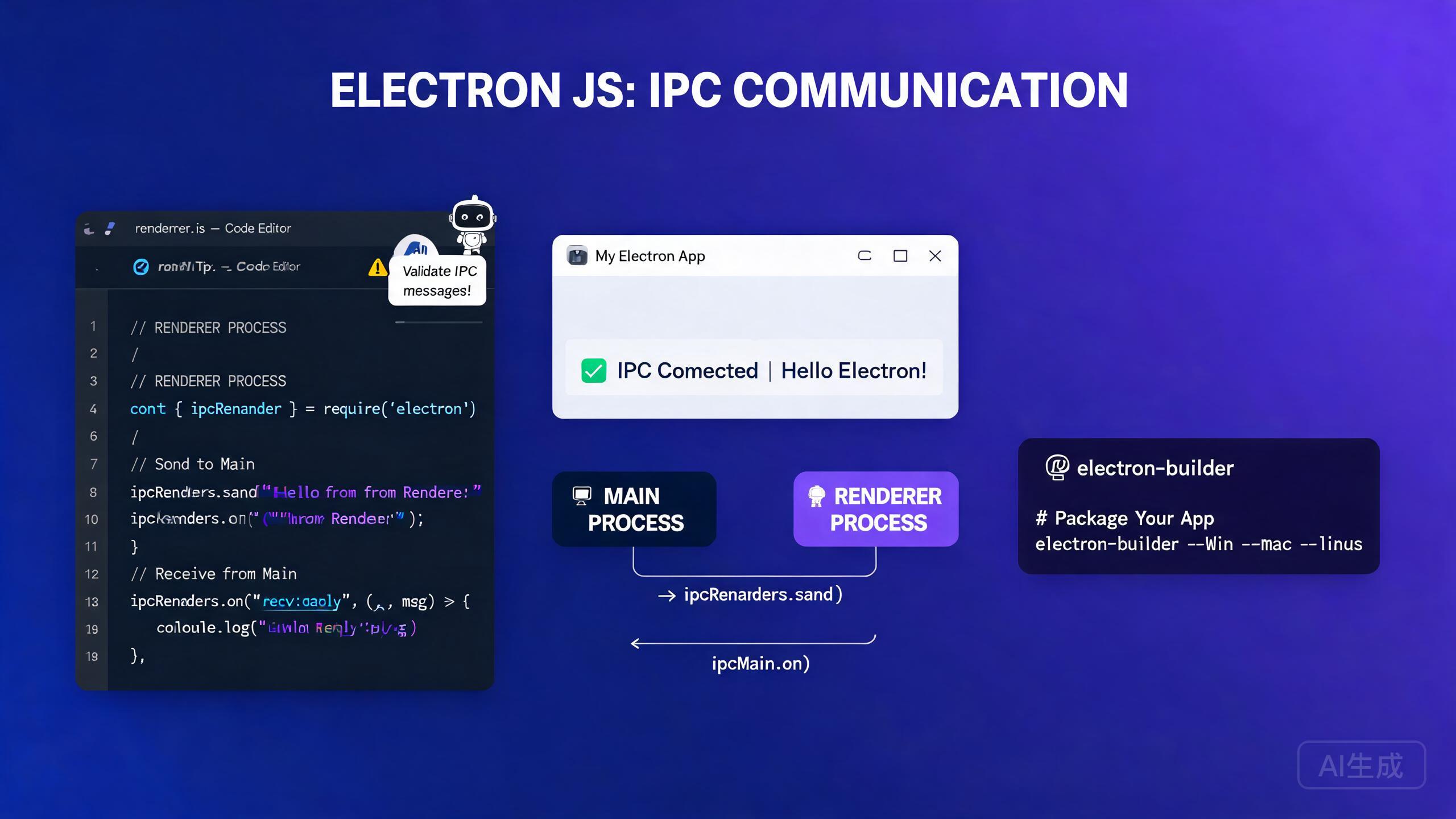
Electron は、HTML、CSS、JavaScript などの既存の Web 技術を使用してクロスプラットフォームのデスクトップアプリを構築できるフレームワークです。Cursor は AI 駆動の IDE エディターとして、プロジェクトのスキャフォールディング、IPC ハンドラーの生成、コンテキスト分離されたプリロードスクリプトの作成、パッケージングと自動更新パイプラインの自動化により、Electron 開発を合理化します。本ガイドでは、メインプロセスとレンダラープロセス、安全な IPC 通信、コンテキスト分離、electron-builder によるパッケージング、自動更新戦略、AI 支援によるデスクトップ UI ワークフローをカバーします。
前提条件
開始する前に、以下の条件を満たしていることを確認してください:
- Cursor(最新バージョン推奨)を IDE エディターとして使用
- Node.js 18 以上
- JavaScript、TypeScript、npm の基本的な知識
- コード署名証明書(オプションですが、macOS と Windows での自動更新に必要)
Electron を初めて使用する場合は、コーディングを始める前に Cursor にメインプロセスとレンダラープロセスモデルの説明を依頼してください。プロセス境界を事前に理解することで、最も一般的な Electron のセキュリティとアーキテクチャの間違いを防ぐことができます。
Electron のプロセスモデルを理解する
Electron アプリケーションは 2 種類のプロセスで構成されています:
- メインプロセス:Node.js 上で動作し、オペレーティングシステムへの完全なアクセス権を持ち、アプリケーションライフサイクルを管理し、ブラウザウィンドウを作成します。
- レンダラープロセス:Chromium レンダラー上で動作し、Web UI をレンダリングし、デフォルトではネイティブ API へのアクセスが制限されています。
2 つのプロセスは**プロセス間通信(IPC)**を通じて通信します。この分離は意図的なものであり、危険なネイティブ API を信頼されていない Web コンテンツから遠ざける役割を果たします。
Cursor でのプロジェクトスキャフォールディング
Cursor に TypeScript Electron プロジェクトのスキャフォールディングを依頼します:
Create a minimal Electron + TypeScript + Vite project.
Include a main process file, a preload script with contextBridge,
and a renderer entry point. Use electron-builder for packaging.
Cursor はディレクトリ構造と設定ファイルを生成します:
my-electron-app/
  electron/
    main.ts
    preload.ts
  src/
    index.html
    renderer.ts
  package.json
  electron-builder.yml
  tsconfig.json
package.json には必要なスクリプトと依存関係が含まれます:
{
  "name": "my-electron-app",
  "version": "1.0.0",
  "main": "dist/electron/main.js",
  "scripts": {
    "dev": "concurrently \"vite\" \"wait-on tcp:5173 && cross-env NODE_ENV=development electron .\"",
    "build": "tsc && vite build",
    "package": "npm run build && electron-builder",
    "package:mac": "npm run build && electron-builder --mac",
    "package:win": "npm run build && electron-builder --win"
  },
  "devDependencies": {
    "electron": "^31.0.0",
    "electron-builder": "^24.13.3",
    "typescript": "^5.4.0",
    "vite": "^5.3.0",
    "vite-plugin-electron": "^0.28.0"
  }
}
package.json で main フィールドを必ず指定してください。これがない場合、Electron はプロジェクトルートの index.js をデフォルトとして使用し、開発中に予期しないコードが読み込まれる可能性があります。コンパイル済みのエントリポイントを明示的に宣言して混乱を避けてください。
メインプロセス
メインプロセスは Electron アプリケーションのエントリポイントです。ウィンドウを作成し、アプリライフサイクルを処理し、IPC ハンドラーを登録します。
ブラウザウィンドウの作成
// electron/main.ts
import { app, BrowserWindow, ipcMain, shell } from 'electron';
import * as path from 'path';
import { isDev } from './utils/env';

let mainWindow: BrowserWindow | null = null;

function createWindow() {
  mainWindow = new BrowserWindow({
    width: 1200,
    height: 800,
    minWidth: 800,
    minHeight: 600,
    show: false,
    backgroundColor: '#1e1e2e',
    titleBarStyle: process.platform === 'darwin' ? 'hiddenInset' : 'default',
    webPreferences: {
      preload: path.join(__dirname, 'preload.js'),
      contextIsolation: true,
      nodeIntegration: false,
      sandbox: true,
    },
  });

  mainWindow.once('ready-to-show', () => {
    mainWindow?.show();
  });

  if (isDev) {
    mainWindow.loadURL('http://localhost:5173');
    mainWindow.webContents.openDevTools();
  } else {
    mainWindow.loadFile(path.join(__dirname, '../dist/index.html'));
  }

  // Handle external links in the default browser, not a new Electron window
  mainWindow.webContents.setWindowOpenHandler(({ url }) => {
    shell.openExternal(url);
    return { action: 'deny' };
  });
}

app.whenReady().then(() => {
  createWindow();

  app.on('activate', () => {
    if (BrowserWindow.getAllWindows().length === 0) {
      createWindow();
    }
  });
});

app.on('window-all-closed', () => {
  if (process.platform !== 'darwin') {
    app.quit();
  }
});
Cursor に BrowserWindow 設定のセキュリティレビューを依頼してください。「Electron の webPreferences のセキュリティベストプラクティスを監査して」というプロンプトで、nodeIntegration: true やプリロードスクリプトの欠落などの危険な設定を検出できます。
IPC ハンドラーの登録
メインプロセスの IPC ハンドラーはレンダラーからのメッセージを受信し、結果を返します。両側が API インターフェースで合意するための型付きコントラクトを定義します。
// electron/ipc-handlers.ts
import { ipcMain, dialog, BrowserWindow } from 'electron';
import * as fs from 'fs/promises';

export function registerIpcHandlers(): void {
  ipcMain.handle('dialog:openFile', async () => {
    const result = await dialog.showOpenDialog({
      properties: ['openFile'],
      filters: [{ name: 'Text', extensions: ['txt', 'md', 'json'] }],
    });
    if (result.canceled) return null;

    const content = await fs.readFile(result.filePaths[0], 'utf-8');
    return { path: result.filePaths[0], content };
  });

  ipcMain.handle('file:save', async (_event, filePath: string, content: string) => {
    await fs.writeFile(filePath, content, 'utf-8');
    return { success: true };
  });

  ipcMain.handle('window:minimize', (event) => {
    const win = BrowserWindow.fromWebContents(event.sender);
    win?.minimize();
  });

  ipcMain.handle('window:toggleMaximize', (event) => {
    const win = BrowserWindow.fromWebContents(event.sender);
    if (win?.isMaximized()) {
      win.unmaximize();
    } else {
      win?.maximize();
    }
  });
}
BrowserWindow オブジェクトやその他の Electron API を IPC 経由でレンダラーに直接渡さないでください。ネイティブ操作は常に型付きハンドラーでラップし、プレーンデータを返してください。プロセス境界を越えてライブオブジェクトを渡すと、深刻なセキュリティとメモリリークのリスクが生じます。
コンテキスト分離とプリロードスクリプト
コンテキスト分離は Electron の主要なセキュリティ境界です。有効にすると、レンダラーの window オブジェクトはプリロードスクリプトのスコープから完全に分離されます。レンダラーにネイティブ機能を公開する唯一の方法は contextBridge API を使用することです。
安全なプリロードスクリプトの作成
// electron/preload.ts
import { contextBridge, ipcRenderer } from 'electron';

// Define the API surface exposed to the renderer
const api = {
  // File operations
  openFile: () => ipcRenderer.invoke('dialog:openFile'),
  saveFile: (path: string, content: string) =>
    ipcRenderer.invoke('file:save', path, content),

  // Window controls
  minimizeWindow: () => ipcRenderer.invoke('window:minimize'),
  toggleMaximize: () => ipcRenderer.invoke('window:toggleMaximize'),

  // Event subscriptions with cleanup
  onUpdateAvailable: (callback: (info: { version: string }) => void) => {
    const handler = (_event: unknown, info: { version: string }) => callback(info);
    ipcRenderer.on('update-available', handler);
    return () => ipcRenderer.removeListener('update-available', handler);
  },
} as const;

// Expose a frozen, read-only API to the renderer
contextBridge.exposeInMainWorld('electronAPI', api);
レンダラーでの API の使用
// src/renderer.ts
// TypeScript declaration so the renderer knows about window.electronAPI
declare global {
  interface Window {
    electronAPI: {
      openFile: () => Promise<{ path: string; content: string } | null>;
      saveFile: (path: string, content: string) => Promise<{ success: boolean }>;
      minimizeWindow: () => Promise<void>;
      toggleMaximize: () => Promise<void>;
      onUpdateAvailable: (callback: (info: { version: string }) => void) => () => void;
    };
  }
}

const openButton = document.getElementById('open-btn');
const editor = document.getElementById('editor') as HTMLTextAreaElement;
let currentFilePath: string | null = null;

openButton?.addEventListener('click', async () => {
  const result = await window.electronAPI.openFile();
  if (result) {
    currentFilePath = result.path;
    editor.value = result.content;
  }
});

document.getElementById('save-btn')?.addEventListener('click', async () => {
  if (currentFilePath) {
    await window.electronAPI.saveFile(currentFilePath, editor.value);
  }
});
Cursor に「Electron のプリロードスクリプトとレンダラー間で共有される TypeScript インターフェースを作成し、使用するすべての IPC チャネルをリストして。共有型ファイルに配置して」と依頼することで、プリロードとレンダラーの型コントラクトを一度に生成できます。これにより両側が同期し、コンパイル時に不整合を検出できます。
本番環境の Electron アプリで nodeIntegration: true や contextIsolation: false を使用しないでください。これらの設定は Node.js API を Web コンテンツに直接公開します。アプリがリモート URL を読み込んだり信頼されていないユーザー入力を処理する場合、重大なセキュリティ脆弱性となります。
electron-builder によるパッケージング
electron-builder はアプリを macOS(.dmg)、Windows(.exe、.nsis)、Linux(.AppImage、.deb)のインストーラーにコンパイルします。設定は単一の YAML または JSON ファイルに格納されます。
設定ファイル
# electron-builder.yml
appId: com.example.my-electron-app
productName: My Electron App
directories:
  output: release
  buildResources: build
files:
  - dist/**/*
  - dist/electron/**/*
extraMetadata:
  main: dist/electron/main.js
mac:
  category: public.app-category.productivity
  target:
    - dmg
    - zip
  hardenedRuntime: true
  gatekeeperAssess: false
  entitlements: build/entitlements.mac.plist
  entitlementsInherit: build/entitlements.mac.plist
win:
  target:
    - nsis
  artifactName: ${productName}-${version}-${arch}.${ext}
nsis:
  oneClick: false
  allowToChangeInstallationDirectory: true
  createDesktopShortcut: true
linux:
  target:
    - AppImage
    - deb
  category: Office
全プラットフォーム向けビルド
# Build for current platform
npm run package

# Build for macOS (requires macOS host)
npm run package:mac

# Build for Windows
npm run package:win
Cursor に、タグプッシュごとに macOS、Windows、Linux 向けに Electron アプリをビルドする GitHub Actions ワークフローの生成を依頼してください。「3 つのプラットフォームで electron-builder を実行し、アーティファクトを GitHub リリースにアップロードする CI ワークフローを作成して」というプロンプトで、すぐに使えるワークフローファイルが生成されます。
macOS インストーラーのビルドには、有効な Apple Developer 証明書を持つ macOS マシンが必要です。Linux または Windows からのクロスコンパイルは、署名付き macOS ビルドではサポートされていません。CI インフラを適切に計画してください。
electron-updater による自動更新
自動更新により、ユーザーはインストーラーを手動でダウンロードすることなく新バージョンを受け取ることができます。electron-updater パッケージは GitHub Releases または任意の静的ファイルサーバーと統合されます。
自動更新のセットアップ
// electron/updater.ts
import { autoUpdater } from 'electron-updater';
import { BrowserWindow } from 'electron';

export function setupAutoUpdater(mainWindow: BrowserWindow): void {
  autoUpdater.autoDownload = false;
  autoUpdater.autoInstallOnAppQuit = true;

  autoUpdater.on('update-available', (info) => {
    // Notify the renderer that an update is available
    mainWindow.webContents.send('update-available', { version: info.version });
  });

  autoUpdater.on('update-not-available', () => {
    mainWindow.webContents.send('update-not-available');
  });

  autoUpdater.on('download-progress', (progress) => {
    mainWindow.webContents.send('download-progress', {
      percent: Math.round(progress.percent),
    });
  });

  autoUpdater.on('update-downloaded', () => {
    // Ask the user, then quit and install
    mainWindow.webContents.send('update-downloaded');
  });

  // Check for updates after startup
  app.whenReady().then(() => {
    autoUpdater.checkForUpdates();
  });
}

// Expose control methods through IPC
ipcMain.handle('update:download', () => {
  autoUpdater.downloadUpdate();
});

ipcMain.handle('update:install', () => {
  setImmediate(() => {
    app.isQuiting = true;
    autoUpdater.quitAndInstall();
  });
});
レンダラー側の更新 UI
// src/components/UpdateNotification.tsx
import { useEffect, useState } from 'react';

export function UpdateNotification() {
  const [updateInfo, setUpdateInfo] = useState<{ version: string } | null>(null);
  const [progress, setProgress] = useState(0);
  const [downloaded, setDownloaded] = useState(false);

  useEffect(() => {
    const cleanup = window.electronAPI.onUpdateAvailable((info) => {
      setUpdateInfo(info);
    });

    const progressHandler = (_event: unknown, data: { percent: number }) => {
      setProgress(data.percent);
    };
    window.electronAPI.onDownloadProgress?.(progressHandler);

    return cleanup;
  }, []);

  if (!updateInfo) return null;

  return (
    <div className="fixed bottom-4 right-4 rounded-lg border bg-white p-4 shadow-lg">
      <p className="font-semibold">Version {updateInfo.version} is available</p>
      {downloaded ? (
        <button onClick={() => window.electronAPI.installUpdate?.()}>
          Restart and Install
        </button>
      ) : progress > 0 ? (
        <div className="mt-2 h-2 rounded bg-gray-200">
          <div className="h-2 rounded bg-blue-500" style={{ width: `${progress}%` }} />
        </div>
      ) : (
        <button onClick={() => window.electronAPI.downloadUpdate?.()}>
          Download Update
        </button>
      )}
    </div>
  );
}
autoUpdater.autoDownload = false を使用して、ダウンロードをユーザーに制御させます。強制的なバックグラウンドダウンロードは、従量制接続で帯域幅を消費し、ユーザーの不満を招く可能性があります。常に通知を表示し、ダウンロードのタイミングをユーザーに選択させてください。
macOS での自動更新にはコード署名が必要です。署名されていないアプリは更新検証ステップでサイレントに失敗し、electron-updater はエラーを報告します。Windows では、署名されていないアプリも更新できますが、SmartScreen 警告が表示され、ユーザーの信頼を損ないます。
AI 支援によるデスクトップ UI 生成
Cursor はデスクトップグレードの UI コンポーネントの生成に優れています。欲しいインターフェースを記述すると、Cursor はアクセシブルでキーボードナビゲーション可能な React コンポーネントをデスクトップコンテキストに合わせたスタイルで生成します。
カスタムタイトルバーの生成
Create a React component for a custom Electron title bar on Windows.
Include minimize, maximize/restore, and close buttons. Use inline SVG
icons. Wire each button to the window.electronAPI IPC methods.
Support keyboard shortcuts (Alt+F4 to close, Win+Up to maximize).
Cursor が生成します:
// src/components/TitleBar.tsx
import { useEffect, useState } from 'react';

export function TitleBar({ title }: { title: string }) {
  const [isMaximized, setIsMaximized] = useState(false);

  useEffect(() => {
    const checkMax = () => setIsMaximized(window.electronAPI.isMaximized());
    checkMax();
    const interval = setInterval(checkMax, 200);
    return () => clearInterval(interval);
  }, []);

  return (
    <div
      className="flex h-8 items-center justify-between select-none"
      style={{ WebkitAppRegion: 'drag' } as React.CSSProperties}
    >
      <span className="ml-3 text-sm font-medium text-gray-200">{title}</span>
      <div
        className="flex h-full"
        style={{ WebkitAppRegion: 'no-drag' } as React.CSSProperties}
      >
        <button
          onClick={() => window.electronAPI.minimizeWindow()}
          className="flex h-full w-12 items-center justify-center hover:bg-white/10"
          aria-label="Minimize"
        >
          <svg width="12" height="12" viewBox="0 0 12 12">
            <rect y="5" width="12" height="2" fill="currentColor" />
          </svg>
        </button>
        <button
          onClick={() => window.electronAPI.toggleMaximize()}
          className="flex h-full w-12 items-center justify-center hover:bg-white/10"
          aria-label={isMaximized ? 'Restore' : 'Maximize'}
        >
          {isMaximized ? (
            <svg width="12" height="12" viewBox="0 0 12 12">
              <rect x="1" y="3" width="8" height="8" stroke="currentColor" fill="none" />
              <rect x="3" y="1" width="8" height="2" fill="currentColor" />
            </svg>
          ) : (
            <svg width="12" height="12" viewBox="0 0 12 12">
              <rect x="1" y="1" width="10" height="10" stroke="currentColor" fill="none" />
            </svg>
          )}
        </button>
        <button
          onClick={() => window.electronAPI.closeWindow()}
          className="flex h-full w-12 items-center justify-center hover:bg-red-600"
          aria-label="Close"
        >
          <svg width="12" height="12" viewBox="0 0 12 12">
            <path d="M1 1 L11 11 M11 1 L1 11" stroke="currentColor" strokeWidth="2" />
          </svg>
        </button>
      </div>
    </div>
  );
}
Cursor でデスクトップ UI を生成する際は、必ずプラットフォームを指定してください。タイトルバーは macOS(左側のトラフィックライトボタン)と Windows(右側のシステムボタン)で動作が異なります。プラットフォームを指定することで、正しくプラットフォームに適したレイアウトが生成されます。
パフォーマンス最適化
リソースを慎重に管理しないと、Electron アプリは重く感じられる可能性があります。Cursor はパフォーマンスのボトルネックを特定し、修正するのに役立ちます。
メモリと CPU 使用量の削減
// electron/utils/performance.ts
import { app, BrowserWindow } from 'electron';

export function optimizePerformance(): void {
  // Limit the number of background processes
  app.commandLine.appendSwitch('disable-background-networking');
  app.commandLine.appendSwitch('disable-renderer-backgrounding');

  // Reduce GPU overhead for non-accelerated content
  app.commandLine.appendSwitch('disable-gpu-compositing');

  // Suspend background timers when the window is hidden
  app.on('browser-window-blur', () => {
    // Pause expensive operations
  });

  // Aggressively release memory when the app is idle
  setInterval(() => {
    const windows = BrowserWindow.getAllWindows();
    if (windows.length === 0) {
      // Trigger garbage collection if running with --inspect
      if (global.gc) global.gc();
    }
  }, 60000);
}
すべての commandLine スイッチを盲目的に適用しないでください。GPU コンポジングを無効にすると、CSS アニメーションや WebGL キャンバスレンダリングが壊れる可能性があります。各パフォーマンス変更後にフル UI をテストし、視覚的回帰を引き起こすスイッチは元に戻してください。
セキュリティチェックリスト
Cursor でこのプロンプトを実行して、Electron プロジェクト全体のセキュリティ問題を監査します:
Review my Electron app for security vulnerabilities. Check for:
1. contextIsolation enabled
2. nodeIntegration disabled
3. sandbox enabled
4. CSP headers set
5. No remote modules loaded
6. preload script uses contextBridge only
7. All IPC handlers validate input
8. Webview tags disabled or sandboxed
Cursor はコードベースをスキャンし、具体的なファイル参照と修正提案を含む優先度順の問題リストを返します。
Electron セキュリティチェックリストを .cursorrules ファイルとしてプロジェクトルートに追加してください。Cursor は新しい Electron コードを生成する際にこれらのルールを自動的に適用し、時間の経過とともにセキュリティの後退を防ぎます。
まとめ
Cursor での Electron デスクトップアプリ構築は、Web 技術のクロスプラットフォームの力と AI 支援による開発速度を組み合わせます。本ガイドのパターンに従うことで、安全なコンテキスト分離 IPC、型付きプリロードコントラクト、electron-builder パッケージング、ユーザー制御の自動更新により、これまで以上に迅速にプロフェッショナルなデスクトップアプリを出荷できます。contextIsolation をオン、nodeIntegration をオフに保ち、すべてのステップで Cursor にコードのセキュリティとパフォーマンスを監査させてください。