Cursor での Astro フレームワーク開発:完全ガイド
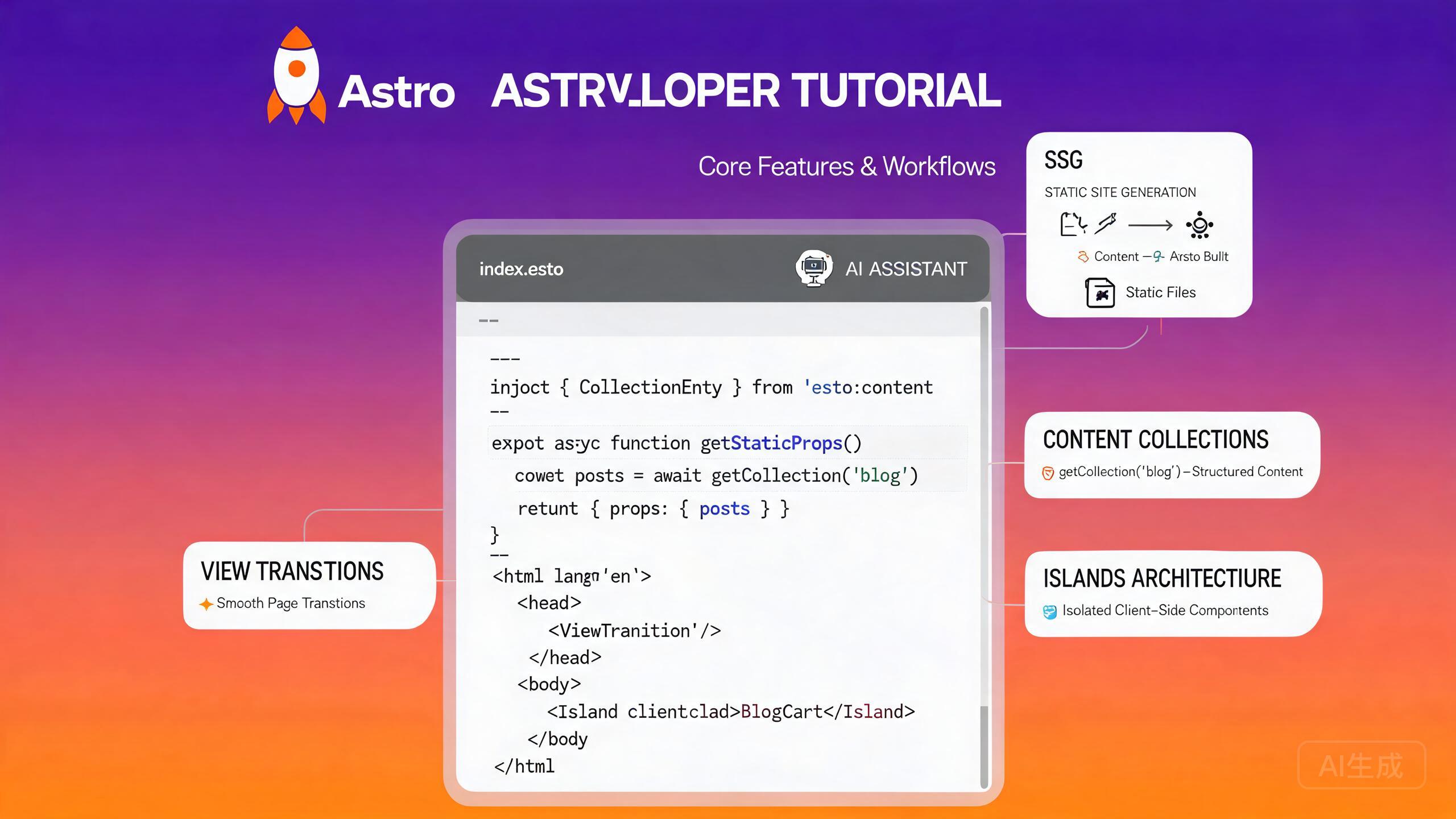
Astro は、コンテンツ駆動の Web サイト向けに設計されたモダンな Web フレームワークで、デフォルトでゼロ JavaScript を出力します。Astro 4+ では、アップグレードされた Content Layer API、より高速な開発サーバーのパフォーマンス、公式の View Transitions サポートが導入されました。Cursor は、VS Code 互換の基盤と統合された AI アシスタントにより、Astro 開発に最適なエディタです。.astro ファイルを理解し、フロントマターとコンポーネントプロパティの IntelliSense を提供し、自然言語のプロンプトからコンポーネント、コレクション、インテグレーションを生成できます。
このガイドでは、Cursor での完全な Astro 開発ワークフローをカバーします:プロジェクトのセットアップ、コンテンツコレクション、View Transitions API、アイランドアーキテクチャ、インテグレーション、AI 支援コンポーネント生成。
Cursor での Astro 開発のセットアップ
前提条件
Astro 4+ には Node.js 18.14.1 以上が必要です(Node 20 LTS を推奨)。インストールを確認:
node --version
npm --version
より新しいバージョンが必要な場合は、fnm または nvm を使用:
fnm install 20
fnm use 20
Cursor の統合ターミナル(Ctrl+`)はエクスプローラーパネルと現在の作業ディレクトリを同期するため、プロジェクトをスキャフォールドしてコンテキストを切り替えることなく生成されたファイルをすぐに開けます。
Astro 言語ツールのインストール
Cursor は言語サポートのために公式 Astro 拡張機能に依存します。拡張機能ビュー(Ctrl+Shift+X)からインストール:
- "Astro" を検索。
- Astro チームが公開している拡張機能をインストール。
- プロンプトが表示されたら Cursor をリロード。
この拡張機能は以下を提供:
.astroファイルのシンタックスハイライト。@astrojs/language-serverによる診断と型チェック。prettier-plugin-astroパッケージを使用した Prettier によるフォーマット。- コンポーネントのインポート、プロパティ、フロントマター式の IntelliSense。
以前にコミュニティ版の Astro 拡張機能をインストールしたことがある場合は、公式版をインストールする前に無効化してください。競合する拡張機能は重複診断と unreliable なフォーマットを引き起こします。
Astro プロジェクトのスキャフォールド
公式 create-astro CLI を使用して新しいプロジェクトをブートストラップ:
# Create a new project with the minimal template
npm create astro@latest my-astro-site -- --template minimal --no-install --no-git --typescript strict

cd my-astro-site
npm install
Cursor でプロジェクトフォルダを開く:
cursor .
デフォルトのプロジェクト構造は以下の通り:
my-astro-site/
├── src/
│   ├── components/
│   ├── layouts/
│   │   └── Layout.astro
│   ├── pages/
│   │   └── index.astro
│   └── styles/
│       └── global.css
├── public/
├── astro.config.mjs
├── tsconfig.json
└── package.json
Cursor に完全なプロジェクトのスキャフォールドを依頼:「TypeScript、Tailwind CSS、MDX サポートを含む Astro 4 プロジェクトを作成して。」Cursor が設定ファイルを生成し、依存関係を一度にインストールします。
コンテンツコレクションの使用
コンテンツコレクションは、ブログ記事、ドキュメント、製品リストなどのローカルコンテンツを管理するための Astro の型安全な方法です。Astro 4 で導入された Content Layer API は、ローカルファイル、外部 API、CMS インテグレーションのための統一インターフェースを提供します。
コレクションの定義
src/content/config.ts にコレクションスキーマを作成:
import { defineCollection, z } from 'astro:content';
import { glob } from 'astro/loaders';

const blog = defineCollection({
  loader: glob({ pattern: '**/*.md', base: './src/content/blog' }),
  schema: ({ image }) =>
    z.object({
      title: z.string(),
      description: z.string(),
      pubDate: z.coerce.date(),
      updatedDate: z.coerce.date().optional(),
      author: z.string().default('Anonymous'),
      tags: z.array(z.string()).default([]),
      cover: image().optional(),
      draft: z.boolean().default(false),
    }),
});

const docs = defineCollection({
  loader: glob({ pattern: '**/*.md', base: './src/content/docs' }),
  schema: z.object({
    title: z.string(),
    order: z.number(),
    section: z.string(),
  }),
});

export const collections = { blog, docs };
Cursor に依頼:「製品カタログのコンテンツコレクションスキーマを生成して。名前、価格、説明、画像配列、カテゴリー列挙型を含めて。」Cursor は Zod を理解し、適切なバリデーターを含む有効なスキーマを生成します。
コンテンツエントリの作成
コレクションディレクトリに Markdown ファイルを作成:
---
title: "Getting Started with Astro 4"
description: "Learn the new Content Layer API and View Transitions in Astro 4."
pubDate: 2024-06-15
author: "Jane Doe"
tags: ["astro", "tutorial"]
cover: "../../assets/blog/astro-cover.jpg"
---

Astro 4 brings a faster dev server, improved Content Layer API,
and native View Transitions support.
ページでのコレクションのクエリ
getCollection を使用して完全な型安全性でエントリを取得:
---
// src/pages/blog/index.astro
import { getCollection } from 'astro:content';
import Layout from '../../layouts/Layout.astro';

const posts = (await getCollection('blog'))
  .filter((post) => !post.data.draft)
  .sort((a, b) => b.data.pubDate.valueOf() - a.data.pubDate.valueOf());
---

<Layout title="Blog">
  <main>
    <h1>Blog</h1>
    <ul>
      {posts.map((post) => (
        <li>
          <a href={`/blog/${post.id}/`}>
            <time datetime={post.data.pubDate.toISOString()}>
              {post.data.pubDate.toLocaleDateString('en-US')}
            </time>
            {post.data.title}
          </a>
        </li>
      ))}
    </ul>
  </main>
</Layout>
Content Layer API で URL を構築する際は、常に post.id(post.slug ではなく)を使用してください。slug フィールドの動作は Astro 3 と Astro 4 で異なります。id が Astro 4+ での安定した一意識別子です。
動的コンテンツページ
各コレクションエントリの個別ページを生成:
---
// src/pages/blog/[...id].astro
import { getCollection, render } from 'astro:content';
import Layout from '../../layouts/Layout.astro';

export async function getStaticPaths() {
  const posts = await getCollection('blog');
  return posts.map((post) => ({
    params: { id: post.id },
    props: { post },
  }));
}

const { post } = Astro.props;
const { Content } = await render(post);
---

<Layout title={post.data.title}>
  <article>
    <header>
      <h1>{post.data.title}</h1>
      <p>By {post.data.author}</p>
    </header>
    <Content />
  </article>
</Layout>
View Transitions API
Astro の <ClientRouter /> コンポーネント(旧 <ViewTransitions />)は、完全な SPA フレームワークなしでクライアントサイドナビゲーションのためのネイティブブラウザ View Transitions を有効にします。
View Transitions の有効化
ベースレイアウトにコンポーネントを追加:
---
// src/layouts/Layout.astro
import { ClientRouter } from 'astro:transitions';

interface Props {
  title: string;
}

const { title } = Astro.props;
---

<!doctype html>
<html lang="en">
  <head>
    <meta charset="UTF-8" />
    <meta name="viewport" content="width=device-width, initial-scale=1.0" />
    <title>{title}</title>
    <ClientRouter />
  </head>
  <body>
    <slot />
  </body>
</html>
ページ遷移のアニメーション
CSS view-transition-name を使用して名前付きトランジションターゲットを定義:
/* src/styles/global.css */
::view-transition-old(root) {
  animation: fade-out 0.3s ease;
}

::view-transition-new(root) {
  animation: fade-in 0.3s ease;
}

@keyframes fade-out {
  to { opacity: 0; }
}

@keyframes fade-in {
  from { opacity: 0; }
}

/* Named transition for a hero image */
.hero-image {
  view-transition-name: hero-image;
}

::view-transition-old(hero-image) {
  animation: scale-down 0.4s ease;
}

::view-transition-new(hero-image) {
  animation: scale-up 0.4s ease;
}
Cursor に依頼:「Astro サイトに View Transitions を追加して、ナビゲーションにスライドイン効果、コンテンツにクロスフェードを適用して。」Cursor が CSS キーフレームを生成し、view-transition-name を使って特定の要素にスコープする方法を説明します。
ライフサイクルイベント
クライアントサイドスクリプトでトランジションイベントをリッスン:
<script>
  document.addEventListener('astro:page-load', () => {
    console.log('New page loaded after transition');
    initAnalytics();
  });

  document.addEventListener('astro:before-swap', (event) => {
    // Modify the new document before it swaps in
    const newDoc = event.newDocument;
    const theme = localStorage.getItem('theme') ?? 'light';
    newDoc.documentElement.dataset.theme = theme;
  });

  document.addEventListener('astro:after-swap', () => {
    console.log('DOM swapped, scripts re-executed');
  });
</script>
.astro ファイル内のクライアントサイドスクリプトは Astro のバンドラーによって処理されます。View Transitions でのナビゲーションごとにスクリプトを実行する必要がある場合は、初回ロード時にのみ実行されるトップレベルコードに依存せず、astro:page-load イベントをリッスンしてください。
アイランドアーキテクチャ
Astro のアイランドアーキテクチャでは、静的 HTML 内にインタラクティブコンポーネント(React、Vue、Svelte、Solid など)を埋め込めます。アイランドコンポーネントのみが JavaScript を送信し、ページの残りの部分は静的なままです。
UI フレームワークインテグレーションの追加
React インテグレーションをインストール:
npx astro add react
このコマンドは astro.config.mjs を自動的に変更:
import { defineConfig } from 'astro/config';
import react from '@astrojs/react';

export default defineConfig({
  integrations: [react()],
});
インタラクティブアイランドの作成
React コンポーネントを作成:
// src/components/Counter.tsx
import { useState } from 'react';

interface CounterProps {
  initialCount?: number;
  step?: number;
}

export default function Counter({ initialCount = 0, step = 1 }: CounterProps) {
  const [count, setCount] = useState(initialCount);

  return (
    <div className="counter">
      <button onClick={() => setCount((c) => c - step)}>-</button>
      <span>{count}</span>
      <button onClick={() => setCount((c) => c + step)}>+</button>
    </div>
  );
}
Astro ページで client: ディレクティブを使用してアイランドをハイドレート:
---
// src/pages/index.astro
import Layout from '../layouts/Layout.astro';
import Counter from '../components/Counter.tsx';
---

<Layout title="Home">
  <h1>Welcome</h1>

  <!-- Hydrates on page load -->
  <Counter client:load initialCount={0} step={2} />

  <!-- Hydrates when visible in viewport -->
  <Counter client:visible initialCount={10} />

  <!-- Hydrates on idle -->
  <Counter client:idle initialCount={5} />

  <!-- Hydrates on media query match -->
  <Counter client:media="(max-width: 768px)" initialCount={0} />

  <!-- No hydration -- server-rendered only -->
  <Counter initialCount={100} />
</Layout>
Cursor に依頼:「メールバリデーション付きのニュースレター登録フォーム用 React アイランドを作成し、Astro レイアウトで client:visible としてレンダリングして。」Cursor がコンポーネントを生成し、フォーム状態を処理し、バリデーションを追加し、レイアウトファイルに接続します。
適切なハイドレーションディレクティブの選択
| ディレクティブ | 使用場面 |
|---|---|
client:load | 即座に必要なインタラクティブ性(ナビ、検索) |
client:idle | ブラウザのアイドル時間中に読み込まれる低優先度ウィジェット |
client:visible | スクロールして表示されたときにハイドレートするファーストビュー外ウィジェット |
client:media | 特定の画面サイズでのみ読み込むべきコンポーネント |
client:only | サーバーサイドレンダリングを完全にスキップ(ブラウザ専用 API に便利) |
client:only は慎重に使用してください。このディレクティブでレンダリングされたコンポーネントはサーバーサイドレンダリングをスキップするため、初期 HTML に表示されません。これは SEO に悪影響を与え、レイアウトシフトを引き起こします。初回レンダリングで window や localStorage などのブラウザ専用 API に依存するコンポーネントにのみ使用してください。
インテグレーションとエコシステム
Astro インテグレーションはフレームワークを追加機能で拡張します。Cursor の AI はインテグレーションの設定とトラブルシューティングを迅速に行うのに役立ちます。
Tailwind CSS インテグレーション
npx astro add tailwind
@tailwindcss/vite がインストールされ、Vite プラグインが設定されます。Tailwind インポートを含む CSS ファイルを作成:
/* src/styles/global.css */
@import "tailwindcss";
レイアウトでスタイルシートをインポート:
---
// src/layouts/Layout.astro
import '../styles/global.css';
---
Cursor に依頼:「Astro プロジェクトで Tailwind CSS v4 をセットアップし、レスポンシブナビゲーションバーコンポーネントを作成して。」Cursor が Vite プラグインを設定し、CSS エントリを生成し、ユーティリティクラスでレスポンシブナビを構築します。
MDX インテグレーション
npx astro add mdx
コンテンツコレクションで .mdx ファイルを使用し、Markdown 内にインタラクティブコンポーネントを埋め込む:
---
title: "Interactive Blog Post"
description: "A post with embedded React components."
pubDate: 2024-06-20
---

import Counter from '../components/Counter.tsx';

This is a paragraph in MDX.

<Counter client:visible initialCount={0} />

More content after the island.
Sitemap と RSS インテグレーション
npx astro add sitemap
npx astro add rss
astro.config.mjs で設定:
import { defineConfig } from 'astro/config';
import sitemap from '@astrojs/sitemap';
import mdx from '@astrojs/mdx';

export default defineConfig({
  site: 'https://example.com',
  integrations: [mdx(), sitemap()],
});
スタンドアロンエンドポイントで RSS フィードを生成:
// src/pages/rss.xml.ts
import rss from '@astrojs/rss';
import { getCollection } from 'astro:content';

export async function GET(context) {
  const posts = await getCollection('blog');
  return rss({
    title: 'My Astro Blog',
    description: 'Latest posts',
    site: context.site,
    items: posts
      .filter((post) => !post.data.draft)
      .sort((a, b) => b.data.pubDate.valueOf() - a.data.pubDate.valueOf())
      .map((post) => ({
        title: post.data.title,
        description: post.data.description,
        pubDate: post.data.pubDate,
        link: `/blog/${post.id}/`,
      })),
    customData: '<language>en-us</language>',
  });
}
Cursor での AI 支援コンポーネント生成
Cursor の AI アシスタントは、自然言語の記述から Astro コンポーネント、レイアウト、コレクションスキーマを生成するのに優れています。
プロンプトからのコンポーネント生成
Cursor Chat(Ctrl+L)を開くかインライン編集(Ctrl+I)を使用して、必要なものを記述:
Generate an Astro component for a responsive pricing table with three tiers:
Starter ($9), Pro ($29), and Enterprise ($99). Include a "Popular" badge on
the Pro tier, feature lists with checkmarks, and CTA buttons. Use Tailwind
classes and accept props for the tier data.
Cursor は完全に型付けされた、スタイル済みのコンポーネントを生成:
---
// src/components/PricingTable.astro
interface PricingTier {
  name: string;
  price: number;
  description: string;
  features: string[];
  popular?: boolean;
  ctaText: string;
  ctaLink: string;
}

interface Props {
  tiers: PricingTier[];
}

const { tiers } = Astro.props;
---

<section class="py-12">
  <div class="grid grid-cols-1 md:grid-cols-3 gap-8 max-w-5xl mx-auto">
    {tiers.map((tier) => (
      <div
        class:list={[
          'relative rounded-2xl border p-8',
          tier.popular
            ? 'border-blue-500 shadow-xl scale-105'
            : 'border-gray-200',
        ]}
      >
        {tier.popular && (
          <span class="absolute -top-3 left-1/2 -translate-x-1/2 rounded-full bg-blue-500 px-4 py-1 text-sm text-white font-semibold">
            Popular
          </span>
        )}
        <h3 class="text-xl font-bold">{tier.name}</h3>
        <p class="text-gray-500 text-sm mt-1">{tier.description}</p>
        <p class="text-4xl font-bold mt-4">
          ${tier.price}<span class="text-base font-normal text-gray-500">/mo</span>
        </p>
        <ul class="mt-6 space-y-3">
          {tier.features.map((feature) => (
            <li class="flex items-center gap-2">
              <svg class="w-5 h-5 text-green-500" fill="none" viewBox="0 0 24 24" stroke="currentColor" stroke-width="2">
                <path stroke-linecap="round" stroke-linejoin="round" d="M5 13l4 4L19 7" />
              </svg>
              {feature}
            </li>
          ))}
        </ul>
        <a
          href={tier.ctaLink}
          class:list={[
            'mt-8 block rounded-lg py-3 text-center font-semibold transition-colors',
            tier.popular
              ? 'bg-blue-500 text-white hover:bg-blue-600'
              : 'bg-gray-100 text-gray-900 hover:bg-gray-200',
          ]}
        >
          {tier.ctaText}
        </a>
      </div>
    ))}
  </div>
</section>
コンポーネントを生成する際、プロンプトにプロパティインターフェースを含めてください。これにより、Cursor がページ間で再利用可能な型付きプロパティを生成します。例:「title、description、href、オプションの image プロパティを受け取る Card コンポーネントを作成して。」
AI 支援レイアウト生成
Cursor に再利用可能なレイアウトの生成を依頼:
Create a base Astro layout with a sticky header containing a logo, navigation
links (Home, Blog, About, Contact), and a theme toggle button. Include a footer
with social links and copyright. Add View Transitions and a dark mode toggle
using a script that reads from localStorage.
AI 支援インテグレーション設定
Cursor はインテグレーションの問題のトラブルシューティングに役立ちます。Tailwind クラスが適用されない場合、尋ねてください:
My Tailwind CSS v4 classes are not being applied in my Astro project.
Here is my astro.config.mjs and global.css. What is wrong?
Cursor が設定を分析し、一般的な落とし穴(Vite プラグインの不足、不正なインポートパス、コンテンツ設定)をチェックし、修正を提案します。
Cursor の AI を使用して astro.config.mjs を変更する際は、常に生成された integrations 配列を確認してください。インテグレーションは正しい順序でリストする必要があります。例えば、MDX ページをサイトマップに含める場合、mdx() は sitemap() の前に来る必要があります。
ビルドとデプロイ
静的サイト生成
Astro はデフォルトで静的出力です。サイトをビルド:
npm run build
出力は dist/ に配置されます。本番ビルドをローカルでプレビュー:
npm run preview
サーバーサイドレンダリング(SSR)
動的コンテンツの場合、SSR モードを有効化:
// astro.config.mjs
import { defineConfig } from 'astro/config';
import node from '@astrojs/node';

export default defineConfig({
  output: 'server',
  adapter: node({ mode: 'standalone' }),
});
ハイブリッドレンダリング
Astro 4 はハイブリッドレンダリングをサポートし、静的ページとサーバーレンダリングページを混在させることができます:
// astro.config.mjs
export default defineConfig({
  output: 'hybrid',
});
export const prerender = false; で個別ページをサーバーレンダリングとしてマーク。
デバッグとパフォーマンス
バンドルサイズの分析
バンドルアナライザーをインストール:
npm install -D astro-bundle-analyzer
インテグレーションに追加:
import bundleAnalyzer from 'astro-bundle-analyzer';

export default defineConfig({
  integrations: [bundleAnalyzer()],
});
Cursor に依頼:「Astro ビルドが多すぎる JavaScript を送信している。コンポーネントを分析して、どのアイランドを client:load から client:visible または client:idle に変更できるか教えて。」Cursor がコンポーネントの使用状況を確認し、ハイドレーションディレクティブの最適化を推奨します。
画像最適化
Astro 組み込みの <Image> コンポーネントで自動最適化:
---
import { Image } from 'astro:assets';
import heroImage from '../assets/hero.jpg';
---

<Image
  src={heroImage}
  alt="Hero image"
  width={1200}
  height={600}
  loading="eager"
  formats={['avif', 'webp']}
  quality={80}
/>
リモート画像には config.image.service エントリまたは img.config の設定が必要です。リモート画像ドメインに関するビルドエラーが表示された場合は、astro.config.mjs の image.domains または image.remotePatterns に許可ドメインを追加してください。
まとめ
Astro 4+ と Cursor の組み合わせにより、高速なコンテンツ駆動 Web サイトを構築するための強力な開発環境が生まれます。デフォルトでゼロ JS の出力、型安全なコンテンツコレクション、View Transitions、アイランドアーキテクチャの組み合わせにより、開発者体験を犠牲にすることなく優れたパフォーマンスが得られます。Cursor の AI アシスタントは、スキャフォールドとスキーマ設計からコンポーネント生成やインテグレーションのトラブルシューティングまで、すべてのステップを加速します。最小テンプレートから始め、構造化データにコンテンツコレクションを追加し、必要な場所にのみインタラクティブなアイランドを導入し、Cursor にボイラープレートを生成させて、コンテンツとデザインに集中しましょう。