Vue.js Development in Cursor: A Complete Guide
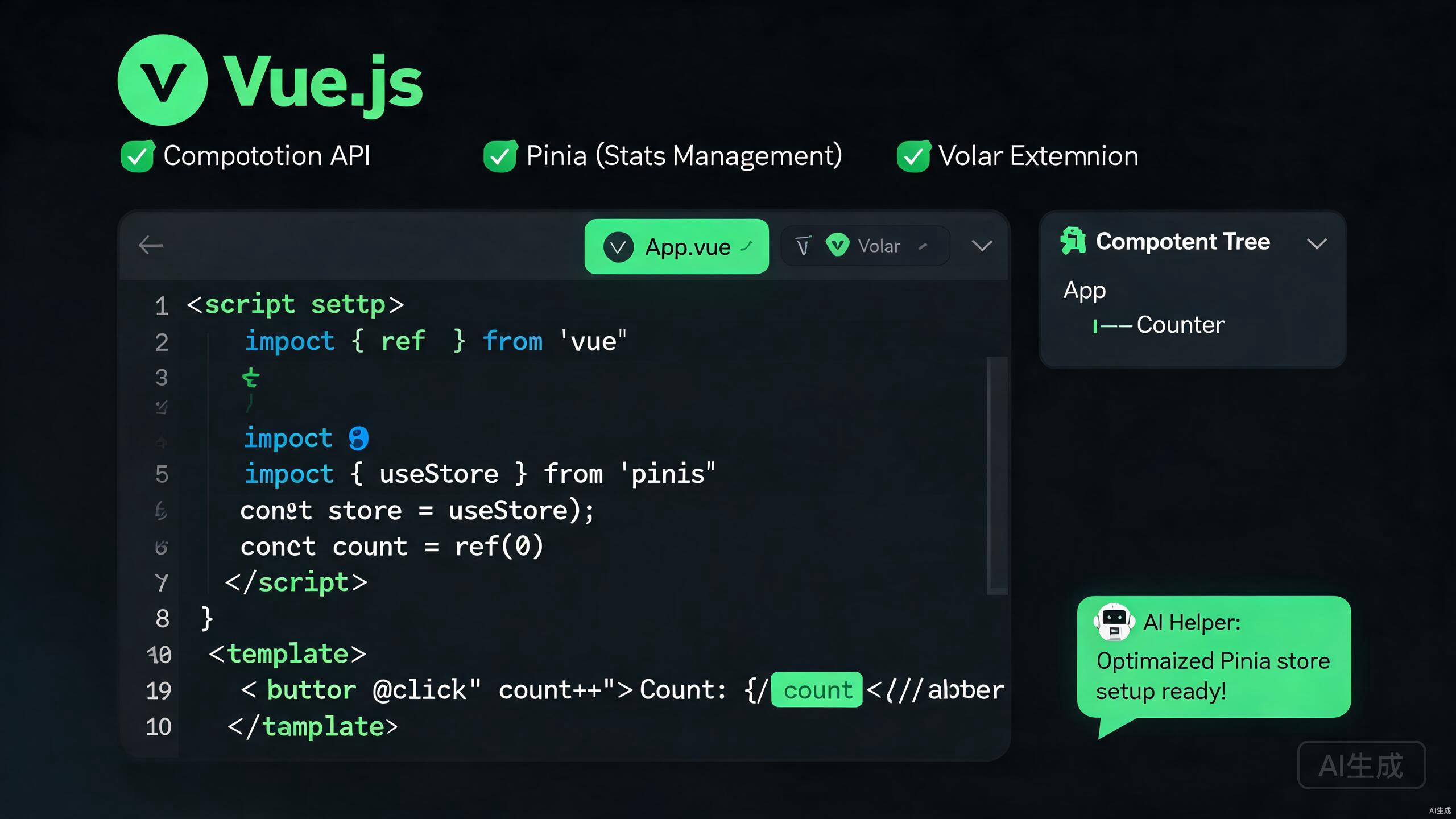
Vue.js has become one of the most popular progressive JavaScript frameworks for building user interfaces. With Vue 3 introducing the Composition API, <script setup>, and a rewritten reactivity system, developers need an editor that understands the modern Vue ecosystem deeply. Cursor combines a VS Code-compatible foundation with first-class AI assistance, making it an outstanding environment for Vue.js development.
This guide walks you through setting up a productive Vue.js workflow in Cursor, from project scaffolding to state management, routing, and AI-assisted component generation. Whether you are migrating an Options API codebase to Vue 3 or starting a fresh SFC (Single File Component) project, the techniques below will help you move faster while keeping your code clean and maintainable.
Setting Up Your Vue.js Environment in Cursor
Prerequisites and Node.js Setup
Before writing any Vue code, make sure your system has the right foundations. Cursor inherits the Node.js installation on your machine, so verify your version first.
node --version
npm --version
Vue 3 and the Volar toolchain require Node.js 18 or higher. If you are on an older version, use a version manager such as nvm or fnm to upgrade:
# Using fnm (recommended for speed)
fnm install 20
fnm use 20

# Using nvm
nvm install 20
nvm use 20
Cursor's integrated terminal supports all common shell tools. You can open it with Ctrl+` (Windows/Linux) or Cmd+` (macOS) and run any CLI command without leaving the editor.
Installing the Volar Extension
The most important extension for Vue.js development in Cursor is Volar (the official Vue.js language support, now distributed as the Vue - Official extension). It provides type checking, IntelliSense, formatting, and diagnostics for .vue files.
To install it:
- Open the Extensions view in Cursor with
Ctrl+Shift+X(orCmd+Shift+Xon macOS). - Search for "Vue - Official".
- Click Install.
Avoid keeping the legacy Vetur extension enabled alongside Volar. Vetur was designed for Vue 2 and conflicts with the modern toolchain. If you have it installed, disable or uninstall it to prevent duplicate diagnostics and incorrect IntelliSense suggestions.
Optionally, install these complementary extensions to round out your workflow:
- ESLint — for linting
.vueand.js/..tsfiles. - Prettier — for consistent formatting.
- TypeScript Vue Plugin (Volar) — improves type resolution inside templates.
Scaffolding a New Vue 3 Project
The recommended way to create a new Vue project is with the official create-vue scaffolding tool, which is maintained by the Vue core team and integrates Vite, TypeScript, Router, and Pinia optionally.
npm create vue@latest my-vue-app
The interactive prompt lets you choose features:
Vue.js - The Progressive JavaScript Framework

? Project name: my-vue-app
? Add TypeScript? Yes
? Add JSX Support? No
? Add Vue Router for Single Page Application development? Yes
? Add Pinia for state management? Yes
? Add Vitest for Unit Testing? Yes
? Add ESLint for code quality? Yes
? Add Prettier for code formatting? Yes
Once scaffolded, open the project in Cursor:
cd my-vue-app
cursor .
Install dependencies and start the dev server:
npm install
npm run dev
Cursor recognizes the Vite dev server automatically. When you run npm run dev, Cursor's terminal shows the local URL (typically http://localhost:5173). You can Ctrl+Click the URL to open the running app in your default browser.
Mastering the Vue 3 Composition API
Understanding <script setup> Syntax
The <script setup> syntax is the recommended way to author Vue 3 components. It is a compile-time syntactic sugar that dramatically reduces boilerplate compared to the Options API.
<script setup lang="ts">
import { ref, computed } from 'vue'

interface Props {
  title: string
  count?: number
}

const props = withDefaults(defineProps<Props>(), {
  count: 0,
})

const emit = defineEmits<{
  (e: 'update', value: number): void
}>()

const doubled = computed(() => props.count * 2)

function increment() {
  const next = props.count + 1
  emit('update', next)
}
</script>

<template>
  <div class="counter">
    <h2>{{ title }}</h2>
    <p>Count: {{ count }} (doubled: {{ doubled }})</p>
    <button @click="increment">Increment</button>
  </div>
</template>

<style scoped>
.counter {
  padding: 1rem;
  border: 1px solid #e2e8f0;
  border-radius: 0.5rem;
}
</style>
defineProps and defineEmits are compiler macros. They do not need to be imported, and they are only available inside <script setup>. Attempting to use them in a regular <script> block without setup will throw a compile error.
Reactive State with ref and reactive
Vue 3 offers two primary ways to declare reactive state. Choosing between them is a common source of confusion for newcomers.
<script setup lang="ts">
import { ref, reactive } from 'vue'

// ref works with primitives and objects
const count = ref(0)
const user = ref({ name: 'Ada', age: 36 })

// reactive only works with objects/arrays
const settings = reactive({
  theme: 'light',
  notifications: true,
})

function toggleTheme() {
  settings.theme = settings.theme === 'light' ? 'dark' : 'light'
}
</script>

<template>
  <button @click="count++">{{ count }}</button>
  <p>{{ user.name }} — theme: {{ settings.theme }}</p>
  <button @click="toggleTheme">Toggle Theme</button>
</template>
A practical rule of thumb: use ref for primitives and for objects you might reassign entirely, and use reactive for grouped state objects that you mutate in place. In templates, refs are automatically unwrapped, so you write {{ count }} instead of {{ count.value }}.
Composables for Reusable Logic
Composables are functions that encapsulate reusable reactive logic. They follow a naming convention of useSomething. Cursor's AI assistant excels at generating composables from natural-language descriptions.
// composables/useFetch.ts
import { ref, watchEffect, type Ref } from 'vue'

export function useFetch<T>(url: Ref<string>) {
  const data = ref<T | null>(null) as Ref<T | null>
  const error = ref<string | null>(null)
  const loading = ref(false)

  watchEffect(async () => {
    loading.value = true
    error.value = null
    try {
      const response = await fetch(url.value)
      if (!response.ok) throw new Error(`HTTP ${response.status}`)
      data.value = (await response.json()) as T
    } catch (err) {
      error.value = err instanceof Error ? err.message : 'Unknown error'
    } finally {
      loading.value = false
    }
  })

  return { data, error, loading }
}
Usage in a component:
<script setup lang="ts">
import { ref } from 'vue'
import { useFetch } from '../composables/useFetch'

interface Post {
  id: number
  title: string
  body: string
}

const endpoint = ref('https://jsonplaceholder.typicode.com/posts/1')
const { data: post, error, loading } = useFetch<Post>(endpoint)
</script>

<template>
  <div v-if="loading">Loading...</div>
  <div v-else-if="error" class="error">{{ error }}</div>
  <article v-else-if="post">
    <h2>{{ post.title }}</h2>
    <p>{{ post.body }}</p>
  </article>
</template>
Working with the Volar Extension
Type-Checked Templates
One of Volar's most powerful features is type-checking inside the <template> block. This catches typos in component props, event names, and expression errors at compile time instead of at runtime.
<script setup lang="ts">
import Counter from './Counter.vue'
</script>

<template>
  <!-- Volar will flag this if the prop does not exist -->
  <Counter title="Clicks" :count="5" @update="handleChange" />
</template>
If Counter does not declare a count prop, Volar shows a red squiggle under the attribute and a diagnostic message in the Problems panel.
Run vue-tsc --noEmit as part of your CI pipeline to enforce template type checking across the whole project. Add it to your package.json scripts:
{
  "scripts": {
    "type-check": "vue-tsc --noEmit"
  }
}
Workspace Configuration
Create a .vscode/settings.json file (shared by Cursor) to lock in Volar preferences for your whole team:
{
  "editor.formatOnSave": true,
  "editor.defaultFormatter": "Vue.volar",
  "vue.codeActions.askNewComponentName": false,
  "vue.inlayHints.missingProps": true,
  "vue.inlayHints.inlineHandlerLeading": true,
  "typescript.tsdk": "node_modules/typescript/lib"
}
Take Over Mode (Standalone TypeScript)
Volar can "take over" the built-in TypeScript extension to provide better Vue-aware IntelliSense across .ts and .vue files alike. In a workspace, create .vscode/settings.json with:
{
  "typescript.preferences.importModuleSpecifier": "relative",
  "vue.server.includeLanguages": ["vue"]
}
Take Over Mode disables the standard TS extension for that workspace. If you work in mixed projects that contain non-Vue TypeScript libraries, test carefully to ensure external type resolution still works as expected.
State Management with Pinia
Why Pinia Over Vuex
Pinia is the official state management library for Vue 3. It is the successor to Vuex and offers several advantages:
- Simpler, type-safe API with no mutations (you mutate state directly).
- First-class TypeScript support with full autocompletion.
- Modularity — each store is defined independently.
- Excellent DevTools integration.
Defining a Store
// stores/counter.ts
import { defineStore } from 'pinia'
import { computed, ref } from 'vue'

export const useCounterStore = defineStore('counter', () => {
  const count = ref(0)
  const doubled = computed(() => count.value * 2)

  function increment() {
    count.value++
  }

  async function incrementAsync() {
    await new Promise((resolve) => setTimeout(resolve, 200))
    count.value++
  }

  return { count, doubled, increment, incrementAsync }
})
Using the Store in Components
<script setup lang="ts">
import { storeToRefs } from 'pinia'
import { useCounterStore } from '../stores/counter'

const counter = useCounterStore()

// Destructure reactive state safely
const { count, doubled } = storeToRefs(counter)
// Actions can be destructured directly
const { increment, incrementAsync } = counter
</script>

<template>
  <div class="counter">
    <p>Count: {{ count }} / Doubled: {{ doubled }}</p>
    <button @click="increment">+1</button>
    <button @click="incrementAsync">+1 (async)</button>
  </div>
</template>
Never destructure store state with plain const { count } = counter — you will lose reactivity. Always use storeToRefs for state and getters, and destructure actions directly since they are plain functions.
Organizing Multiple Stores
For larger applications, split stores by domain:
src/stores/
  ├── auth.ts
  ├── cart.ts
  ├── products.ts
  └── ui.ts
A cross-store pattern lets one store call another:
// stores/cart.ts
import { defineStore } from 'pinia'
import { useProductsStore } from './products'

export const useCartStore = defineStore('cart', () => {
  const items = ref<{ id: number; qty: number }[]>([])

  function addToCart(productId: number) {
    const products = useProductsStore()
    if (!products.exists(productId)) {
      throw new Error('Product not found')
    }
    items.value.push({ id: productId, qty: 1 })
  }

  return { items, addToCart }
})
Routing with Vue Router
Configuring Routes
// router/index.ts
import { createRouter, createWebHistory, type RouteRecordRaw } from 'vue-router'
import HomeView from '../views/HomeView.vue'

const routes: RouteRecordRaw[] = [
  { path: '/', name: 'home', component: HomeView },
  {
    path: '/about',
    name: 'about',
    component: () => import('../views/AboutView.vue'),
  },
  {
    path: '/users/:id',
    name: 'user-detail',
    component: () => import('../views/UserDetailView.vue'),
    props: true,
  },
]

const router = createRouter({
  history: createWebHistory(import.meta.env.BASE_URL),
  routes,
})

export default router
Navigation and Route Params
<script setup lang="ts">
import { useRoute, useRouter } from 'vue-router'
import { computed } from 'vue'

const route = useRoute()
const router = useRouter()

const userId = computed(() => route.params.id as string)

function goHome() {
  router.push({ name: 'home' })
}
</script>

<template>
  <div>
    <p>Viewing user #{{ userId }}</p>
    <button @click="goHome">Back to Home</button>
  </div>
</template>
Use lazy-loaded components (() => import(...)) for route segments that are not immediately needed. This produces smaller initial bundles and faster first paint, which is especially important on mobile networks.
Navigation Guards
router.beforeEach((to, from) => {
  const isAuthenticated = localStorage.getItem('token') !== null
  if (to.meta.requiresAuth && !isAuthenticated) {
    return { name: 'login', query: { redirect: to.fullPath } }
  }
})
Apply the meta field per route:
{
  path: '/dashboard',
  component: () => import('../views/DashboardView.vue'),
  meta: { requiresAuth: true },
}
AI-Assisted Component Generation in Cursor
Generating SFCs from Prompts
Cursor's AI assistant can generate complete Single File Components from a plain-English description. Open the Command Palette (Ctrl+Shift+P) and choose Cursor: New Chat, or use Ctrl+K inline.
Example prompt:
Create a Vue 3 component using script setup and TypeScript for a paginated
data table. It should accept a columns prop (array of { key, label }),
a rows prop (array of records), and emit a page-change event with the new
page number. Include scoped styles and show empty-state messaging.
Cursor produces a scaffolded .vue file with all three blocks. Review the output and refine iteratively — ask it to add loading skeletons, sorting, or sticky headers as needed.
Be specific about the Vue version and syntax style in your prompt. Specifying "Vue 3 with <script setup lang="ts"> and Composition API" prevents the model from emitting Options API code or Vue 2 patterns.
Refactoring Existing Components
Cursor can refactor older Options API components into Composition API equivalents. Highlight the component, press Ctrl+K, and prompt:
Convert this Options API component to script setup using the Composition API.
Keep all existing props, emits, and methods. Use composables for any logic
that could be reused elsewhere.
The AI rewrites the file while preserving behavior. Always run your test suite afterward to confirm parity.
Generating Tests with AI
Pair Vue components with Vitest tests generated by Cursor:
// Counter.spec.ts
import { describe, it, expect } from 'vitest'
import { mount } from '@vue/test-utils'
import Counter from './Counter.vue'

describe('Counter.vue', () => {
  it('renders the title prop', () => {
    const wrapper = mount(Counter, { props: { title: 'Clicks', count: 0 } })
    expect(wrapper.text()).toContain('Clicks')
  })

  it('emits update with incremented value on click', async () => {
    const wrapper = mount(Counter, { props: { title: 'Clicks', count: 5 } })
    await wrapper.find('button').trigger('click')
    expect(wrapper.emitted('update')?.[0]).toEqual([6])
  })
})
Prompt Cursor with: "Generate Vitest unit tests for Counter.vue covering the increment behavior and empty-state rendering."
Debugging and Profiling Vue Apps in Cursor
Vue DevTools Integration
Install the Vue.js devtools browser extension, or use the standalone Electron app. While Cursor itself does not host the DevTools UI, the Volar extension surfaces component diagnostics inline.
To debug the Pinia store state, the Vue DevTools "Pinia" tab shows every store, its current state, and a timeline of actions — invaluable for tracking down stale-state bugs.
Source Maps and Vite
Vite generates source maps for development by default. Ensure your vite.config.ts keeps them on:
import { defineConfig } from 'vite'
import vue from '@vitejs/plugin-vue'

export default defineConfig({
  plugins: [vue()],
  build: {
    sourcemap: true,
  },
})
Shipping source maps to production can expose your original source code. For production builds, set sourcemap: 'hidden' or use a hosted source-map service, and never commit .map files to a public repository.
Performance Profiling
Use the Chrome Performance tab alongside Cursor. The vite-plugin-vue-inspector (or unplugin-vue-source) lets you click any element in the browser to jump directly to the source line in Cursor — a massive productivity boost for navigating large codebases.
npm install -D vite-plugin-vue-devtools
// vite.config.ts
import { defineConfig } from 'vite'
import vue from '@vitejs/plugin-vue'
import VueDevTools from 'vite-plugin-vue-devtools'

export default defineConfig({
  plugins: [vue(), VueDevTools()],
})
Best Practices for Vue.js in Cursor
Project Structure Conventions
A scalable layout looks like this:
src/
  ├── assets/
  ├── components/
  │   ├── common/
  │   └── forms/
  ├── composables/
  ├── layouts/
  ├── router/
  ├── stores/
  ├── views/
  ├── App.vue
  └── main.ts
Linting and Formatting
Pin ESLint and Prettier versions in package.json so the whole team shares identical rules:
{
  "devDependencies": {
    "eslint": "^9.0.0",
    "eslint-plugin-vue": "^9.0.0",
    "prettier": "^3.0.0",
    "@vue/eslint-config-typescript": "^13.0.0"
  }
}
Create .eslintrc.cjs:
module.exports = {
  root: true,
  env: { browser: true, node: true },
  extends: [
    'plugin:vue/vue3-recommended',
    '@vue/eslint-config-typescript',
  ],
  rules: {
    'vue/multi-word-component-names': 'off',
    'vue/component-tags-order': ['error', { order: ['script', 'template', 'style'] }],
  },
}
Configure Cursor to fix lint errors on save by adding this to settings.json:
{
  "editor.codeActionsOnSave": {
    "source.fixAll.eslint": "explicit"
  }
}
Keyboard Shortcuts for Vue Workflow
Ctrl+K— inline AI edit/refactor.Ctrl+Shift+P→ "Cursor: New Chat" — open the AI chat for component generation.Alt+Clickon a component tag — go to definition (powered by Volar).Ctrl+.— quick fix menu for Volar diagnostics.
Common Pitfalls and How to Avoid Them
Losing Reactivity After Destructuring
The single most common Vue 3 mistake is destructuring reactive objects or refs directly:
// WRONG — loses reactivity
const { count } = useCounterStore()

// CORRECT
const { count } = storeToRefs(useCounterStore())
Mutating Props
Props are read-only. If a child needs to change a value, emit an event instead:
<script setup lang="ts">
const props = defineProps<{ modelValue: string }>()
const emit = defineEmits<{ (e: 'update:modelValue', v: string): void }>()

// Use a computed setter for v-model passthrough
import { computed } from 'vue'
const proxy = computed({
  get: () => props.modelValue,
  set: (val) => emit('update:modelValue', val),
})
</script>
Forgetting :key in v-for
Always bind a unique :key so Vue can track nodes efficiently:
<template>
  <li v-for="item in items" :key="item.id">{{ item.label }}</li>
</template>
Using the array index as :key can cause subtle bugs when the list is reordered or filtered. Prefer a stable unique identifier such as a database ID.
Summary
Cursor gives Vue.js developers a modern, AI-augmented workspace that plays well with the official Vue toolchain. By combining Volar for type-safe authoring, Pinia for clean state management, Vue Router for navigation, and Cursor's AI for component generation and refactoring, you can ship Vue 3 applications faster and with fewer bugs. Start by scaffolding a project with create-vue, lock in your ESLint and formatting rules, and let Cursor's AI handle the repetitive scaffolding while you focus on product logic and user experience.