Cursor에서 Astro 프레임워크 개발: 완전한 가이드
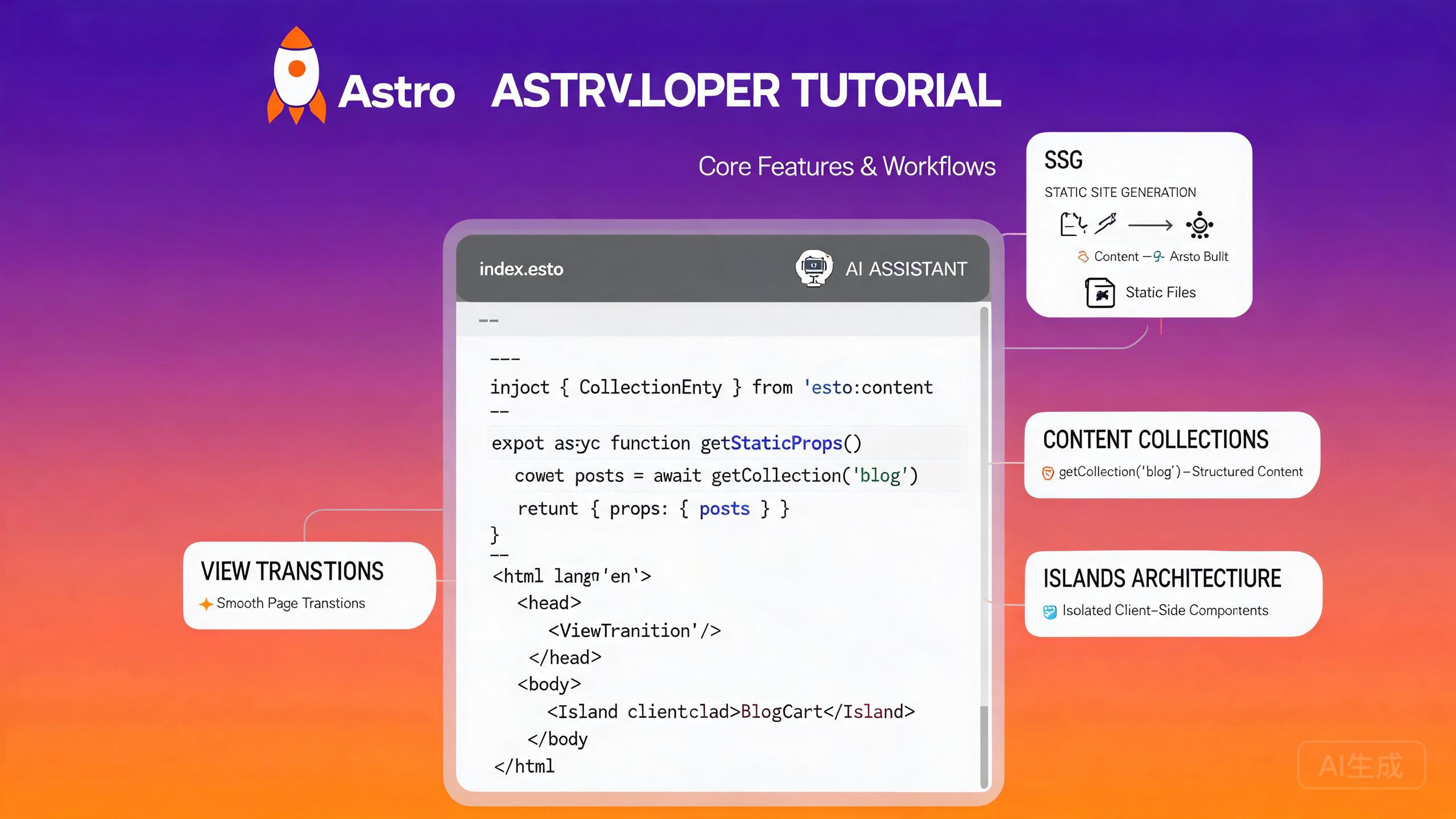
Astro는 콘텐츠 기반 웹사이트를 위해 설계된 최신 웹 프레임워크로, 기본적으로 JavaScript를 전혀 전송하지 않습니다. Astro 4+는 업그레이드된 Content Layer API, 더 빠른 dev 서버 성능, 공식 View Transitions 지원을 도입했습니다. Cursor는 VS Code 호환 기반과 통합 AI 어시스턴트를 통해 Astro 작업에 탁월한 편집기입니다 -- .astro 파일을 이해하고, frontmatter와 컴포넌트 props에 대한 IntelliSense를 제공하며, 자연어 프롬프트에서 컴포넌트, 컬렉션 및 통합을 생성할 수 있습니다.
이 가이드는 Cursor에서의 완전한 Astro 개발 워크플로우를 다룹니다: 프로젝트 설정, 콘텐츠 컬렉션, View Transitions API, 아일랜즈 아키텍처, 통합 및 AI 지원 컴포넌트 생성.
Cursor에서 Astro 개발 설정
사전 요구 사항
Astro 4+는 Node.js 18.14.1 이상이 필요합니다 (Node 20 LTS 권장). 설치를 확인하세요:
node --version
npm --version
최신 버전이 필요한 경우 fnm 또는 nvm을 사용하세요:
fnm install 20
fnm use 20
Cursor의 통합 터미널(Ctrl+`)은 현재 작업 디렉토리를 Explorer 패널과 동기화하므로, 프로젝트를 스캐폴드하고 컨텍스트 전환 없이 즉시 생성된 파일을 열 수 있습니다.
Astro 언어 도구 설치
Cursor는 언어 지원을 위해 공식 Astro 확장에 의존합니다. 확장 보기(Ctrl+Shift+X)에서 설치하세요:
- "Astro"를 검색합니다.
- Astro 팀이 게시한 확장을 설치합니다.
- 메시지가 표시되면 Cursor를 다시 로드합니다.
이 확장은 다음을 제공합니다:
.astro파일에 대한 구문 강조.@astrojs/language-server를 통한 진단 및 타입 검사.prettier-plugin-astro패키지를 통한 Prettier 포맷팅.- 컴포넌트 임포트, props 및 frontmatter 표현식에 대한 IntelliSense.
이전에 커뮤니티 Astro 확장을 설치한 경우, 공식 확장을 설치하기 전에 비활성화하세요. 충돌하는 확장은 중복 진단 및 불안정한 포맷팅을 유발합니다.
Astro 프로젝트 스캐폴딩
공식 create-astro CLI를 사용하여 새 프로젝트를 부트스트랩하세요:
# 최소 템플릿으로 새 프로젝트 생성
npm create astro@latest my-astro-site -- --template minimal --no-install --no-git --typescript strict

cd my-astro-site
npm install
Cursor에서 프로젝트 폴더를 엽니다:
cursor .
기본 프로젝트 구조는 다음과 같습니다:
my-astro-site/
├── src/
│   ├── components/
│   ├── layouts/
│   │   └── Layout.astro
│   ├── pages/
│   │   └── index.astro
│   └── styles/
│       └── global.css
├── public/
├── astro.config.mjs
├── tsconfig.json
└── package.json
Cursor에게 완전한 프로젝트 스캐폴딩을 요청하세요: "TypeScript, Tailwind CSS, MDX 지원으로 Astro 4 프로젝트를 생성해줘." Cursor가 구성 파일을 생성하고 한 번에 종속성을 설치합니다.
콘텐츠 컬렉션 작업
콘텐츠 컬렉션은 블로그 게시물, 문서 및 제품 목록과 같은 로컬 콘텐츠를 관리하는 Astro의 타입 안전 방식입니다. Astro 4에서 도입된 Content Layer API는 로컬 파일, 외부 API 및 CMS 통합을 위한 통합 인터페이스를 제공합니다.
컬렉션 정의
src/content/config.ts에 컬렉션 스키마를 생성합니다:
import { defineCollection, z } from 'astro:content';
import { glob } from 'astro/loaders';

const blog = defineCollection({
  loader: glob({ pattern: '**/*.md', base: './src/content/blog' }),
  schema: ({ image }) =>
    z.object({
      title: z.string(),
      description: z.string(),
      pubDate: z.coerce.date(),
      updatedDate: z.coerce.date().optional(),
      author: z.string().default('Anonymous'),
      tags: z.array(z.string()).default([]),
      cover: image().optional(),
      draft: z.boolean().default(false),
    }),
});

const docs = defineCollection({
  loader: glob({ pattern: '**/*.md', base: './src/content/docs' }),
  schema: z.object({
    title: z.string(),
    order: z.number(),
    section: z.string(),
  }),
});

export const collections = { blog, docs };
Cursor에게 요청하세요: "이름, 가격, 설명, 이미지 배열 및 카테고리 enum이 있는 제품 카탈로그용 콘텐츠 컬렉션 스키마를 생성해줘." Cursor는 Zod를 이해하고 적절한 검증자가 포함된 유효한 스키마를 생성합니다.
콘텐츠 항목 작성
컬렉션 디렉토리에 Markdown 파일을 생성합니다:
---
title: "Getting Started with Astro 4"
description: "Learn the new Content Layer API and View Transitions in Astro 4."
pubDate: 2024-06-15
author: "Jane Doe"
tags: ["astro", "tutorial"]
cover: "../../assets/blog/astro-cover.jpg"
---

Astro 4 brings a faster dev server, improved Content Layer API,
and native View Transitions support.
페이지에서 컬렉션 쿼리
getCollection을 사용하여 완전한 타입 안전성으로 항목을 가져옵니다:
---
// src/pages/blog/index.astro
import { getCollection } from 'astro:content';
import Layout from '../../layouts/Layout.astro';

const posts = (await getCollection('blog'))
  .filter((post) => !post.data.draft)
  .sort((a, b) => b.data.pubDate.valueOf() - a.data.pubDate.valueOf());
---

<Layout title="Blog">
  <main>
    <h1>Blog</h1>
    <ul>
      {posts.map((post) => (
        <li>
          <a href={`/blog/${post.id}/`}>
            <time datetime={post.data.pubDate.toISOString()}>
              {post.data.pubDate.toLocaleDateString('en-US')}
            </time>
            {post.data.title}
          </a>
        </li>
      ))}
    </ul>
  </main>
</Layout>
Content Layer API로 URL을 구축할 때 항상 post.id(post.slug가 아님)를 사용하세요. slug 필드 동작은 Astro 3와 Astro 4 간에 다릅니다 -- id가 Astro 4+에서 안정적인 고유 식별자입니다.
동적 콘텐츠 페이지
각 컬렉션 항목에 대한 개별 페이지를 생성합니다:
---
// src/pages/blog/[...id].astro
import { getCollection, render } from 'astro:content';
import Layout from '../../layouts/Layout.astro';

export async function getStaticPaths() {
  const posts = await getCollection('blog');
  return posts.map((post) => ({
    params: { id: post.id },
    props: { post },
  }));
}

const { post } = Astro.props;
const { Content } = await render(post);
---

<Layout title={post.data.title}>
  <article>
    <header>
      <h1>{post.data.title}</h1>
      <p>By {post.data.author}</p>
    </header>
    <Content />
  </article>
</Layout>
View Transitions API
Astro의 <ClientRouter /> 컴포넌트(이전 <ViewTransitions />)는 전체 SPA 프레임워크 없이 클라이언트 측 탐색을 위한 네이티브 브라우저 View Transitions를 활성화합니다.
View Transitions 활성화
기본 레이아웃에 컴포넌트를 추가합니다:
---
// src/layouts/Layout.astro
import { ClientRouter } from 'astro:transitions';

interface Props {
  title: string;
}

const { title } = Astro.props;
---

<!doctype html>
<html lang="en">
  <head>
    <meta charset="UTF-8" />
    <meta name="viewport" content="width=device-width, initial-scale=1.0" />
    <title>{title}</title>
    <ClientRouter />
  </head>
  <body>
    <slot />
  </body>
</html>
페이지 전환 애니메이션
CSS view-transition-name을 사용하여 명명된 전환 대상을 정의합니다:
/* src/styles/global.css */
::view-transition-old(root) {
  animation: fade-out 0.3s ease;
}

::view-transition-new(root) {
  animation: fade-in 0.3s ease;
}

@keyframes fade-out {
  to { opacity: 0; }
}

@keyframes fade-in {
  from { opacity: 0; }
}

/* 히어로 이미지에 대한 명명된 전환 */
.hero-image {
  view-transition-name: hero-image;
}

::view-transition-old(hero-image) {
  animation: scale-down 0.4s ease;
}

::view-transition-new(hero-image) {
  animation: scale-up 0.4s ease;
}
Cursor에게 요청하세요: "내 Astro 사이트에 탐색을 위한 슬라이드인 효과와 콘텐츠를 위한 크로스페이드가 있는 View Transitions를 추가해줘." Cursor가 CSS 키프레임을 생성하고 view-transition-name을 사용하여 특정 요소에 범위를 지정하는 방법을 설명합니다.
라이프사이클 이벤트
클라이언트 측 스크립트에서 전환 이벤트를 수신합니다:
<script>
  document.addEventListener('astro:page-load', () => {
    console.log('New page loaded after transition');
    initAnalytics();
  });

  document.addEventListener('astro:before-swap', (event) => {
    // 스왑 전에 새 문서 수정
    const newDoc = event.newDocument;
    const theme = localStorage.getItem('theme') ?? 'light';
    newDoc.documentElement.dataset.theme = theme;
  });

  document.addEventListener('astro:after-swap', () => {
    console.log('DOM swapped, scripts re-executed');
  });
</script>
.astro 파일의 클라이언트 측 스크립트는 Astro의 번들러에 의해 처리됩니다. View Transitions에서 매 탐색마다 실행되는 스크립트가 필요한 경우, 첫 로드에서만 실행되는 최상위 코드 대신 astro:page-load 이벤트를 수신하세요.
아일랜즈 아키텍처
Astro의 아일랜즈 아키텍처는 정적 HTML 내에 대화형 컴포넌트(React, Vue, Svelte, Solid 등)를 포함할 수 있게 합니다. 아일랜즈 컴포넌트만 JavaScript를 전송하고 나머지 페이지는 정적으로 유지됩니다.
UI 프레임워크 통합 추가
React 통합을 설치합니다:
npx astro add react
이 명령은 astro.config.mjs를 자동으로 수정합니다:
import { defineConfig } from 'astro/config';
import react from '@astrojs/react';

export default defineConfig({
  integrations: [react()],
});
대화형 아일랜드 생성
React 컴포넌트를 생성합니다:
// src/components/Counter.tsx
import { useState } from 'react';

interface CounterProps {
  initialCount?: number;
  step?: number;
}

export default function Counter({ initialCount = 0, step = 1 }: CounterProps) {
  const [count, setCount] = useState(initialCount);

  return (
    <div className="counter">
      <button onClick={() => setCount((c) => c - step)}>-</button>
      <span>{count}</span>
      <button onClick={() => setCount((c) => c + step)}>+</button>
    </div>
  );
}
Astro 페이지에서 client: 디렉티브를 사용하여 아일랜드를 하이드레이트합니다:
---
// src/pages/index.astro
import Layout from '../layouts/Layout.astro';
import Counter from '../components/Counter.tsx';
---

<Layout title="Home">
  <h1>Welcome</h1>

  <!-- 페이지 로드 시 하이드레이트 -->
  <Counter client:load initialCount={0} step={2} />

  <!-- 뷰포트에 보일 때 하이드레이트 -->
  <Counter client:visible initialCount={10} />

  <!-- 유휴 시 하이드레이트 -->
  <Counter client:idle initialCount={5} />

  <!-- 미디어 쿼리 일치 시 하이드레이트 -->
  <Counter client:media="(max-width: 768px)" initialCount={0} />

  <!-- 하이드레이트 없음 -- 서버 렌더링 전용 -->
  <Counter initialCount={100} />
</Layout>
Cursor에게 요청하세요: "이메일 검증이 있는 뉴스레터 가입 폼을 위한 React 아일랜드를 만들고, 내 Astro 레이아웃에 client:visible로 렌더링해줘." Cursor가 컴포넌트를 생성하고, 폼 상태를 처리하고, 검증을 추가하며, 레이아웃 파일에 연결합니다.
올바른 하이드레이션 디렉티브 선택
| 디렉티브 | 사용 시기 |
|---|---|
client:load | 즉시 필요한 대화형 기능 (탐색, 검색) |
client:idle | 브라우저 유휴 시간에 로드되는 낮은 우선순위 위젯 |
client:visible | 스크롤하여 보일 때 하이드레이트되는 폴드 아래 위젯 |
client:media | 특정 화면 크기에서만 로드해야 하는 컴포넌트 |
client:only | 서버 렌더링 완전 건너뛰기 (브라우저 전용 API에 유용) |
client:only는 주의해서 사용하세요. 이 디렉티브로 렌더링된 컴포넌트는 서버 측 렌더링을 건너뛰므로 초기 HTML에 나타나지 않습니다. 이는 SEO에 해롭고 레이아웃 이동을 유발합니다. 첫 렌더링에서 window 또는 localStorage 같은 브라우저 전용 API에 의존하는 컴포넌트에만 사용하세요.
통합 및 에코시스템
Astro 통합은 프레임워크를 추가 기능으로 확장합니다. Cursor의 AI는 통합을 빠르게 구성하고 문제를 해결하는 데 도움을 줄 수 있습니다.
Tailwind CSS 통합
npx astro add tailwind
이것은 @tailwindcss/vite를 설치하고 Vite 플러그인을 구성합니다. Tailwind 임포트가 있는 CSS 파일을 생성합니다:
/* src/styles/global.css */
@import "tailwindcss";
레이아웃에서 스타일시트를 임포트합니다:
---
// src/layouts/Layout.astro
import '../styles/global.css';
---
Cursor에게 요청하세요: "내 Astro 프로젝트에 Tailwind CSS v4를 설정하고 반응형 내비게이션 바 컴포넌트를 만들어줘." Cursor가 Vite 플러그인을 구성하고, CSS 진입점을 생성하며, 유틸리티 클래스로 반응형 내비게이션을 구축합니다.
MDX 통합
npx astro add mdx
콘텐츠 컬렉션에서 .mdx 파일을 사용하여 Markdown 내에 대화형 컴포넌트를 포함합니다:
---
title: "Interactive Blog Post"
description: "A post with embedded React components."
pubDate: 2024-06-20
---

import Counter from '../components/Counter.tsx';

This is a paragraph in MDX.

<Counter client:visible initialCount={0} />

More content after the island.
사이트맵 및 RSS 통합
npx astro add sitemap
npx astro add rss
astro.config.mjs에서 구성합니다:
import { defineConfig } from 'astro/config';
import sitemap from '@astrojs/sitemap';
import mdx from '@astrojs/mdx';

export default defineConfig({
  site: 'https://example.com',
  integrations: [mdx(), sitemap()],
});
독립형 엔드포인트에서 RSS 피드를 생성합니다:
// src/pages/rss.xml.ts
import rss from '@astrojs/rss';
import { getCollection } from 'astro:content';

export async function GET(context) {
  const posts = await getCollection('blog');
  return rss({
    title: 'My Astro Blog',
    description: 'Latest posts',
    site: context.site,
    items: posts
      .filter((post) => !post.data.draft)
      .sort((a, b) => b.data.pubDate.valueOf() - a.data.pubDate.valueOf())
      .map((post) => ({
        title: post.data.title,
        description: post.data.description,
        pubDate: post.data.pubDate,
        link: `/blog/${post.id}/`,
      })),
    customData: '<language>en-us</language>',
  });
}
Cursor에서 AI 지원 컴포넌트 생성
Cursor의 AI 어시스턴트는 자연어 설명에서 Astro 컴포넌트, 레이아웃 및 컬렉션 스키마를 생성하는 데 탁월합니다.
프롬프트에서 컴포넌트 생성
Cursor Chat(Ctrl+L)을 열거나 인라인 편집(Ctrl+I)을 사용하여 필요한 것을 설명합니다:
Generate an Astro component for a responsive pricing table with three tiers:
Starter ($9), Pro ($29), and Enterprise ($99). Include a "Popular" badge on
the Pro tier, feature lists with checkmarks, and CTA buttons. Use Tailwind
classes and accept props for the tier data.
Cursor가 완전히 타입이 지정된 스타일 컴포넌트를 생성합니다:
---
// src/components/PricingTable.astro
interface PricingTier {
  name: string;
  price: number;
  description: string;
  features: string[];
  popular?: boolean;
  ctaText: string;
  ctaLink: string;
}

interface Props {
  tiers: PricingTier[];
}

const { tiers } = Astro.props;
---

<section class="py-12">
  <div class="grid grid-cols-1 md:grid-cols-3 gap-8 max-w-5xl mx-auto">
    {tiers.map((tier) => (
      <div
        class:list={[
          'relative rounded-2xl border p-8',
          tier.popular
            ? 'border-blue-500 shadow-xl scale-105'
            : 'border-gray-200',
        ]}
      >
        {tier.popular && (
          <span class="absolute -top-3 left-1/2 -translate-x-1/2 rounded-full bg-blue-500 px-4 py-1 text-sm text-white font-semibold">
            Popular
          </span>
        )}
        <h3 class="text-xl font-bold">{tier.name}</h3>
        <p class="text-gray-500 text-sm mt-1">{tier.description}</p>
        <p class="text-4xl font-bold mt-4">
          ${tier.price}<span class="text-base font-normal text-gray-500">/mo</span>
        </p>
        <ul class="mt-6 space-y-3">
          {tier.features.map((feature) => (
            <li class="flex items-center gap-2">
              <svg class="w-5 h-5 text-green-500" fill="none" viewBox="0 0 24 24" stroke="currentColor" stroke-width="2">
                <path stroke-linecap="round" stroke-linejoin="round" d="M5 13l4 4L19 7" />
              </svg>
              {feature}
            </li>
          ))}
        </ul>
        <a
          href={tier.ctaLink}
          class:list={[
            'mt-8 block rounded-lg py-3 text-center font-semibold transition-colors',
            tier.popular
              ? 'bg-blue-500 text-white hover:bg-blue-600'
              : 'bg-gray-100 text-gray-900 hover:bg-gray-200',
          ]}
        >
          {tier.ctaText}
        </a>
      </div>
    ))}
  </div>
</section>
컴포넌트를 생성할 때 프롬프트에 prop 인터페이스를 포함하세요. 이렇게 하면 Cursor가 페이지 전체에서 재사용할 수 있는 타입이 지정된 props를 생성합니다. 예: "title, description, href 및 선택적 image prop을 받는 Card 컴포넌트를 만들어줘."
AI 지원 레이아웃 생성
Cursor에게 재사용 가능한 레이아웃 생성을 요청합니다:
Create a base Astro layout with a sticky header containing a logo, navigation
links (Home, Blog, About, Contact), and a theme toggle button. Include a footer
with social links and copyright. Add View Transitions and a dark mode toggle
using a script that reads from localStorage.
AI 지원 통합 구성
Cursor는 통합 문제 해결을 도울 수 있습니다. Tailwind 클래스가 적용되지 않는 경우:
My Tailwind CSS v4 classes are not being applied in my Astro project.
Here is my astro.config.mjs and global.css. What is wrong?
Cursor가 구성을 분석하고, 일반적인 문제(누락된 Vite 플러그인, 잘못된 임포트 경로, 콘텐츠 구성)를 확인하고, 수정 사항을 제안합니다.
Cursor의 AI를 사용하여 astro.config.mjs를 수정할 때, 생성된 integrations 배열을 항상 검토하세요. 통합은 올바른 순서로 나열되어야 합니다 -- 예를 들어, MDX 페이지가 사이트맵에 포함되어야 하는 경우 mdx()가 sitemap() 앞에 와야 합니다.
빌드 및 배포
정적 사이트 생성
Astro는 기본적으로 정적 출력입니다. 사이트를 빌드합니다:
npm run build
출력은 dist/에 저장됩니다. 프로덕션 빌드를 로컬에서 미리보기:
npm run preview
서버 측 렌더링 (SSR)
동적 콘텐츠를 위해 SSR 모드를 활성화합니다:
// astro.config.mjs
import { defineConfig } from 'astro/config';
import node from '@astrojs/node';

export default defineConfig({
  output: 'server',
  adapter: node({ mode: 'standalone' }),
});
하이브리드 렌더링
Astro 4는 정적 및 서버 렌더링 페이지를 혼합할 수 있는 하이브리드 렌더링을 지원합니다:
// astro.config.mjs
export default defineConfig({
  output: 'hybrid',
});
개별 페이지를 export const prerender = false;로 서버 렌더링으로 표시합니다.
디버깅 및 성능
번들 크기 분석
번들 분석기를 설치합니다:
npm install -D astro-bundle-analyzer
통합에 추가합니다:
import bundleAnalyzer from 'astro-bundle-analyzer';

export default defineConfig({
  integrations: [bundleAnalyzer()],
});
Cursor에게 요청하세요: "내 Astro 빌드가 너무 많은 JavaScript를 전송하고 있어. 컴포넌트를 분석하고 어떤 아일랜드를 client:load에서 client:visible 또는 client:idle로 변경할 수 있는지 알려줘." Cursor가 컴포넌트 사용을 검토하고 하이드레이션 디렉티브 최적화를 권장합니다.
이미지 최적화
Astro의 내장 <Image> 컴포넌트를 사용하여 자동 최적화를 수행합니다:
---
import { Image } from 'astro:assets';
import heroImage from '../assets/hero.jpg';
---

<Image
  src={heroImage}
  alt="Hero image"
  width={1200}
  height={600}
  loading="eager"
  formats={['avif', 'webp']}
  quality={80}
/>
원격 이미지에는 config.image.service 항목 또는 img.config 설정이 필요합니다. 원격 이미지 도메인에 대한 빌드 오류가 발생하면, astro.config.mjs의 image.domains 또는 image.remotePatterns에 허용된 도메인을 추가하세요.
결론
Astro 4+와 Cursor의 조합은 빠르고 콘텐츠 기반의 웹사이트를 구축하기 위한 강력한 개발 환경을 만듭니다. 기본적으로 JavaScript를 전송하지 않는 출력, 타입 안전 콘텐츠 컬렉션, View Transitions 및 아일랜즈 아키텍처의 조합은 개발자 경험을 희생하지 않고 우수한 성능을 제공합니다. Cursor의 AI 어시스턴트는 스캐폴딩 및 스키마 설계부터 컴포넌트 생성 및 통합 문제 해결까지 모든 단계를 가속화합니다. 최소 템플릿으로 시작하고, 구조화된 데이터를 위한 콘텐츠 컬렉션을 추가하고, 필요한 곳에만 대화형 아일랜드를 도입하고, Cursor가 보일러플레이트를 생성하도록 하여 콘텐츠와 디자인에 집중하세요.