Cursor에서 Python 데이터 과학: 종합 가이드
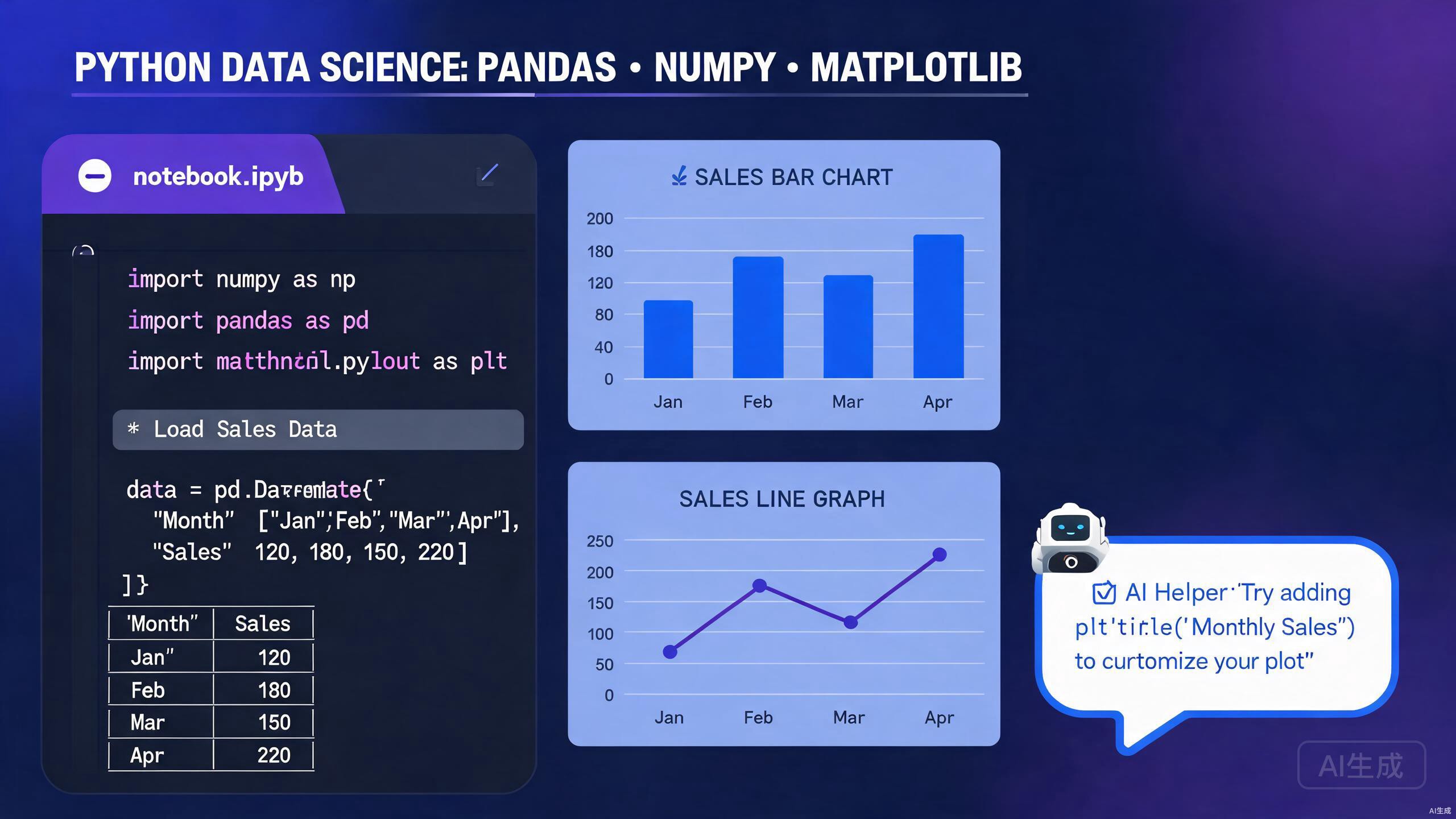
데이터 과학은 빠른 실험, 강력한 시각화, 재현 가능한 워크플로를 요구합니다. Cursor는 세계적 수준의 코드 편집기와 AI 지원 분석, 네이티브 Jupyter 지원, Python 데이터 과학 스택과의 원활한 통합을 결합하여 이를 제공합니다. 이 가이드는 환경 설정부터 pandas, NumPy, Matplotlib 및 그 이상을 위한 Cursor의 고유 기능 활용까지 안내합니다.
데이터 과학 환경 설정하기
신뢰할 수 있는 Python 환경은 모든 데이터 과학 프로젝트의 기초입니다. Cursor는 통합 터미널 지원과 가상 환경 감지를 통해 환경 관리를 간단하게 만듭니다.
Python 설치 및 가상 환경
Cursor의 터미널에서 Python 설치를 확인하세요:
python --version
프로젝트를 위한 전용 가상 환경을 생성하세요:
python -m venv .venv
source .venv/bin/activate  # Windows의 경우: .venv\Scripts\activate
Cursor는 작업 공간 루트에서 .venv를 자동으로 감지하고 활성 인터프리터로 선택하도록 제안합니다. 상태 표시줄에서 Python 버전 표시기를 확인하세요.
핵심 데이터 과학 라이브러리 설치하기
pip를 사용하여 필수 스택을 설치하세요:
pip install pandas numpy matplotlib seaborn scikit-learn jupyterlab
딥러닝 워크플로를 위해 PyTorch 또는 TensorFlow를 추가하세요:
pip install torch torchvision torchaudio
재현성을 위해 종속성을 고정하세요:
pip freeze > requirements.txt
종속성 해결의 의미를 이해하지 못한다면 같은 환경에서 conda와 pip를 혼합하지 마세요. 충돌을 방지하기 위해 프로젝트당 하나의 패키지 관리자를 사용하세요.
Python용 Cursor 구성하기
IntelliSense, 린트 및 포맷팅을 위해 Cursor에 공식 Python 확장을 설치하세요. 데이터 과학을 위한 권장 설정:
{
  "python.analysis.typeCheckingMode": "basic",
  "python.formatting.provider": "black",
  "python.linting.enabled": true,
  "python.linting.pylintEnabled": false,
  "python.linting.ruffEnabled": true,
  "jupyter.askForKernelRestart": false,
  "jupyter.interactiveWindow.creationMode": "perFile"
}
Cursor에서의 Jupyter 노트북
Jupyter 노트북은 탐색적 데이터 분석의 중심입니다. Cursor는 AI 지원, 변수 검사 및 내보내기 기능을 갖춘 최고 수준의 노트북 지원을 제공합니다.
노트북 생성 및 실행
명령 팔레트(Ctrl+Shift+P)를 통해 "Jupyter: Create New Jupyter Notebook"을 선택하여 새 노트북을 생성하세요. Cursor는 코드 셀, 마크다운 및 출력을 인라인으로 표시하는 풍부한 인터페이스로 .ipynb 파일을 엽니다.
오른쪽 상단 드롭다운에서 커널을 선택하세요. Cursor는 사용 가능한 모든 Python 인터프리터와 conda 환경을 자동으로 나열합니다.
키보드 단축키를 사용하여 노트북 워크플로를 가속화하세요: Shift+Enter는 현재 셀을 실행하고, A는 위에 셀을 삽입하며, B는 명령 모드에서 아래에 셀을 삽입합니다.
AI 지원 셀 생성
마크다운 셀에 분석 목표를 설명한 다음 Cursor의 AI에 해당 Python 코드를 생성하도록 요청하세요. 예를 들어:
## Goal: Load the Titanic dataset, handle missing ages with median imputation,
## and visualize survival rates by passenger class
Cursor가 생성한 결과:
import pandas as pd
import seaborn as sns
import matplotlib.pyplot as plt

df = pd.read_csv("titanic.csv")
df['Age'] = df['Age'].fillna(df['Age'].median())

plt.figure(figsize=(10, 6))
sns.barplot(data=df, x='Pclass', y='Survived', hue='Sex')
plt.title('Survival Rates by Passenger Class and Gender')
plt.ylabel('Survival Rate')
plt.show()
변수 검사기 및 데이터 뷰어
셀을 실행한 후 변수 창을 사용하여 DataFrame, 배열 및 모델 객체를 검사하세요. DataFrame 변수를 클릭하면 정렬 및 필터링이 가능한 스프레드시트 같은 데이터 뷰어가 열립니다. 이는 반복적인 df.head() 호출의 필요성을 없앱니다.
대용량 DataFrame은 데이터 뷰어에서 열 때 상당한 메모리를 소비할 수 있습니다. 수백만 행을 초과하는 데이터셋의 경우 시각적 검사 전에 샘플링이나 집계를 고려하세요.
스크립트와 노트북 간 변환
Cursor는 .py 스크립트를 .ipynb 노트북으로 변환하거나 그 반대로 변환하는 것을 지원합니다. 명령 팔레트를 사용하여 "Jupyter: Export Current Python File as Jupyter Notebook"을 실행하세요. 이는 실험에서 프로덕션 준비 스크립트로 전환할 때 유용합니다.
Pandas로 데이터 조작하기
Pandas는 Python 데이터 조작의 핵심입니다. Cursor의 자동 완성 및 AI 지원은 DataFrame 작업을 더 빠르고 오류가 적게 만듭니다.
AI 생성 데이터 정리 파이프라인
데이터 정리는 종종 반복적입니다. Cursor가 자연어 설명에서 전체 파이프라인을 생성하도록 하세요:
# Clean the sales dataset: remove duplicates, parse dates,
# standardize column names to snake_case, and filter out negative revenue
Cursor가 생성한 결과:
import pandas as pd

df = pd.read_csv("sales.csv")
df = df.drop_duplicates()
df['OrderDate'] = pd.to_datetime(df['OrderDate'], errors='coerce')
df.columns = df.columns.str.lower().str.replace(' ', '_')
df = df[df['revenue'] >= 0]
복잡한 변환 및 그룹화
다중 수준 그룹화 및 윈도우 함수와 같은 고급 작업의 경우 Cursor의 인라인 제안이 빛을 발합니다:
monthly_stats = (
    df.groupby([df['order_date'].dt.to_period('M'), 'region'])
    .agg(
        total_revenue=('revenue', 'sum'),
        avg_order_value=('revenue', 'mean'),
        order_count=('order_id', 'nunique')
    )
    .reset_index()
)
복잡한 pandas 체인을 작성할 때 괄호를 사용하여 여러 줄로 나누세요. Cursor는 이를 아름답게 포맷팅하고 각 단계에서 더 나은 자동 완성을 제공합니다.
결측 데이터 전략적 처리
결측 데이터는 도메인 지식이 필요합니다. 데이터셋에 특화된 전략을 Cursor에 물어보세요:
# For numeric columns: median imputation
# For categorical columns: mode imputation
# For datetime columns: forward fill

numeric_cols = df.select_dtypes(include=['number']).columns
categorical_cols = df.select_dtypes(include=['object']).columns
datetime_cols = df.select_dtypes(include=['datetime64']).columns

df[numeric_cols] = df[numeric_cols].fillna(df[numeric_cols].median())
df[categorical_cols] = df[categorical_cols].fillna(df[categorical_cols].mode().iloc[0])
df[datetime_cols] = df[datetime_cols].ffill()
NumPy로 수치 계산하기
NumPy는 Python 데이터 과학의 수치적 기반을 제공합니다. Cursor는 벡터화된 효율적인 배열 연산을 작성하는 데 도움을 줍니다.
배열 생성 및 조작
Cursor의 NumPy 자동 완성은 광범위합니다. 배열을 생성하고 변환을 수행하세요:
import numpy as np

# Create a 3D array representing image batches
images = np.random.rand(32, 224, 224, 3)  # batch, height, width, channels

# Normalize pixel values to [0, 1]
normalized = (images - images.min()) / (images.max() - images.min())

# Transpose for a different library's expected format
transposed = normalized.transpose(0, 3, 1, 2)  # NCHW format
브로드캐스팅과 벡터화
NumPy의 브로드캐스팅을 활용하여 Python 루프를 피하세요. 연산을 벡터화하는 방법을 모르겠다면 Cursor에 설명하세요:
# Vectorized calculation of Euclidean distance from a centroid
centroid = np.array([5.0, 3.0])
points = np.random.rand(1000, 2)

distances = np.sqrt(np.sum((points - centroid) ** 2, axis=1))
NumPy의 암시적 브로드캐스팅은 예상치 못한 형태를 생성할 수 있습니다. 복잡한 연산 후에는 항상 .shape로 출력 배열 차원을 확인하세요.
Pandas와의 통합
NumPy 함수는 pandas Series 및 DataFrame과 원활하게 작동합니다:
# Apply a NumPy universal function to a DataFrame column
df['log_revenue'] = np.log1p(df['revenue'])

# Boolean indexing with compound conditions
high_value = df[
    (np.abs(df['revenue'] - df['revenue'].mean()) > 2 * df['revenue'].std()) |
    (df['quantity'] > 100)
]
Matplotlib 및 Seaborn으로 시각화하기
효과적인 시각화는 데이터를 인사이트로 전환합니다. Cursor의 인라인 플롯 렌더링과 AI 제안은 시각화 워크플로를 가속화합니다.
출판 품질의 플롯 생성하기
Cursor는 노트북의 코드 셀 바로 아래에 Matplotlib 그림을 렌더링합니다. 복잡한 다중 패널 그림을 생성하세요:
import matplotlib.pyplot as plt
import seaborn as sns

fig, axes = plt.subplots(2, 2, figsize=(14, 10))

# Distribution plot
sns.histplot(data=df, x='revenue', kde=True, ax=axes[0, 0])
axes[0, 0].set_title('Revenue Distribution')

# Correlation heatmap
corr = df[['revenue', 'quantity', 'discount']].corr()
sns.heatmap(corr, annot=True, cmap='coolwarm', ax=axes[0, 1])
axes[0, 1].set_title('Feature Correlations')

# Box plot by category
sns.boxplot(data=df, x='category', y='revenue', ax=axes[1, 0])
axes[1, 0].set_title('Revenue by Category')

# Time series
monthly = df.groupby(df['order_date'].dt.to_period('M'))['revenue'].sum()
monthly.plot(ax=axes[1, 1], marker='o')
axes[1, 1].set_title('Monthly Revenue Trend')

plt.tight_layout()
plt.show()
다양한 사용 사례에 맞게 여러 형식으로 그림을 저장하세요: plt.savefig('figure.png', dpi=300)는 프레젠테이션용, plt.savefig('figure.pdf')는 출판용입니다.
대화형 시각화
대시보드 및 대화형 탐색을 위해 Plotly를 통합하세요:
import plotly.express as px

fig = px.scatter(
    df, x='quantity', y='revenue', color='category',
    size='discount', hover_data=['product_name'],
    title='Revenue vs Quantity by Category'
)
fig.show()
Cursor는 확대/축소, 패닝 및 툴팁을 포함하여 Plotly 차트를 노트북 출력 영역에서 대화형으로 렌더링합니다.
AI 제안 시각화
어떤 차트를 사용할지 모르시겠나요? Cursor에 물어보세요:
고객 이탈, 계약 기간, 월별 요금이 있는 데이터셋이 있습니다.
이탈 원인을 가장 잘 드러내는 시각화는 무엇인가요?
Cursor는 분석 컨텍스트에 따라 Kaplan-Meier 곡선, 코호트 테이블 또는 SHAP 요약 플롯을 제안할 수 있습니다.
머신러닝 워크플로
전처리부터 모델 평가까지, Cursor는 scikit-learn 및 그 이상으로 머신러닝 개발을 간소화합니다.
전처리 및 특성 공학
Cursor를 사용하여 완전한 전처리 파이프라인을 생성하세요:
from sklearn.compose import ColumnTransformer
from sklearn.preprocessing import StandardScaler, OneHotEncoder
from sklearn.impute import SimpleImputer

numeric_features = ['age', 'income', 'tenure']
categorical_features = ['gender', 'region', 'plan_type']

preprocessor = ColumnTransformer(
    transformers=[
        ('num', StandardScaler(), numeric_features),
        ('cat', OneHotEncoder(handle_unknown='ignore'), categorical_features)
    ]
)
모델 학습 및 평가
Cursor는 학습 루프와 평가 메트릭을 스캐폴딩할 수 있습니다:
from sklearn.model_selection import train_test_split, cross_val_score
from sklearn.ensemble import RandomForestClassifier
from sklearn.metrics import classification_report, confusion_matrix

X_train, X_test, y_train, y_test = train_test_split(X, y, test_size=0.2, random_state=42)

clf = RandomForestClassifier(n_estimators=100, random_state=42)
clf.fit(X_train, y_train)

y_pred = clf.predict(X_test)
print(classification_report(y_test, y_pred))
전처리 전에 항상 학습 데이터와 테스트 데이터를 분리하세요. 전체 데이터셋에 변환기를 피팅하면 데이터 누출과 지나치게 낙관적인 성능 추정으로 이어집니다.
하이퍼파라미터 튜닝
Cursor의 지원으로 하이퍼파라미터 검색 그리드를 생성하세요:
from sklearn.model_selection import GridSearchCV

param_grid = {
    'n_estimators': [50, 100, 200],
    'max_depth': [None, 10, 20, 30],
    'min_samples_split': [2, 5, 10]
}

grid_search = GridSearchCV(
    RandomForestClassifier(random_state=42),
    param_grid,
    cv=5,
    scoring='f1_macro',
    n_jobs=-1
)
grid_search.fit(X_train, y_train)
print(f"Best parameters: {grid_search.best_params_}")
AI 기반 데이터 분석
Cursor의 AI 기능은 코드 생성을 넘어 통계적 추론 및 분석 지침으로 확장됩니다.
자연어로 탐색적 데이터 분석
데이터셋을 업로드하고 Cursor에 EDA를 수행하도록 요청하세요:
customer.csv 파일을 분석하세요. 고객 생애 가치의 분포를 보여주고,
이상치를 식별하며 타겟 마케팅을 위한 세그먼트를 제안하세요.
Cursor는 기술 통계, 시각화 및 클러스터링 제안을 계산하는 셀 시퀀스를 생성합니다.
자동화된 인사이트 생성
시계열 데이터의 경우 Cursor는 분해, 이상 탐지 및 예측을 제안할 수 있습니다:
from statsmodels.tsa.seasonal import seasonal_decompose

result = seasonal_decompose(df['sales'], model='multiplicative', period=12)
result.plot()
plt.show()
Markdown으로 분석 문서화
데이터 과학은 협업적입니다. Cursor를 사용하여 코드와 함께 발견 사항의 Markdown 요약을 생성하세요:
## Key Findings

- **Revenue Distribution**: Right-skewed with a long tail of high-value transactions
- **Seasonality**: Clear Q4 peak in sales, suggesting holiday-driven demand
- **Churn Predictors**: Tenure < 6 months and monthly charges > $70 are strongest indicators
결론
Cursor는 대화형 컴퓨팅, AI 지원 및 전문 코드 편집을 단일 환경으로 통합하여 Python 데이터 과학을 재정의합니다. pandas에서 지저분한 데이터셋을 정리하든, scikit-learn에서 모델을 학습하든, Matplotlib에서 시각화를 만들든, Cursor는 모든 단계를 가속화합니다. Jupyter 노트북 통합을 마스터하고, 보일러플레이트 생성을 위해 AI를 활용하며, 항상 분석적 가정을 검증하세요. Cursor를 통해 데이터 과학 워크플로가 더 빨라지고, 재현 가능해지며, 지능형 지원과 깊이 통합됩니다.