Cursor에서의 Electron 데스크톱 앱 개발: IPC, Context Isolation 및 자동 업데이트
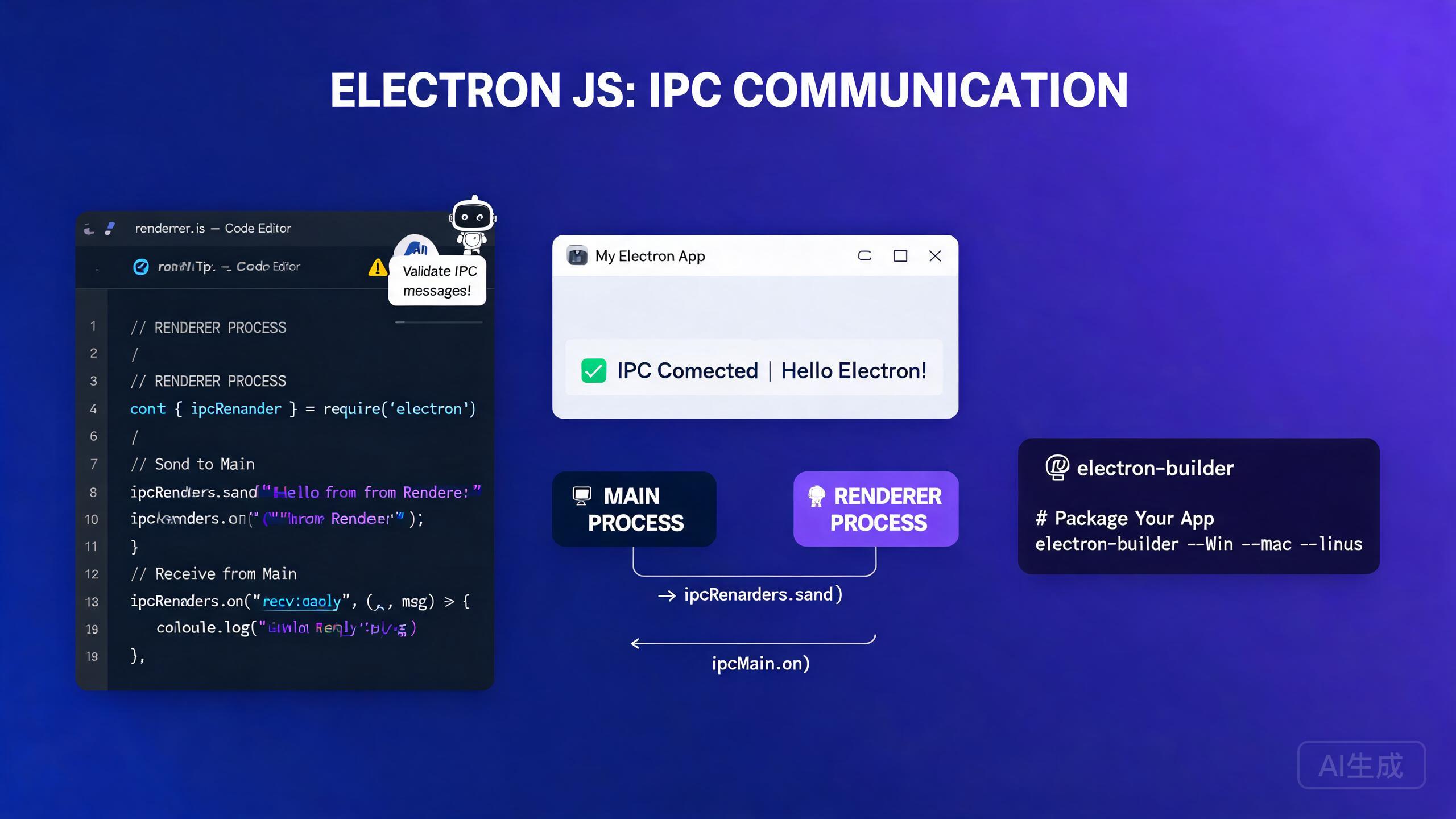
Electron을 사용하면 이미 알고 있는 웹 기술인 HTML, CSS, JavaScript를 사용하여 크로스 플랫폼 데스크톱 애플리케이션을 구축할 수 있습니다. Cursor, AI 기반 IDE 에디터는 프로젝트 스캐폴딩, IPC 핸들러 생성, 컨텍스트 격리 프리로드 스크립트 작성, 패키징 및 자동 업데이트 파이프라인 자동화를 통해 Electron 개발을 간소화합니다. 이 가이드는 메인 및 렌더러 프로세스, 보안 IPC 통신, 컨텍스트 격리, electron-builder 패키징, 자동 업데이트 전략, AI 지원 데스크톱 UI 워크플로우를 다룹니다.
사전 요구 사항
시작하기 전에 다음이 있는지 확인하세요:
- Cursor (최신 버전 권장)를 IDE 에디터로 사용
- Node.js 18 이상
- JavaScript, TypeScript, npm에 대한 기본적 친숙도
- 코드 서명 인증서 (선택 사항이지만 macOS 및 Windows에서 자동 업데이트에 필요)
Electron이 처음이라면, 코딩을 시작하기 전에 Cursor에게 메인 및 렌더러 프로세스 모델을 설명해 달라고 요청하세요. 프로세스 경계를 미리 이해하면 가장 흔한 Electron 보안 및 아키텍처 실수를 방지할 수 있습니다.
Electron의 프로세스 모델 이해
Electron 애플리케이션은 두 가지 유형의 프로세스로 구성됩니다:
- 메인 프로세스: Node.js에서 실행되며, 운영 체제에 대한 전체 액세스 권한을 가지고, 애플리케이션 수명 주기를 관리하며, 브라우저 창을 생성합니다.
- 렌더러 프로세스: Chromium 렌더러에서 실행되며, 웹 UI를 렌더링하고 기본적으로 네이티브 API에 대한 제한된 액세스를 가집니다.
두 프로세스는 **Inter-Process Communication (IPC)**를 통해 통신합니다. 이러한 분리는 의도적인 것입니다: 위험한 네이티브 API를 신뢰할 수 없는 웹 콘텐츠로부터 멀리 유지합니다.
Cursor에서 프로젝트 스캐폴딩
Cursor에게 TypeScript Electron 프로젝트를 스캐폴드하라고 요청하세요:
Create a minimal Electron + TypeScript + Vite project.
Include a main process file, a preload script with contextBridge,
and a renderer entry point. Use electron-builder for packaging.
Cursor는 디렉토리 구조와 구성 파일을 생성합니다:
my-electron-app/
  electron/
    main.ts
    preload.ts
  src/
    index.html
    renderer.ts
  package.json
  electron-builder.yml
  tsconfig.json
package.json에는 필수 스크립트와 의존성이 포함됩니다:
{
  "name": "my-electron-app",
  "version": "1.0.0",
  "main": "dist/electron/main.js",
  "scripts": {
    "dev": "concurrently \"vite\" \"wait-on tcp:5173 && cross-env NODE_ENV=development electron .\"",
    "build": "tsc && vite build",
    "package": "npm run build && electron-builder",
    "package:mac": "npm run build && electron-builder --mac",
    "package:win": "npm run build && electron-builder --win"
  },
  "devDependencies": {
    "electron": "^31.0.0",
    "electron-builder": "^24.13.3",
    "typescript": "^5.4.0",
    "vite": "^5.3.0",
    "vite-plugin-electron": "^0.28.0"
  }
}
package.json에 항상 main 필드를 명시하세요. 이것이 누락되면 Electron은 프로젝트 루트의 index.js를 기본값으로 사용하며, 개발 중에 예기치 않은 코드를 로드할 수 있습니다. 혼란을 방지하기 위해 컴파일된 진입점을 명시적으로 선언하세요.
메인 프로세스
메인 프로세스는 Electron 애플리케이션의 진입점입니다. 창을 생성하고, 앱 수명 주기를 처리하며, IPC 핸들러를 등록합니다.
브라우저 창 생성
// electron/main.ts
import { app, BrowserWindow, ipcMain, shell } from 'electron';
import * as path from 'path';
import { isDev } from './utils/env';

let mainWindow: BrowserWindow | null = null;

function createWindow() {
  mainWindow = new BrowserWindow({
    width: 1200,
    height: 800,
    minWidth: 800,
    minHeight: 600,
    show: false,
    backgroundColor: '#1e1e2e',
    titleBarStyle: process.platform === 'darwin' ? 'hiddenInset' : 'default',
    webPreferences: {
      preload: path.join(__dirname, 'preload.js'),
      contextIsolation: true,
      nodeIntegration: false,
      sandbox: true,
    },
  });

  mainWindow.once('ready-to-show', () => {
    mainWindow?.show();
  });

  if (isDev) {
    mainWindow.loadURL('http://localhost:5173');
    mainWindow.webContents.openDevTools();
  } else {
    mainWindow.loadFile(path.join(__dirname, '../dist/index.html'));
  }

  // Handle external links in the default browser, not a new Electron window
  mainWindow.webContents.setWindowOpenHandler(({ url }) => {
    shell.openExternal(url);
    return { action: 'deny' };
  });
}

app.whenReady().then(() => {
  createWindow();

  app.on('activate', () => {
    if (BrowserWindow.getAllWindows().length === 0) {
      createWindow();
    }
  });
});

app.on('window-all-closed', () => {
  if (process.platform !== 'darwin') {
    app.quit();
  }
});
Cursor에게 BrowserWindow 구성의 보안 문제를 검토해 달라고 요청하세요. "내 Electron webPreferences의 보안 모범 사례를 감사해 줘"와 같은 프롬프트는 nodeIntegration: true나 누락된 프리로드 스크립트와 같은 위험한 설정을 잡아냅니다.
IPC 핸들러 등록
메인 프로세스의 IPC 핸들러는 렌더러로부터 메시지를 받고 결과를 반환합니다. 양측이 API 표면에 동의하도록 타입 계약을 정의하세요.
// electron/ipc-handlers.ts
import { ipcMain, dialog, BrowserWindow } from 'electron';
import * as fs from 'fs/promises';

export function registerIpcHandlers(): void {
  ipcMain.handle('dialog:openFile', async () => {
    const result = await dialog.showOpenDialog({
      properties: ['openFile'],
      filters: [{ name: 'Text', extensions: ['txt', 'md', 'json'] }],
    });
    if (result.canceled) return null;

    const content = await fs.readFile(result.filePaths[0], 'utf-8');
    return { path: result.filePaths[0], content };
  });

  ipcMain.handle('file:save', async (_event, filePath: string, content: string) => {
    await fs.writeFile(filePath, content, 'utf-8');
    return { success: true };
  });

  ipcMain.handle('window:minimize', (event) => {
    const win = BrowserWindow.fromWebContents(event.sender);
    win?.minimize();
  });

  ipcMain.handle('window:toggleMaximize', (event) => {
    const win = BrowserWindow.fromWebContents(event.sender);
    if (win?.isMaximized()) {
      win.unmaximize();
    } else {
      win?.maximize();
    }
  });
}
BrowserWindow 객체나 다른 Electron API를 IPC를 통해 렌더러에 직접 전달하지 마세요. 네이티브 작업은 항상 타입 핸들러로 래핑하고 일반 데이터를 반환하세요. 프로세스 경계를 넘어 라이브 객체를 전달하면 심각한 보안 및 메모리 누수 위험이 발생합니다.
컨텍스트 격리 및 프리로드 스크립트
컨텍스트 격리는 Electron의 주요 보안 경계입니다. 활성화되면 렌더러의 window 객체는 프리로드 스크립트의 스코프와 완전히 분리됩니다. 렌더러에 네이티브 기능을 노출하는 유일한 방법은 contextBridge API를 통하는 것입니다.
보안 프리로드 스크립트 작성
// electron/preload.ts
import { contextBridge, ipcRenderer } from 'electron';

// Define the API surface exposed to the renderer
const api = {
  // File operations
  openFile: () => ipcRenderer.invoke('dialog:openFile'),
  saveFile: (path: string, content: string) =>
    ipcRenderer.invoke('file:save', path, content),

  // Window controls
  minimizeWindow: () => ipcRenderer.invoke('window:minimize'),
  toggleMaximize: () => ipcRenderer.invoke('window:toggleMaximize'),

  // Event subscriptions with cleanup
  onUpdateAvailable: (callback: (info: { version: string }) => void) => {
    const handler = (_event: unknown, info: { version: string }) => callback(info);
    ipcRenderer.on('update-available', handler);
    return () => ipcRenderer.removeListener('update-available', handler);
  },
} as const;

// Expose a frozen, read-only API to the renderer
contextBridge.exposeInMainWorld('electronAPI', api);
렌더러에서 API 사용
// src/renderer.ts
// TypeScript declaration so the renderer knows about window.electronAPI
declare global {
  interface Window {
    electronAPI: {
      openFile: () => Promise<{ path: string; content: string } | null>;
      saveFile: (path: string, content: string) => Promise<{ success: boolean }>;
      minimizeWindow: () => Promise<void>;
      toggleMaximize: () => Promise<void>;
      onUpdateAvailable: (callback: (info: { version: string }) => void) => () => void;
    };
  }
}

const openButton = document.getElementById('open-btn');
const editor = document.getElementById('editor') as HTMLTextAreaElement;
let currentFilePath: string | null = null;

openButton?.addEventListener('click', async () => {
  const result = await window.electronAPI.openFile();
  if (result) {
    currentFilePath = result.path;
    editor.value = result.content;
  }
});

document.getElementById('save-btn')?.addEventListener('click', async () => {
  if (currentFilePath) {
    await window.electronAPI.saveFile(currentFilePath, editor.value);
  }
});
Cursor에게 요청하여 전체 프리로드 및 렌더러 타입 계약을 한 번에 생성하세요: "내 Electron 프리로드 스크립트와 렌더러 간에 공유되는 TypeScript 인터페이스를 만들어 줘. 사용하는 모든 IPC 채널을 나열하고 공통 타입 파일에 넣어 줘." 이렇게 하면 양측이 동기화되고 컴파일 시점에 불일치를 잡을 수 있습니다.
프로덕션 Electron 앱에서 nodeIntegration: true 또는 contextIsolation: false를 사용하지 마세요. 이 설정은 Node.js API를 웹 콘텐츠에 직접 노출하며, 앱이 원격 URL을 로드하거나 신뢰할 수 없는 사용자 입력을 처리하는 경우 심각한 보안 취약점이 됩니다.
electron-builder로 패키징
electron-builder는 앱을 macOS (.dmg), Windows (.exe, .nsis), Linux (.AppImage, .deb)용 설치 프로그램으로 컴파일합니다. 구성은 단일 YAML 또는 JSON 파일에 있습니다.
구성 파일
# electron-builder.yml
appId: com.example.my-electron-app
productName: My Electron App
directories:
  output: release
  buildResources: build
files:
  - dist/**/*
  - dist/electron/**/*
extraMetadata:
  main: dist/electron/main.js
mac:
  category: public.app-category.productivity
  target:
    - dmg
    - zip
  hardenedRuntime: true
  gatekeeperAssess: false
  entitlements: build/entitlements.mac.plist
  entitlementsInherit: build/entitlements.mac.plist
win:
  target:
    - nsis
  artifactName: ${productName}-${version}-${arch}.${ext}
nsis:
  oneClick: false
  allowToChangeInstallationDirectory: true
  createDesktopShortcut: true
linux:
  target:
    - AppImage
    - deb
  category: Office
모든 플랫폼용 빌드
# Build for current platform
npm run package

# Build for macOS (requires macOS host)
npm run package:mac

# Build for Windows
npm run package:win
Cursor에게 모든 태그 푸시마다 macOS, Windows, Linux용 Electron 앱을 빌드하는 GitHub Actions 워크플로우를 생성해 달라고 요청하세요. "세 플랫폼에서 electron-builder를 실행하고 아티팩트를 GitHub 릴리스에 업로드하는 CI 워크플로우를 만들어 줘"와 같은 프롬프트는 즉시 사용 가능한 워크플로우 파일을 생성합니다.
macOS 설치 프로그램 빌드에는 유효한 Apple Developer 인증서가 있는 macOS 기기가 필요합니다. Linux나 Windows에서 크로스 컴파일은 서명된 macOS 빌드에 지원되지 않습니다. CI 인프라를 그에 맞게 계획하세요.
electron-updater로 자동 업데이트
자동 업데이트를 통해 사용자는 설치 프로그램을 수동으로 다운로드하지 않고도 새 버전을 받을 수 있습니다. electron-updater 패키지는 GitHub 릴리스 또는 정적 파일 서버와 통합됩니다.
자동 업데이트 설정
// electron/updater.ts
import { autoUpdater } from 'electron-updater';
import { BrowserWindow } from 'electron';

export function setupAutoUpdater(mainWindow: BrowserWindow): void {
  autoUpdater.autoDownload = false;
  autoUpdater.autoInstallOnAppQuit = true;

  autoUpdater.on('update-available', (info) => {
    // Notify the renderer that an update is available
    mainWindow.webContents.send('update-available', { version: info.version });
  });

  autoUpdater.on('update-not-available', () => {
    mainWindow.webContents.send('update-not-available');
  });

  autoUpdater.on('download-progress', (progress) => {
    mainWindow.webContents.send('download-progress', {
      percent: Math.round(progress.percent),
    });
  });

  autoUpdater.on('update-downloaded', () => {
    // Ask the user, then quit and install
    mainWindow.webContents.send('update-downloaded');
  });

  // Check for updates after startup
  app.whenReady().then(() => {
    autoUpdater.checkForUpdates();
  });
}

// Expose control methods through IPC
ipcMain.handle('update:download', () => {
  autoUpdater.downloadUpdate();
});

ipcMain.handle('update:install', () => {
  setImmediate(() => {
    app.isQuiting = true;
    autoUpdater.quitAndInstall();
  });
});
렌더러 측 업데이트 UI
// src/components/UpdateNotification.tsx
import { useEffect, useState } from 'react';

export function UpdateNotification() {
  const [updateInfo, setUpdateInfo] = useState<{ version: string } | null>(null);
  const [progress, setProgress] = useState(0);
  const [downloaded, setDownloaded] = useState(false);

  useEffect(() => {
    const cleanup = window.electronAPI.onUpdateAvailable((info) => {
      setUpdateInfo(info);
    });

    const progressHandler = (_event: unknown, data: { percent: number }) => {
      setProgress(data.percent);
    };
    window.electronAPI.onDownloadProgress?.(progressHandler);

    return cleanup;
  }, []);

  if (!updateInfo) return null;

  return (
    <div className="fixed bottom-4 right-4 rounded-lg border bg-white p-4 shadow-lg">
      <p className="font-semibold">Version {updateInfo.version} is available</p>
      {downloaded ? (
        <button onClick={() => window.electronAPI.installUpdate?.()}>
          Restart and Install
        </button>
      ) : progress > 0 ? (
        <div className="mt-2 h-2 rounded bg-gray-200">
          <div className="h-2 rounded bg-blue-500" style={{ width: `${progress}%` }} />
        </div>
      ) : (
        <button onClick={() => window.electronAPI.downloadUpdate?.()}>
          Download Update
        </button>
      )}
    </div>
  );
}
사용자에게 다운로드 제어 권한을 주기 위해 autoUpdater.autoDownload = false를 사용하세요. 강제 백그라운드 다운로드는 종량제 연결에서 대역폭을 소비하고 사용자를 좌절시킬 수 있습니다. 항상 알림을 표시하고 사용자가 다운로드 시기를 선택하게 하세요.
자동 업데이트는 macOS에서 코드 서명이 필요합니다. 서명되지 않은 앱은 업데이트 확인 단계에서 자동으로 실패하며 electron-updater는 오류를 보고합니다. Windows에서는 서명되지 않은 앱이 업데이트할 수 있지만 사용자 신뢰를 약화시키는 SmartScreen 경고를 트리거합니다.
AI 지원 데스크톱 UI 생성
Cursor는 데스크톱급 UI 컴포넌트 생성에 뛰어납니다. 원하는 인터페이스를 설명하면 Cursor가 접근 가능하고 키보드 탐색이 가능한 React 컴포넌트를 데스크톱 컨텍스트에 맞게 스타일링하여 생성합니다.
커스텀 타이틀 바 생성
Create a React component for a custom Electron title bar on Windows.
Include minimize, maximize/restore, and close buttons. Use inline SVG
icons. Wire each button to the window.electronAPI IPC methods.
Support keyboard shortcuts (Alt+F4 to close, Win+Up to maximize).
Cursor가 생성합니다:
// src/components/TitleBar.tsx
import { useEffect, useState } from 'react';

export function TitleBar({ title }: { title: string }) {
  const [isMaximized, setIsMaximized] = useState(false);

  useEffect(() => {
    const checkMax = () => setIsMaximized(window.electronAPI.isMaximized());
    checkMax();
    const interval = setInterval(checkMax, 200);
    return () => clearInterval(interval);
  }, []);

  return (
    <div
      className="flex h-8 items-center justify-between select-none"
      style={{ WebkitAppRegion: 'drag' } as React.CSSProperties}
    >
      <span className="ml-3 text-sm font-medium text-gray-200">{title}</span>
      <div
        className="flex h-full"
        style={{ WebkitAppRegion: 'no-drag' } as React.CSSProperties}
      >
        <button
          onClick={() => window.electronAPI.minimizeWindow()}
          className="flex h-full w-12 items-center justify-center hover:bg-white/10"
          aria-label="Minimize"
        >
          <svg width="12" height="12" viewBox="0 0 12 12">
            <rect y="5" width="12" height="2" fill="currentColor" />
          </svg>
        </button>
        <button
          onClick={() => window.electronAPI.toggleMaximize()}
          className="flex h-full w-12 items-center justify-center hover:bg-white/10"
          aria-label={isMaximized ? 'Restore' : 'Maximize'}
        >
          {isMaximized ? (
            <svg width="12" height="12" viewBox="0 0 12 12">
              <rect x="1" y="3" width="8" height="8" stroke="currentColor" fill="none" />
              <rect x="3" y="1" width="8" height="2" fill="currentColor" />
            </svg>
          ) : (
            <svg width="12" height="12" viewBox="0 0 12 12">
              <rect x="1" y="1" width="10" height="10" stroke="currentColor" fill="none" />
            </svg>
          )}
        </button>
        <button
          onClick={() => window.electronAPI.closeWindow()}
          className="flex h-full w-12 items-center justify-center hover:bg-red-600"
          aria-label="Close"
        >
          <svg width="12" height="12" viewBox="0 0 12 12">
            <path d="M1 1 L11 11 M11 1 L1 11" stroke="currentColor" strokeWidth="2" />
          </svg>
        </button>
      </div>
    </div>
  );
}
Cursor에서 데스크톱 UI를 생성할 때 항상 플랫폼을 언급하세요. 타이틀 바는 macOS(왼쪽의 신호등 버튼)와 Windows(오른쪽의 시스템 버튼)에서 다르게 동작합니다. 플랫폼을 지정하면 올바르고 플랫폼에 적절한 레이아웃이 생성됩니다.
성능 최적화
리소스를 주의 깊게 관리하지 않으면 Electron 앱이 무겁게 느껴질 수 있습니다. Cursor는 성능 병목 현상을 식별하고 해결하는 데 도움을 줍니다.
메모리 및 CPU 사용량 감소
// electron/utils/performance.ts
import { app, BrowserWindow } from 'electron';

export function optimizePerformance(): void {
  // Limit the number of background processes
  app.commandLine.appendSwitch('disable-background-networking');
  app.commandLine.appendSwitch('disable-renderer-backgrounding');

  // Reduce GPU overhead for non-accelerated content
  app.commandLine.appendSwitch('disable-gpu-compositing');

  // Suspend background timers when the window is hidden
  app.on('browser-window-blur', () => {
    // Pause expensive operations
  });

  // Aggressively release memory when the app is idle
  setInterval(() => {
    const windows = BrowserWindow.getAllWindows();
    if (windows.length === 0) {
      // Trigger garbage collection if running with --inspect
      if (global.gc) global.gc();
    }
  }, 60000);
}
모든 commandLine 스위치를 맹목적으로 적용하지 마세요. GPU 컴포짓 비활성화는 CSS 애니메이션과 WebGL 캔버스 렌더링을 손상시킬 수 있습니다. 각 성능 변경 후 전체 UI를 테스트하고 시각적 회귀를 일으키는 스위치를 되돌리세요.
보안 체크리스트
Cursor에서 이 프롬프트를 실행하여 전체 Electron 프로젝트의 보안 문제를 감사하세요:
Review my Electron app for security vulnerabilities. Check for:
1. contextIsolation enabled
2. nodeIntegration disabled
3. sandbox enabled
4. CSP headers set
5. No remote modules loaded
6. preload script uses contextBridge only
7. All IPC handlers validate input
8. Webview tags disabled or sandboxed
Cursor가 코드베이스를 스캔하고 특정 파일 참조와 제안된 수정 사항이 있는 우선순위 문제 목록을 반환합니다.
Electron 보안 체크리스트를 프로젝트 루트의 .cursorrules 파일로 추가하세요. Cursor는 새 Electron 코드를 생성할 때 이 규칙을 자동으로 적용하여 시간이 지남에 따라 보안 회귀를 방지합니다.
요약
Cursor에서 Electron 데스크톱 애플리케이션을 구축하는 것은 웹 기술의 크로스 플랫폼 파워와 AI 지원 개발 속도를 결합합니다. 이 가이드의 패턴 — 보안 컨텍스트 격리 IPC, 타입화된 프리로드 계약, electron-builder 패키징, 사용자 제어 자동 업데이트 — 를 따라 그 어느 때보다 빠르게 전문적인 데스크톱 앱을 출시할 수 있습니다. contextIsolation을 켜두고, nodeIntegration을 끄고, Cursor가 모든 단계에서 코드의 보안과 성능을 감사하게 하세요.