Astro Framework Development in Cursor: A Complete Guide
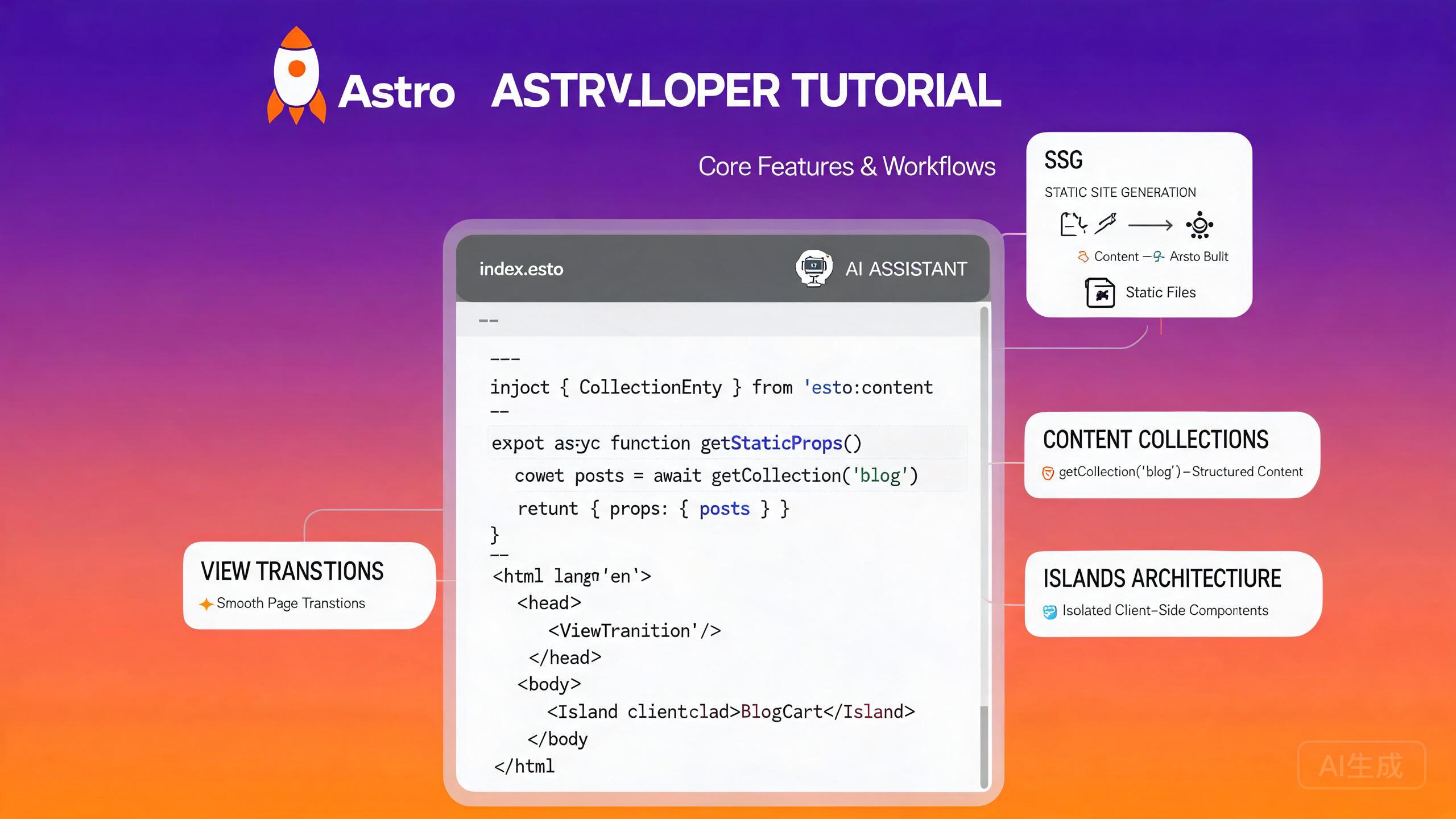
Astro is a modern web framework designed for content-driven websites that ship zero JavaScript by default. Astro 4+ introduced the upgraded Content Layer API, faster dev server performance, and official View Transitions support. Cursor, with its VS Code-compatible foundation and integrated AI assistant, is an excellent editor for Astro work -- it understands .astro files, provides IntelliSense for frontmatter and component props, and can generate components, collections, and integrations from natural-language prompts.
This guide covers the complete Astro development workflow in Cursor: project setup, content collections, View Transitions API, islands architecture, integrations, and AI-assisted component generation.
Setting Up Astro Development in Cursor
Prerequisites
Astro 4+ requires Node.js 18.14.1 or newer (Node 20 LTS is recommended). Verify your installation:
node --version
npm --version
If you need a newer version, use fnm or nvm:
fnm install 20
fnm use 20
Cursor's integrated terminal (Ctrl+`) keeps your current working directory in sync with the Explorer panel, so you can scaffold a project and immediately open generated files without context switching.
Installing the Astro Language Tools
Cursor relies on the official Astro extension for language support. Install it from the Extensions view (Ctrl+Shift+X):
- Search for "Astro".
- Install the extension published by the Astro team.
- Reload Cursor if prompted.
The extension provides:
- Syntax highlighting for
.astrofiles. - Diagnostics and type checking via
@astrojs/language-server. - Formatting through Prettier with the
prettier-plugin-astropackage. - IntelliSense for component imports, props, and frontmatter expressions.
If you previously installed a community Astro extension, disable it before installing the official one. Conflicting extensions cause duplicate diagnostics and unreliable formatting.
Scaffolding an Astro Project
Use the official create-astro CLI to bootstrap a new project:
# Create a new project with the minimal template
npm create astro@latest my-astro-site -- --template minimal --no-install --no-git --typescript strict

cd my-astro-site
npm install
Open the project folder in Cursor:
cursor .
The default project structure looks like this:
my-astro-site/
├── src/
│   ├── components/
│   ├── layouts/
│   │   └── Layout.astro
│   ├── pages/
│   │   └── index.astro
│   └── styles/
│       └── global.css
├── public/
├── astro.config.mjs
├── tsconfig.json
└── package.json
Ask Cursor to scaffold a complete project for you: "Create an Astro 4 project with TypeScript, Tailwind CSS, and MDX support." Cursor will generate the configuration files and install dependencies in one pass.
Working with Content Collections
Content Collections are Astro's type-safe way to manage local content like blog posts, documentation, and product listings. The Content Layer API introduced in Astro 4 provides a unified interface for local files, external APIs, and CMS integrations.
Defining a Collection
Create a collection schema in src/content/config.ts:
import { defineCollection, z } from 'astro:content';
import { glob } from 'astro/loaders';

const blog = defineCollection({
  loader: glob({ pattern: '**/*.md', base: './src/content/blog' }),
  schema: ({ image }) =>
    z.object({
      title: z.string(),
      description: z.string(),
      pubDate: z.coerce.date(),
      updatedDate: z.coerce.date().optional(),
      author: z.string().default('Anonymous'),
      tags: z.array(z.string()).default([]),
      cover: image().optional(),
      draft: z.boolean().default(false),
    }),
});

const docs = defineCollection({
  loader: glob({ pattern: '**/*.md', base: './src/content/docs' }),
  schema: z.object({
    title: z.string(),
    order: z.number(),
    section: z.string(),
  }),
});

export const collections = { blog, docs };
Ask Cursor: "Generate a content collection schema for a product catalog with name, price, description, images array, and category enum." Cursor understands Zod and will produce a valid schema with appropriate validators.
Writing Content Entries
Create Markdown files in the collection directory:
---
title: "Getting Started with Astro 4"
description: "Learn the new Content Layer API and View Transitions in Astro 4."
pubDate: 2024-06-15
author: "Jane Doe"
tags: ["astro", "tutorial"]
cover: "../../assets/blog/astro-cover.jpg"
---

Astro 4 brings a faster dev server, improved Content Layer API,
and native View Transitions support.
Querying Collections in Pages
Use getCollection to fetch entries with full type safety:
---
// src/pages/blog/index.astro
import { getCollection } from 'astro:content';
import Layout from '../../layouts/Layout.astro';

const posts = (await getCollection('blog'))
  .filter((post) => !post.data.draft)
  .sort((a, b) => b.data.pubDate.valueOf() - a.data.pubDate.valueOf());
---

<Layout title="Blog">
  <main>
    <h1>Blog</h1>
    <ul>
      {posts.map((post) => (
        <li>
          <a href={`/blog/${post.id}/`}>
            <time datetime={post.data.pubDate.toISOString()}>
              {post.data.pubDate.toLocaleDateString('en-US')}
            </time>
            {post.data.title}
          </a>
        </li>
      ))}
    </ul>
  </main>
</Layout>
Always use post.id (not post.slug) when building URLs with the Content Layer API. The slug field behavior differs between Astro 3 and Astro 4 -- id is the stable, unique identifier in Astro 4+.
Dynamic Content Pages
Generate individual pages for each collection entry:
---
// src/pages/blog/[...id].astro
import { getCollection, render } from 'astro:content';
import Layout from '../../layouts/Layout.astro';

export async function getStaticPaths() {
  const posts = await getCollection('blog');
  return posts.map((post) => ({
    params: { id: post.id },
    props: { post },
  }));
}

const { post } = Astro.props;
const { Content } = await render(post);
---

<Layout title={post.data.title}>
  <article>
    <header>
      <h1>{post.data.title}</h1>
      <p>By {post.data.author}</p>
    </header>
    <Content />
  </article>
</Layout>
View Transitions API
Astro's <ClientRouter /> component (formerly <ViewTransitions />) enables native browser View Transitions for client-side navigation without a full SPA framework.
Enabling View Transitions
Add the component to your base layout:
---
// src/layouts/Layout.astro
import { ClientRouter } from 'astro:transitions';

interface Props {
  title: string;
}

const { title } = Astro.props;
---

<!doctype html>
<html lang="en">
  <head>
    <meta charset="UTF-8" />
    <meta name="viewport" content="width=device-width, initial-scale=1.0" />
    <title>{title}</title>
    <ClientRouter />
  </head>
  <body>
    <slot />
  </body>
</html>
Animating Page Transitions
Use CSS view-transition-name to define named transition targets:
/* src/styles/global.css */
::view-transition-old(root) {
  animation: fade-out 0.3s ease;
}

::view-transition-new(root) {
  animation: fade-in 0.3s ease;
}

@keyframes fade-out {
  to { opacity: 0; }
}

@keyframes fade-in {
  from { opacity: 0; }
}

/* Named transition for a hero image */
.hero-image {
  view-transition-name: hero-image;
}

::view-transition-old(hero-image) {
  animation: scale-down 0.4s ease;
}

::view-transition-new(hero-image) {
  animation: scale-up 0.4s ease;
}
Ask Cursor: "Add View Transitions to my Astro site with a slide-in effect for navigation and a cross-fade for content." Cursor will generate the CSS keyframes and explain how to scope them to specific elements using view-transition-name.
Lifecycle Events
Listen for transition events in client-side scripts:
<script>
  document.addEventListener('astro:page-load', () => {
    console.log('New page loaded after transition');
    initAnalytics();
  });

  document.addEventListener('astro:before-swap', (event) => {
    // Modify the new document before it swaps in
    const newDoc = event.newDocument;
    const theme = localStorage.getItem('theme') ?? 'light';
    newDoc.documentElement.dataset.theme = theme;
  });

  document.addEventListener('astro:after-swap', () => {
    console.log('DOM swapped, scripts re-executed');
  });
</script>
Client-side scripts in .astro files are processed by Astro's bundler. If you need a script to run on every navigation with View Transitions, listen for the astro:page-load event rather than relying on top-level code, which only executes on the first load.
Islands Architecture
Astro's islands architecture lets you embed interactive components (React, Vue, Svelte, Solid, etc.) within static HTML. Only the island components ship JavaScript -- the rest of the page remains static.
Adding a UI Framework Integration
Install the React integration:
npx astro add react
This command modifies astro.config.mjs automatically:
import { defineConfig } from 'astro/config';
import react from '@astrojs/react';

export default defineConfig({
  integrations: [react()],
});
Creating an Interactive Island
Create a React component:
// src/components/Counter.tsx
import { useState } from 'react';

interface CounterProps {
  initialCount?: number;
  step?: number;
}

export default function Counter({ initialCount = 0, step = 1 }: CounterProps) {
  const [count, setCount] = useState(initialCount);

  return (
    <div className="counter">
      <button onClick={() => setCount((c) => c - step)}>-</button>
      <span>{count}</span>
      <button onClick={() => setCount((c) => c + step)}>+</button>
    </div>
  );
}
Use the client: directive in an Astro page to hydrate the island:
---
// src/pages/index.astro
import Layout from '../layouts/Layout.astro';
import Counter from '../components/Counter.tsx';
---

<Layout title="Home">
  <h1>Welcome</h1>

  <!-- Hydrates on page load -->
  <Counter client:load initialCount={0} step={2} />

  <!-- Hydrates when visible in viewport -->
  <Counter client:visible initialCount={10} />

  <!-- Hydrates on idle -->
  <Counter client:idle initialCount={5} />

  <!-- Hydrates on media query match -->
  <Counter client:media="(max-width: 768px)" initialCount={0} />

  <!-- No hydration -- server-rendered only -->
  <Counter initialCount={100} />
</Layout>
Ask Cursor: "Create a React island for a newsletter signup form with email validation, and render it as client:visible in my Astro layout." Cursor will generate the component, handle form state, add validation, and wire it into your layout file.
Choosing the Right Hydration Directive
| Directive | When to Use |
|---|---|
client:load | Immediately needed interactivity (nav, search) |
client:idle | Lower-priority widgets loaded during browser idle time |
client:visible | Below-the-fold widgets that hydrate when scrolled into view |
client:media | Components that should only load on specific screen sizes |
client:only | Skip server rendering entirely (useful for browser-only APIs) |
Use client:only with caution. Components rendered with this directive skip server-side rendering, which means they will not appear in the initial HTML. This hurts SEO and causes a layout shift. Only use it for components that depend on browser-only APIs like window or localStorage on first render.
Integrations and Ecosystem
Astro integrations extend the framework with additional capabilities. Cursor's AI can help you configure and troubleshoot integrations quickly.
Tailwind CSS Integration
npx astro add tailwind
This installs @tailwindcss/vite and configures the Vite plugin. Create a CSS file with the Tailwind import:
/* src/styles/global.css */
@import "tailwindcss";
Import the stylesheet in your layout:
---
// src/layouts/Layout.astro
import '../styles/global.css';
---
Ask Cursor: "Set up Tailwind CSS v4 with my Astro project and create a responsive navigation bar component." Cursor will configure the Vite plugin, generate the CSS entry, and build the responsive nav with utility classes.
MDX Integration
npx astro add mdx
Use .mdx files in your content collections to embed interactive components inside Markdown:
---
title: "Interactive Blog Post"
description: "A post with embedded React components."
pubDate: 2024-06-20
---

import Counter from '../components/Counter.tsx';

This is a paragraph in MDX.

<Counter client:visible initialCount={0} />

More content after the island.
Sitemap and RSS Integrations
npx astro add sitemap
npx astro add rss
Configure them in astro.config.mjs:
import { defineConfig } from 'astro/config';
import sitemap from '@astrojs/sitemap';
import mdx from '@astrojs/mdx';

export default defineConfig({
  site: 'https://example.com',
  integrations: [mdx(), sitemap()],
});
Generate an RSS feed in a standalone endpoint:
// src/pages/rss.xml.ts
import rss from '@astrojs/rss';
import { getCollection } from 'astro:content';

export async function GET(context) {
  const posts = await getCollection('blog');
  return rss({
    title: 'My Astro Blog',
    description: 'Latest posts',
    site: context.site,
    items: posts
      .filter((post) => !post.data.draft)
      .sort((a, b) => b.data.pubDate.valueOf() - a.data.pubDate.valueOf())
      .map((post) => ({
        title: post.data.title,
        description: post.data.description,
        pubDate: post.data.pubDate,
        link: `/blog/${post.id}/`,
      })),
    customData: '<language>en-us</language>',
  });
}
AI-Assisted Component Generation in Cursor
Cursor's AI assistant excels at generating Astro components, layouts, and collection schemas from natural-language descriptions.
Generating Components from Prompts
Open Cursor Chat (Ctrl+L) or use inline edit (Ctrl+I) and describe what you need:
Generate an Astro component for a responsive pricing table with three tiers:
Starter ($9), Pro ($29), and Enterprise ($99). Include a "Popular" badge on
the Pro tier, feature lists with checkmarks, and CTA buttons. Use Tailwind
classes and accept props for the tier data.
Cursor will produce a fully typed, styled component:
---
// src/components/PricingTable.astro
interface PricingTier {
  name: string;
  price: number;
  description: string;
  features: string[];
  popular?: boolean;
  ctaText: string;
  ctaLink: string;
}

interface Props {
  tiers: PricingTier[];
}

const { tiers } = Astro.props;
---

<section class="py-12">
  <div class="grid grid-cols-1 md:grid-cols-3 gap-8 max-w-5xl mx-auto">
    {tiers.map((tier) => (
      <div
        class:list={[
          'relative rounded-2xl border p-8',
          tier.popular
            ? 'border-blue-500 shadow-xl scale-105'
            : 'border-gray-200',
        ]}
      >
        {tier.popular && (
          <span class="absolute -top-3 left-1/2 -translate-x-1/2 rounded-full bg-blue-500 px-4 py-1 text-sm text-white font-semibold">
            Popular
          </span>
        )}
        <h3 class="text-xl font-bold">{tier.name}</h3>
        <p class="text-gray-500 text-sm mt-1">{tier.description}</p>
        <p class="text-4xl font-bold mt-4">
          ${tier.price}<span class="text-base font-normal text-gray-500">/mo</span>
        </p>
        <ul class="mt-6 space-y-3">
          {tier.features.map((feature) => (
            <li class="flex items-center gap-2">
              <svg class="w-5 h-5 text-green-500" fill="none" viewBox="0 0 24 24" stroke="currentColor" stroke-width="2">
                <path stroke-linecap="round" stroke-linejoin="round" d="M5 13l4 4L19 7" />
              </svg>
              {feature}
            </li>
          ))}
        </ul>
        <a
          href={tier.ctaLink}
          class:list={[
            'mt-8 block rounded-lg py-3 text-center font-semibold transition-colors',
            tier.popular
              ? 'bg-blue-500 text-white hover:bg-blue-600'
              : 'bg-gray-100 text-gray-900 hover:bg-gray-200',
          ]}
        >
          {tier.ctaText}
        </a>
      </div>
    ))}
  </div>
</section>
When generating components, include the prop interface in your prompt. This ensures Cursor produces typed props that you can reuse across pages. For example: "Create a Card component that accepts a title, description, href, and optional image prop."
AI-Assisted Layout Generation
Ask Cursor to generate a reusable layout:
Create a base Astro layout with a sticky header containing a logo, navigation
links (Home, Blog, About, Contact), and a theme toggle button. Include a footer
with social links and copyright. Add View Transitions and a dark mode toggle
using a script that reads from localStorage.
AI-Assisted Integration Configuration
Cursor can help troubleshoot integration issues. If your Tailwind classes are not applying, ask:
My Tailwind CSS v4 classes are not being applied in my Astro project.
Here is my astro.config.mjs and global.css. What is wrong?
Cursor will analyze the configuration, check for common pitfalls (missing Vite plugin, incorrect import paths, content configuration), and suggest fixes.
When using Cursor's AI to modify astro.config.mjs, always review the generated integrations array. Integrations must be listed in the correct order -- for example, mdx() should come before sitemap() if MDX pages should be included in the sitemap.
Building and Deploying
Static Site Generation
Astro defaults to static output. Build the site:
npm run build
The output lands in dist/. Preview the production build locally:
npm run preview
Server-Side Rendering (SSR)
For dynamic content, enable SSR mode:
// astro.config.mjs
import { defineConfig } from 'astro/config';
import node from '@astrojs/node';

export default defineConfig({
  output: 'server',
  adapter: node({ mode: 'standalone' }),
});
Hybrid Rendering
Astro 4 supports hybrid rendering, letting you mix static and server-rendered pages:
// astro.config.mjs
export default defineConfig({
  output: 'hybrid',
});
Mark individual pages as server-rendered with export const prerender = false;.
Debugging and Performance
Analyzing Bundle Size
Install the bundle analyzer:
npm install -D astro-bundle-analyzer
Add it to your integrations:
import bundleAnalyzer from 'astro-bundle-analyzer';

export default defineConfig({
  integrations: [bundleAnalyzer()],
});
Ask Cursor: "My Astro build is shipping too much JavaScript. Analyze my components and tell me which islands can be changed from client:load to client:visible or client:idle." Cursor will review your component usage and recommend hydration directive optimizations.
Image Optimization
Use Astro's built-in <Image> component for automatic optimization:
---
import { Image } from 'astro:assets';
import heroImage from '../assets/hero.jpg';
---

<Image
  src={heroImage}
  alt="Hero image"
  width={1200}
  height={600}
  loading="eager"
  formats={['avif', 'webp']}
  quality={80}
/>
Remote images require a config.image.service entry or an img.config setup. If you see build errors about remote image domains, add the allowed domains to astro.config.mjs under image.domains or image.remotePatterns.
Conclusion
Astro 4+ paired with Cursor creates a powerful development environment for building fast, content-driven websites. The combination of zero-JS-by-default output, type-safe content collections, View Transitions, and islands architecture means you get excellent performance without sacrificing developer experience. Cursor's AI assistant accelerates every step -- from scaffolding and schema design to component generation and integration troubleshooting. Start with a minimal template, add content collections for your structured data, introduce interactive islands only where needed, and let Cursor generate the boilerplate so you can focus on content and design.