Cursor에서의 Tauri 데스크톱 앱 개발: Rust 백엔드, 명령 및 보안
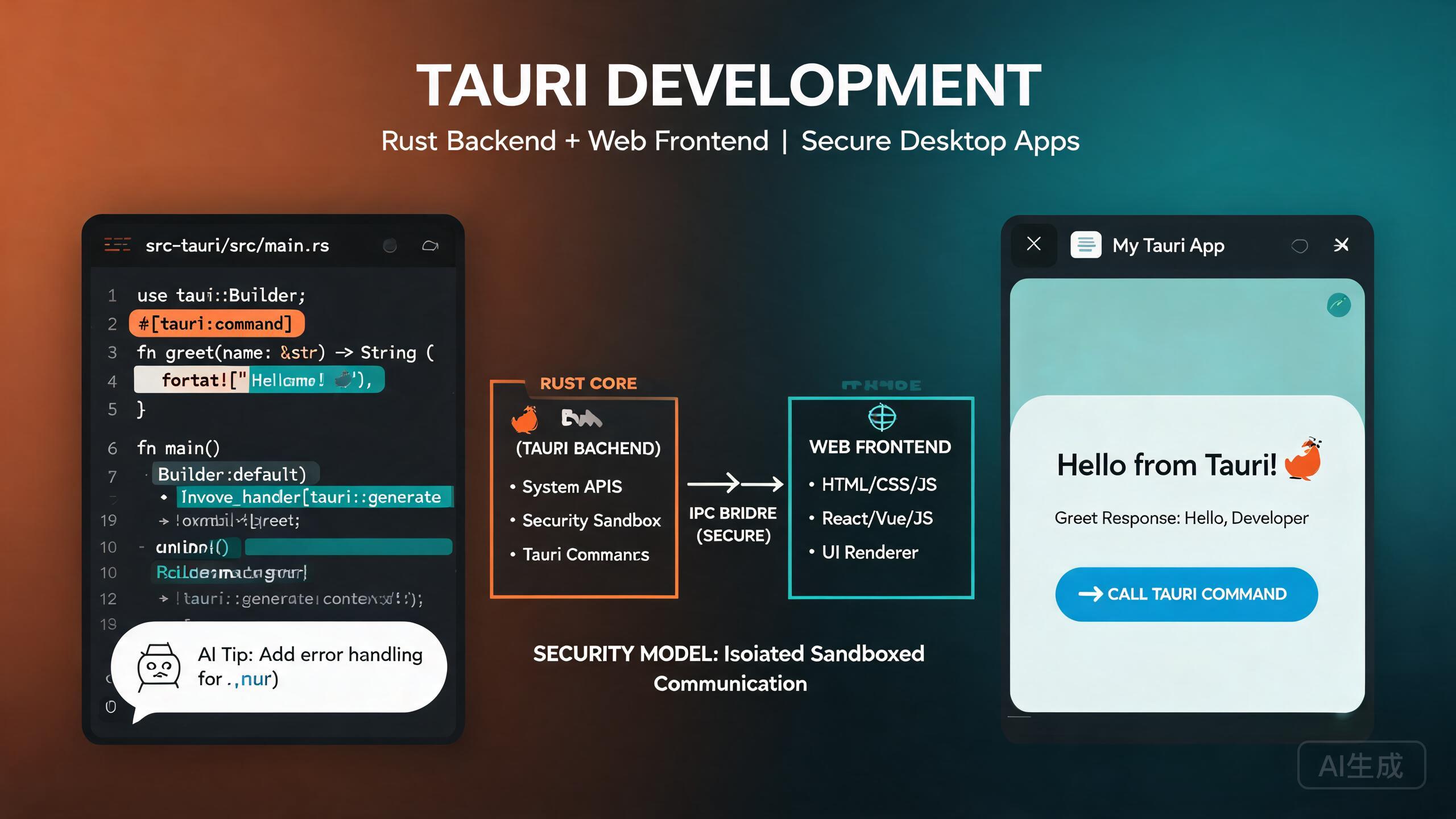
Tauri는 Rust 백엔드와 선택한 웹 프론트엔드를 결합하여 작고, 빠르고, 안전한 데스크톱 애플리케이션을 구축하기 위한 프레임워크입니다. Electron과 달리 Tauri는 Chromium을 번들링하는 대신 운영 체제의 네이티브 웹뷰를 사용하여 훨씬 더 작은 바이너리와 더 낮은 메모리 사용량을 제공합니다. Cursor, AI 기반 IDE 에디터는 프로젝트 스캐폴딩, Rust 명령 생성, 타입 안전 TypeScript 바인딩 작성 및 보안 구성 감사를 통해 Tauri 개발을 가속화합니다. 이 가이드는 Tauri 아키텍처, Rust 명령, 플러그인 시스템, 보안 모델 및 AI 지원 데스크톱 통합을 다룹니다.
사전 요구 사항
시작하기 전에 다음이 있는지 확인하세요:
- Cursor (최신 버전 권장)를 IDE 에디터로 사용
- Rust 툴체인 (rustup으로 설치)과 stable 컴파일러
- 프론트엔드 툴링을 위한 Node.js 18 이상
- 시스템 의존성: Linux에서는
webkit2gtk,build-essential및 관련 패키지 설치; macOS에서는 Xcode Command Line Tools 설치; Windows에서는 Visual Studio C++ Build Tools 설치
Rust를 처음 작성해 본다면, Cursor에게 Tauri 명령 핸들러의 예제를 사용하여 소유권, 빌림 및 수명을 설명해 달라고 요청하세요. 이러한 개념을 일찍 이해하면 JavaScript 개발자가 Rust로 전환할 때 암호문처럼 느껴지는 컴파일러 오류를 방지할 수 있습니다.
Tauri 아키텍처 이해
Tauri 애플리케이션은 세 가지 계층을 가집니다:
- 프론트엔드: 웹 애플리케이션(React, Vue, Svelte 또는 일반 HTML). OS 네이티브 웹뷰에서 실행됩니다.
- 코어 (Rust): Rust로 작성된 Tauri 런타임으로, 창, 애플리케이션 수명 주기 및 네이티브 시스템 호출을 관리합니다.
- 명령: 프론트엔드가 Tauri의 IPC 계층을 통해 호출하는 사용자 정의 Rust 함수입니다. 웹 UI가 파일 시스템, 데이터베이스 및 OS API와 상호 작용하는 방식입니다.
Electron과의 주요 차이점은 Rust 코어가 전체 시스템 액세스 권한을 가지는 반면 프론트엔드는 웹뷰에서 샌드박스된다는 것입니다. 통신은 명시적으로 선언된 명령과 이벤트를 통해서만 흐릅니다.
Cursor에서 프로젝트 스캐폴딩
Cursor에게 Tauri + React + TypeScript 프로젝트를 스캐폴드하라고 요청하세요:
Create a Tauri 2.0 project with React and TypeScript.
Set up the frontend with Vite, configure the Rust backend,
and include the tauri-plugin-fs and tauri-plugin-dialog plugins.
Cursor는 표준 Tauri 프로젝트 구조를 생성합니다:
my-tauri-app/
  src/                    # Frontend source
    App.tsx
    main.tsx
  src-tauri/              # Rust backend
    src/
      main.rs
      lib.rs
    Cargo.toml
    tauri.conf.json
    capabilities/
      default.json
  package.json
  vite.config.ts
Tauri 2.0은 새로운 권한 시스템, capabilities 파일 및 재설계된 플러그인 API를 포함하여 Tauri 1.x에서 중요한 변경 사항을 도입했습니다. 오래된 튜토리얼을 따르는 경우 API 호출이 Tauri 2.0 구문과 일치하는지 확인하세요. 발견한 Tauri 1.x 코드를 마이그레이션하도록 Cursor에게 요청하세요.
Rust 백엔드 및 명령
명령은 Rust 백엔드와 웹 프론트엔드 간의 다리입니다. Rust 함수를 정의하고 #[tauri::command]로 주석을 단 다음 JavaScript에서 호출합니다.
명령 정의
// src-tauri/src/lib.rs
use serde::{Deserialize, Serialize};
use std::fs;
use std::path::PathBuf;
use tauri::{Manager, State};

// A shared application state managed by Tauri
pub struct AppState {
    pub config_dir: PathBuf,
}

#[derive(Serialize, Deserialize)]
pub struct FileEntry {
    pub name: String,
    pub path: String,
    pub is_dir: bool,
    pub size: u64,
}

/// List files in a directory
#[tauri::command]
pub async fn list_files(dir: String) -> Result<Vec<FileEntry>, String> {
    let entries = fs::read_dir(&dir).map_err(|e| e.to_string())?;

    let mut files: Vec<FileEntry> = entries
        .filter_map(|entry| entry.ok())
        .filter_map(|entry| {
            let metadata = entry.metadata().ok()?;
            Ok(FileEntry {
                name: entry.file_name().to_string_lossy().to_string(),
                path: entry.path().to_string_lossy().to_string(),
                is_dir: metadata.is_dir(),
                size: metadata.len(),
            })
        })
        .collect();

    files.sort_by(|a, b| b.is_dir.cmp(&a.is_dir).then(a.name.cmp(&b.name)));
    Ok(files)
}

/// Save content to a file
#[tauri::command]
pub async fn save_file(path: String, content: String) -> Result<(), String> {
    fs::write(&path, content).map_err(|e| e.to_string())
}

/// Read a file's content
#[tauri::command]
pub async fn read_file(path: String) -> Result<String, String> {
    fs::read_to_string(&path).map_err(|e| e.to_string())
}

/// Get the app data directory
#[tauri::command]
pub fn get_data_dir(state: State<AppState>) -> String {
    state.config_dir.to_string_lossy().to_string()
}

#[cfg_attr(mobile, tauri::mobile_entry_point)]
pub fn run() {
    tauri::Builder::default()
        .plugin(tauri_plugin_fs::init())
        .plugin(tauri_plugin_dialog::init())
        .plugin(tauri_plugin_shell::init())
        .manage(AppState {
            config_dir: tauri::api::path::app_config_dir(
                &tauri::generate_context!(),
            ).unwrap_or_else(|_| PathBuf::from(".")),
        })
        .invoke_handler(tauri::generate_handler![
            list_files,
            save_file,
            read_file,
            get_data_dir,
        ])
        .run(tauri::generate_context!())
        .expect("error while running tauri application");
}
프론트엔드에서 명령 호출
// src/lib/tauri-api.ts
import { invoke } from '@tauri-apps/api/core';

export interface FileEntry {
  name: string;
  path: string;
  is_dir: boolean;
  size: number;
}

export async function listFiles(dir: string): Promise<FileEntry[]> {
  return invoke<FileEntry[]>('list_files', { dir });
}

export async function saveFile(path: string, content: string): Promise<void> {
  await invoke('save_file', { path, content });
}

export async function readFile(path: string): Promise<string> {
  return invoke<string>('read_file', { path });
}

export async function getDataDir(): Promise<string> {
  return invoke<string>('get_data_dir');
}
Cursor에게 Rust 구조체를 반영하는 TypeScript 인터페이스를 생성해 달라고 요청하세요. "내 Tauri 명령 핸들러의 모든 구조체에 대한 TypeScript 타입을 만들고 공통 타입 파일에 넣어 줘"와 같은 프롬프트는 프론트엔드와 백엔드를 동기화 상태로 유지하고 컴파일 시점에 타입 불일치를 잡습니다.
Rust의 Result 타입은 JavaScript Promise 거부와 직접 매핑됩니다. 명령이 Result<T, String>을 반환하면 프론트엔드는 오류 문자열과 함께 거부된 Promise를 받습니다. 미처리 Promise 거부를 방지하기 위해 프론트엔드에서 항상 .catch() 또는 try/catch로 오류를 처리하세요.
플러그인 시스템
Tauri 2.0은 모듈식 플러그인 아키텍처를 사용합니다. 파일 시스템 액세스, 대화상자, 셸 명령 및 HTTP 요청과 같은 핵심 기능은 공식 플러그인에 의해 제공됩니다. 앱 간에 기능을 공유하기 위해 커스텀 플러그인을 만들 수도 있습니다.
공식 플러그인 설치
# File system access
npm install @tauri-apps/plugin-fs
cargo add tauri-plugin-fs --manifest-path src-tauri/Cargo.toml

# Native dialogs (open, save)
npm install @tauri-apps/plugin-dialog
cargo add tauri-plugin-dialog --manifest-path src-tauri/Cargo.toml

# Shell commands (open URLs, run scripts)
npm install @tauri-apps/plugin-shell
cargo add tauri-plugin-shell --manifest-path src-tauri/Cargo.toml

# HTTP client
npm install @tauri-apps/plugin-http
cargo add tauri-plugin-http --manifest-path src-tauri/Cargo.toml
각 플러그인은 Tauri 빌더에 등록되고 capabilities 파일을 통해 권한을 부여받아야 합니다.
대화상자 플러그인 사용
// src/components/FileBrowser.tsx
import { open, save } from '@tauri-apps/plugin-dialog';
import { readFile, writeFile } from '@tauri-apps/plugin-fs';
import { useState } from 'react';

export function FileBrowser() {
  const [content, setContent] = useState('');
  const [filePath, setFilePath] = useState<string | null>(null);

  async function handleOpen() {
    const selected = await open({
      multiple: false,
      filters: [{ name: 'Markdown', extensions: ['md'] }],
    });

    if (typeof selected === 'string') {
      setFilePath(selected);
      const bytes = await readFile(selected);
      setContent(new TextDecoder().decode(bytes));
    }
  }

  async function handleSave() {
    if (!filePath) return;
    await writeFile(filePath, new TextEncoder().encode(content));
  }

  async function handleSaveAs() {
    const target = await save({
      filters: [{ name: 'Markdown', extensions: ['md'] }],
    });
    if (target) {
      setFilePath(target);
      await writeFile(target, new TextEncoder().encode(content));
    }
  }

  return (
    <div className="flex flex-col h-full">
      <div className="flex gap-2 p-2">
        <button onClick={handleOpen} className="rounded px-3 py-1 bg-blue-600 text-white">
          Open
        </button>
        <button onClick={handleSave} className="rounded px-3 py-1 bg-green-600 text-white">
          Save
        </button>
        <button onClick={handleSaveAs} className="rounded px-3 py-1 bg-gray-600 text-white">
          Save As
        </button>
      </div>
      <textarea
        value={content}
        onChange={(e) => setContent(e.target.value)}
        className="flex-1 p-4 font-mono text-sm"
        placeholder="Select a file or start typing..."
      />
    </div>
  );
}
Cursor에게 커스텀 Tauri 플러그인을 스캐폴드해 달라고 요청하세요. "시스템 환경 변수를 읽는 Rust 함수를 노출하고 내 앱에 등록하는 Tauri 플러그인을 만들어 줘"와 같은 프롬프트는 플러그인 코드를 구조화하고, 권한을 등록하며, API를 프론트엔드에 노출하는 방법을 보여줍니다.
보안 모델
Tauri 2.0은 capabilities 기반의 세밀한 권한 시스템을 도입했습니다. 모든 명령, 플러그인 API 및 리소스 액세스 지점은 capabilities 파일에서 명시적으로 허용되어야 합니다.
Capabilities 구성
// src-tauri/capabilities/default.json
{
  "$schema": "../gen/schemas/desktop-schema.json",
  "identifier": "default",
  "description": "Default capability for the main window",
  "windows": ["main"],
  "permissions": [
    "core:default",
    "fs:allow-read-text-file",
    "fs:allow-write-file",
    "fs:allow-create-dir",
    "dialog:allow-open",
    "dialog:allow-save",
    "shell:allow-open",
    "http:default"
  ]
}
파일 시스템 액세스 범위 제한
scope 규칙을 사용하여 플러그인이 액세스할 수 있는 디렉토리를 제한할 수 있습니다:
{
  "identifier": "default",
  "windows": ["main"],
  "permissions": [
    {
      "identifier": "fs:allow-read-file",
      "allow": [
        { "path": "$APPDATA/**" },
        { "path": "$DOCUMENT/**" }
      ],
      "deny": [
        { "path": "$DOCUMENT/.ssh/**" }
      ]
    }
  ]
}
scope 없이 fs:default 또는 fs:allow-read-file을 사용하지 마세요. 이러한 광범위한 권한은 웹뷰에서 전체 파일 시스템에 대한 액세스를 부여하며, 이는 Tauri의 샌드박스 아키텍처의 목적을 무력화시킵니다. 항상 $APPDATA나 사용자가 선택한 경로와 같은 특정 디렉토리로 액세스를 제한하세요.
Cursor에서 이 프롬프트를 실행하여 Tauri 보안 구성을 감사하세요: "내 capabilities 파일과 Cargo.toml에서 지나치게 광범위한 권한을 검토해 줘. 명시적 scope 없이 파일 시스템, 셸 또는 HTTP 액세스를 부여하는 모든 권한을 표시해 줘."
이벤트 및 프로세스 간 통신
명령 외에도 Tauri는 Rust 백엔드에서 프론트엔드로의 비동기 통신을 위한 이벤트 시스템을 지원합니다.
Rust에서 이벤트 방출
use tauri::{Emitter, Window};
use std::time::Duration;
use tokio::time::interval;

/// Background task that emits progress updates
#[tauri::command]
pub async fn start_processing(window: Window) -> Result<(), String> {
    let mut ticker = interval(Duration::from_millis(500));

    for step in 0..=100 {
        ticker.tick().await;

        window
            .emit("processing-progress", serde_json::json!({
                "step": step,
                "total": 100,
                "message": format!("Processing item {} of 100", step),
            }))
            .map_err(|e| e.to_string())?;

        if step == 50 {
            window
                .emit("processing-warning", "Halfway through, memory is high")
                .map_err(|e| e.to_string())?;
        }
    }

    window
        .emit("processing-complete", "All items processed successfully")
        .map_err(|e| e.to_string())?;

    Ok(())
}
프론트엔드에서 이벤트 수신
// src/components/ProcessingView.tsx
import { listen } from '@tauri-apps/api/event';
import { useEffect, useState } from 'react';

interface ProgressEvent {
  step: number;
  total: number;
  message: string;
}

export function ProcessingView() {
  const [progress, setProgress] = useState<ProgressEvent | null>(null);
  const [warning, setWarning] = useState<string | null>(null);
  const [done, setDone] = useState(false);

  useEffect(() => {
    const unlisteners: Array<() => void> = [];

    const setup = async () => {
      unlisteners.push(
        await listen<ProgressEvent>('processing-progress', (event) => {
          setProgress(event.payload);
        })
      );

      unlisteners.push(
        await listen<string>('processing-warning', (event) => {
          setWarning(event.payload);
        })
      );

      unlisteners.push(
        await listen<string>('processing-complete', (event) => {
          setDone(true);
        })
      );
    };

    setup();

    return () => {
      unlisteners.forEach((unlisten) => unlisten());
    };
  }, []);

  return (
    <div className="p-4">
      {progress && (
        <>
          <div className="mb-2 text-sm text-gray-600">{progress.message}</div>
          <div className="h-3 rounded-full bg-gray-200">
            <div
              className="h-3 rounded-full bg-blue-600 transition-all"
              style={{ width: `${(progress.step / progress.total) * 100}%` }}
            />
          </div>
        </>
      )}
      {warning && (
        <div className="mt-2 rounded bg-yellow-100 p-2 text-sm text-yellow-800">
          {warning}
        </div>
      )}
      {done && (
        <div className="mt-4 rounded bg-green-100 p-2 text-sm text-green-800">
          Processing complete!
        </div>
      )}
    </div>
  );
}
React useEffect 클린업 함수에서 항상 이벤트 리스너를 정리하세요. Tauri 이벤트 리스너는 컴포넌트 리마운트 간에 지속됩니다. 구독을 해지하지 않으면 여러 번 발생하는 중복 핸들러와 메모리 누수가 발생합니다.
AI 지원 데스크톱 통합
Cursor는 원하는 동작을 설명하여 완전한 데스크톱 통합 기능을 생성할 수 있습니다. 실용적인 예시입니다.
시스템 트레이 통합
Create a Tauri system tray icon with a context menu containing
"Show Window", "Settings", and "Quit". The tray icon should show
a notification badge when there are unread items. Write the Rust
code in src-tauri/src/tray.rs and register it in the builder.
Cursor가 생성합니다:
// src-tauri/src/tray.rs
use tauri::{
    menu::{Menu, MenuItem, PredefinedMenuItem},
    tray::{TrayIconBuilder, TrayIconEvent, MouseButton, MouseButtonState},
    Manager, Emitter,
};

pub fn setup_tray(app: &tauri::App) -> tauri::Result<()> {
    let show = MenuItem::with_id(app, "show", "Show Window", true, None)?;
    let settings = MenuItem::with_id(app, "settings", "Settings", true, None)?;
    let separator = PredefinedMenuItem::separator(app)?;
    let quit = MenuItem::with_id(app, "quit", "Quit", true, None)?;

    let menu = Menu::with_items(app, &[&show, &settings, &separator, &quit])?;

    TrayIconBuilder::new()
        .icon(app.default_window_icon().unwrap().clone())
        .tooltip("My Tauri App")
        .menu(&menu)
        .on_menu_event(|app, event| {
            match event.id().as_ref() {
                "show" => {
                    if let Some(window) = app.get_webview_window("main") {
                        let _ = window.show();
                        let _ = window.set_focus();
                    }
                }
                "settings" => {
                    if let Some(window) = app.get_webview_window("main") {
                        let _ = window.emit("navigate", "/settings");
                        let _ = window.show();
                        let _ = window.set_focus();
                    }
                }
                "quit" => {
                    app.exit(0);
                }
                _ => {}
            }
        })
        .on_tray_icon_event(|tray, event| {
            if let TrayIconEvent::Click {
                button: MouseButton::Left,
                button_state: MouseButtonState::Up,
                ..
            } = event
            {
                let app = tray.app_handle();
                if let Some(window) = app.get_webview_window("main") {
                    let _ = window.show();
                    let _ = window.set_focus();
                }
            }
        })
        .build(app)?;

    Ok(())
}
시스템 트레이 아이콘은 플랫폼마다 다르게 동작합니다. macOS에서는 트레이 아이콘을 클릭하면 창 표시 여부가 전환되어야 합니다. Windows와 Linux에서는 우클릭으로 컨텍스트 메뉴가 열립니다. Cursor에게 플랫폼별 핸들러를 생성해 달라고 요청하고 릴리스 전에 모든 대상 플랫폼에서 테스트하세요.
빌드 및 배포
Tauri는 외부 런타임 의존성 없이 각 플랫폼의 네이티브 바이너리를 빌드합니다.
빌드 명령
# Build for the current platform
npm run tauri build

# Build with a specific bundle type
npm run tauri build -- --bundles dmg    # macOS DMG
npm run tauri build -- --bundles nsis  # Windows NSIS installer
npm run tauri build -- --bundles deb   # Linux DEB

# Debug build with devtools
npm run tauri build -- --debug
구성
// src-tauri/tauri.conf.json
{
"$schema": "https://schema.tauri.app/config/2",
"productName": "My Tauri App",
"version": "1.0.0",
"identifier": "com.example.my-tauri-app",
"build": {
"frontendDist": "../dist",
"devUrl": "http://localhost:1420",
"beforeDevCommand": "npm run dev",
"beforeBuildCommand": "npm run build"
},
"app": {
"windows": [
{
"title": "My Tauri App",
"width": 1200,
"height": 800,
"minWidth": 800,
"minHeight": 600,
"resizable": true,
"center": true,
"decorations": true
}
],
"security": {
"csp": "default-src 'self'; img-src 'self' data:; style-src 'self' 'unsafe-inline'",
"freezePrototype": true
}
},
"bundle": {
"active": true,
"targets": "all",
"icon": [
"icons/32x32.png",
"icons/128x128.png",
"icons/icon.icns",
"icons/icon.ico"
]
}
}
Cursor에게 macOS, Windows, Ubuntu용 Tauri 앱을 빌드하는 GitHub Actions CI 워크플로우를 생성해 달라고 요청하세요. "Tauri를 위한 Rust, Node 및 시스템 의존성을 설치한 다음 세 플랫폼에서 tauri build를 실행하고 번들을 릴리스 자산으로 업로드하는 CI 워크플로우를 만들어 줘"와 같은 프롬프트는 프로덕션 준비된 파이프라인을 제공합니다.
요약
Cursor에서의 Tauri는 두 세계의 장점을 제공합니다: 친숙한 웹 프론트엔드와 작고 안전한 Rust 코어입니다. 이 가이드의 패턴 — 타입화된 Rust 명령, 범위가 지정된 플러그인 권한, capability 기반 보안, 이벤트 기반 통신, 플랫폼 인식 데스크톱 통합 — 을 따라 Electron 상당보다 한 자릿수 작은 가벼운 데스크톱 애플리케이션을 출시할 수 있습니다. capabilities 파일을 엄격하게 제한하고, Cursor에게 Rust 명령을 생성하고 감사하게 하며, 플랫폼별 기능을 항상 모든 대상 OS에서 테스트하세요.