在 Cursor 中开发 Electron 桌面应用:IPC、上下文隔离与自动更新
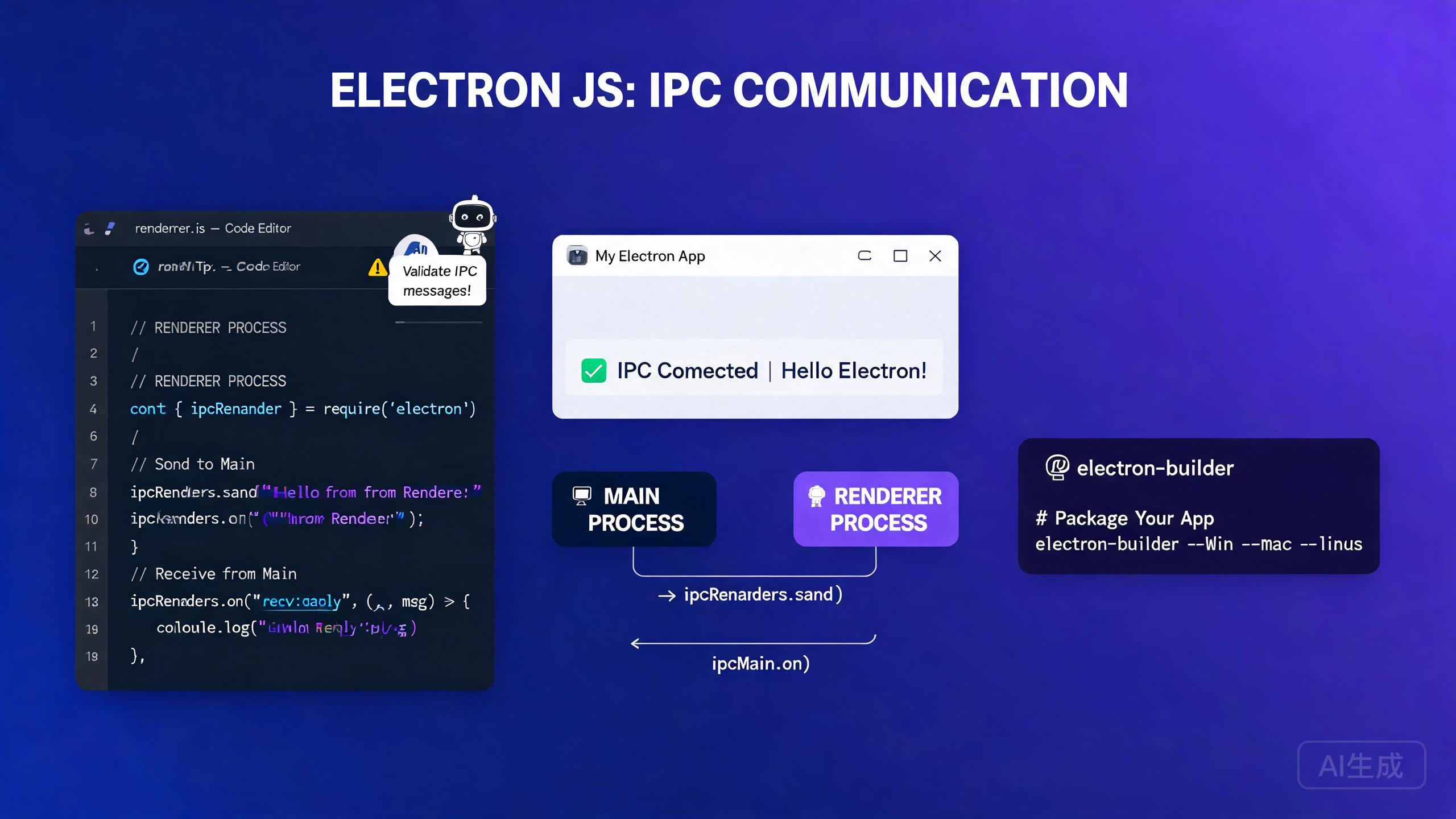
Electron 让你使用已经掌握的 Web 技术(HTML、CSS 和 JavaScript)来构建跨平台桌面应用。Cursor 是一款 AI 驱动的 IDE 编辑器,通过搭建项目脚手架、生成 IPC 处理器、编写上下文隔离的预加载脚本以及自动化打包和自动更新流程,大幅简化了 Electron 开发。本指南涵盖主进程与渲染进程、安全的 IPC 通信、上下文隔离、electron-builder 打包、自动更新策略以及 AI 辅助的桌面 UI 工作流。
前提条件
在开始之前,请确保你具备以下条件:
- Cursor(建议使用最新版本)作为你的 IDE 编辑器
- Node.js 18 或更高版本
- 对 JavaScript、TypeScript 和 npm 有基本了解
- 代码签名证书(可选,但在 macOS 和 Windows 上进行自动更新时必需)
如果你刚接触 Electron,在开始编码之前,请让 Cursor 解释主进程和渲染进程模型。提前理解进程边界可以避免最常见的 Electron 安全和架构错误。
理解 Electron 的进程模型
Electron 应用由两种类型的进程组成:
- 主进程:运行在 Node.js 中,拥有对操作系统的完全访问权限,管理应用生命周期并创建浏览器窗口。
- 渲染进程:运行在 Chromium 渲染器中,负责渲染 Web UI,默认对原生 API 的访问受限。
两个进程通过**进程间通信(IPC)**进行通信。这种分离是有意为之的:它将危险的原生 API 与不受信任的 Web 内容隔离开来。
在 Cursor 中搭建项目脚手架
让 Cursor 搭建一个 TypeScript Electron 项目:
Create a minimal Electron + TypeScript + Vite project.
Include a main process file, a preload script with contextBridge,
and a renderer entry point. Use electron-builder for packaging.
Cursor 会生成目录结构和配置文件:
my-electron-app/
  electron/
    main.ts
    preload.ts
  src/
    index.html
    renderer.ts
  package.json
  electron-builder.yml
  tsconfig.json
package.json 包含必要的脚本和依赖项:
{
  "name": "my-electron-app",
  "version": "1.0.0",
  "main": "dist/electron/main.js",
  "scripts": {
    "dev": "concurrently \"vite\" \"wait-on tcp:5173 && cross-env NODE_ENV=development electron .\"",
    "build": "tsc && vite build",
    "package": "npm run build && electron-builder",
    "package:mac": "npm run build && electron-builder --mac",
    "package:win": "npm run build && electron-builder --win"
  },
  "devDependencies": {
    "electron": "^31.0.0",
    "electron-builder": "^24.13.3",
    "typescript": "^5.4.0",
    "vite": "^5.3.0",
    "vite-plugin-electron": "^0.28.0"
  }
}
始终在 package.json 中指定 main 字段。如果缺失,Electron 会默认使用项目根目录中的 index.js,这可能在开发过程中加载意外的代码。请显式声明编译后的入口点以避免混淆。
主进程
主进程是 Electron 应用的入口点。它创建窗口、处理应用生命周期并注册 IPC 处理器。
创建浏览器窗口
// electron/main.ts
import { app, BrowserWindow, ipcMain, shell } from 'electron';
import * as path from 'path';
import { isDev } from './utils/env';

let mainWindow: BrowserWindow | null = null;

function createWindow() {
  mainWindow = new BrowserWindow({
    width: 1200,
    height: 800,
    minWidth: 800,
    minHeight: 600,
    show: false,
    backgroundColor: '#1e1e2e',
    titleBarStyle: process.platform === 'darwin' ? 'hiddenInset' : 'default',
    webPreferences: {
      preload: path.join(__dirname, 'preload.js'),
      contextIsolation: true,
      nodeIntegration: false,
      sandbox: true,
    },
  });

  mainWindow.once('ready-to-show', () => {
    mainWindow?.show();
  });

  if (isDev) {
    mainWindow.loadURL('http://localhost:5173');
    mainWindow.webContents.openDevTools();
  } else {
    mainWindow.loadFile(path.join(__dirname, '../dist/index.html'));
  }

  // Handle external links in the default browser, not a new Electron window
  mainWindow.webContents.setWindowOpenHandler(({ url }) => {
    shell.openExternal(url);
    return { action: 'deny' };
  });
}

app.whenReady().then(() => {
  createWindow();

  app.on('activate', () => {
    if (BrowserWindow.getAllWindows().length === 0) {
      createWindow();
    }
  });
});

app.on('window-all-closed', () => {
  if (process.platform !== 'darwin') {
    app.quit();
  }
});
让 Cursor 审查你的 BrowserWindow 配置以发现安全问题。类似"审查我的 Electron webPreferences 安全最佳实践"的提示可以捕捉到危险设置,如 nodeIntegration: true 或缺失的预加载脚本。
注册 IPC 处理器
主进程中的 IPC 处理器接收来自渲染进程的消息并返回结果。定义一个类型化契约,使双方就 API 接口达成一致。
// electron/ipc-handlers.ts
import { ipcMain, dialog, BrowserWindow } from 'electron';
import * as fs from 'fs/promises';

export function registerIpcHandlers(): void {
  ipcMain.handle('dialog:openFile', async () => {
    const result = await dialog.showOpenDialog({
      properties: ['openFile'],
      filters: [{ name: 'Text', extensions: ['txt', 'md', 'json'] }],
    });
    if (result.canceled) return null;

    const content = await fs.readFile(result.filePaths[0], 'utf-8');
    return { path: result.filePaths[0], content };
  });

  ipcMain.handle('file:save', async (_event, filePath: string, content: string) => {
    await fs.writeFile(filePath, content, 'utf-8');
    return { success: true };
  });

  ipcMain.handle('window:minimize', (event) => {
    const win = BrowserWindow.fromWebContents(event.sender);
    win?.minimize();
  });

  ipcMain.handle('window:toggleMaximize', (event) => {
    const win = BrowserWindow.fromWebContents(event.sender);
    if (win?.isMaximized()) {
      win.unmaximize();
    } else {
      win?.maximize();
    }
  });
}
切勿通过 IPC 将 BrowserWindow 对象或其他 Electron API 直接传递给渲染进程。始终将原生操作封装在类型化处理器中并返回纯数据。跨进程边界传递活跃对象会产生严重的安全和内存泄漏风险。
上下文隔离与预加载脚本
上下文隔离是 Electron 的主要安全边界。启用后,渲染进程的 window 对象与预加载脚本的作用域完全分离。向渲染进程暴露原生功能的唯一方式是通过 contextBridge API。
编写安全的预加载脚本
// electron/preload.ts
import { contextBridge, ipcRenderer } from 'electron';

// Define the API surface exposed to the renderer
const api = {
  // File operations
  openFile: () => ipcRenderer.invoke('dialog:openFile'),
  saveFile: (path: string, content: string) =>
    ipcRenderer.invoke('file:save', path, content),

  // Window controls
  minimizeWindow: () => ipcRenderer.invoke('window:minimize'),
  toggleMaximize: () => ipcRenderer.invoke('window:toggleMaximize'),

  // Event subscriptions with cleanup
  onUpdateAvailable: (callback: (info: { version: string }) => void) => {
    const handler = (_event: unknown, info: { version: string }) => callback(info);
    ipcRenderer.on('update-available', handler);
    return () => ipcRenderer.removeListener('update-available', handler);
  },
} as const;

// Expose a frozen, read-only API to the renderer
contextBridge.exposeInMainWorld('electronAPI', api);
在渲染进程中使用 API
// src/renderer.ts
// TypeScript declaration so the renderer knows about window.electronAPI
declare global {
  interface Window {
    electronAPI: {
      openFile: () => Promise<{ path: string; content: string } | null>;
      saveFile: (path: string, content: string) => Promise<{ success: boolean }>;
      minimizeWindow: () => Promise<void>;
      toggleMaximize: () => Promise<void>;
      onUpdateAvailable: (callback: (info: { version: string }) => void) => () => void;
    };
  }
}

const openButton = document.getElementById('open-btn');
const editor = document.getElementById('editor') as HTMLTextAreaElement;
let currentFilePath: string | null = null;

openButton?.addEventListener('click', async () => {
  const result = await window.electronAPI.openFile();
  if (result) {
    currentFilePath = result.path;
    editor.value = result.content;
  }
});

document.getElementById('save-btn')?.addEventListener('click', async () => {
  if (currentFilePath) {
    await window.electronAPI.saveFile(currentFilePath, editor.value);
  }
});
通过向 Cursor 提问来一次性生成整个预加载和渲染进程类型契约:"为我的 Electron 预加载脚本和渲染进程创建一个共享的 TypeScript 接口,列出我使用的每个 IPC 通道。将其放在共享类型文件中。" 这能保持双方同步,并在编译时捕获不匹配。
切勿在生产 Electron 应用中使用 nodeIntegration: true 或 contextIsolation: false。这些设置将 Node.js API 直接暴露给 Web 内容,如果你的应用加载远程 URL 或处理不受信任的用户输入,这将是一个严重的安全漏洞。
使用 electron-builder 打包
electron-builder 将你的应用编译为 macOS(.dmg)、Windows(.exe、.nsis)和 Linux(.AppImage、.deb)的安装包。配置存放在单个 YAML 或 JSON 文件中。
配置文件
# electron-builder.yml
appId: com.example.my-electron-app
productName: My Electron App
directories:
  output: release
  buildResources: build
files:
  - dist/**/*
  - dist/electron/**/*
extraMetadata:
  main: dist/electron/main.js
mac:
  category: public.app-category.productivity
  target:
    - dmg
    - zip
  hardenedRuntime: true
  gatekeeperAssess: false
  entitlements: build/entitlements.mac.plist
  entitlementsInherit: build/entitlements.mac.plist
win:
  target:
    - nsis
  artifactName: ${productName}-${version}-${arch}.${ext}
nsis:
  oneClick: false
  allowToChangeInstallationDirectory: true
  createDesktopShortcut: true
linux:
  target:
    - AppImage
    - deb
  category: Office
为所有平台构建
# Build for current platform
npm run package

# Build for macOS (requires macOS host)
npm run package:mac

# Build for Windows
npm run package:win
让 Cursor 生成一个 GitHub Actions 工作流,在每次标签推送时为 macOS、Windows 和 Linux 构建 Electron 应用。类似"创建一个 CI 工作流,在三个平台上运行 electron-builder 并将构建产物上传到 GitHub release"的提示可以生成即用的工作流文件。
构建 macOS 安装包需要一台具有有效 Apple 开发者证书的 macOS 机器。不支持从 Linux 或 Windows 交叉编译签名 macOS 构建。请相应规划你的 CI 基础设施。
使用 electron-updater 自动更新
自动更新让用户无需手动下载安装包即可接收新版本。electron-updater 包与 GitHub releases 或任何静态文件服务器集成。
设置自动更新
// electron/updater.ts
import { autoUpdater } from 'electron-updater';
import { BrowserWindow } from 'electron';

export function setupAutoUpdater(mainWindow: BrowserWindow): void {
  autoUpdater.autoDownload = false;
  autoUpdater.autoInstallOnAppQuit = true;

  autoUpdater.on('update-available', (info) => {
    // Notify the renderer that an update is available
    mainWindow.webContents.send('update-available', { version: info.version });
  });

  autoUpdater.on('update-not-available', () => {
    mainWindow.webContents.send('update-not-available');
  });

  autoUpdater.on('download-progress', (progress) => {
    mainWindow.webContents.send('download-progress', {
      percent: Math.round(progress.percent),
    });
  });

  autoUpdater.on('update-downloaded', () => {
    // Ask the user, then quit and install
    mainWindow.webContents.send('update-downloaded');
  });

  // Check for updates after startup
  app.whenReady().then(() => {
    autoUpdater.checkForUpdates();
  });
}

// Expose control methods through IPC
ipcMain.handle('update:download', () => {
  autoUpdater.downloadUpdate();
});

ipcMain.handle('update:install', () => {
  setImmediate(() => {
    app.isQuiting = true;
    autoUpdater.quitAndInstall();
  });
});
渲染进程侧更新 UI
// src/components/UpdateNotification.tsx
import { useEffect, useState } from 'react';

export function UpdateNotification() {
  const [updateInfo, setUpdateInfo] = useState<{ version: string } | null>(null);
  const [progress, setProgress] = useState(0);
  const [downloaded, setDownloaded] = useState(false);

  useEffect(() => {
    const cleanup = window.electronAPI.onUpdateAvailable((info) => {
      setUpdateInfo(info);
    });

    const progressHandler = (_event: unknown, data: { percent: number }) => {
      setProgress(data.percent);
    };
    window.electronAPI.onDownloadProgress?.(progressHandler);

    return cleanup;
  }, []);

  if (!updateInfo) return null;

  return (
    <div className="fixed bottom-4 right-4 rounded-lg border bg-white p-4 shadow-lg">
      <p className="font-semibold">Version {updateInfo.version} is available</p>
      {downloaded ? (
        <button onClick={() => window.electronAPI.installUpdate?.()}>
          Restart and Install
        </button>
      ) : progress > 0 ? (
        <div className="mt-2 h-2 rounded bg-gray-200">
          <div className="h-2 rounded bg-blue-500" style={{ width: `${progress}%` }} />
        </div>
      ) : (
        <button onClick={() => window.electronAPI.downloadUpdate?.()}>
          Download Update
        </button>
      )}
    </div>
  );
}
使用 autoUpdater.autoDownload = false 让用户控制下载。强制后台下载可能在按流量计费的网络连接上消耗带宽并让用户感到困扰。始终显示通知并让用户选择何时下载。
自动更新在 macOS 上需要代码签名。未签名的应用将在更新验证步骤中静默失败,electron-updater 会报告错误。在 Windows 上,未签名的应用可以更新但会触发 SmartScreen 警告,从而降低用户信任。
AI 辅助桌面 UI 生成
Cursor 擅长生成桌面级 UI 组件。描述你想要的界面,Cursor 会生成无障碍、支持键盘导航的 React 组件,并适配桌面环境。
生成自定义标题栏
Create a React component for a custom Electron title bar on Windows.
Include minimize, maximize/restore, and close buttons. Use inline SVG
icons. Wire each button to the window.electronAPI IPC methods.
Support keyboard shortcuts (Alt+F4 to close, Win+Up to maximize).
Cursor 生成:
// src/components/TitleBar.tsx
import { useEffect, useState } from 'react';

export function TitleBar({ title }: { title: string }) {
  const [isMaximized, setIsMaximized] = useState(false);

  useEffect(() => {
    const checkMax = () => setIsMaximized(window.electronAPI.isMaximized());
    checkMax();
    const interval = setInterval(checkMax, 200);
    return () => clearInterval(interval);
  }, []);

  return (
    <div
      className="flex h-8 items-center justify-between select-none"
      style={{ WebkitAppRegion: 'drag' } as React.CSSProperties}
    >
      <span className="ml-3 text-sm font-medium text-gray-200">{title}</span>
      <div
        className="flex h-full"
        style={{ WebkitAppRegion: 'no-drag' } as React.CSSProperties}
      >
        <button
          onClick={() => window.electronAPI.minimizeWindow()}
          className="flex h-full w-12 items-center justify-center hover:bg-white/10"
          aria-label="Minimize"
        >
          <svg width="12" height="12" viewBox="0 0 12 12">
            <rect y="5" width="12" height="2" fill="currentColor" />
          </svg>
        </button>
        <button
          onClick={() => window.electronAPI.toggleMaximize()}
          className="flex h-full w-12 items-center justify-center hover:bg-white/10"
          aria-label={isMaximized ? 'Restore' : 'Maximize'}
        >
          {isMaximized ? (
            <svg width="12" height="12" viewBox="0 0 12 12">
              <rect x="1" y="3" width="8" height="8" stroke="currentColor" fill="none" />
              <rect x="3" y="1" width="8" height="2" fill="currentColor" />
            </svg>
          ) : (
            <svg width="12" height="12" viewBox="0 0 12 12">
              <rect x="1" y="1" width="10" height="10" stroke="currentColor" fill="none" />
            </svg>
          )}
        </button>
        <button
          onClick={() => window.electronAPI.closeWindow()}
          className="flex h-full w-12 items-center justify-center hover:bg-red-600"
          aria-label="Close"
        >
          <svg width="12" height="12" viewBox="0 0 12 12">
            <path d="M1 1 L11 11 M11 1 L1 11" stroke="currentColor" strokeWidth="2" />
          </svg>
        </button>
      </div>
    </div>
  );
}
在 Cursor 中生成桌面 UI 时,始终提及平台。标题栏在 macOS(左侧交通灯按钮)和 Windows(右侧系统按钮)上的行为不同。指定平台可以生成正确的、适合平台的布局。
性能优化
如果你不仔细管理资源,Electron 应用可能会感觉很重。Cursor 帮助你识别和修复性能瓶颈。
减少内存和 CPU 使用
// electron/utils/performance.ts
import { app, BrowserWindow } from 'electron';

export function optimizePerformance(): void {
  // Limit the number of background processes
  app.commandLine.appendSwitch('disable-background-networking');
  app.commandLine.appendSwitch('disable-renderer-backgrounding');

  // Reduce GPU overhead for non-accelerated content
  app.commandLine.appendSwitch('disable-gpu-compositing');

  // Suspend background timers when the window is hidden
  app.on('browser-window-blur', () => {
    // Pause expensive operations
  });

  // Aggressively release memory when the app is idle
  setInterval(() => {
    const windows = BrowserWindow.getAllWindows();
    if (windows.length === 0) {
      // Trigger garbage collection if running with --inspect
      if (global.gc) global.gc();
    }
  }, 60000);
}
不要盲目应用所有 commandLine 开关。禁用 GPU 合成可能破坏 CSS 动画和 WebGL 画布渲染。在每次性能更改后测试完整 UI,并恢复导致视觉回归的开关。
安全检查清单
在 Cursor 中运行此提示来审查整个 Electron 项目的安全问题:
Review my Electron app for security vulnerabilities. Check for:
1. contextIsolation enabled
2. nodeIntegration disabled
3. sandbox enabled
4. CSP headers set
5. No remote modules loaded
6. preload script uses contextBridge only
7. All IPC handlers validate input
8. Webview tags disabled or sandboxed
Cursor 会扫描你的代码库并返回按优先级排序的问题列表,包含具体的文件引用和建议修复方案。
将 Electron 安全检查清单作为 .cursorrules 文件添加到项目根目录。Cursor 在生成新的 Electron 代码时会自动执行这些规则,防止安全回归随时间累积。
总结
在 Cursor 中构建 Electron 桌面应用将 Web 技术的跨平台能力与 AI 辅助开发速度相结合。遵循本指南中的模式——安全的上下文隔离 IPC、类型化预加载契约、electron-builder 打包和用户可控的自动更新——你可以比以往更快地发布专业桌面应用。记住保持 contextIsolation 开启、nodeIntegration 关闭,并让 Cursor 在每一步审查你的代码以确保安全和性能。