Electron Desktop App Development in Cursor: IPC, Context Isolation, and Auto-Update
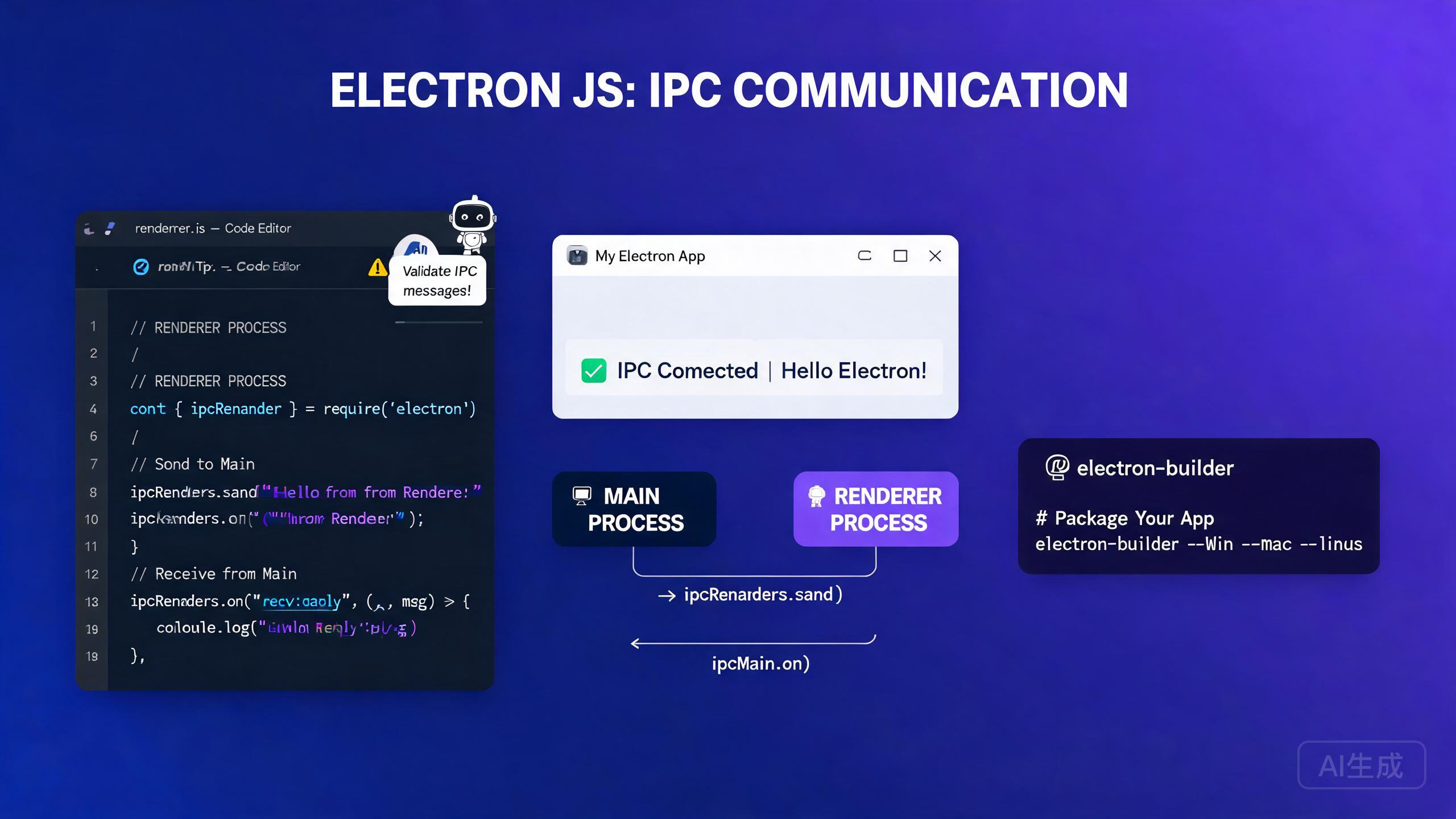
Electron lets you build cross-platform desktop applications using web technologies you already know: HTML, CSS, and JavaScript. Cursor, an AI-powered IDE editor, streamlines Electron development by scaffolding projects, generating IPC handlers, writing context-isolated preload scripts, and automating the packaging and auto-update pipeline. This guide covers main and renderer processes, secure IPC communication, context isolation, packaging with electron-builder, auto-update strategies, and AI-assisted desktop UI workflows.
Prerequisites
Before you begin, make sure you have the following:
- Cursor (latest version recommended) as your IDE editor
- Node.js 18 or higher
- Basic familiarity with JavaScript, TypeScript, and npm
- A code signing certificate (optional, but required for auto-update on macOS and Windows)
If you are new to Electron, ask Cursor to explain the main and renderer process model before you start coding. Understanding the process boundary upfront prevents the most common Electron security and architecture mistakes.
Understanding Electron's Process Model
Electron applications consist of two types of processes:
- Main process: Runs in Node.js, has full access to the operating system, manages the application lifecycle, and creates browser windows.
- Renderer process: Runs in a Chromium renderer, renders your web UI, and has restricted access to native APIs by default.
The two processes communicate through Inter-Process Communication (IPC). This separation is deliberate: it keeps dangerous native APIs away from untrusted web content.
Project Scaffolding in Cursor
Ask Cursor to scaffold a TypeScript Electron project:
Create a minimal Electron + TypeScript + Vite project.
Include a main process file, a preload script with contextBridge,
and a renderer entry point. Use electron-builder for packaging.
Cursor generates the directory structure and configuration files:
my-electron-app/
  electron/
    main.ts
    preload.ts
  src/
    index.html
    renderer.ts
  package.json
  electron-builder.yml
  tsconfig.json
The package.json includes the essential scripts and dependencies:
{
  "name": "my-electron-app",
  "version": "1.0.0",
  "main": "dist/electron/main.js",
  "scripts": {
    "dev": "concurrently \"vite\" \"wait-on tcp:5173 && cross-env NODE_ENV=development electron .\"",
    "build": "tsc && vite build",
    "package": "npm run build && electron-builder",
    "package:mac": "npm run build && electron-builder --mac",
    "package:win": "npm run build && electron-builder --win"
  },
  "devDependencies": {
    "electron": "^31.0.0",
    "electron-builder": "^24.13.3",
    "typescript": "^5.4.0",
    "vite": "^5.3.0",
    "vite-plugin-electron": "^0.28.0"
  }
}
Always specify the main field in package.json. If it is missing, Electron defaults to index.js in the project root, which can load unexpected code during development. Explicitly declare the compiled entry point to avoid confusion.
The Main Process
The main process is the entry point of your Electron application. It creates windows, handles the app lifecycle, and registers IPC handlers.
Creating Browser Windows
// electron/main.ts
import { app, BrowserWindow, ipcMain, shell } from 'electron';
import * as path from 'path';
import { isDev } from './utils/env';

let mainWindow: BrowserWindow | null = null;

function createWindow() {
  mainWindow = new BrowserWindow({
    width: 1200,
    height: 800,
    minWidth: 800,
    minHeight: 600,
    show: false,
    backgroundColor: '#1e1e2e',
    titleBarStyle: process.platform === 'darwin' ? 'hiddenInset' : 'default',
    webPreferences: {
      preload: path.join(__dirname, 'preload.js'),
      contextIsolation: true,
      nodeIntegration: false,
      sandbox: true,
    },
  });

  mainWindow.once('ready-to-show', () => {
    mainWindow?.show();
  });

  if (isDev) {
    mainWindow.loadURL('http://localhost:5173');
    mainWindow.webContents.openDevTools();
  } else {
    mainWindow.loadFile(path.join(__dirname, '../dist/index.html'));
  }

  // Handle external links in the default browser, not a new Electron window
  mainWindow.webContents.setWindowOpenHandler(({ url }) => {
    shell.openExternal(url);
    return { action: 'deny' };
  });
}

app.whenReady().then(() => {
  createWindow();

  app.on('activate', () => {
    if (BrowserWindow.getAllWindows().length === 0) {
      createWindow();
    }
  });
});

app.on('window-all-closed', () => {
  if (process.platform !== 'darwin') {
    app.quit();
  }
});
Ask Cursor to review your BrowserWindow configuration for security issues. A prompt like "Audit my Electron webPreferences for security best practices" will catch dangerous settings like nodeIntegration: true or a missing preload script.
Registering IPC Handlers
IPC handlers in the main process receive messages from the renderer and return results. Define a typed contract so both sides agree on the API surface.
// electron/ipc-handlers.ts
import { ipcMain, dialog, BrowserWindow } from 'electron';
import * as fs from 'fs/promises';

export function registerIpcHandlers(): void {
  ipcMain.handle('dialog:openFile', async () => {
    const result = await dialog.showOpenDialog({
      properties: ['openFile'],
      filters: [{ name: 'Text', extensions: ['txt', 'md', 'json'] }],
    });
    if (result.canceled) return null;

    const content = await fs.readFile(result.filePaths[0], 'utf-8');
    return { path: result.filePaths[0], content };
  });

  ipcMain.handle('file:save', async (_event, filePath: string, content: string) => {
    await fs.writeFile(filePath, content, 'utf-8');
    return { success: true };
  });

  ipcMain.handle('window:minimize', (event) => {
    const win = BrowserWindow.fromWebContents(event.sender);
    win?.minimize();
  });

  ipcMain.handle('window:toggleMaximize', (event) => {
    const win = BrowserWindow.fromWebContents(event.sender);
    if (win?.isMaximized()) {
      win.unmaximize();
    } else {
      win?.maximize();
    }
  });
}
Never pass the BrowserWindow object or other Electron APIs directly through IPC to the renderer. Always wrap native operations in typed handlers and return plain data. Passing live objects across the process boundary creates severe security and memory leak risks.
Context Isolation and Preload Scripts
Context isolation is Electron's primary security boundary. When enabled, the renderer's window object is completely separate from the preload script's scope. The only way to expose native functionality to the renderer is through the contextBridge API.
Writing a Secure Preload Script
// electron/preload.ts
import { contextBridge, ipcRenderer } from 'electron';

// Define the API surface exposed to the renderer
const api = {
  // File operations
  openFile: () => ipcRenderer.invoke('dialog:openFile'),
  saveFile: (path: string, content: string) =>
    ipcRenderer.invoke('file:save', path, content),

  // Window controls
  minimizeWindow: () => ipcRenderer.invoke('window:minimize'),
  toggleMaximize: () => ipcRenderer.invoke('window:toggleMaximize'),

  // Event subscriptions with cleanup
  onUpdateAvailable: (callback: (info: { version: string }) => void) => {
    const handler = (_event: unknown, info: { version: string }) => callback(info);
    ipcRenderer.on('update-available', handler);
    return () => ipcRenderer.removeListener('update-available', handler);
  },
} as const;

// Expose a frozen, read-only API to the renderer
contextBridge.exposeInMainWorld('electronAPI', api);
Consuming the API in the Renderer
// src/renderer.ts
// TypeScript declaration so the renderer knows about window.electronAPI
declare global {
  interface Window {
    electronAPI: {
      openFile: () => Promise<{ path: string; content: string } | null>;
      saveFile: (path: string, content: string) => Promise<{ success: boolean }>;
      minimizeWindow: () => Promise<void>;
      toggleMaximize: () => Promise<void>;
      onUpdateAvailable: (callback: (info: { version: string }) => void) => () => void;
    };
  }
}

const openButton = document.getElementById('open-btn');
const editor = document.getElementById('editor') as HTMLTextAreaElement;
let currentFilePath: string | null = null;

openButton?.addEventListener('click', async () => {
  const result = await window.electronAPI.openFile();
  if (result) {
    currentFilePath = result.path;
    editor.value = result.content;
  }
});

document.getElementById('save-btn')?.addEventListener('click', async () => {
  if (currentFilePath) {
    await window.electronAPI.saveFile(currentFilePath, editor.value);
  }
});
Generate the entire preload and renderer type contract at once by asking Cursor: "Create a TypeScript interface shared between my Electron preload script and renderer that lists every IPC channel I use. Put it in a shared types file." This keeps both sides in sync and catches mismatches at compile time.
Never use nodeIntegration: true or contextIsolation: false in a production Electron app. These settings expose Node.js APIs directly to web content, which is a critical security vulnerability if your app ever loads remote URLs or processes untrusted user input.
Packaging with electron-builder
electron-builder compiles your app into installers for macOS (.dmg), Windows (.exe, .nsis), and Linux (.AppImage, .deb). Configuration lives in a single YAML or JSON file.
Configuration File
# electron-builder.yml
appId: com.example.my-electron-app
productName: My Electron App
directories:
  output: release
  buildResources: build
files:
  - dist/**/*
  - dist/electron/**/*
extraMetadata:
  main: dist/electron/main.js
mac:
  category: public.app-category.productivity
  target:
    - dmg
    - zip
  hardenedRuntime: true
  gatekeeperAssess: false
  entitlements: build/entitlements.mac.plist
  entitlementsInherit: build/entitlements.mac.plist
win:
  target:
    - nsis
  artifactName: ${productName}-${version}-${arch}.${ext}
nsis:
  oneClick: false
  allowToChangeInstallationDirectory: true
  createDesktopShortcut: true
linux:
  target:
    - AppImage
    - deb
  category: Office
Building for All Platforms
# Build for current platform
npm run package

# Build for macOS (requires macOS host)
npm run package:mac

# Build for Windows
npm run package:win
Ask Cursor to generate a GitHub Actions workflow that builds your Electron app for macOS, Windows, and Linux on every tag push. A prompt like "Create a CI workflow that runs electron-builder on three platforms and uploads artifacts to a GitHub release" produces a ready-to-use workflow file.
Building macOS installers requires a macOS machine with a valid Apple Developer certificate. Cross-compiling from Linux or Windows is not supported for signed macOS builds. Plan your CI infrastructure accordingly.
Auto-Update with electron-updater
Auto-update lets users receive new versions without manually downloading installers. The electron-updater package integrates with GitHub releases or any static file server.
Setting Up Auto-Update
// electron/updater.ts
import { autoUpdater } from 'electron-updater';
import { BrowserWindow } from 'electron';

export function setupAutoUpdater(mainWindow: BrowserWindow): void {
  autoUpdater.autoDownload = false;
  autoUpdater.autoInstallOnAppQuit = true;

  autoUpdater.on('update-available', (info) => {
    // Notify the renderer that an update is available
    mainWindow.webContents.send('update-available', { version: info.version });
  });

  autoUpdater.on('update-not-available', () => {
    mainWindow.webContents.send('update-not-available');
  });

  autoUpdater.on('download-progress', (progress) => {
    mainWindow.webContents.send('download-progress', {
      percent: Math.round(progress.percent),
    });
  });

  autoUpdater.on('update-downloaded', () => {
    // Ask the user, then quit and install
    mainWindow.webContents.send('update-downloaded');
  });

  // Check for updates after startup
  app.whenReady().then(() => {
    autoUpdater.checkForUpdates();
  });
}

// Expose control methods through IPC
ipcMain.handle('update:download', () => {
  autoUpdater.downloadUpdate();
});

ipcMain.handle('update:install', () => {
  setImmediate(() => {
    app.isQuiting = true;
    autoUpdater.quitAndInstall();
  });
});
Renderer-Side Update UI
// src/components/UpdateNotification.tsx
import { useEffect, useState } from 'react';

export function UpdateNotification() {
  const [updateInfo, setUpdateInfo] = useState<{ version: string } | null>(null);
  const [progress, setProgress] = useState(0);
  const [downloaded, setDownloaded] = useState(false);

  useEffect(() => {
    const cleanup = window.electronAPI.onUpdateAvailable((info) => {
      setUpdateInfo(info);
    });

    const progressHandler = (_event: unknown, data: { percent: number }) => {
      setProgress(data.percent);
    };
    window.electronAPI.onDownloadProgress?.(progressHandler);

    return cleanup;
  }, []);

  if (!updateInfo) return null;

  return (
    <div className="fixed bottom-4 right-4 rounded-lg border bg-white p-4 shadow-lg">
      <p className="font-semibold">Version {updateInfo.version} is available</p>
      {downloaded ? (
        <button onClick={() => window.electronAPI.installUpdate?.()}>
          Restart and Install
        </button>
      ) : progress > 0 ? (
        <div className="mt-2 h-2 rounded bg-gray-200">
          <div className="h-2 rounded bg-blue-500" style={{ width: `${progress}%` }} />
        </div>
      ) : (
        <button onClick={() => window.electronAPI.downloadUpdate?.()}>
          Download Update
        </button>
      )}
    </div>
  );
}
Use autoUpdater.autoDownload = false to give users control over downloads. Forced background downloads can consume bandwidth on metered connections and frustrate users. Always show a notification and let the user choose when to download.
Auto-update requires code signing on macOS. Unsigned apps will silently fail the update verification step and electron-updater will report an error. On Windows, unsigned apps can update but trigger SmartScreen warnings that erode user trust.
AI-Assisted Desktop UI Generation
Cursor excels at generating desktop-grade UI components. Describe the interface you want, and Cursor produces accessible, keyboard-navigable React components styled for a desktop context.
Generating a Custom Title Bar
Create a React component for a custom Electron title bar on Windows.
Include minimize, maximize/restore, and close buttons. Use inline SVG
icons. Wire each button to the window.electronAPI IPC methods.
Support keyboard shortcuts (Alt+F4 to close, Win+Up to maximize).
Cursor generates:
// src/components/TitleBar.tsx
import { useEffect, useState } from 'react';

export function TitleBar({ title }: { title: string }) {
  const [isMaximized, setIsMaximized] = useState(false);

  useEffect(() => {
    const checkMax = () => setIsMaximized(window.electronAPI.isMaximized());
    checkMax();
    const interval = setInterval(checkMax, 200);
    return () => clearInterval(interval);
  }, []);

  return (
    <div
      className="flex h-8 items-center justify-between select-none"
      style={{ WebkitAppRegion: 'drag' } as React.CSSProperties}
    >
      <span className="ml-3 text-sm font-medium text-gray-200">{title}</span>
      <div
        className="flex h-full"
        style={{ WebkitAppRegion: 'no-drag' } as React.CSSProperties}
      >
        <button
          onClick={() => window.electronAPI.minimizeWindow()}
          className="flex h-full w-12 items-center justify-center hover:bg-white/10"
          aria-label="Minimize"
        >
          <svg width="12" height="12" viewBox="0 0 12 12">
            <rect y="5" width="12" height="2" fill="currentColor" />
          </svg>
        </button>
        <button
          onClick={() => window.electronAPI.toggleMaximize()}
          className="flex h-full w-12 items-center justify-center hover:bg-white/10"
          aria-label={isMaximized ? 'Restore' : 'Maximize'}
        >
          {isMaximized ? (
            <svg width="12" height="12" viewBox="0 0 12 12">
              <rect x="1" y="3" width="8" height="8" stroke="currentColor" fill="none" />
              <rect x="3" y="1" width="8" height="2" fill="currentColor" />
            </svg>
          ) : (
            <svg width="12" height="12" viewBox="0 0 12 12">
              <rect x="1" y="1" width="10" height="10" stroke="currentColor" fill="none" />
            </svg>
          )}
        </button>
        <button
          onClick={() => window.electronAPI.closeWindow()}
          className="flex h-full w-12 items-center justify-center hover:bg-red-600"
          aria-label="Close"
        >
          <svg width="12" height="12" viewBox="0 0 12 12">
            <path d="M1 1 L11 11 M11 1 L1 11" stroke="currentColor" strokeWidth="2" />
          </svg>
        </button>
      </div>
    </div>
  );
}
When generating desktop UI in Cursor, always mention the platform. Title bars behave differently on macOS (traffic light buttons on the left) versus Windows (system buttons on the right). Specifying the platform produces correct, platform-appropriate layouts.
Performance Optimization
Electron apps can feel heavy if you do not manage resources carefully. Cursor helps you identify and fix performance bottlenecks.
Reducing Memory and CPU Usage
// electron/utils/performance.ts
import { app, BrowserWindow } from 'electron';

export function optimizePerformance(): void {
  // Limit the number of background processes
  app.commandLine.appendSwitch('disable-background-networking');
  app.commandLine.appendSwitch('disable-renderer-backgrounding');

  // Reduce GPU overhead for non-accelerated content
  app.commandLine.appendSwitch('disable-gpu-compositing');

  // Suspend background timers when the window is hidden
  app.on('browser-window-blur', () => {
    // Pause expensive operations
  });

  // Aggressively release memory when the app is idle
  setInterval(() => {
    const windows = BrowserWindow.getAllWindows();
    if (windows.length === 0) {
      // Trigger garbage collection if running with --inspect
      if (global.gc) global.gc();
    }
  }, 60000);
}
Do not blindly apply all commandLine switches. Disabling GPU compositing can break CSS animations and WebGL canvas rendering. Test your full UI after each performance change and revert switches that cause visual regressions.
Security Checklist
Run this prompt in Cursor to audit your entire Electron project for security issues:
Review my Electron app for security vulnerabilities. Check for:
1. contextIsolation enabled
2. nodeIntegration disabled
3. sandbox enabled
4. CSP headers set
5. No remote modules loaded
6. preload script uses contextBridge only
7. All IPC handlers validate input
8. Webview tags disabled or sandboxed
Cursor scans your codebase and returns a prioritized list of issues with specific file references and suggested fixes.
Add the Electron security checklist as a .cursorrules file in your project root. Cursor will automatically enforce these rules when generating new Electron code, preventing security regressions over time.
Summary
Building Electron desktop applications in Cursor combines the cross-platform power of web technologies with AI-assisted development speed. By following the patterns in this guide, secure context-isolated IPC, typed preload contracts, electron-builder packaging, and user-controlled auto-update, you can ship professional desktop apps faster than ever. Remember to keep contextIsolation on, nodeIntegration off, and let Cursor audit your code for security and performance at every step.