Tauri Desktop App Development in Cursor: Rust Backend, Commands, and Security
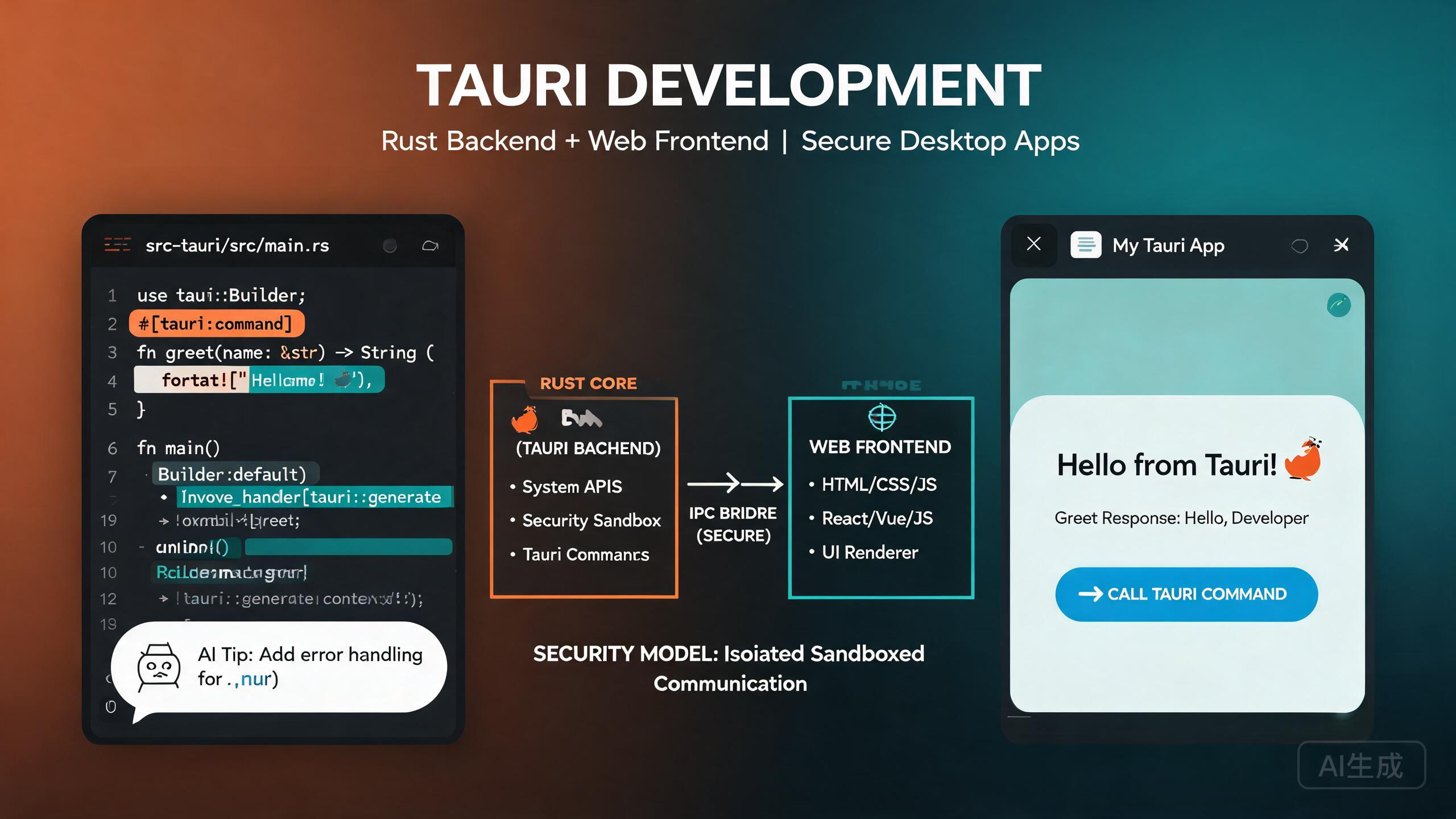
Tauri is a framework for building tiny, fast, and secure desktop applications by combining a Rust backend with a web frontend of your choice. Unlike Electron, Tauri uses the operating system's native webview instead of bundling Chromium, resulting in dramatically smaller binaries and lower memory usage. Cursor, an AI-powered IDE editor, accelerates Tauri development by scaffolding projects, generating Rust commands, writing type-safe TypeScript bindings, and auditing your security configuration. This guide covers the Tauri architecture, Rust commands, the plugin system, the security model, and AI-assisted desktop integration.
Prerequisites
Before you begin, make sure you have the following:
- Cursor (latest version recommended) as your IDE editor
- Rust toolchain (install via rustup) with the stable compiler
- Node.js 18 or higher for the frontend tooling
- System dependencies: on Linux, install
webkit2gtk,build-essential, and related packages; on macOS, install Xcode Command Line Tools; on Windows, install the Visual Studio C++ Build Tools
If you have never written Rust before, ask Cursor to explain ownership, borrowing, and lifetimes using examples from Tauri command handlers. Understanding these concepts early prevents compiler errors that can feel cryptic to JavaScript developers transitioning to Rust.
Understanding the Tauri Architecture
A Tauri application has three layers:
- Frontend: Your web application (React, Vue, Svelte, or plain HTML). This runs in the OS-native webview.
- Core (Rust): The Tauri runtime, written in Rust, manages windows, the application lifecycle, and native system calls.
- Commands: Custom Rust functions that the frontend calls through Tauri's IPC layer. This is how your web UI interacts with the filesystem, databases, and OS APIs.
The key difference from Electron is that the Rust core has full system access while the frontend is sandboxed in the webview. Communication flows exclusively through explicitly declared commands and events.
Project Scaffolding in Cursor
Ask Cursor to scaffold a Tauri + React + TypeScript project:
Create a Tauri 2.0 project with React and TypeScript.
Set up the frontend with Vite, configure the Rust backend,
and include the tauri-plugin-fs and tauri-plugin-dialog plugins.
Cursor generates the standard Tauri project structure:
my-tauri-app/
  src/                    # Frontend source
    App.tsx
    main.tsx
  src-tauri/              # Rust backend
    src/
      main.rs
      lib.rs
    Cargo.toml
    tauri.conf.json
    capabilities/
      default.json
  package.json
  vite.config.ts
Tauri 2.0 introduced significant changes from Tauri 1.x, including a new permissions system, capabilities files, and a redesigned plugin API. If you are following older tutorials, verify that the API calls match Tauri 2.0 syntax. Ask Cursor to migrate any Tauri 1.x code you encounter.
Rust Backend and Commands
Commands are the bridge between your Rust backend and your web frontend. You define a Rust function, annotate it with #[tauri::command], and invoke it from JavaScript.
Defining Commands
// src-tauri/src/lib.rs
use serde::{Deserialize, Serialize};
use std::fs;
use std::path::PathBuf;
use tauri::{Manager, State};

// A shared application state managed by Tauri
pub struct AppState {
    pub config_dir: PathBuf,
}

#[derive(Serialize, Deserialize)]
pub struct FileEntry {
    pub name: String,
    pub path: String,
    pub is_dir: bool,
    pub size: u64,
}

/// List files in a directory
#[tauri::command]
pub async fn list_files(dir: String) -> Result<Vec<FileEntry>, String> {
    let entries = fs::read_dir(&dir).map_err(|e| e.to_string())?;

    let mut files: Vec<FileEntry> = entries
        .filter_map(|entry| entry.ok())
        .filter_map(|entry| {
            let metadata = entry.metadata().ok()?;
            Ok(FileEntry {
                name: entry.file_name().to_string_lossy().to_string(),
                path: entry.path().to_string_lossy().to_string(),
                is_dir: metadata.is_dir(),
                size: metadata.len(),
            })
        })
        .collect();

    files.sort_by(|a, b| b.is_dir.cmp(&a.is_dir).then(a.name.cmp(&b.name)));
    Ok(files)
}

/// Save content to a file
#[tauri::command]
pub async fn save_file(path: String, content: String) -> Result<(), String> {
    fs::write(&path, content).map_err(|e| e.to_string())
}

/// Read a file's content
#[tauri::command]
pub async fn read_file(path: String) -> Result<String, String> {
    fs::read_to_string(&path).map_err(|e| e.to_string())
}

/// Get the app data directory
#[tauri::command]
pub fn get_data_dir(state: State<AppState>) -> String {
    state.config_dir.to_string_lossy().to_string()
}

#[cfg_attr(mobile, tauri::mobile_entry_point)]
pub fn run() {
    tauri::Builder::default()
        .plugin(tauri_plugin_fs::init())
        .plugin(tauri_plugin_dialog::init())
        .plugin(tauri_plugin_shell::init())
        .manage(AppState {
            config_dir: tauri::api::path::app_config_dir(
                &tauri::generate_context!(),
            ).unwrap_or_else(|_| PathBuf::from(".")),
        })
        .invoke_handler(tauri::generate_handler![
            list_files,
            save_file,
            read_file,
            get_data_dir,
        ])
        .run(tauri::generate_context!())
        .expect("error while running tauri application");
}
Calling Commands from the Frontend
// src/lib/tauri-api.ts
import { invoke } from '@tauri-apps/api/core';

export interface FileEntry {
  name: string;
  path: string;
  is_dir: boolean;
  size: number;
}

export async function listFiles(dir: string): Promise<FileEntry[]> {
  return invoke<FileEntry[]>('list_files', { dir });
}

export async function saveFile(path: string, content: string): Promise<void> {
  await invoke('save_file', { path, content });
}

export async function readFile(path: string): Promise<string> {
  return invoke<string>('read_file', { path });
}

export async function getDataDir(): Promise<string> {
  return invoke<string>('get_data_dir');
}
Ask Cursor to generate TypeScript interfaces that mirror your Rust structs. A prompt like "Create TypeScript types for every struct in my Tauri command handlers and put them in a shared types file" ensures the frontend and backend stay in sync, catching type mismatches at compile time.
Rust's Result type maps directly to JavaScript Promise rejection. If your command returns Result<T, String>, the frontend receives a rejected promise with the error string. Always handle errors with .catch() or try/catch in the frontend to avoid unhandled promise rejections.
The Plugin System
Tauri 2.0 uses a modular plugin architecture. Core functionality like filesystem access, dialogs, shell commands, and HTTP requests are provided by official plugins. You can also create custom plugins to share functionality across apps.
Installing Official Plugins
# File system access
npm install @tauri-apps/plugin-fs
cargo add tauri-plugin-fs --manifest-path src-tauri/Cargo.toml

# Native dialogs (open, save)
npm install @tauri-apps/plugin-dialog
cargo add tauri-plugin-dialog --manifest-path src-tauri/Cargo.toml

# Shell commands (open URLs, run scripts)
npm install @tauri-apps/plugin-shell
cargo add tauri-plugin-shell --manifest-path src-tauri/Cargo.toml

# HTTP client
npm install @tauri-apps/plugin-http
cargo add tauri-plugin-http --manifest-path src-tauri/Cargo.toml
Each plugin must be registered in the Tauri builder and granted permissions through a capabilities file.
Using the Dialog Plugin
// src/components/FileBrowser.tsx
import { open, save } from '@tauri-apps/plugin-dialog';
import { readFile, writeFile } from '@tauri-apps/plugin-fs';
import { useState } from 'react';

export function FileBrowser() {
  const [content, setContent] = useState('');
  const [filePath, setFilePath] = useState<string | null>(null);

  async function handleOpen() {
    const selected = await open({
      multiple: false,
      filters: [{ name: 'Markdown', extensions: ['md'] }],
    });

    if (typeof selected === 'string') {
      setFilePath(selected);
      const bytes = await readFile(selected);
      setContent(new TextDecoder().decode(bytes));
    }
  }

  async function handleSave() {
    if (!filePath) return;
    await writeFile(filePath, new TextEncoder().encode(content));
  }

  async function handleSaveAs() {
    const target = await save({
      filters: [{ name: 'Markdown', extensions: ['md'] }],
    });
    if (target) {
      setFilePath(target);
      await writeFile(target, new TextEncoder().encode(content));
    }
  }

  return (
    <div className="flex flex-col h-full">
      <div className="flex gap-2 p-2">
        <button onClick={handleOpen} className="rounded px-3 py-1 bg-blue-600 text-white">
          Open
        </button>
        <button onClick={handleSave} className="rounded px-3 py-1 bg-green-600 text-white">
          Save
        </button>
        <button onClick={handleSaveAs} className="rounded px-3 py-1 bg-gray-600 text-white">
          Save As
        </button>
      </div>
      <textarea
        value={content}
        onChange={(e) => setContent(e.target.value)}
        className="flex-1 p-4 font-mono text-sm"
        placeholder="Select a file or start typing..."
      />
    </div>
  );
}
Ask Cursor to scaffold a custom Tauri plugin. A prompt like "Create a Tauri plugin that exposes a Rust function to read system environment variables and register it in my app" demonstrates how to structure plugin code, register permissions, and expose the API to the frontend.
The Security Model
Tauri 2.0 introduced a fine-grained permissions system based on capabilities. Every command, plugin API, and resource access point must be explicitly allowed in a capabilities file.
Capabilities Configuration
// src-tauri/capabilities/default.json
{
  "$schema": "../gen/schemas/desktop-schema.json",
  "identifier": "default",
  "description": "Default capability for the main window",
  "windows": ["main"],
  "permissions": [
    "core:default",
    "fs:allow-read-text-file",
    "fs:allow-write-file",
    "fs:allow-create-dir",
    "dialog:allow-open",
    "dialog:allow-save",
    "shell:allow-open",
    "http:default"
  ]
}
Scoping Filesystem Access
You can restrict which directories a plugin can access using scope rules:
{
  "identifier": "default",
  "windows": ["main"],
  "permissions": [
    {
      "identifier": "fs:allow-read-file",
      "allow": [
        { "path": "$APPDATA/**" },
        { "path": "$DOCUMENT/**" }
      ],
      "deny": [
        { "path": "$DOCUMENT/.ssh/**" }
      ]
    }
  ]
}
Never use fs:default or fs:allow-read-file without a scope. These broad permissions grant access to the entire filesystem from the webview, which defeats the purpose of Tauri's sandboxed architecture. Always scope access to specific directories like $APPDATA or user-selected paths.
Run this prompt in Cursor to audit your Tauri security configuration: "Review my capabilities files and Cargo.toml for overly broad permissions. Flag any permission that grants filesystem, shell, or HTTP access without an explicit scope."
Events and Inter-Process Communication
In addition to commands, Tauri supports an event system for asynchronous communication from the Rust backend to the frontend.
Emitting Events from Rust
use tauri::{Emitter, Window};
use std::time::Duration;
use tokio::time::interval;

/// Background task that emits progress updates
#[tauri::command]
pub async fn start_processing(window: Window) -> Result<(), String> {
    let mut ticker = interval(Duration::from_millis(500));

    for step in 0..=100 {
        ticker.tick().await;

        window
            .emit("processing-progress", serde_json::json!({
                "step": step,
                "total": 100,
                "message": format!("Processing item {} of 100", step),
            }))
            .map_err(|e| e.to_string())?;

        if step == 50 {
            window
                .emit("processing-warning", "Halfway through, memory is high")
                .map_err(|e| e.to_string())?;
        }
    }

    window
        .emit("processing-complete", "All items processed successfully")
        .map_err(|e| e.to_string())?;

    Ok(())
}
Listening to Events in the Frontend
// src/components/ProcessingView.tsx
import { listen } from '@tauri-apps/api/event';
import { useEffect, useState } from 'react';

interface ProgressEvent {
  step: number;
  total: number;
  message: string;
}

export function ProcessingView() {
  const [progress, setProgress] = useState<ProgressEvent | null>(null);
  const [warning, setWarning] = useState<string | null>(null);
  const [done, setDone] = useState(false);

  useEffect(() => {
    const unlisteners: Array<() => void> = [];

    const setup = async () => {
      unlisteners.push(
        await listen<ProgressEvent>('processing-progress', (event) => {
          setProgress(event.payload);
        })
      );

      unlisteners.push(
        await listen<string>('processing-warning', (event) => {
          setWarning(event.payload);
        })
      );

      unlisteners.push(
        await listen<string>('processing-complete', (event) => {
          setDone(true);
        })
      );
    };

    setup();

    return () => {
      unlisteners.forEach((unlisten) => unlisten());
    };
  }, []);

  return (
    <div className="p-4">
      {progress && (
        <>
          <div className="mb-2 text-sm text-gray-600">{progress.message}</div>
          <div className="h-3 rounded-full bg-gray-200">
            <div
              className="h-3 rounded-full bg-blue-600 transition-all"
              style={{ width: `${(progress.step / progress.total) * 100}%` }}
            />
          </div>
        </>
      )}
      {warning && (
        <div className="mt-2 rounded bg-yellow-100 p-2 text-sm text-yellow-800">
          {warning}
        </div>
      )}
      {done && (
        <div className="mt-4 rounded bg-green-100 p-2 text-sm text-green-800">
          Processing complete!
        </div>
      )}
    </div>
  );
}
Always clean up event listeners in your React useEffect cleanup function. Tauri event listeners persist across component remounts. Failing to unsubscribe causes duplicate handlers that fire multiple times and create memory leaks.
AI-Assisted Desktop Integration
Cursor can generate complete desktop integration features by describing the desired behavior. Here are practical examples.
System Tray Integration
Create a Tauri system tray icon with a context menu containing
"Show Window", "Settings", and "Quit". The tray icon should show
a notification badge when there are unread items. Write the Rust
code in src-tauri/src/tray.rs and register it in the builder.
Cursor generates:
// src-tauri/src/tray.rs
use tauri::{
    menu::{Menu, MenuItem, PredefinedMenuItem},
    tray::{TrayIconBuilder, TrayIconEvent, MouseButton, MouseButtonState},
    Manager, Emitter,
};

pub fn setup_tray(app: &tauri::App) -> tauri::Result<()> {
    let show = MenuItem::with_id(app, "show", "Show Window", true, None)?;
    let settings = MenuItem::with_id(app, "settings", "Settings", true, None)?;
    let separator = PredefinedMenuItem::separator(app)?;
    let quit = MenuItem::with_id(app, "quit", "Quit", true, None)?;

    let menu = Menu::with_items(app, &[&show, &settings, &separator, &quit])?;

    TrayIconBuilder::new()
        .icon(app.default_window_icon().unwrap().clone())
        .tooltip("My Tauri App")
        .menu(&menu)
        .on_menu_event(|app, event| {
            match event.id().as_ref() {
                "show" => {
                    if let Some(window) = app.get_webview_window("main") {
                        let _ = window.show();
                        let _ = window.set_focus();
                    }
                }
                "settings" => {
                    if let Some(window) = app.get_webview_window("main") {
                        let _ = window.emit("navigate", "/settings");
                        let _ = window.show();
                        let _ = window.set_focus();
                    }
                }
                "quit" => {
                    app.exit(0);
                }
                _ => {}
            }
        })
        .on_tray_icon_event(|tray, event| {
            if let TrayIconEvent::Click {
                button: MouseButton::Left,
                button_state: MouseButtonState::Up,
                ..
            } = event
            {
                let app = tray.app_handle();
                if let Some(window) = app.get_webview_window("main") {
                    let _ = window.show();
                    let _ = window.set_focus();
                }
            }
        })
        .build(app)?;

    Ok(())
}
System tray icons behave differently across platforms. On macOS, clicking the tray icon should toggle window visibility. On Windows and Linux, right-click opens the context menu. Ask Cursor to generate platform-specific handlers and test on all target platforms before releasing.
Building and Distributing
Tauri builds native binaries for each platform with no external runtime dependencies.
Build Commands
# Build for the current platform
npm run tauri build

# Build with a specific bundle type
npm run tauri build -- --bundles dmg    # macOS DMG
npm run tauri build -- --bundles nsis  # Windows NSIS installer
npm run tauri build -- --bundles deb   # Linux DEB

# Debug build with devtools
npm run tauri build -- --debug
Configuration
// src-tauri/tauri.conf.json
{
"$schema": "https://schema.tauri.app/config/2",
"productName": "My Tauri App",
"version": "1.0.0",
"identifier": "com.example.my-tauri-app",
"build": {
"frontendDist": "../dist",
"devUrl": "http://localhost:1420",
"beforeDevCommand": "npm run dev",
"beforeBuildCommand": "npm run build"
},
"app": {
"windows": [
{
"title": "My Tauri App",
"width": 1200,
"height": 800,
"minWidth": 800,
"minHeight": 600,
"resizable": true,
"center": true,
"decorations": true
}
],
"security": {
"csp": "default-src 'self'; img-src 'self' data:; style-src 'self' 'unsafe-inline'",
"freezePrototype": true
}
},
"bundle": {
"active": true,
"targets": "all",
"icon": [
"icons/32x32.png",
"icons/128x128.png",
"icons/icon.icns",
"icons/icon.ico"
]
}
}
Ask Cursor to generate a GitHub Actions CI workflow that builds your Tauri app for macOS, Windows, and Ubuntu. A prompt like "Create a CI workflow that installs Rust, Node, and system dependencies for Tauri, then runs tauri build on three platforms and uploads the bundles as release assets" gives you a production-ready pipeline.
Summary
Tauri in Cursor gives you the best of both worlds: a tiny, secure Rust core with a familiar web frontend. By following this guide's patterns, typed Rust commands, scoped plugin permissions, capability-based security, event-driven communication, and platform-aware desktop integration, you can ship lightweight desktop applications that are an order of magnitude smaller than Electron equivalents. Keep your capabilities files scoped tightly, let Cursor generate and audit your Rust commands, and always test platform-specific features on every target OS.