在 Cursor 中设置 Grok Bot
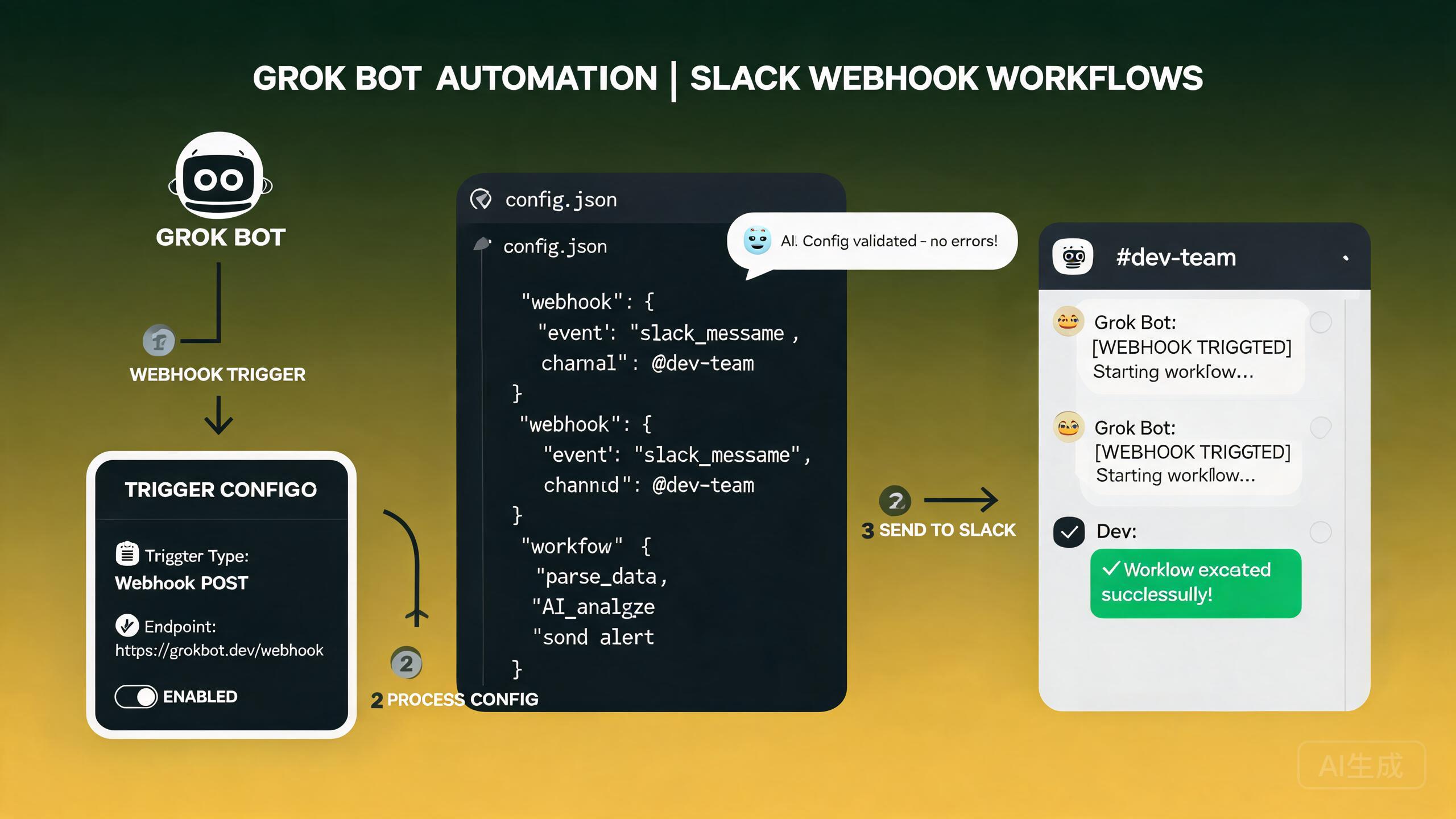
Cursor 中的 Grok Bot 将 AI 驱动的自动化例程直接引入你的开发工作流程。通过配置 Webhook 例程、Slack 触发器和自动化工作流,你可以连接外部服务并让机器人自动处理重复性任务。本指南涵盖了从初始配置到高级故障排除的完整设置过程。
什么是 Grok Bot?
Grok Bot 是 Cursor 中的自动化层,使用基于 Webhook 的例程来响应来自外部服务的事件。当触发器被激发时,机器人会执行预定义的例程,例如运行代码分析、生成摘要或发送通知。
Grok Bot 设置的核心组件包括:
- 例程:机器人在被触发时执行的操作序列
- 触发器:启动例程的事件,例如 Slack 消息或 Webhook 调用
- Webhook URL:外部服务向其发送数据的端点地址
- 操作:例程中的单个步骤,例如文件编辑、终端命令或 API 调用
在设置 Grok Bot 之前,请确保你的 Cursor 安装是最新版本。Webhook 例程功能会频繁改进,旧版本可能不支持本指南中描述的所有触发器类型。
初始配置
启用 Grok Bot
要在 Cursor 中启用 Grok Bot,请导航到自动化设置:
- 打开 Cursor 设置(Ctrl+, 或 Cmd+,)
- 在左侧边栏导航到 Automations 部分
- 切换 Enable Grok Bot 以激活该功能
- 点击 Generate Webhook Secret 以创建用于验证传入请求的密钥
// 存储在 settings.json 中的生成配置示例
{
  "cursor.grokBot.enabled": true,
  "cursor.grokBot.webhookSecret": "whsec_abc123def456ghi789",
  "cursor.grokBot.defaultModel": "cursor-agent-pro",
  "cursor.grokBot.maxConcurrentRoutines": 3
}
请保密你的 Webhook 密钥。任何拥有此密钥的人都可以在你的机器上触发例程。如果密钥泄露,请立即从设置面板生成新密钥。
创建你的第一个例程
例程是机器人在被触发时遵循的一组指令。从 Automations 面板创建一个例程:
- 打开 Automations 面板(Ctrl+Shift+A)
- 点击 New Routine
- 为例程起一个描述性名称,例如 "Slack Code Review Request"
- 选择触发器类型(Webhook、Slack、手动或计划)
- 定义例程应执行的操作
- 保存并激活例程
# 例程配置示例
name: "Slack Code Review Request"
description: "When a Slack message mentions @code-review, analyze the referenced file"
trigger:
  type: slack
  condition: "message.contains('@code-review')"
actions:
  - type: parse_message
    extract:
      file_path: "regex:review\\s+(.+)"
      question: "regex:asking\\s+(.+)"
  - type: read_file
    path: "{{file_path}}"
  - type: analyze
    prompt: "Review this code for potential issues, security vulnerabilities, and improvement suggestions."
  - type: slack_reply
    message: "{{analysis_result}}"
Webhook 例程
Webhook 例程允许外部服务通过向指定 URL 发送 HTTP POST 请求来触发 Cursor 中的操作。
理解 Webhook URL
当你创建一个 Webhook 触发的例程时,Cursor 会生成一个唯一的 Webhook URL。这个 URL 是外部服务向其发送载荷的地址。
# Webhook URL 格式示例
http://localhost:7541/webhooks/routines/rtn_abc123def456
用户报告的一个常见问题是 Webhook 例程配置中没有显示 POST URL。这通常是因为例程未完全保存或在保存前未将触发器类型设置为 "Webhook"。如果你没有看到 POST URL,请按照以下步骤操作:
- 重新打开例程编辑器
- 确认触发器类型已设置为 "Webhook"
- 明确点击 Save(不要只是关闭面板)
- 重新打开例程以验证 URL 现在已显示
如果 URL 仍然没有出现,请重启 Cursor 然后重试。这是一个已知问题,已被报告并正在跟踪修复。
注册 Webhook 例程
以下是逐步创建 Webhook 触发例程的方法:
- 打开 Automations 面板
- 点击 New Routine
- 将名称设置为 "GitHub PR Notification"
- 将触发器类型设置为 Webhook
- 保存例程以生成 Webhook URL
- 复制显示的 POST URL
- 配置你的外部服务以向该 URL 发送请求
# 示例:从 GitHub Action 发送 Webhook
import json
import urllib.request

webhook_url = "http://localhost:7541/webhooks/routines/rtn_abc123def456"
webhook_secret = "whsec_abc123def456ghi789"

payload = {
    "event": "pull_request.opened",
    "repository": "my-org/my-repo",
    "pr_number": 42,
    "pr_title": "Add payment gateway integration",
    "author": "jane-dev",
    "changed_files": ["src/payment/stripe.ts", "src/api/routes.ts"],
}

req = urllib.request.Request(
    webhook_url,
    data=json.dumps(payload).encode("utf-8"),
    headers={
        "Content-Type": "application/json",
        "X-Webhook-Secret": webhook_secret,
    },
    method="POST",
)

try:
    with urllib.request.urlopen(req) as response:
        print(f"Status: {response.status}")
        print(f"Response: {response.read().decode()}")
except urllib.error.URLError as e:
    print(f"Webhook delivery failed: {e}")
验证 Webhook 请求
始终验证传入的 Webhook 请求以确保它们来自可信来源。你在设置期间生成的 Webhook 密钥应包含在 X-Webhook-Secret 请求头中。
// 示例验证逻辑(Node.js)
const crypto = require("crypto");

function validateWebhook(req, res, next) {
  const secret = req.headers["x-webhook-secret"];
  const expectedSecret = process.env.CURSOR_WEBHOOK_SECRET;

  if (!secret || secret !== expectedSecret) {
    return res.status(401).json({ error: "Invalid webhook secret" });
  }

  // 可选:验证请求时间戳以防止重放攻击
  const timestamp = req.headers["x-webhook-timestamp"];
  const now = Date.now();
  const maxAge = 5 * 60 * 1000; // 5 分钟

  if (timestamp && now - parseInt(timestamp) > maxAge) {
    return res.status(401).json({ error: "Webhook timestamp expired" });
  }

  next();
}
对于生产环境设置,使用 ngrok 或 Cloudflare Tunnel 等工具将本地 Webhook 端点暴露到互联网。这让 GitHub、Slack 或 Jira 等外部服务可以访问你的本地 Cursor 实例。
Slack 集成
Slack 是 Grok Bot 例程最常见的触发器来源之一。你可以配置 Slack 在特定事件发生时向 Cursor 发送消息。
设置 Slack 触发器
- 前往 Slack API 应用页面
- 点击 Create New App 并选择 From scratch
- 将应用命名为 "Cursor Grok Bot" 并选择你的工作区
- 在 Event Subscriptions 下,启用事件
- 输入你的 Cursor Webhook URL 作为请求 URL
- 订阅
message.channels和reaction_added机器人事件 - 在 OAuth & Permissions 下,添加
chat:write和channels:read权限范围 - 将应用安装到你的工作区并复制 Bot User OAuth Token
// 示例:Grok Bot 例程中的 Slack 触发器处理程序
const slackTrigger = {
  type: "slack",
  events: ["message.channels"],
  conditions: {
    // 仅当消息提到 @cursor-bot 时触发
    mentions_bot: true,
    // 仅在特定频道中触发
    channels: ["#code-review", "#bug-reports", "#deployments"],
    // 忽略来自机器人本身的消息
    ignore_bots: true,
  },
};
向 Slack 发送回复
当例程完成时,你可以将结果发送回原始 Slack 频道:
const { WebClient } = require("@slack/web-api");

const slack = new WebClient(process.env.SLACK_BOT_TOKEN);

async function replyToSlack(channel, text) {
  await slack.chat.postMessage({
    channel: channel,
    text: text,
    // 可选:格式化为 Slack Block Kit 消息
    blocks: [
      {
        type: "section",
        text: {
          type: "mrkdwn",
          text: text,
        },
      },
      {
        type: "divider",
      },
      {
        type: "context",
        elements: [
          {
            type: "mrkdwn",
            text: ":robot_face: Generated by Cursor Grok Bot",
          },
        ],
      },
    ],
  });
}
如果你的 Slack 触发器未触发,请检查以下常见原因:
- Slack 应用未订阅正确的事件类型
- 机器人用户没有权限读取目标频道
- Webhook URL 不正确或无法从互联网访问
X-Webhook-Secret请求头与预期值不匹配- 例程中的条件过滤器与传入消息不匹配
Slack 默认不会重试失败的 Webhook 投递。如果你的端点返回非 200 响应,事件将被静默丢弃。请务必检查 Slack API 日志以查看投递错误。
触发器配置
Grok Bot 除了 Webhook 和 Slack 之外还支持多种触发器类型。了解每种触发器类型有助于你为用例选择合适的触发器。
可用触发器类型
| 触发器类型 | 描述 | 用例 |
|---|---|---|
| Webhook | 来自任何外部服务的 HTTP POST 请求 | GitHub 事件、Jira 更新、CI/CD 流水线 |
| Slack | Slack 消息或反应 | 团队通知、代码审查请求 |
| Schedule | 基于时间的触发器(cron 表达式) | 定期检查、每夜摘要 |
| File Watch | 当磁盘上的文件更改时触发 | 保存时自动格式化、自动测试 |
| Manual | 通过键盘快捷键或命令触发 | 按需代码分析 |
计划触发器示例
name: "Nightly Dependency Audit"
description: "Check for outdated dependencies every night at 2 AM"
trigger:
  type: schedule
  cron: "0 2 * * *"
actions:
  - type: terminal_command
    command: "npm audit --json"
  - type: analyze
    prompt: "Analyze these npm audit results and summarize the critical vulnerabilities."
  - type: slack_reply
    channel: "#security-alerts"
    message: "{{analysis_result}}"
文件监视触发器示例
name: "Auto-Format on Save"
description: "Run formatter whenever a TypeScript file is saved"
trigger:
  type: file_watch
  patterns:
    - "**/*.ts"
    - "**/*.tsx"
  events: ["save"]
actions:
  - type: terminal_command
    command: "npx prettier --write {{file_path}}"
  - type: terminal_command
    command: "npx eslint --fix {{file_path}}"
文件监视触发器在频繁保存时可能会产生大量噪音。在触发器配置中添加防抖周期,将快速保存批量合并为单次执行。这可以防止机器人为同一文件运行多个重叠的例程。
编辑例程
例程以 YAML 配置文件的形式存储,可以直接编辑或通过 Cursor 中的可视化编辑器编辑。
使用可视化编辑器
Automations 面板中的可视化编辑器提供了拖放式界面来构建例程:
- 从左侧的面板拖动操作块
- 按所需顺序排列
- 点击每个块以配置其参数
- 使用 Test 按钮以示例输入运行例程
- 保存例程以激活它
直接编辑 YAML
如需更多控制,你可以直接编辑例程 YAML 文件。例程文件存储在 .cursor/automations/ 目录中:
# 列出所有例程
ls -la .cursor/automations/

# 编辑特定例程
code .cursor/automations/nightly-audit.yaml
# .cursor/automations/code-review-bot.yaml
name: "Smart Code Review Bot"
description: "Analyzes changed files and posts a review comment"
trigger:
  type: webhook
  filter:
    event: "pull_request.opened"
actions:
  - type: parse_payload
    extract:
      pr_number: "$.pull_request.number"
      changed_files: "$.pull_request.changed_files"
      repo: "$.repository.full_name"

  - type: loop
    over: "{{changed_files}}"
    actions:
      - type: read_file
        path: "{{item}}"
      - type: analyze
        prompt: |
          Review this file for:
          1. Security vulnerabilities
          2. Performance issues
          3. Code style violations
          4. Missing error handling

  - type: format_output
    template: |
      ## Automated Code Review

      {{#each results}}
      ### {{this.file}}
      {{this.review}}
      {{/each}}

  - type: webhook_response
    status: 200
    body: "{{formatted_output}}"
直接编辑例程 YAML 文件时,保存前务必验证语法。格式错误的 YAML 文件会导致例程静默失败。使用命令面板中的 cursor.automations.validate 检查所有例程。
自动化工作流
组合多个例程可以创建强大的自动化工作流,连接你的整个开发流水线。
工作流示例:PR 生命周期自动化
此工作流自动化整个 Pull Request 生命周期:
# 例程 1:PR 打开 - 初始分析
name: "PR Initial Analysis"
trigger:
  type: webhook
  filter:
    event: "pull_request.opened"
actions:
  - type: analyze
    prompt: "Summarize this PR and identify the main changes."
  - type: slack_reply
    channel: "#pr-updates"
    message: "New PR: {{pr_title}}\nSummary: {{analysis_result}}"

---

# 例程 2:PR 审查请求 - 深度分析
name: "PR Deep Analysis"
trigger:
  type: slack
  conditions:
    mentions_bot: true
    contains_keyword: "deep-review"
actions:
  - type: analyze
    prompt: "Perform a comprehensive code review including security, performance, and architecture."
  - type: slack_reply
    channel: "{{trigger_channel}}"
    message: "{{analysis_result}}"

---

# 例程 3:PR 合并 - 文档更新
name: "PR Merged - Update Docs"
trigger:
  type: webhook
  filter:
    event: "pull_request.closed"
    merged: true
actions:
  - type: analyze
    prompt: "Update the README and CHANGELOG based on the merged changes."
  - type: terminal_command
    command: "git add README.md CHANGELOG.md && git commit -m 'docs: update for PR #{{pr_number}}'"
工作流示例:事件响应
name: "Incident Response Bot"
description: "When an error alert is posted to Slack, analyze and suggest fixes"
trigger:
  type: slack
  channels: ["#alerts", "#incidents"]
  conditions:
    contains_keyword: "ERROR"
actions:
  - type: parse_message
    extract:
      error_text: "regex:ERROR:\\s*(.+)"
      stack_trace: "regex:at\\s+(.+)"

  - type: search_codebase
    query: "{{error_text}}"

  - type: analyze
    prompt: |
      An error has occurred. Here is the error message and the relevant code.
      Suggest a fix and explain the root cause.
      Error: {{error_text}}
      Stack trace: {{stack_trace}}
      Relevant file: {{search_result}}

  - type: slack_reply
    channel: "{{trigger_channel}}"
    message: |
      :rotating_light: *Automated Analysis*
      *Likely cause:* {{analysis_result.cause}}
      *Suggested fix:* {{analysis_result.fix}}
      *File to check:* {{search_result}}
逐步构建你的工作流。从简单的通知例程开始,彻底测试它,然后添加更复杂的操作。这样在出现问题时更容易识别是哪个步骤失败了。
故障排除
Webhook URL 未显示
这是最常被报告的问题。创建 Webhook 触发的例程时,POST URL 字段可能为空。
根本原因:例程在设置触发器类型之前就已保存,或者例程只被部分保存。
解决方案:
- 删除例程并创建新的
- 在输入任何其他细节之前,将触发器类型设置为 "Webhook"
- 点击 Save 并等待 URL 生成
- 如果 URL 仍然没有出现,检查 Cursor 输出面板中的错误(View > Output > Cursor Automations)
- 作为临时解决方案,你可以使用 YAML 文件中的例程 ID 手动构造 URL:
http://localhost:7541/webhooks/routines/{ROUTINE_ID}
Slack 触发器未触发
如果你的 Slack 触发器未响应消息:
- 验证 Slack 应用已安装在你的工作区
- 检查事件订阅 URL 是否可达(使用 Slack API 验证功能)
- 确认机器人用户已被邀请到目标频道(
/invite @cursor-grok-bot) - 检查例程条件是否过于严格
- 查看 Cursor Automations 日志中的传入事件:
# 查看自动化日志
cat .cursor/automations/logs/automation.log | tail -100

# 筛选 Slack 事件
grep "slack" .cursor/automations/logs/automation.log
Slack 对事件订阅 URL 验证有 3 秒超时限制。如果 Cursor 响应初始验证请求的时间超过 3 秒,Slack 将拒绝该 URL。确保在 Slack API 面板中配置事件订阅时 Cursor 正在运行且响应迅速。
例程编辑问题
如果你无法保存或编辑例程:
- 使用命令面板检查 YAML 文件是否有效
- 确保没有其他进程锁定例程文件
- 验证你对
.cursor/automations/目录有写入权限 - 尝试删除
.cursor/automations/cache/目录以强制刷新 - 如果可视化编辑器无响应,重启 Cursor
调试例程执行
启用调试日志以查看例程执行的详细信息:
// 在 settings.json 中
{
  "cursor.grokBot.debug": true,
  "cursor.grokBot.logLevel": "verbose"
}
# 实时查看调试日志
tail -f .cursor/automations/logs/automation.log

# 筛选特定例程
grep "routine_id: rtn_abc123" .cursor/automations/logs/automation.log
最佳实践
- 从简单开始:在构建复杂工作流之前,先从基本的通知例程开始
- 用示例输入测试:在激活例程之前使用可视化编辑器中的 Test 按钮
- 明智地使用条件:添加条件过滤器以防止例程在每条消息或事件上触发
- 监控执行时间:长时间运行的例程可能阻塞其他例程的执行。设置超时。
- 对例程进行版本控制:将例程 YAML 文件存储在 Git 仓库中以便团队协作
- 记录你的工作流:为每个例程添加清晰的描述,让团队成员理解其用途
- 轮换 Webhook 密钥:定期重新生成 Webhook 密钥以保持安全
- 使用环境变量:通过环境变量引用敏感值,而不是在 YAML 中硬编码
创建一个共享例程仓库供你的团队引用。每个团队成员可以订阅他们需要的例程,当拉取仓库时更新会自动获取。这促进了团队间的一致性。
总结
Cursor 中的 Grok Bot 提供了一个灵活的自动化层,通过 Webhook 例程和 Slack 触发器将你的编辑器与外部服务连接起来。按照本指南中的设置步骤并解决常见故障排除场景,你可以构建可靠的自动化工作流来节省时间并减少手动工作。
最重要的注意事项是:始终验证 Webhook 请求,在保存例程之前设置触发器类型,并在生产环境中激活例程之前使用内置测试工具彻底测试。有了这些实践,Grok Bot 将成为你开发工具包的可靠组成部分。