修复 Cursor 网络、VPN 和区域限制问题
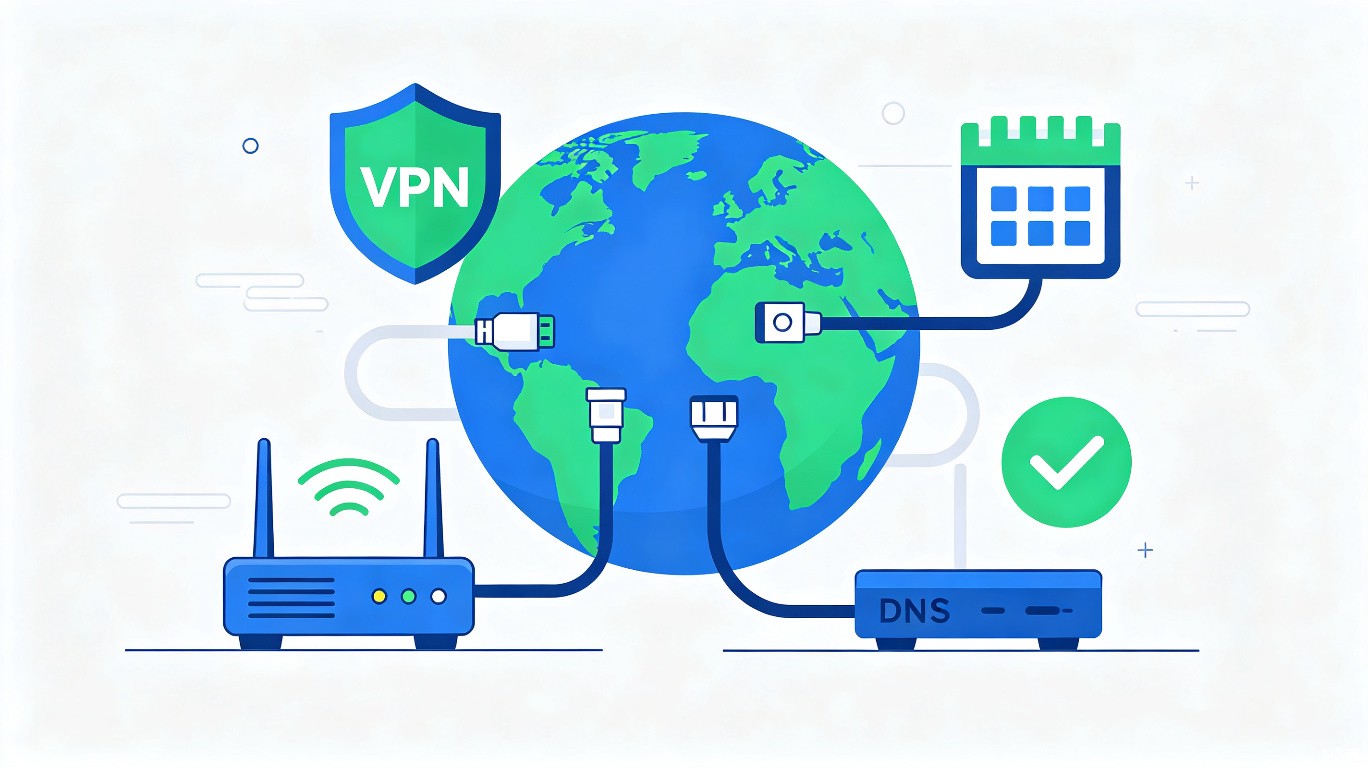
网络问题是使用 Cursor 时最令人沮丧的问题之一。连接失败、VPN 不兼容、HTTP/2 错误和区域限制都会阻止你访问 AI 功能。本指南为所有常见网络问题提供全面的解决方案。
常见网络问题
1. "连接失败" 错误
症状:Cursor 显示 "连接失败。如果问题持续存在,请检查您的互联网连接或 VPN。"
原因:
- 防火墙阻止 Cursor
- 代理配置错误
- DNS 解析失败
- 网络超时
2. VPN 兼容性
症状:Cursor 在没有 VPN 时可以工作,但在 VPN 激活时失败(或反之亦然)。
原因:
- VPN 路由规则
- 分流隧道问题
- DNS 泄漏
- MTU 不匹配
3. HTTP/2 错误
症状:"HTTP/2 流错误" 或连接重置错误。
原因:
- 不兼容的代理设置
- 网络设备(路由器、防火墙)
- 过时的 TLS 版本
4. 区域限制
症状:"此模型提供商不为您的区域提供服务。"
原因:
- AI 提供商的地理封锁
- 合规性限制
- 基于 IP 的区域检测
解决方案 1:基本网络诊断
检查互联网连接
# 测试基本连通性
ping -c 3 google.com

# 测试 Cursor 特定端点
curl -I https://cursor.com
curl -I https://api.cursor.sh

# 检查 DNS 解析
nslookup cursor.com
使用 curl 测试
# 测试 Cursor API 连通性
curl -v https://api.cursor.sh/health

# 使用不同协议测试
curl --http1.1 -I https://api.cursor.sh
curl --http2 -I https://api.cursor.sh
检查防火墙
# macOS - 检查应用程序防火墙
sudo /usr/libexec/ApplicationFirewall/socketfilterfw --getglobalstate

# Windows - 检查 Windows Defender
test-netconnection -computername cursor.com -port 443

# Linux - 检查 UFW
sudo ufw status
解决方案 2:代理配置
配置系统代理
macOS:
# 检查当前代理设置
networksetup -getwebproxy Wi-Fi
networksetup -getsecurewebproxy Wi-Fi

# 设置代理(如需要)
networksetup -setwebproxy Wi-Fi proxy.company.com 8080
networksetup -setsecurewebproxy Wi-Fi proxy.company.com 8080

# 为 Cursor 设置绕过
networksetup -setproxybypassdomains Wi-Fi "cursor.com,api.cursor.sh"
Windows:
# 检查代理设置
netsh winhttp show proxy

# 设置代理
netsh winhttp set proxy proxy.company.com:8080 "<local>;cursor.com"
Linux:
# 设置 HTTP 代理
export HTTP_PROXY=http://proxy.company.com:8080
export HTTPS_PROXY=http://proxy.company.com:8080

# 设置 no-proxy
export NO_PROXY="localhost,127.0.0.1,cursor.com,api.cursor.sh"
配置 Cursor 特定代理
在 Cursor 设置(settings.json)中:
{
  "http.proxy": "http://proxy.company.com:8080",
  "http.proxyStrictSSL": false,
  "http.proxySupport": "override",
  "github-enterprise.uri": "https://github.company.com"
}
解决方案 3:VPN 修复
分流隧道
配置您的 VPN 以排除 Cursor 流量:
常见 VPN 应用:
- NordVPN:设置 > 分流隧道 > 添加应用程序 > Cursor
- ExpressVPN:选项 > 分流隧道 > 管理 > 添加 Cursor
- OpenVPN:在配置中添加路由例外
路由例外
# macOS/Linux - 添加路由例外
sudo route add -net api.cursor.sh -gateway 192.168.1.1

# 或使用 ip 命令
sudo ip route add api.cursor.sh via 192.168.1.1
DNS 配置
# 使用公共 DNS 替代 VPN DNS
# macOS
networksetup -setdnsservers Wi-Fi 8.8.8.8 1.1.1.1

# Linux
sudo systemd-resolve --interface=eth0 --set-dns=8.8.8.8

# Windows
netsh interface ip set dns "Wi-Fi" static 8.8.8.8
不使用 VPN 测试
# 暂时断开 VPN 并测试
curl -I https://api.cursor.sh

# 如果不使用 VPN 可以工作,问题是 VPN 路由
解决方案 4:HTTP/2 修复
在 Cursor 中禁用 HTTP/2
// settings.json
{
  "cursor.ai.disableHttp2": true,
  "http.http2": false
}
强制使用 HTTP/1.1
# 使用 HTTP/1.1 测试
curl --http1.1 -v https://api.cursor.sh

# 如果这可以工作,配置 Cursor 使用 HTTP/1.1
更新 TLS 版本
# 检查 TLS 版本
openssl s_client -connect api.cursor.sh:443 -tls1_3

# 如果 TLS 1.3 失败,使用 1.2 测试
openssl s_client -connect api.cursor.sh:443 -tls1_2
解决方案 5:绕过区域限制
了解封锁
Cursor 使用来自不同提供商的 AI 模型:
- OpenAI (GPT-4, GPT-4o)
- Anthropic (Claude)
- Google (Gemini)
每个提供商有不同的区域可用性。
检查模型可用性
# 测试特定提供商端点
curl -I https://api.openai.com/v1/models
curl -I https://api.anthropic.com/v1/messages
curl -I https://generativelanguage.googleapis.com
使用不同模型
如果一个模型被区域封锁,切换到另一个:
- 打开 Cursor 设置
- 前往 "AI 功能" 或 "模型"
- 切换到可用模型:
- Claude 不可用?尝试 GPT-4o
- GPT-4 不可用?尝试 Gemini
配置自定义 API 端点
如果您通过其他提供商有访问权限:
{
  "cursor.ai.customEndpoint": "https://your-proxy.example.com",
  "cursor.ai.customApiKey": "your-api-key"
}
解决方案 6:Cursor 特定设置
增加超时
// settings.json
{
  "cursor.ai.requestTimeout": 120000,
  "cursor.ai.connectionTimeout": 30000
}
禁用自动代理检测
{
  "http.proxySupport": "off"
}
启用调试日志
{
  "cursor.ai.debug": true,
  "cursor.ai.logLevel": "verbose"
}
清除缓存
# macOS
rm -rf ~/Library/Application\ Support/Cursor/Cache
rm -rf ~/Library/Application\ Support/Cursor/CachedData

# Windows
# 删除 %APPDATA%\Cursor\Cache
# 删除 %APPDATA%\Cursor\CachedData

# Linux
rm -rf ~/.config/Cursor/Cache
rm -rf ~/.config/Cursor/CachedData
解决方案 7:企业网络
企业代理认证
{
"http.proxyAuthorization": null,
"http.proxyStrictSSL": false
}
SSL 证书问题
# 导出企业 CA 证书
openssl s_client -connect api.cursor.sh:443 -showcerts </dev/null 2>/dev/null > corporate-ca.crt

# 添加到系统信任存储
# macOS
sudo security add-trusted-cert -d -r trustRoot -k /Library/Keychains/System.keychain corporate-ca.crt

# Windows(以管理员身份运行 PowerShell)
Import-Certificate -FilePath corporate-ca.crt -CertStoreLocation Cert:\LocalMachine\Root
防火墙白名单
请您的 IT 团队将以下域名加入白名单:
cursor.com
*.cursor.com
api.cursor.sh
*.cursor.sh
openai.com
*.openai.com
anthropic.com
*.anthropic.com
googleapis.com
*.googleapis.com
解决方案 8:高级诊断
完整网络跟踪
# macOS
sudo tcpdump -i any -w cursor-traffic.pcap host api.cursor.sh

# 捕获时测试
# 然后使用 Wireshark 分析
检查 TLS 握手
# 详细 TLS 调试
openssl s_client -connect api.cursor.sh:443 -debug -state

# 检查证书链
openssl s_client -connect api.cursor.sh:443 2>/dev/null | openssl x509 -noout -text
使用不同网络测试
- 移动热点 - 绕过企业网络
- 不同 WiFi - 测试路由器特定问题
- 以太网 vs WiFi - 测试适配器问题
- 不同 DNS - 测试 DNS 解析
快速修复检查清单
- 使用
ping google.com检查互联网连接 - 使用
curl -I https://api.cursor.sh测试 Cursor 端点 - 检查 VPN 是否激活
- 验证代理设置
- 尝试不使用 VPN/代理
- 清除 Cursor 缓存
- 重启 Cursor
- 尝试不同的 AI 模型
- 检查防火墙设置
- 在不同网络上测试
故障排除矩阵
| 症状 | 可能原因 | 解决方案 |
|---|---|---|
| "连接失败" | 防火墙/代理 | 查看解决方案 2 |
| 仅不使用 VPN 时工作 | VPN 路由 | 查看解决方案 3 |
| "HTTP/2 错误" | 协议问题 | 查看解决方案 4 |
| "区域被封锁" | 地理限制 | 查看解决方案 5 |
| 响应缓慢 | 网络超时 | 查看解决方案 6 |
| SSL 错误 | 证书问题 | 查看解决方案 7 |