在 Windows 上的 WSL 中使用 Cursor 代理
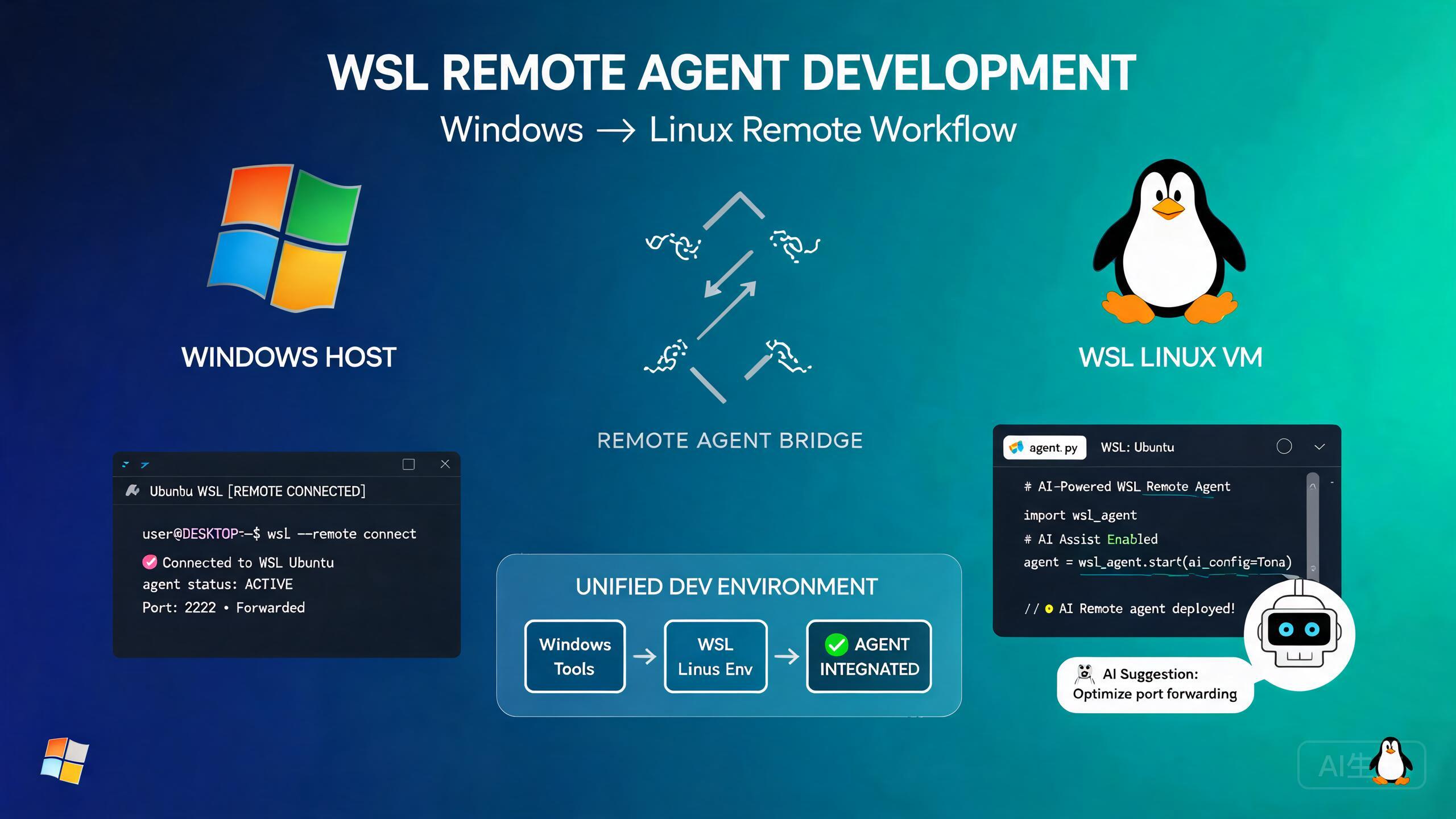
Windows Subsystem for Linux (WSL) 让你在 Windows 上直接运行 Linux 环境,结合了两个平台的优势。在 WSL 中运行 Cursor 代理可以使用原生 Linux 工具、包管理器和构建系统,同时保持熟悉的 Windows 桌面。然而,Windows 主机和 WSL 环境之间的交互引入了独特的挑战,特别是在终端处理和代理执行方面。本指南涵盖了从初始设置到高级故障排除的所有内容。
前提条件
在设置 Cursor 与 WSL 之前,请确保你具备以下条件:
- Windows 11(推荐)或具有最新更新的 Windows 10
- 已安装并配置 WSL 2(在提升的 PowerShell 中运行
wsl --install) - 已安装 Linux 发行版(Ubuntu 是默认且经过最多测试的)
- Cursor 安装在 Windows 主机上(而非 WSL 内部)
- 足够的系统资源:至少 8GB 内存和 20GB 可用磁盘空间
使用 WSL 2 而非 WSL 1。WSL 2 提供完整的 Linux 内核,具有更好的性能和兼容性。在 PowerShell 中使用 wsl -l -v 检查你的版本。如果看到版本 1,使用 wsl --set-version <DistroName> 2 升级。
为 Cursor 设置 WSL
安装和配置 WSL
如果你尚未安装 WSL,请按照以下步骤操作:
# 在提升的 PowerShell 中运行(以管理员身份运行)
wsl --install

# 这将安装 WSL 2 和默认的 Ubuntu 发行版
# 提示时重启计算机

# 重启后,设置你的 Linux 用户和密码
# 然后验证安装
wsl --list --verbose
预期输出:
  NAME      STATE           VERSION
* Ubuntu    Running         2
在 WSL 中安装开发工具
设置好 WSL 后,在 Linux 环境中安装项目所需的开发工具:
# 在 WSL 中,更新包列表
sudo apt update && sudo apt upgrade -y

# 安装常用开发工具
sudo apt install -y build-essential git curl wget unzip

# 通过 Node Version Manager 安装 Node.js
curl -o- https://raw.githubusercontent.com/nvm-sh/nvm/v0.39.7/install.sh | bash
source ~/.bashrc
nvm install --lts

# 安装 Python
sudo apt install -y python3 python3-pip python3-venv

# 安装 Go
wget https://go.dev/dl/go1.22.0.linux-amd64.tar.gz
sudo tar -C /usr/local -xzf go1.22.0.linux-amd64.tar.gz
echo 'export PATH=$PATH:/usr/local/go/bin' >> ~/.bashrc
source ~/.bashrc

# 安装 Docker(可选,用于容器化开发)
sudo apt install -y docker.io
sudo usermod -aG docker $USER
不要在 WSL 内部安装 Cursor。Cursor 应该安装在 Windows 主机上。它将 WSL 作为远程环境连接,类似于连接 SSH 远程的方式。在 WSL 内部安装 Cursor 会导致显示问题和 GUI 功能缺失。
将 Cursor 连接到 WSL
Cursor 通过 Remote Development 扩展内置了 WSL 支持:
- 在 Windows 上打开 Cursor
- 打开命令面板(Ctrl+Shift+P)
- 输入并选择:WSL: Connect to WSL
- 选择你安装的发行版(例如 Ubuntu)
- Cursor 将重新加载并连接到 WSL 环境
或者,你可以直接从终端打开 WSL 项目:
# 从 Windows PowerShell 或命令提示符
cd \\wsl$\Ubuntu\home\username\my-project
cursor .
或从 WSL 内部:
# 导航到你的项目目录
cd ~/my-project

# 启动 Cursor 连接到此 WSL 路径
cursor .
创建一个 Windows 快捷方式或别名,在 WSL 主目录中打开 Cursor 以便快速访问:
# 添加到你的 PowerShell 配置文件
function cursor-wsl { wsl -e bash -c "cd ~ && cursor ." }
这让你可以在 PowerShell 中输入 cursor-wsl 即可在 WSL 主目录中即时打开 Cursor。
终端配置
理解 WSL 中的终端行为
当 Cursor 在 WSL 模式下运行时,集成终端可以在两种模式下运行:
- WSL 终端:在 Linux 环境中运行命令(默认)
- Windows 终端:在 Windows 主机上运行命令
终端模式影响代理与系统的交互方式。代理通常在 WSL 终端中执行命令,但某些操作可能需要在 Windows 主机上运行。
配置默认终端
// 在 settings.json 中(通过 Ctrl+, > Open Settings JSON 访问)
{
  "terminal.integrated.defaultProfile.linux": "bash",
  "terminal.integrated.profiles.linux": {
    "bash": {
      "path": "bash",
      "args": ["-l"],
      "icon": "terminal-bash"
    },
    "zsh": {
      "path": "zsh",
      "args": ["-l"],
      "icon": "terminal-zsh"
    }
  },
  // 确保 Cursor 使用 WSL shell 执行代理命令
  "cursor.agent.shell": "wsl",
  "cursor.agent.shellPath": "/bin/bash"
}
恢复损坏的终端
WSL 设置中一个常见问题是终端损坏或无响应。终端可能显示错误消息、无法启动或显示乱码输出。以下是修复方法:
# 步骤 1:检查终端进程是否正在运行
# 命令面板:Terminal: Select Default Profile

# 步骤 2:验证 shell 路径是否正确
# 路径应指向 WSL 内的有效 shell
// 常见修复:显式设置 shell 路径
{
  "terminal.integrated.shell.linux": "/bin/bash",
  "terminal.integrated.env.linux": {
    "TERM": "xterm-256color",
    "COLORTERM": "truecolor",
    "LANG": "en_US.UTF-8"
  }
}
如果终端完全无响应:
- 关闭 Cursor 中的所有终端实例
- 打开命令面板并运行:Terminal: Restart Terminal Server
- 如果不起作用,重新加载窗口:Developer: Reload Window
- 作为最后手段,完全重启 Cursor
如果终端显示"The terminal process failed to launch"或"exec bash: no such file or directory",说明 WSL 集成已损坏。这通常在 Windows 更新或 WSL 发行版更改后发生。在 PowerShell 中运行 wsl --shutdown,然后重新连接 Cursor 到 WSL。
解决 gatherTerminalSelections 中的代理挂起
理解问题
WSL 和 Cursor 代理最常报告的问题之一是 gatherTerminalSelections 挂起。当代理尝试与终端交互时,它会调用一个名为 gatherTerminalSelections 的内部函数来确定使用哪个终端。在 WSL 环境中,此函数可能无限期挂起,导致代理冻结。
症状
- 代理开始执行任务但在终端交互步骤挂起
- 状态栏无限期显示"Agent is working..."
- 没有终端输出出现
- 代理最终超时或需要手动取消
- Cursor 开发者控制台可能显示挂起的
gatherTerminalSelectionspromise
根本原因
挂起通常由以下原因之一引起:
- 多个终端配置文件:Cursor 无法决定使用哪个终端配置文件
- Shell 集成脚本:Shell 集成脚本在 WSL 中加载失败
- PTY 分配问题:WSL 的伪终端分配与原生 Linux 不同
- 环境变量冲突:Windows 环境变量泄漏到 WSL 中导致冲突
解决方案 1:简化终端配置文件
减少终端配置文件数量以避免选择歧义:
// 在 settings.json 中
{
  "terminal.integrated.profiles.linux": {
    "bash": {
      "path": "/bin/bash",
      "args": ["-l"]
    }
  },
  "terminal.integrated.defaultProfile.linux": "bash",
  // 禁用可能混淆代理的其他配置文件
  "terminal.integrated.profiles.windows": {},
  "terminal.integrated.detectableProfiles": false
}
更改终端配置文件设置后,重新加载 Cursor 窗口。代理的终端选择缓存在重新加载时清除,这通常能解决下一次代理运行时的挂起问题。
解决方案 2:修复 Shell 集成
Shell 集成使代理能够跟踪命令输出。在 WSL 中,集成脚本可能无法正确加载。验证并修复它:
# 在 WSL 中,检查 shell 集成是否已加载
echo $TERM_PROGRAM

# 应输出:cursor 或 vsoc(如果使用 Cursor/VS Code 终端)
# 如果为空,说明 shell 集成未加载

# 手动 source 集成脚本
# 找到正确路径:
ls /mnt/c/Users/*/AppData/Local/Programs/cursor/resources/app/out/vs/shell/integration/

# 或将此添加到你的 ~/.bashrc
if [ -n "$CURSOR_IPC_HANDLE" ]; then
  export CURSOR_INTEGRATION_ENABLED=1
fi
解决方案 3:预分配终端
在启动代理之前创建专用终端可以防止选择挂起:
// 在 settings.json 中
{
  "cursor.agent.terminal": {
    "autoCreate": true,
    "profile": "bash",
    "waitForIntegration": true,
    "integrationTimeout": 5000
  }
}
这告诉 Cursor 在代理启动之前使用指定配置文件创建终端,完全绕过选择过程。
解决方案 4:禁用 Shell 选择提示
如果挂起是由永远不会解析的选择提示引起的,请禁用该提示:
{
  "cursor.agent.terminal.selectionMode": "auto",
  "cursor.agent.terminal.skipSelection": true
}
禁用终端选择提示意味着代理将始终使用默认终端配置文件。如果你需要在不同终端环境中运行代理,则需要在每次运行之前手动更改默认配置文件。
统一 Windows 主机和 WSL 之间的代理技能
挑战
当同时使用 Windows 和 WSL 时,你可能在每端有不同的工具、配置和技能定义。这造成了碎片化体验,代理可能在 Windows 主机上知道如何做某事但在 WSL 中不知道,反之亦然。
共享配置文件
最有效的方法是在两个环境之间共享代理配置文件。由于 WSL 可以通过 /mnt/c/ 访问 Windows 文件系统,你可以将共享配置存储在 Windows 可访问的位置。
// 在 Cursor settings.json 中(Windows 端)
{
  "cursor.agent.skillsDirectory": "\\\\wsl$\\Ubuntu\\home\\username\\.cursor\\skills",
  "cursor.agent.sharedConfig": true
}
// 在 Cursor settings.json 中(WSL 端)
{
  "cursor.agent.skillsDirectory": "~/.cursor/skills",
  "cursor.agent.sharedConfig": true
}
创建统一技能目录
设置两个环境都可以访问的技能目录:
# 在 WSL 中
mkdir -p ~/.cursor/skills

# 创建到 Windows 可访问位置的符号链接
# 这让你可以从任一环境编辑技能
ln -s ~/.cursor/skills /mnt/c/Users/username/.cursor/skills-wsl

# 示例:在两个环境中都能工作的技能文件
cat > ~/.cursor/skills/shared-git-workflow.md << 'EOF'
# Shared Git Workflow Skill

## Applies to: Windows Host and WSL

When performing git operations:

1. Always check the current branch first
2. Use conventional commit messages
3. Run tests before committing
4. Push only to feature branches, never to main

## Environment-specific notes:
- On Windows: use Git for Windows (git.exe)
- On WSL: use native Linux git
- Both should reference the same repository
EOF
将你的技能存储在 Git 仓库中并克隆到两个环境。这确保技能有版本控制并同步。在你的主项目仓库中使用 .cursor/skills 子模块进行团队范围的共享。
处理路径差异
双环境设置中最大的挑战之一是路径处理。Windows 使用驱动器号(C:\),而 WSL 使用挂载路径(/mnt/c/)。你需要在代理配置中考虑这一点:
// 在 settings.json 中
{
  "cursor.agent.pathMappings": {
    "windows": {
      "C:\\Users\\username\\projects": "/home/username/projects"
    },
    "wsl": {
      "/home/username/projects": "C:\\Users\\username\\projects"
    }
  }
}
# 带有路径处理说明的技能示例

## 使用文件路径时:

- 如果代理在 WSL 中运行,将 Windows 路径转换为 WSL 路径
  - `C:\Users\username\project` 变为 `/mnt/c/Users/username/project`
- 如果代理在 Windows 主机上运行,将 WSL 路径转换为 Windows 路径
  - `/home/username/project` 保持不变(WSL 主目录)
  - `/mnt/c/Users/username/project` 变为 `C:\Users\username\project`

## 检测当前环境:
- 检查 `/proc/version` 是否存在(WSL/Linux)
- 检查 `$OS` 是否为 `Windows_NT`(Windows)
永远不要在代理技能中硬编码绝对路径。始终使用相对路径或配置变量。在 Windows 主机和 WSL 环境之间切换时,硬编码的路径会失效。
远程开发模式
模式 1:主 WSL 开发
在此模式中,所有开发都在 WSL 中进行,Windows 上的 Cursor 充当瘦客户端:
// settings.json
{
  "remote.WSL.defaultDistro": "Ubuntu",
  "cursor.agent.executionEnvironment": "wsl",
  "cursor.agent.preferWslTerminal": true,
  "files.eol": "\n"
}
这是最简单的设置,适用于完全基于 Linux 的项目,如 Node.js、Python、Go 或 Rust 应用程序。
模式 2:混合开发
在此模式中,某些工具在 Windows 上运行,其他在 WSL 中运行:
// settings.json
{
  "cursor.agent.executionEnvironment": "auto",
  "cursor.agent.shellRouting": {
    "bash": "wsl",
    "powershell": "windows",
    "cmd": "windows",
    "node": "wsl",
    "python": "wsl",
    "dotnet": "windows"
  }
}
当你需要 Windows 特定工具(如 .NET SDK、SQL Server 或仅 Windows 的测试框架)与 Linux 工具一起使用时,混合方法非常有用。配置 shell 路由以根据命令自动选择正确的环境。
模式 3:Docker 优先开发
使用 WSL 和 Docker 进行完全容器化的开发体验:
// settings.json
{
  "cursor.agent.executionEnvironment": "wsl",
  "docker.host": "wsl",
  "cursor.agent.preferredContainer": "dev-container",
  "remote.containers.defaultProfile": "WSL: Ubuntu"
}
# 代理兼容开发的示例 Dockerfile
FROM mcr.microsoft.com/devcontainers/typescript-node:20

# 安装额外工具
RUN apt-get update && apt-get install -y \
    git \
    curl \
    vim \
    && rm -rf /var/lib/apt/lists/*

# 安装全局 npm 包
RUN npm install -g typescript ts-node nodemon

# 设置工作区
WORKDIR /workspace
模式 4:多发行版开发
如果你使用多个 Linux 发行版,可以配置 Cursor 为不同项目使用不同发行版:
// settings.json
{
  "remote.WSL.distros": {
    "Ubuntu": {
      "defaultProfile": "bash",
      "startupCommand": "source ~/.nvm/nvm.sh"
    },
    "Debian": {
      "defaultProfile": "bash",
      "startupCommand": "source /etc/profile.d/rvm.sh"
    }
  }
}
# 列出已安装的发行版
wsl --list --verbose

# 切换默认发行版
wsl --set-default Ubuntu
常见 WSL 问题故障排除
代理无法找到文件
如果代理报告无法找到文件,请检查路径格式:
# 正确的 WSL 路径格式
ls /home/username/project/src/

# 错误:在 WSL 中使用 Windows 路径格式
# 这将失败或访问错误的位置
ls C:\Users\username\project\src\
跨文件系统访问(从 Windows 访问 WSL 文件或反之)比原生访问慢得多。对于索引和构建等性能关键操作,将所有文件保留在 WSL 文件系统(/home/...)内,而非 Windows 文件系统(/mnt/c/...)。
网络连接问题
如果代理无法从 WSL 访问互联网:
# 从 WSL 测试连接
ping 8.8.8.8
curl -s https://api.github.com | head -5

# 如果 DNS 解析失败,检查 /etc/resolv.conf
cat /etc/resolv.conf

# 如果为空或配置错误,修复它:
sudo tee /etc/resolv.conf << 'EOF'
nameserver 8.8.8.8
nameserver 1.1.1.1
EOF

# 如果 WSL 无法访问 Windows 上的 localhost 服务
# 从 WSL 检查 Windows 主机 IP
ip route show | grep -i default | awk '{print $3}'
# 使用此 IP 从 WSL 访问 Windows 服务
内存和资源限制
WSL 2 使用具有可配置资源限制的虚拟机。如果代理运行缓慢或内存不足:
# 创建或编辑 .wslconfig 文件
# 位置:C:\Users\username\.wslconfig
# .wslconfig
[wsl2]
memory=12GB
processors=6
swap=4GB
localhostForwarding=true
创建或编辑此文件后:
# 在 PowerShell 中
wsl --shutdown
# 然后重启 Cursor 并重新连接到 WSL
使用任务管理器从 Windows 主机监视 WSL 资源使用情况。查找"vmmem"进程,它代表 WSL 2 虚拟机。如果它持续使用 90% 以上的分配内存,请在 .wslconfig 中增加内存限制。
文件系统性能
文件系统性能因文件存储位置而有显著差异:
| 位置 | 读取速度 | 写入速度 | 建议 |
|---|---|---|---|
WSL 主目录 (/home/) | 快 | 快 | 在此存储项目文件 |
通过 WSL 访问 Windows (/mnt/c/) | 慢 | 非常慢 | 避免用于项目文件 |
| Windows 原生 | 快 | 快 | 仅用于 Windows 工具 |
# 基准测试文件系统性能
# 在 WSL 中,在 WSL 文件系统上
dd if=/dev/zero of=/home/$USER/testfile bs=1M count=100 oflag=direct
rm /home/$USER/testfile

# 在 WSL 中,访问 Windows 文件系统
dd if=/dev/zero of=/mnt/c/Users/$USER/testfile bs=1M count=100 oflag=direct
rm /mnt/c/Users/$USER/testfile
如果你看到 5-10 倍的差异(常见),请将项目文件移动到 WSL 文件系统。
最佳实践总结
- 始终使用 WSL 2 而非 WSL 1 进行 Cursor 代理工作
- 在 Windows 上安装 Cursor,而非 WSL 内部
- 将项目文件存储在 WSL 文件系统(
/home/...)中以获得最佳性能 - 简化终端配置文件以避免
gatherTerminalSelections挂起 - 设置
cursor.agent.terminal.autoCreate以绕过终端选择问题 - 通过同步目录或 Git 仓库共享代理技能
- 永远不要在代理技能中硬编码绝对路径
- 配置
.wslconfig以分配足够的内存和 CPU - 当出现问题时使用
wsl --shutdown重置 WSL 环境 - 使用
sudo apt update && sudo apt upgrade保持 WSL 发行版更新
安装在 Windows 主机上的某些 Cursor 扩展在 WSL 模式下可能无法正常工作。扩展需要为 WSL 远程单独安装。在扩展面板中检查每个扩展旁边的"Install in WSL"按钮。
结论
在 WSL 中运行 Cursor 代理结合了 Linux 开发工具的强大功能和 Windows 桌面的便利性。虽然双环境设置引入了终端处理、路径管理和资源分配方面的挑战,但本指南中的策略可以帮助你克服它们。
流畅 WSL 体验的关键是配置一致性:保持终端配置文件简单,确保 shell 集成正确加载,维护统一的技能目录。当出现问题时,wsl --shutdown 加上重新连接 Cursor 可以解决大多数问题。通过正确的设置,WSL 成为 Cursor 代理的一流开发环境,让你无需离开 Windows 即可访问完整的 Linux 生态系统。