Setting Up Grok Bot in Cursor
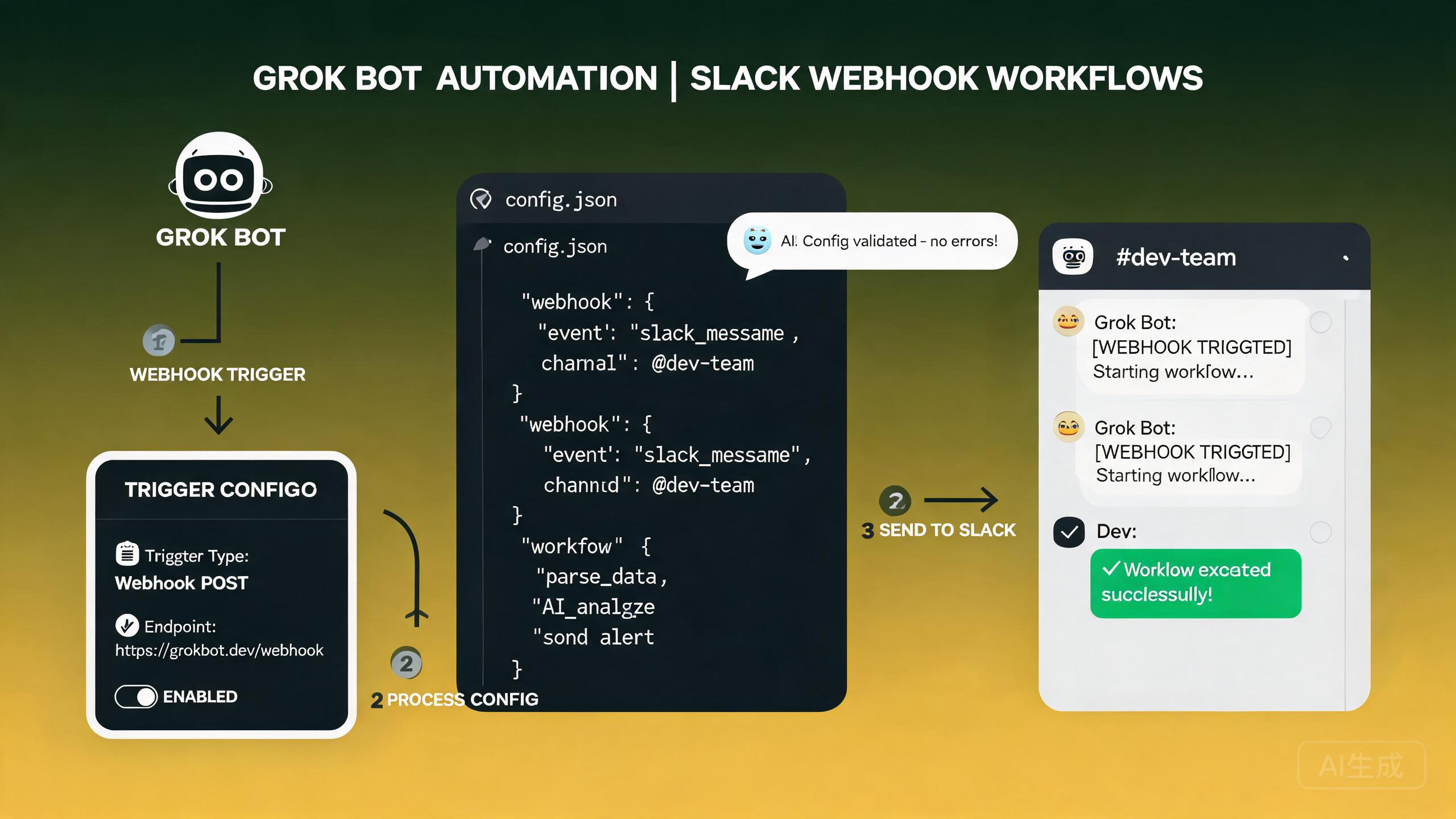
Grok Bot in Cursor brings AI-powered automation routines directly into your development workflow. By configuring webhook routines, Slack triggers, and automation workflows, you can connect external services and let the bot handle repetitive tasks automatically. This guide covers the full setup process from initial configuration to advanced troubleshooting.
What Is Grok Bot?
Grok Bot is an automation layer in Cursor that uses webhook-based routines to respond to events from external services. When a trigger fires, the bot executes a predefined routine, such as running code analysis, generating summaries, or sending notifications.
The core components of a Grok Bot setup are:
- Routines: Sequences of actions the bot performs when triggered
- Triggers: Events that start a routine, such as a Slack message or a webhook call
- Webhook URLs: Endpoint addresses that external services send data to
- Actions: Individual steps within a routine, such as file edits, terminal commands, or API calls
Before setting up Grok Bot, make sure your Cursor installation is up to date. Webhook routine features receive frequent improvements, and older versions may not support all the trigger types described in this guide.
Initial Configuration
Enabling Grok Bot
To enable Grok Bot in Cursor, navigate to the automation settings:
- Open Cursor Settings (Ctrl+, or Cmd+,)
- Navigate to the Automations section in the left sidebar
- Toggle Enable Grok Bot to activate the feature
- Click Generate Webhook Secret to create a secret key for authenticating incoming requests
// Example of the generated configuration stored in settings.json
{
  "cursor.grokBot.enabled": true,
  "cursor.grokBot.webhookSecret": "whsec_abc123def456ghi789",
  "cursor.grokBot.defaultModel": "cursor-agent-pro",
  "cursor.grokBot.maxConcurrentRoutines": 3
}
Keep your webhook secret private. Anyone with this secret can trigger routines on your machine. If the secret is exposed, generate a new one immediately from the settings panel.
Creating Your First Routine
A routine is a set of instructions that the bot follows when triggered. Create one from the Automations panel:
- Open the Automations panel (Ctrl+Shift+A)
- Click New Routine
- Give the routine a descriptive name, such as "Slack Code Review Request"
- Select a trigger type (Webhook, Slack, Manual, or Schedule)
- Define the actions the routine should perform
- Save and activate the routine
# Example routine configuration
name: "Slack Code Review Request"
description: "When a Slack message mentions @code-review, analyze the referenced file"
trigger:
  type: slack
  condition: "message.contains('@code-review')"
actions:
  - type: parse_message
    extract:
      file_path: "regex:review\\s+(.+)"
      question: "regex:asking\\s+(.+)"
  - type: read_file
    path: "{{file_path}}"
  - type: analyze
    prompt: "Review this code for potential issues, security vulnerabilities, and improvement suggestions."
  - type: slack_reply
    message: "{{analysis_result}}"
Webhook Routines
Webhook routines let external services trigger actions in Cursor by sending HTTP POST requests to a designated URL.
Understanding the Webhook URL
When you create a webhook-triggered routine, Cursor generates a unique webhook URL. This URL is the address that external services send their payloads to.
# Example webhook URL format
http://localhost:7541/webhooks/routines/rtn_abc123def456
A common issue reported by users is that the webhook routine configuration shows no POST URL. This typically happens when the routine has not been fully saved or the trigger type has not been set to "Webhook" before saving. If you do not see a POST URL, follow these steps:
- Reopen the routine editor
- Confirm the trigger type is set to "Webhook"
- Click Save explicitly (do not just close the panel)
- Reopen the routine to verify the URL is now displayed
If the URL still does not appear, restart Cursor and try again. This is a known issue that has been reported and is being tracked for a fix.
Registering a Webhook Routine
Here is how to create a webhook-triggered routine step by step:
- Open the Automations panel
- Click New Routine
- Set the name to "GitHub PR Notification"
- Set the trigger type to Webhook
- Save the routine to generate the webhook URL
- Copy the displayed POST URL
- Configure your external service to send requests to that URL
# Example: Sending a webhook from a GitHub Action
import json
import urllib.request

webhook_url = "http://localhost:7541/webhooks/routines/rtn_abc123def456"
webhook_secret = "whsec_abc123def456ghi789"

payload = {
    "event": "pull_request.opened",
    "repository": "my-org/my-repo",
    "pr_number": 42,
    "pr_title": "Add payment gateway integration",
    "author": "jane-dev",
    "changed_files": ["src/payment/stripe.ts", "src/api/routes.ts"],
}

req = urllib.request.Request(
    webhook_url,
    data=json.dumps(payload).encode("utf-8"),
    headers={
        "Content-Type": "application/json",
        "X-Webhook-Secret": webhook_secret,
    },
    method="POST",
)

try:
    with urllib.request.urlopen(req) as response:
        print(f"Status: {response.status}")
        print(f"Response: {response.read().decode()}")
except urllib.error.URLError as e:
    print(f"Webhook delivery failed: {e}")
Validating Webhook Requests
Always validate incoming webhook requests to ensure they come from a trusted source. The webhook secret you generated during setup should be included in the X-Webhook-Secret header.
// Example validation logic (Node.js)
const crypto = require("crypto");

function validateWebhook(req, res, next) {
  const secret = req.headers["x-webhook-secret"];
  const expectedSecret = process.env.CURSOR_WEBHOOK_SECRET;

  if (!secret || secret !== expectedSecret) {
    return res.status(401).json({ error: "Invalid webhook secret" });
  }

  // Optionally verify the request timestamp to prevent replay attacks
  const timestamp = req.headers["x-webhook-timestamp"];
  const now = Date.now();
  const maxAge = 5 * 60 * 1000; // 5 minutes

  if (timestamp && now - parseInt(timestamp) > maxAge) {
    return res.status(401).json({ error: "Webhook timestamp expired" });
  }

  next();
}
For production setups, use a tool like ngrok or Cloudflare Tunnel to expose your local webhook endpoint to the internet. This lets external services like GitHub, Slack, or Jira reach your local Cursor instance.
Slack Integration
Slack is one of the most common trigger sources for Grok Bot routines. You can configure Slack to send messages to Cursor when specific events occur.
Setting Up a Slack Trigger
- Go to the Slack API Applications page
- Click Create New App and choose From scratch
- Name the app "Cursor Grok Bot" and select your workspace
- Under Event Subscriptions, enable events
- Enter your Cursor webhook URL as the Request URL
- Subscribe to the
message.channelsandreaction_addedbot events - Under OAuth & Permissions, add the
chat:writeandchannels:readscopes - Install the app to your workspace and copy the Bot User OAuth Token
// Example: Slack trigger handler in a Grok Bot routine
const slackTrigger = {
  type: "slack",
  events: ["message.channels"],
  conditions: {
    // Only trigger when the message mentions @cursor-bot
    mentions_bot: true,
    // Only trigger in specific channels
    channels: ["#code-review", "#bug-reports", "#deployments"],
    // Ignore messages from the bot itself
    ignore_bots: true,
  },
};
Sending Replies to Slack
When a routine completes, you can send the result back to the originating Slack channel:
const { WebClient } = require("@slack/web-api");

const slack = new WebClient(process.env.SLACK_BOT_TOKEN);

async function replyToSlack(channel, text) {
  await slack.chat.postMessage({
    channel: channel,
    text: text,
    // Optional: format as a Slack Block Kit message
    blocks: [
      {
        type: "section",
        text: {
          type: "mrkdwn",
          text: text,
        },
      },
      {
        type: "divider",
      },
      {
        type: "context",
        elements: [
          {
            type: "mrkdwn",
            text: ":robot_face: Generated by Cursor Grok Bot",
          },
        ],
      },
    ],
  });
}
If your Slack trigger is not firing, check the following common causes:
- The Slack app is not subscribed to the correct event types
- The bot user does not have permission to read the target channel
- The webhook URL is incorrect or unreachable from the internet
- The
X-Webhook-Secretheader does not match the expected value - The condition filter in your routine does not match the incoming message
Slack does not retry failed webhook deliveries by default. If your endpoint returns a non-200 response, the event is silently dropped. Always check the Slack API logs for delivery errors.
Trigger Configuration
Grok Bot supports several trigger types beyond webhooks and Slack. Understanding each trigger type helps you choose the right one for your use case.
Available Trigger Types
| Trigger Type | Description | Use Case |
|---|---|---|
| Webhook | HTTP POST request from any external service | GitHub events, Jira updates, CI/CD pipelines |
| Slack | Slack messages or reactions | Team notifications, code review requests |
| Schedule | Time-based trigger (cron expression) | Periodic checks, nightly summaries |
| File Watch | Triggered when a file changes on disk | Auto-format, auto-test on save |
| Manual | Triggered by a keyboard shortcut or command | On-demand code analysis |
Schedule Trigger Example
name: "Nightly Dependency Audit"
description: "Check for outdated dependencies every night at 2 AM"
trigger:
  type: schedule
  cron: "0 2 * * *"
actions:
  - type: terminal_command
    command: "npm audit --json"
  - type: analyze
    prompt: "Analyze these npm audit results and summarize the critical vulnerabilities."
  - type: slack_reply
    channel: "#security-alerts"
    message: "{{analysis_result}}"
File Watch Trigger Example
name: "Auto-Format on Save"
description: "Run formatter whenever a TypeScript file is saved"
trigger:
  type: file_watch
  patterns:
    - "**/*.ts"
    - "**/*.tsx"
  events: ["save"]
actions:
  - type: terminal_command
    command: "npx prettier --write {{file_path}}"
  - type: terminal_command
    command: "npx eslint --fix {{file_path}}"
File watch triggers can be noisy if you save frequently. Add a debounce period to the trigger configuration to batch rapid saves into a single execution. This prevents the bot from running multiple overlapping routines for the same file.
Editing Routines
Routines are stored as YAML configuration files and can be edited directly or through the visual editor in Cursor.
Using the Visual Editor
The visual editor in the Automations panel provides a drag-and-drop interface for building routines:
- Drag action blocks from the palette on the left
- Arrange them in the desired order
- Click each block to configure its parameters
- Use the Test button to run the routine with sample input
- Save the routine to activate it
Editing the YAML Directly
For more control, you can edit the routine YAML file directly. Routine files are stored in the .cursor/automations/ directory:
# List all routines
ls -la .cursor/automations/

# Edit a specific routine
code .cursor/automations/nightly-audit.yaml
# .cursor/automations/code-review-bot.yaml
name: "Smart Code Review Bot"
description: "Analyzes changed files and posts a review comment"
trigger:
  type: webhook
  filter:
    event: "pull_request.opened"
actions:
  - type: parse_payload
    extract:
      pr_number: "$.pull_request.number"
      changed_files: "$.pull_request.changed_files"
      repo: "$.repository.full_name"

  - type: loop
    over: "{{changed_files}}"
    actions:
      - type: read_file
        path: "{{item}}"
      - type: analyze
        prompt: |
          Review this file for:
          1. Security vulnerabilities
          2. Performance issues
          3. Code style violations
          4. Missing error handling

  - type: format_output
    template: |
      ## Automated Code Review

      {{#each results}}
      ### {{this.file}}
      {{this.review}}
      {{/each}}

  - type: webhook_response
    status: 200
    body: "{{formatted_output}}"
When editing routine YAML files directly, always validate the syntax before saving. A malformed YAML file will cause the routine to fail silently. Use cursor.automations.validate in the command palette to check all routines.
Automation Workflows
Combining multiple routines creates powerful automation workflows that connect your entire development pipeline.
Workflow Example: PR Lifecycle Automation
This workflow automates the entire pull request lifecycle:
# Routine 1: PR Opened - Initial Analysis
name: "PR Initial Analysis"
trigger:
  type: webhook
  filter:
    event: "pull_request.opened"
actions:
  - type: analyze
    prompt: "Summarize this PR and identify the main changes."
  - type: slack_reply
    channel: "#pr-updates"
    message: "New PR: {{pr_title}}\nSummary: {{analysis_result}}"

---

# Routine 2: PR Review Request - Deep Analysis
name: "PR Deep Analysis"
trigger:
  type: slack
  conditions:
    mentions_bot: true
    contains_keyword: "deep-review"
actions:
  - type: analyze
    prompt: "Perform a comprehensive code review including security, performance, and architecture."
  - type: slack_reply
    channel: "{{trigger_channel}}"
    message: "{{analysis_result}}"

---

# Routine 3: PR Merged - Documentation Update
name: "PR Merged - Update Docs"
trigger:
  type: webhook
  filter:
    event: "pull_request.closed"
    merged: true
actions:
  - type: analyze
    prompt: "Update the README and CHANGELOG based on the merged changes."
  - type: terminal_command
    command: "git add README.md CHANGELOG.md && git commit -m 'docs: update for PR #{{pr_number}}'"
Workflow Example: Incident Response
name: "Incident Response Bot"
description: "When an error alert is posted to Slack, analyze and suggest fixes"
trigger:
  type: slack
  channels: ["#alerts", "#incidents"]
  conditions:
    contains_keyword: "ERROR"
actions:
  - type: parse_message
    extract:
      error_text: "regex:ERROR:\\s*(.+)"
      stack_trace: "regex:at\\s+(.+)"

  - type: search_codebase
    query: "{{error_text}}"

  - type: analyze
    prompt: |
      An error has occurred. Here is the error message and the relevant code.
      Suggest a fix and explain the root cause.
      Error: {{error_text}}
      Stack trace: {{stack_trace}}
      Relevant file: {{search_result}}

  - type: slack_reply
    channel: "{{trigger_channel}}"
    message: |
      :rotating_light: *Automated Analysis*
      *Likely cause:* {{analysis_result.cause}}
      *Suggested fix:* {{analysis_result.fix}}
      *File to check:* {{search_result}}
Build your workflows incrementally. Start with a simple notification routine, test it thoroughly, then add more complex actions. This makes it easier to identify which step is failing when something goes wrong.
Troubleshooting
Webhook URL Not Showing
This is the most commonly reported issue. When creating a webhook-triggered routine, the POST URL field may appear empty.
Root cause: The routine was saved before the trigger type was set, or the routine was only partially saved.
Solution:
- Delete the routine and create a new one
- Set the trigger type to "Webhook" before entering any other details
- Click Save and wait for the URL to generate
- If the URL still does not appear, check the Cursor output panel for errors (View > Output > Cursor Automations)
- As a workaround, you can manually construct the URL using the routine ID from the YAML file:
http://localhost:7541/webhooks/routines/{ROUTINE_ID}
Slack Triggers Not Firing
If your Slack triggers are not responding to messages:
- Verify the Slack app is installed in your workspace
- Check that the event subscription URL is reachable (use the Slack API verification feature)
- Confirm the bot user has been invited to the target channel (
/invite @cursor-grok-bot) - Check that the routine conditions are not too restrictive
- Review the Cursor Automations log for incoming events:
# View the automation log
cat .cursor/automations/logs/automation.log | tail -100

# Filter for Slack events
grep "slack" .cursor/automations/logs/automation.log
Slack has a 3-second timeout for event subscription URL verification. If Cursor takes longer than 3 seconds to respond to the initial verification request, Slack will reject the URL. Make sure Cursor is running and responsive when you configure the event subscription in the Slack API dashboard.
Routine Editing Issues
If you cannot save or edit a routine:
- Check that the YAML file is valid using the command palette
- Ensure no other process has locked the routine file
- Verify you have write permissions in the
.cursor/automations/directory - Try deleting the
.cursor/automations/cache/directory to force a refresh - Restart Cursor if the visual editor becomes unresponsive
Debugging Routine Execution
Enable debug logging to see detailed information about routine execution:
// In settings.json
{
  "cursor.grokBot.debug": true,
  "cursor.grokBot.logLevel": "verbose"
}
# View debug logs in real time
tail -f .cursor/automations/logs/automation.log

# Filter for a specific routine
grep "routine_id: rtn_abc123" .cursor/automations/logs/automation.log
Best Practices
- Start simple: Begin with a basic notification routine before building complex workflows
- Test with sample input: Use the Test button in the visual editor before activating a routine
- Use conditions wisely: Add condition filters to prevent routines from firing on every message or event
- Monitor execution time: Long-running routines can block other routines from executing. Set a timeout.
- Version control your routines: Store routine YAML files in your git repository for team collaboration
- Document your workflows: Add clear descriptions to each routine so teammates understand its purpose
- Rotate webhook secrets: Periodically regenerate your webhook secret for security
- Use environment variables: Reference sensitive values via environment variables rather than hardcoding them in YAML
Create a shared routines repository that your team can reference. Each team member can subscribe to the routines they need, and updates are automatically picked up when the repository is pulled. This promotes consistency across the team.
Conclusion
Grok Bot in Cursor provides a flexible automation layer that connects your editor to external services through webhook routines and Slack triggers. By following the setup steps in this guide and addressing common troubleshooting scenarios, you can build robust automation workflows that save time and reduce manual effort.
The most important things to remember are: always validate webhook requests, set the trigger type before saving a routine, and test thoroughly with the built-in testing tools before activating routines in production. With these practices in place, Grok Bot becomes a reliable part of your development toolkit.