Cursor 中的 Web 无障碍 (a11y):WCAG、ARIA 和 axe-core
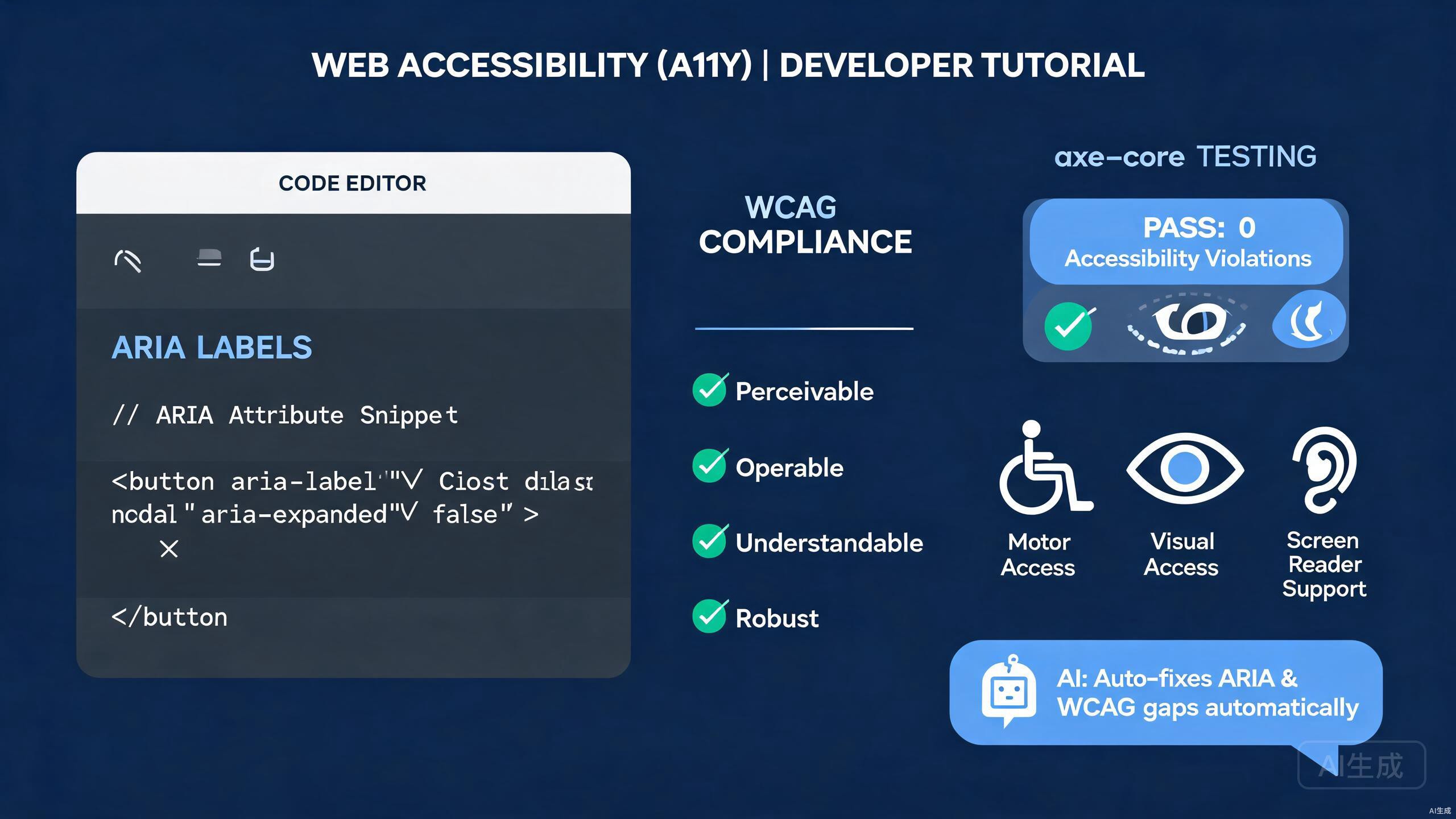
Web 无障碍 (a11y) 确保每个人,包括残障人士,都能感知、理解和与你的应用程序交互。Cursor 是一款 AI 驱动的 IDE 编辑器,通过生成符合 ARIA 的标记、运行自动化审计和在整个代码库中应用 WCAG 修复,加速无障碍开发。本指南涵盖 ARIA 标签、WCAG 合规性、axe-core 测试、AI 辅助 a11y 修复和屏幕阅读器测试。
前提条件
在开始之前,请确保你具备以下条件:
- Cursor(建议使用最新版本)作为你的 IDE 编辑器
- 一个 Web 项目(React、Vue 或纯 HTML 和 JavaScript)
- Node.js 18 或更高版本,用于测试工具
- 对 HTML 语义有基本了解
在开发早期构建无障碍功能比后期改造成本低得多。从一开始就在 Cursor 中打开你的项目,让 AI 在你编写组件时进行审计。在开发期间修复缺失的标签只需几秒钟;而在生产应用中修复同样的问题则需要数周。
理解 WCAG 合规性
Web 内容无障碍指南 (WCAG) 定义了如何使 Web 内容无障碍。它们围绕四个原则组织,通常称为 POUR:
- 可感知:信息和用户界面组件必须以用户可感知的方式呈现。
- 可操作:用户界面组件和导航必须是可操作的。
- 可理解:用户界面内容和操作必须是可理解的。
- 稳健:内容必须足够稳健,以被辅助技术解释。
WCAG 定义了三个合规级别:A(最低)、AA(大多数组织的法律目标)和 AAA(增强)。让 Cursor 总结特定功能的 AA 级要求:
List the WCAG 2.2 Level AA success criteria that apply to a multi-step
checkout form with date pickers and credit-card inputs.
Cursor 返回相关标准并解释如何用具体的代码建议满足每一条。
语义 HTML 基础
语义 HTML 是无障碍的基础。正确的元素通常可以完全消除对 ARIA 的需求。Cursor 帮助你选择和生成正确的标记。
生成语义组件
让 Cursor 构建一个内置无障碍功能的导航栏:
Create a responsive site navigation in React that:
- Uses a <nav> landmark with an accessible name
- Has a skip link at the top of the page
- Toggles a mobile menu with aria-expanded and aria-controls
- Closes on Escape and returns focus to the toggle button
- Supports full keyboard navigation
Cursor 生成组件:
import { useState, useRef, useEffect } from 'react';

export function SiteNav({ links }: { links: { href: string; label: string }[] }) {
  const [open, setOpen] = useState(false);
  const toggleRef = useRef<HTMLButtonElement>(null);

  useEffect(() => {
    if (!open) return;
    const onKey = (e: KeyboardEvent) => {
      if (e.key === 'Escape') {
        setOpen(false);
        toggleRef.current?.focus();
      }
    };
    document.addEventListener('keydown', onKey);
    return () => document.removeEventListener('keydown', onKey);
  }, [open]);

  return (
    <>
      <a href="#main" className="skip-link">Skip to main content</a>
      <nav aria-label="Main navigation">
        <button
          ref={toggleRef}
          aria-expanded={open}
          aria-controls="mobile-menu"
          onClick={() => setOpen((v) => !v)}
        >
          Menu
        </button>
        <ul id="mobile-menu" hidden={!open}>
          {links.map((link) => (
            <li key={link.href}>
              <a href={link.href}>{link.label}</a>
            </li>
          ))}
        </ul>
      </nav>
    </>
  );
}
ARIA 的第一条规则是:如果存在原生 HTML 元素,就不要使用 ARIA。一个真正的 <button> 为你免费提供键盘焦点、Enter 和 Space 激活以及屏幕阅读器语义。每当你看到非交互元素上的 onClick 时,让 Cursor:"将这个基于 div 的按钮替换为语义按钮。"
ARIA 标签和角色
当原生 HTML 无法表达你需要的语义时,ARIA 填补了空白。Cursor 生成正确的 ARIA 属性并警告常见错误。
无障碍表单
表单输入需要标签。让 Cursor 生成一个无障碍表单字段:
Create a reusable FormField component with:
- An associated <label> using htmlFor
- An aria-required attribute when required
- An aria-describedby link to helper and error text
- Error messaging with role="alert"
import { useId } from 'react';

interface FormFieldProps {
  label: string;
  name: string;
  type?: string;
  required?: boolean;
  error?: string;
  helper?: string;
}

export function FormField({ label, name, type = 'text', required, error, helper }: FormFieldProps) {
  const fieldId = useId();
  const helperId = `${fieldId}-helper`;
  const errorId = `${fieldId}-error`;
  const describedBy = [helper && helperId, error && errorId].filter(Boolean).join(' ') || undefined;

  return (
    <div>
      <label htmlFor={fieldId}>
        {label}
        {required && <span aria-hidden="true">*</span>}
      </label>
      <input
        id={fieldId}
        name={name}
        type={type}
        required={required}
        aria-required={required}
        aria-describedby={describedBy}
        aria-invalid={!!error}
      />
      {helper && !error && (
        <p id={helperId} className="helper-text">{helper}</p>
      )}
      {error && (
        <p id={errorId} role="alert" className="error-text">{error}</p>
      )}
    </div>
  );
}
动态更新的实时区域
当内容动态更新时(通知、搜索结果),屏幕阅读器需要一个实时区域来播报变化。Cursor 生成该模式:
export function SearchResults({ query, results }: { query: string; results: string[] }) {
  return (
    <div
      aria-live="polite"
      aria-atomic="true"
      role="status"
    >
      {results.length === 0 ? (
        <p>No results for "{query}".</p>
      ) : (
        <p>{results.length} results found for "{query}".</p>
      )}
      <ul>
        {results.map((r) => <li key={r}>{r}</li>)}
      </ul>
    </div>
  );
}
对于非紧急更新使用 aria-live="polite",仅对关键警报使用 aria-live="assertive"。过度使用 assertive 实时区域会不断打断屏幕阅读器用户,使你的应用不可用。切勿将 role="alert" 用于成功消息;将其保留用于需要立即关注的实际错误。
axe-core 自动化测试
自动化工具可以捕捉约 30% 到 40% 的无障碍问题。axe-core 是行业标准。Cursor 可以将其集成到你的测试套件和 CI 管道中。
使用 Jest 设置 axe-core
让 Cursor 添加自动化无障碍测试:
Add axe-core to my React project. Create a Jest test that renders
the SiteNav component with Testing Library and runs axe rules.
Cursor 安装依赖并编写测试:
npm install -D @axe-core/react axe-core jest-axe @testing-library/react @testing-library/jest-dom
// src/components/SiteNav.test.tsx
import { render } from '@testing-library/react';
import { axe, toHaveNoViolations } from 'jest-axe';
import { SiteNav } from './SiteNav';

expect.extend(toHaveNoViolations);

const links = [
  { href: '/', label: 'Home' },
  { href: '/about', label: 'About' },
];

describe('SiteNav', () => {
  it('has no accessibility violations when closed', async () => {
    const { container } = render(<SiteNav links={links} />);
    const results = await axe(container);
    expect(results).toHaveNoViolations();
  });

  it('has no accessibility violations when open', async () => {
    const { container, getByText } = render(<SiteNav links={links} />);
    getByText('Menu').click();
    const results = await axe(container);
    expect(results).toHaveNoViolations();
  });
});
可复用的 axe 测试辅助函数
Cursor 可以生成一个可复用的辅助函数,使每个组件测试保持一致:
import { render } from '@testing-library/react';
import { axe, toHaveNoViolations } from 'jest-axe';

expect.extend(toHaveNoViolations);

export async function expectAccessible(component: React.ReactElement) {
  const { container } = render(component);
  const results = await axe(container, {
    rules: {
      // Disable rules you intentionally handle elsewhere
      region: { enabled: false },
    },
  });
  expect(results).toHaveNoViolations();
  return results;
}
在每个组件测试中使用它:
import { expectAccessible } from '../test/expectAccessible';
import { FormField } from './FormField';

it('is accessible', async () => {
  await expectAccessible(<FormField label="Email" name="email" required />);
});
在每次提交前使用包脚本运行完整的 axe 套件。让 Cursor:"在 package.json 中添加一个 a11y 脚本,运行所有 axe 测试并在发现违规时失败。"这可以防止回归问题进入你的主分支。
AI 辅助的无障碍修复
Cursor 的 AI 可以扫描整个组件文件,查找无障碍问题,并在一次操作中应用修复。这是最有价值的 a11y 工作流之一。
审计组件
在 Cursor 中打开一个组件,并在 AI 聊天中运行此提示:
Audit this component for WCAG 2.2 AA compliance. List every issue
with the line number, explain why it fails, and rewrite the code
with fixes. Add comments explaining each change.
Cursor 可能报告:
- 第 12 行:
<div onClick>不可键盘访问。替换为<button>。 - 第 20 行:
<img>没有alt属性。添加描述性 alt 文本。 - 第 28 行:颜色对比度为 3.1:1,低于普通文本 4.5:1 的最低要求。
- 第 35 行:模态对话框没有焦点陷阱。用户可以在对话框后面 Tab。
Cursor 然后应用修复:
// Before
<div className="card" onClick={openDetails}>
  <img src={product.image} />
  <h3 style={{ color: '#999' }}>{product.name}</h3>
</div>

// After
<button
  className="card"
  onClick={openDetails}
  aria-label={`View details for ${product.name}`}
>
  <img src={product.image} alt={`${product.name} product photo`} />
  <h3 style={{ color: '#595959' }}>{product.name}</h3>
</button>
生成焦点陷阱
模态和对话框需要焦点陷阱,以便键盘用户无法通过 Tab 逃出对话框。让 Cursor:
Add a focus trap to this modal component. Move focus to the first
focusable element on open, trap Tab and Shift+Tab within the dialog,
and return focus to the trigger button on close.
import { useEffect, useRef } from 'react';

const FOCUSABLE = 'a[href], button:not([disabled]), input, textarea, select, [tabindex]:not([tabindex="-1"])';

export function useFocusTrap(active: boolean) {
  const containerRef = useRef<HTMLDivElement>(null);

  useEffect(() => {
    if (!active || !containerRef.current) return;
    const container = containerRef.current;
    const elements = container.querySelectorAll<HTMLElement>(FOCUSABLE);
    if (elements.length === 0) return;

    const first = elements[0];
    const last = elements[elements.length - 1];
    first.focus();

    const onKey = (e: KeyboardEvent) => {
      if (e.key !== 'Tab') return;
      if (e.shiftKey && document.activeElement === first) {
        e.preventDefault();
        last.focus();
      } else if (!e.shiftKey && document.activeElement === last) {
        e.preventDefault();
        first.focus();
      }
    };

    container.addEventListener('keydown', onKey);
    return () => container.removeEventListener('keydown', onKey);
  }, [active]);

  return containerRef;
}
如果底层 HTML 不可键盘访问,焦点陷阱就毫无意义。陷阱仅管理实际可聚焦的元素。如果你的对话框仅包含带有 onClick 处理程序的 <div> 元素,焦点陷阱没有可聚焦的内容。始终将陷阱与语义化的、可聚焦的元素配对使用。
屏幕阅读器测试
自动化测试可以捕捉结构性问题,但只有使用屏幕阅读器进行手动测试才能揭示真实体验。Cursor 可以生成测试脚本和检查清单。
纯键盘测试检查清单
让 Cursor 生成键盘测试检查清单:
Create a keyboard-only testing checklist for a web application
covering navigation, forms, widgets, and dynamic content.
Cursor 生成:
- Tab 按逻辑顺序遍历页面,没有陷阱。
- 跳转链接是第一个可聚焦元素,并跳转到主要内容。
- 所有交互元素都可通过 Tab 和 Shift+Tab 到达。
- 自定义小部件(标签页、手风琴)支持箭头键和 Home/End。
- 模态框陷阱焦点并在关闭时返回到触发器。
- 每个可聚焦元素上都有可见的焦点指示器。
- Enter 和 Space 激活按钮;Enter 激活链接。
- 表单在提交按钮上按 Enter 提交。
使用 NVDA、JAWS 和 VoiceOver 测试
Cursor 可以为每个屏幕阅读器生成测试笔记:
Write a quick-start guide for testing my app with NVDA on Windows,
VoiceOver on macOS, and TalkBack on Android. Include the shortcut
to start each reader and how to navigate by heading and landmark.
Cursor 返回一个比较表和导航速查表,你可以将其作为参考文件保存在项目中。
颜色对比和视觉设计
视觉无障碍是 WCAG 图景的一部分。低对比度是最常见的失败之一。
使用 AI 检查对比度
让 Cursor 评估你的设计令牌:
Here are my color tokens in tailwind.config.js. Check every text
and background pair against WCAG AA contrast ratios (4.5:1 for normal
text, 3:1 for large text). Flag any failures and suggest fixes.
Cursor 读取配置,计算对比度,并报告失败:
// tailwind.config.js tokens that fail AA
// text-gray-400 on bg-white: 2.85:1 — FAIL
// Fix: use text-gray-600 (#4B5563) for 7.21:1
Cursor 更新配置:
module.exports = {
  theme: {
    extend: {
      colors: {
        'text-secondary': '#4B5563', // was #9CA3AF, now passes AA
      },
    },
  },
};
切勿仅依靠颜色来传达含义。围绕无效字段的红色边框对于同时依赖屏幕阅读器的色盲用户来说是不可见的。始终将颜色与文本或图标配对。让 Cursor:"在颜色旁边添加文本和图标来传达错误状态,"以在整个表单中进行修复。
CI 中的无障碍
自动化 a11y 检查应纳入你的持续集成管道。Cursor 可以生成配置。
带 a11y 类别的 Lighthouse CI
让 Cursor 添加 Lighthouse CI:
Add Lighthouse CI to my GitHub Actions workflow with the
accessibility category enabled and a minimum score of 0.9.
# .github/workflows/lighthouse.yml
name: Lighthouse
on: [pull_request]

jobs:
  lighthouse:
    runs-on: ubuntu-latest
    steps:
      - uses: actions/checkout@v4
      - uses: actions/setup-node@v4
        with: { node-version: 20 }
      - run: npm ci
      - run: npm run build
      - name: Run Lighthouse
        uses: treosh/lighthouse-ci-action@v11
        with:
          urls: |
            http://localhost:3000
          uploadArtifacts: true
          configPath: .lighthouserc.json
// .lighthouserc.json
{
  "ci": {
    "assert": {
      "assertions": {
        "categories:accessibility": ["error", { "minScore": 0.9 }]
      }
    },
    "collect": {
      "startServerCommand": "npm run start",
      "startServerReadyPattern": "ready",
      "numberOfRuns": 3
    }
  }
}
最佳实践总结
在 Cursor 中构建无障碍应用时,请牢记以下原则:
- 优先使用语义 HTML,而非 ARIA(只要原生元素适用)。
- 为每个输入添加标签,使用真正的
<label>或aria-label。 - 使一切可键盘操作;鼠标是可选的。
- 在每个组件测试中使用 axe-core 自动化。
- 至少用一个屏幕阅读器进行手动测试。
- 保持普通文本 4.5:1 的对比度和可见的焦点指示器。
- 在 CI 中运行 a11y 检查,使回归问题不会发布。
通过将 WCAG 知识与 Cursor 的 AI 驱动审计和代码生成相结合,你可以构建适用于所有人的包容性界面。让 Cursor 搭建无障碍标记和测试,然后在交付前使用真实屏幕阅读器验证结果。