Web Accessibility (a11y) in Cursor: WCAG, ARIA, and axe-core
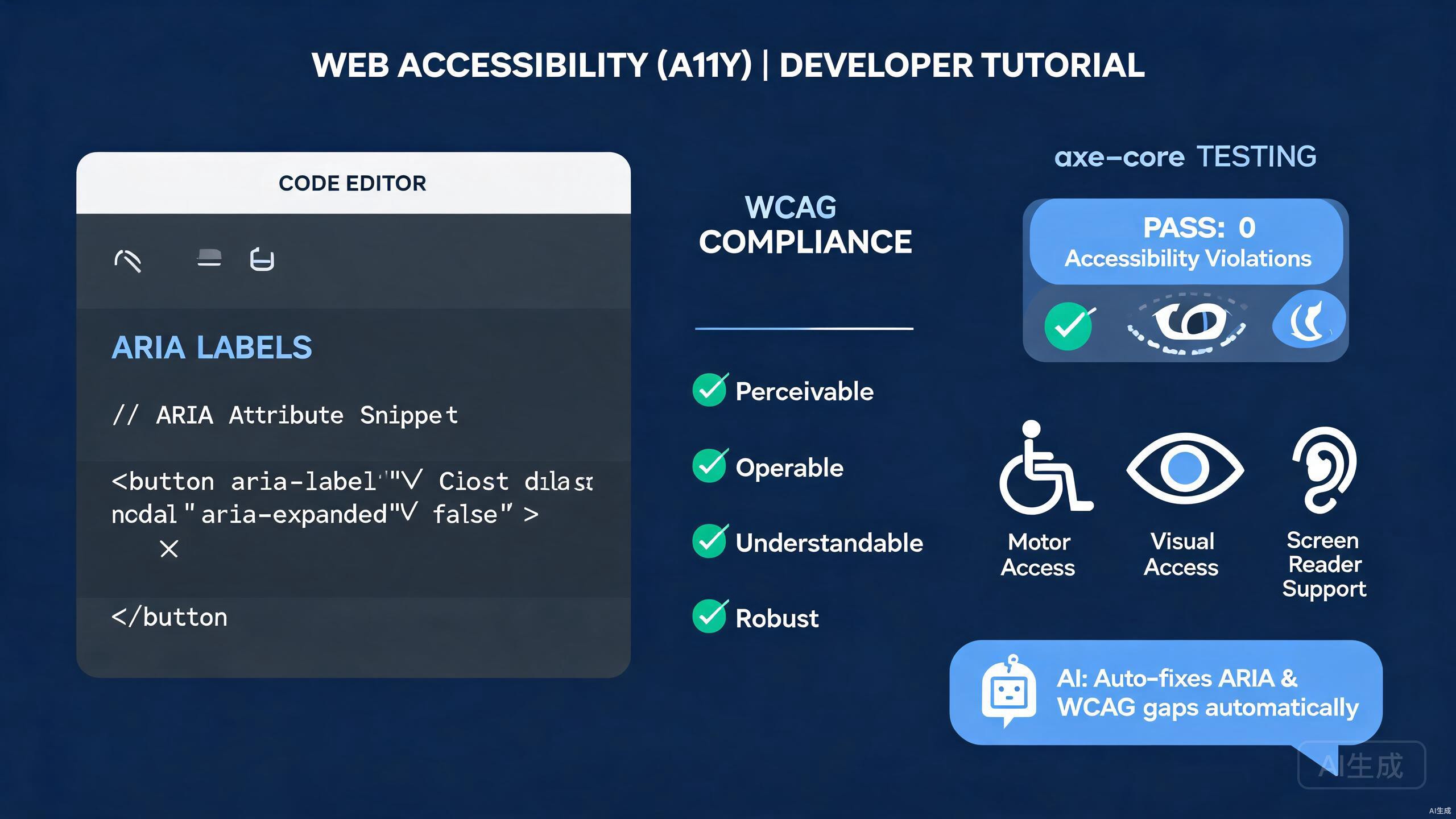
Web accessibility (a11y) ensures that everyone, including people with disabilities, can perceive, understand, and interact with your application. Cursor, an AI-powered IDE editor, accelerates accessible development by generating ARIA-compliant markup, running automated audits, and applying WCAG fixes across your codebase. This guide covers ARIA labels, WCAG compliance, axe-core testing, AI-assisted a11y fixes, and screen reader testing.
Prerequisites
Before you begin, make sure you have the following:
- Cursor (latest version recommended) as your IDE editor
- A web project (React, Vue, or plain HTML and JavaScript)
- Node.js 18 or higher for the testing tooling
- Basic familiarity with HTML semantics
Accessibility is far cheaper to build in early than to retrofit later. Open your project in Cursor from the start and let the AI audit components as you write them. Fixing a missing label during development takes seconds; fixing the same issue across a production app takes weeks.
Understanding WCAG Compliance
The Web Content Accessibility Guidelines (WCAG) define how to make web content accessible. They are organized around four principles, often called POUR:
- Perceivable: information and user interface components must be presentable in ways users can perceive.
- Operable: user interface components and navigation must be operable.
- Understandable: content and operation of the user interface must be understandable.
- Robust: content must be robust enough to be interpreted by assistive technologies.
WCAG defines three conformance levels: A (minimum), AA (the legal target for most organizations), and AAA (enhanced). Ask Cursor to summarize the level AA requirements for a specific feature:
List the WCAG 2.2 Level AA success criteria that apply to a multi-step
checkout form with date pickers and credit-card inputs.
Cursor returns the relevant criteria and explains how to satisfy each one with concrete code suggestions.
Semantic HTML Foundations
Semantic HTML is the foundation of accessibility. The right element often removes the need for ARIA entirely. Cursor helps you choose and generate the correct markup.
Generating Semantic Components
Ask Cursor to build a navigation bar with accessibility built in:
Create a responsive site navigation in React that:
- Uses a <nav> landmark with an accessible name
- Has a skip link at the top of the page
- Toggles a mobile menu with aria-expanded and aria-controls
- Closes on Escape and returns focus to the toggle button
- Supports full keyboard navigation
Cursor generates the component:
import { useState, useRef, useEffect } from 'react';

export function SiteNav({ links }: { links: { href: string; label: string }[] }) {
  const [open, setOpen] = useState(false);
  const toggleRef = useRef<HTMLButtonElement>(null);

  useEffect(() => {
    if (!open) return;
    const onKey = (e: KeyboardEvent) => {
      if (e.key === 'Escape') {
        setOpen(false);
        toggleRef.current?.focus();
      }
    };
    document.addEventListener('keydown', onKey);
    return () => document.removeEventListener('keydown', onKey);
  }, [open]);

  return (
    <>
      <a href="#main" className="skip-link">Skip to main content</a>
      <nav aria-label="Main navigation">
        <button
          ref={toggleRef}
          aria-expanded={open}
          aria-controls="mobile-menu"
          onClick={() => setOpen((v) => !v)}
        >
          Menu
        </button>
        <ul id="mobile-menu" hidden={!open}>
          {links.map((link) => (
            <li key={link.href}>
              <a href={link.href}>{link.label}</a>
            </li>
          ))}
        </ul>
      </nav>
    </>
  );
}
The first rule of ARIA is: do not use ARIA if a native HTML element exists. A real <button> gives you keyboard focus, Enter and Space activation, and screen reader semantics for free. Ask Cursor, "Replace this div-based button with a semantic button," whenever you see onClick on a non-interactive element.
ARIA Labels and Roles
When native HTML cannot express the semantics you need, ARIA fills the gap. Cursor generates correct ARIA attributes and warns about common mistakes.
Accessible Forms
Form inputs need labels. Ask Cursor to generate an accessible form field:
Create a reusable FormField component with:
- An associated <label> using htmlFor
- An aria-required attribute when required
- An aria-describedby link to helper and error text
- Error messaging with role="alert"
import { useId } from 'react';

interface FormFieldProps {
  label: string;
  name: string;
  type?: string;
  required?: boolean;
  error?: string;
  helper?: string;
}

export function FormField({ label, name, type = 'text', required, error, helper }: FormFieldProps) {
  const fieldId = useId();
  const helperId = `${fieldId}-helper`;
  const errorId = `${fieldId}-error`;
  const describedBy = [helper && helperId, error && errorId].filter(Boolean).join(' ') || undefined;

  return (
    <div>
      <label htmlFor={fieldId}>
        {label}
        {required && <span aria-hidden="true">*</span>}
      </label>
      <input
        id={fieldId}
        name={name}
        type={type}
        required={required}
        aria-required={required}
        aria-describedby={describedBy}
        aria-invalid={!!error}
      />
      {helper && !error && (
        <p id={helperId} className="helper-text">{helper}</p>
      )}
      {error && (
        <p id={errorId} role="alert" className="error-text">{error}</p>
      )}
    </div>
  );
}
Live Regions for Dynamic Updates
When content updates dynamically (notifications, search results), screen readers need a live region to announce changes. Cursor generates the pattern:
export function SearchResults({ query, results }: { query: string; results: string[] }) {
  return (
    <div
      aria-live="polite"
      aria-atomic="true"
      role="status"
    >
      {results.length === 0 ? (
        <p>No results for "{query}".</p>
      ) : (
        <p>{results.length} results found for "{query}".</p>
      )}
      <ul>
        {results.map((r) => <li key={r}>{r}</li>)}
      </ul>
    </div>
  );
}
Use aria-live="polite" for non-urgent updates and aria-live="assertive" only for critical alerts. Overusing assertive live regions interrupts screen reader users constantly and makes your app unusable. Never use role="alert" for success messages; reserve it for actual errors that need immediate attention.
axe-core Automated Testing
Automated tools catch roughly 30 to 40 percent of accessibility issues. axe-core is the industry standard. Cursor can integrate it into your test suite and CI pipeline.
Setting Up axe-core with Jest
Ask Cursor to add automated accessibility tests:
Add axe-core to my React project. Create a Jest test that renders
the SiteNav component with Testing Library and runs axe rules.
Cursor installs the dependencies and writes the test:
npm install -D @axe-core/react axe-core jest-axe @testing-library/react @testing-library/jest-dom
// src/components/SiteNav.test.tsx
import { render } from '@testing-library/react';
import { axe, toHaveNoViolations } from 'jest-axe';
import { SiteNav } from './SiteNav';

expect.extend(toHaveNoViolations);

const links = [
  { href: '/', label: 'Home' },
  { href: '/about', label: 'About' },
];

describe('SiteNav', () => {
  it('has no accessibility violations when closed', async () => {
    const { container } = render(<SiteNav links={links} />);
    const results = await axe(container);
    expect(results).toHaveNoViolations();
  });

  it('has no accessibility violations when open', async () => {
    const { container, getByText } = render(<SiteNav links={links} />);
    getByText('Menu').click();
    const results = await axe(container);
    expect(results).toHaveNoViolations();
  });
});
Reusable axe Test Helper
Cursor can generate a reusable helper so every component test stays consistent:
import { render } from '@testing-library/react';
import { axe, toHaveNoViolations } from 'jest-axe';

expect.extend(toHaveNoViolations);

export async function expectAccessible(component: React.ReactElement) {
  const { container } = render(component);
  const results = await axe(container, {
    rules: {
      // Disable rules you intentionally handle elsewhere
      region: { enabled: false },
    },
  });
  expect(results).toHaveNoViolations();
  return results;
}
Use it in every component test:
import { expectAccessible } from '../test/expectAccessible';
import { FormField } from './FormField';

it('is accessible', async () => {
  await expectAccessible(<FormField label="Email" name="email" required />);
});
Run the full axe suite before each commit with a package script. Ask Cursor, "Add an a11y script to package.json that runs all axe tests and fails on violations." This prevents regressions from ever reaching your main branch.
AI-Assisted Accessibility Fixes
Cursor's AI can scan an entire component file, find accessibility issues, and apply fixes in a single pass. This is one of the most valuable a11y workflows.
Auditing a Component
Open a component in Cursor and run this prompt in the AI chat:
Audit this component for WCAG 2.2 AA compliance. List every issue
with the line number, explain why it fails, and rewrite the code
with fixes. Add comments explaining each change.
Cursor might report:
- Line 12:
<div onClick>is not keyboard accessible. Replace with a<button>. - Line 20:
<img>has noaltattribute. Add descriptive alt text. - Line 28: color contrast is 3.1:1, below the 4.5:1 minimum for normal text.
- Line 35: modal dialog has no focus trap. Users can Tab behind the dialog.
Cursor then applies the fixes:
// Before
<div className="card" onClick={openDetails}>
  <img src={product.image} />
  <h3 style={{ color: '#999' }}>{product.name}</h3>
</div>

// After
<button
  className="card"
  onClick={openDetails}
  aria-label={`View details for ${product.name}`}
>
  <img src={product.image} alt={`${product.name} product photo`} />
  <h3 style={{ color: '#595959' }}>{product.name}</h3>
</button>
Generating a Focus Trap
Modals and dialogs need a focus trap so keyboard users cannot escape the dialog by Tabbing. Ask Cursor:
Add a focus trap to this modal component. Move focus to the first
focusable element on open, trap Tab and Shift+Tab within the dialog,
and return focus to the trigger button on close.
import { useEffect, useRef } from 'react';

const FOCUSABLE = 'a[href], button:not([disabled]), input, textarea, select, [tabindex]:not([tabindex="-1"])';

export function useFocusTrap(active: boolean) {
  const containerRef = useRef<HTMLDivElement>(null);

  useEffect(() => {
    if (!active || !containerRef.current) return;
    const container = containerRef.current;
    const elements = container.querySelectorAll<HTMLElement>(FOCUSABLE);
    if (elements.length === 0) return;

    const first = elements[0];
    const last = elements[elements.length - 1];
    first.focus();

    const onKey = (e: KeyboardEvent) => {
      if (e.key !== 'Tab') return;
      if (e.shiftKey && document.activeElement === first) {
        e.preventDefault();
        last.focus();
      } else if (!e.shiftKey && document.activeElement === last) {
        e.preventDefault();
        first.focus();
      }
    };

    container.addEventListener('keydown', onKey);
    return () => container.removeEventListener('keydown', onKey);
  }, [active]);

  return containerRef;
}
A focus trap is meaningless if the underlying HTML is not keyboard accessible. The trap only manages elements that are actually focusable. If your dialog contains only <div> elements with onClick handlers, the focus trap has nothing to focus. Always pair the trap with semantic, focusable elements.
Screen Reader Testing
Automated tests catch structural issues, but only manual testing with a screen reader reveals the lived experience. Cursor can generate testing scripts and checklists.
Keyboard-Only Test Checklist
Ask Cursor to generate a keyboard test checklist:
Create a keyboard-only testing checklist for a web application
covering navigation, forms, widgets, and dynamic content.
Cursor produces:
- Tab through the page in logical order with no traps.
- Skip link is the first focusable element and jumps to main content.
- All interactive elements are reachable with Tab and Shift+Tab.
- Custom widgets (tabs, accordions) support arrow keys and Home/End.
- Modals trap focus and return it to the trigger on close.
- Visible focus indicator is present on every focusable element.
- Enter and Space activate buttons; Enter activates links.
- Forms submit with Enter on the submit button.
Testing with NVDA, JAWS, and VoiceOver
Cursor can generate testing notes for each screen reader:
Write a quick-start guide for testing my app with NVDA on Windows,
VoiceOver on macOS, and TalkBack on Android. Include the shortcut
to start each reader and how to navigate by heading and landmark.
Cursor returns a comparison table and a navigation cheat sheet you can save as a reference file in your project.
Color Contrast and Visual Design
Visual accessibility is part of the WCAG picture. Low contrast is one of the most common failures.
Checking Contrast with AI
Ask Cursor to evaluate your design tokens:
Here are my color tokens in tailwind.config.js. Check every text
and background pair against WCAG AA contrast ratios (4.5:1 for normal
text, 3:1 for large text). Flag any failures and suggest fixes.
Cursor reads the config, computes the contrast ratios, and reports failures:
// tailwind.config.js tokens that fail AA
// text-gray-400 on bg-white: 2.85:1 — FAIL
// Fix: use text-gray-600 (#4B5563) for 7.21:1
Cursor updates the config:
module.exports = {
  theme: {
    extend: {
      colors: {
        'text-secondary': '#4B5563', // was #9CA3AF, now passes AA
      },
    },
  },
};
Never rely on color alone to convey meaning. A red border around an invalid field is invisible to colorblind users who also rely on screen readers. Always pair color with text or an icon. Ask Cursor, "Add text and icons to convey error states alongside color," to make the fix across a form.
Accessibility in CI
Automated a11y checks belong in your continuous integration pipeline. Cursor can generate the configuration.
Lighthouse CI with a11y Category
Ask Cursor to add Lighthouse CI:
Add Lighthouse CI to my GitHub Actions workflow with the
accessibility category enabled and a minimum score of 0.9.
# .github/workflows/lighthouse.yml
name: Lighthouse
on: [pull_request]

jobs:
  lighthouse:
    runs-on: ubuntu-latest
    steps:
      - uses: actions/checkout@v4
      - uses: actions/setup-node@v4
        with: { node-version: 20 }
      - run: npm ci
      - run: npm run build
      - name: Run Lighthouse
        uses: treosh/lighthouse-ci-action@v11
        with:
          urls: |
            http://localhost:3000
          uploadArtifacts: true
          configPath: .lighthouserc.json
// .lighthouserc.json
{
  "ci": {
    "assert": {
      "assertions": {
        "categories:accessibility": ["error", { "minScore": 0.9 }]
      }
    },
    "collect": {
      "startServerCommand": "npm run start",
      "startServerReadyPattern": "ready",
      "numberOfRuns": 3
    }
  }
}
Best Practices Summary
Keep these principles in mind when building accessible apps in Cursor:
- Prefer semantic HTML over ARIA whenever a native element fits.
- Label every input with a real
<label>oraria-label. - Make everything keyboard operable; the mouse is optional.
- Automate with axe-core in every component test.
- Test manually with at least one screen reader.
- Maintain 4.5:1 contrast for normal text and visible focus indicators.
- Run a11y checks in CI so regressions never ship.
By combining WCAG knowledge with Cursor's AI-powered auditing and code generation, you can build inclusive interfaces that work for everyone. Let Cursor scaffold the accessible markup and tests, then verify the results with real screen readers before you ship.