Using Cursor Agents with WSL on Windows
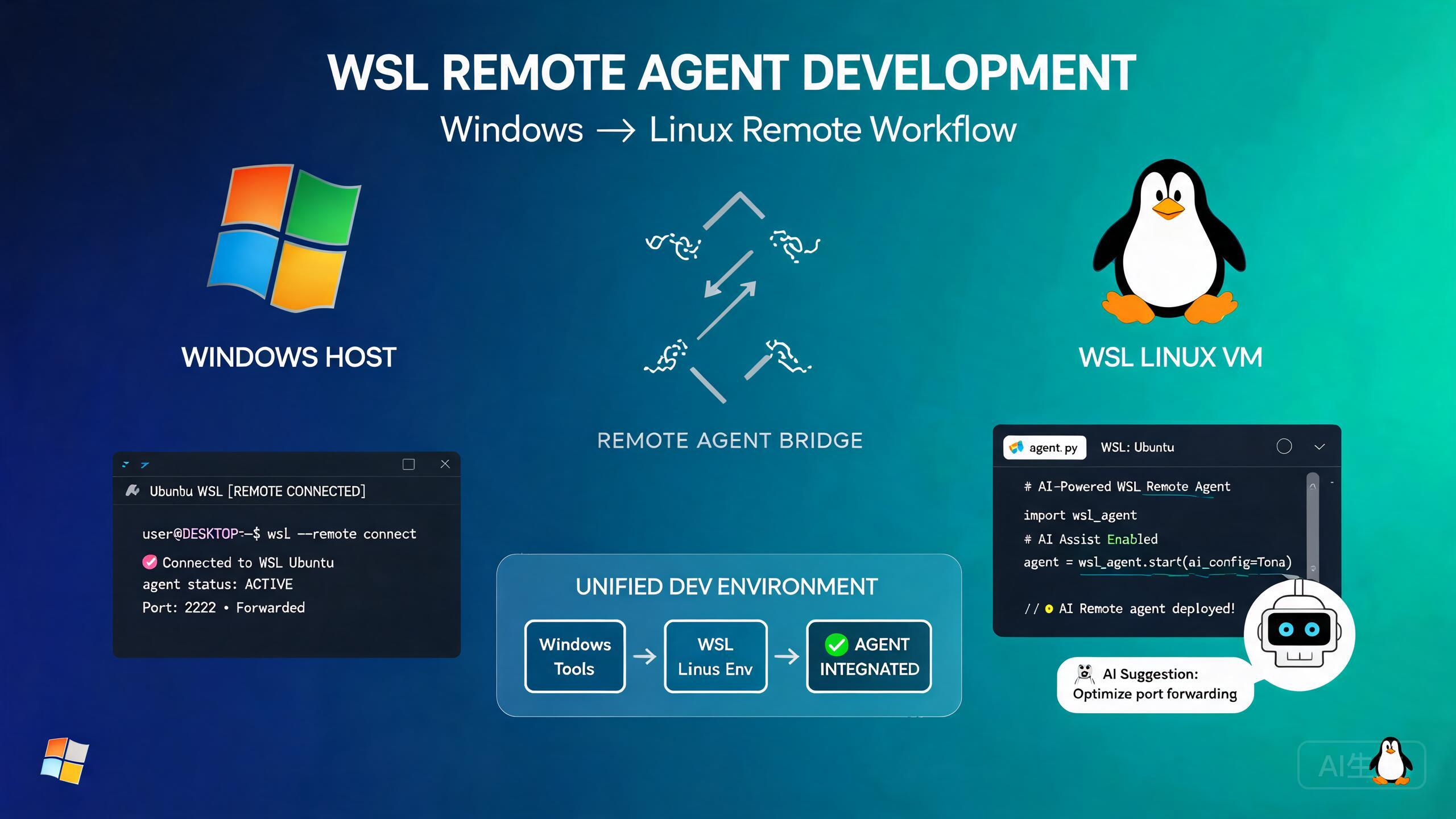
Windows Subsystem for Linux (WSL) lets you run a Linux environment directly on Windows, combining the best of both platforms. Running Cursor agents within WSL enables native Linux tooling, package managers, and build systems while keeping the familiar Windows desktop. However, the interaction between the Windows host and the WSL environment introduces unique challenges, especially around terminal handling and agent execution. This guide covers everything from initial setup to advanced troubleshooting.
Prerequisites
Before setting up Cursor with WSL, ensure you have the following:
- Windows 11 (recommended) or Windows 10 with the latest updates
- WSL 2 installed and configured (run
wsl --installin an elevated PowerShell) - A Linux distribution installed (Ubuntu is the default and most tested)
- Cursor installed on the Windows host (not inside WSL)
- Sufficient system resources: at least 8GB RAM and 20GB free disk space
Use WSL 2 rather than WSL 1. WSL 2 provides a full Linux kernel with better performance and compatibility. Check your version with wsl -l -v in PowerShell. If you see version 1, upgrade with wsl --set-version <DistroName> 2.
WSL Setup for Cursor
Installing and Configuring WSL
If you have not yet installed WSL, follow these steps:
# Run in an elevated PowerShell (Run as Administrator)
wsl --install

# This installs WSL 2 with the default Ubuntu distribution
# Restart your computer when prompted

# After reboot, set up your Linux user and password
# Then verify the installation
wsl --list --verbose
Expected output:
  NAME      STATE           VERSION
* Ubuntu    Running         2
Installing Development Tools in WSL
Once WSL is set up, install the development tools your project needs inside the Linux environment:
# Inside WSL, update package lists
sudo apt update && sudo apt upgrade -y

# Install common development tools
sudo apt install -y build-essential git curl wget unzip

# Install Node.js via Node Version Manager
curl -o- https://raw.githubusercontent.com/nvm-sh/nvm/v0.39.7/install.sh | bash
source ~/.bashrc
nvm install --lts

# Install Python
sudo apt install -y python3 python3-pip python3-venv

# Install Go
wget https://go.dev/dl/go1.22.0.linux-amd64.tar.gz
sudo tar -C /usr/local -xzf go1.22.0.linux-amd64.tar.gz
echo 'export PATH=$PATH:/usr/local/go/bin' >> ~/.bashrc
source ~/.bashrc

# Install Docker (optional, for containerized development)
sudo apt install -y docker.io
sudo usermod -aG docker $USER
Do not install Cursor inside WSL. Cursor should be installed on the Windows host. It connects to WSL as a remote environment, similar to how it connects to SSH remotes. Installing Cursor inside WSL will result in display issues and missing GUI functionality.
Connecting Cursor to WSL
Cursor has built-in WSL support through the Remote Development extension:
- Open Cursor on Windows
- Open the Command Palette (Ctrl+Shift+P)
- Type and select: WSL: Connect to WSL
- Choose your installed distribution (e.g., Ubuntu)
- Cursor will reload and connect to the WSL environment
Alternatively, you can open a WSL project directly from the terminal:
# From Windows PowerShell or Command Prompt
cd \\wsl$\Ubuntu\home\username\my-project
cursor .
Or from within WSL:
# Navigate to your project directory
cd ~/my-project

# Launch Cursor connected to this WSL path
cursor .
Create a Windows shortcut or alias that opens Cursor in your WSL home directory for quick access:
# Add to your PowerShell profile
function cursor-wsl { wsl -e bash -c "cd ~ && cursor ." }
This lets you type cursor-wsl in PowerShell to open Cursor in your WSL home directory instantly.
Terminal Configuration
Understanding Terminal Behavior in WSL
When Cursor runs in WSL mode, the integrated terminal can operate in two modes:
- WSL terminal: Runs commands inside the Linux environment (default)
- Windows terminal: Runs commands on the Windows host
The terminal mode affects how agents interact with the system. Agents typically execute commands in the WSL terminal, but some operations may need to run on the Windows host.
Configuring the Default Terminal
// In settings.json (accessible via Ctrl+, > Open Settings JSON)
{
  "terminal.integrated.defaultProfile.linux": "bash",
  "terminal.integrated.profiles.linux": {
    "bash": {
      "path": "bash",
      "args": ["-l"],
      "icon": "terminal-bash"
    },
    "zsh": {
      "path": "zsh",
      "args": ["-l"],
      "icon": "terminal-zsh"
    }
  },
  // Ensure Cursor uses the WSL shell for agent commands
  "cursor.agent.shell": "wsl",
  "cursor.agent.shellPath": "/bin/bash"
}
Restoring a Broken Terminal
A common issue in WSL setups is a broken or unresponsive terminal. The terminal may show error messages, fail to start, or display garbled output. Here is how to fix it:
# Step 1: Check if the terminal process is running
# Command Palette: Terminal: Select Default Profile

# Step 2: Verify the shell path is correct
# The path should point to a valid shell inside WSL
// Common fix: explicitly set the shell path
{
  "terminal.integrated.shell.linux": "/bin/bash",
  "terminal.integrated.env.linux": {
    "TERM": "xterm-256color",
    "COLORTERM": "truecolor",
    "LANG": "en_US.UTF-8"
  }
}
If the terminal is completely unresponsive:
- Close all terminal instances in Cursor
- Open the Command Palette and run: Terminal: Restart Terminal Server
- If that does not work, reload the window: Developer: Reload Window
- As a last resort, restart Cursor entirely
If the terminal shows "The terminal process failed to launch" or "exec bash: no such file or directory", the WSL integration is broken. This usually happens after a Windows update or a WSL distribution change. Run wsl --shutdown in PowerShell, then reconnect Cursor to WSL.
Resolving Agent Hangs in gatherTerminalSelections
Understanding the Problem
One of the most reported issues with WSL and Cursor agents is the gatherTerminalSelections hang. When an agent tries to interact with the terminal, it calls an internal function called gatherTerminalSelections to determine which terminal to use. In WSL environments, this function can hang indefinitely, causing the agent to freeze.
Symptoms
- The agent starts executing a task but hangs at the terminal interaction step
- The status bar shows "Agent is working..." indefinitely
- No terminal output appears
- The agent eventually times out or requires manual cancellation
- The Cursor developer console may show a pending
gatherTerminalSelectionspromise
Root Causes
The hang typically occurs due to one of the following:
- Multiple terminal profiles: Cursor cannot decide which terminal profile to use
- Shell integration scripts: The shell integration script fails to load in WSL
- PTY allocation issues: WSL's pseudo-terminal allocation differs from native Linux
- Environment variable conflicts: Windows environment variables leak into WSL and cause conflicts
Solution 1: Simplify Terminal Profiles
Reduce the number of terminal profiles to avoid selection ambiguity:
// In settings.json
{
  "terminal.integrated.profiles.linux": {
    "bash": {
      "path": "/bin/bash",
      "args": ["-l"]
    }
  },
  "terminal.integrated.defaultProfile.linux": "bash",
  // Disable other profiles that may confuse the agent
  "terminal.integrated.profiles.windows": {},
  "terminal.integrated.detectableProfiles": false
}
After changing terminal profile settings, reload the Cursor window. The agent's terminal selection cache is cleared on reload, which often resolves the hang on the next agent run.
Solution 2: Fix Shell Integration
Shell integration enables the agent to track command output. In WSL, the integration script may not load correctly. Verify and fix it:
# Inside WSL, check if shell integration is loaded
echo $TERM_PROGRAM

# Should output: cursor or vsoc (if using Cursor/VS Code terminal)
# If empty, shell integration is not loaded

# Manually source the integration script
# Find the correct path:
ls /mnt/c/Users/*/AppData/Local/Programs/cursor/resources/app/out/vs/shell/integration/

# Or add this to your ~/.bashrc
if [ -n "$CURSOR_IPC_HANDLE" ]; then
  export CURSOR_INTEGRATION_ENABLED=1
fi
Solution 3: Pre-Allocate a Terminal
Creating a dedicated terminal for the agent before launching it can prevent the selection hang:
// In settings.json
{
  "cursor.agent.terminal": {
    "autoCreate": true,
    "profile": "bash",
    "waitForIntegration": true,
    "integrationTimeout": 5000
  }
}
This tells Cursor to create a terminal using the specified profile before the agent starts, bypassing the selection process entirely.
Solution 4: Disable Shell Selection Prompt
If the hang is caused by a selection prompt that never resolves, disable the prompt:
{
  "cursor.agent.terminal.selectionMode": "auto",
  "cursor.agent.terminal.skipSelection": true
}
Disabling the terminal selection prompt means the agent will always use the default terminal profile. If you need to run agents in different terminal environments, you will need to change the default profile manually before each run.
Unifying Agent Skills Across Windows Host and WSL
The Challenge
When working with both Windows and WSL, you may have different tools, configurations, and skill definitions on each side. This creates a fragmented experience where an agent might know how to do something in the Windows host but not in WSL, or vice versa.
Sharing Configuration Files
The most effective approach is to share agent configuration files between the two environments. Since WSL can access the Windows filesystem via /mnt/c/, you can store shared configuration in a Windows-accessible location.
// In Cursor settings.json (Windows side)
{
  "cursor.agent.skillsDirectory": "\\\\wsl$\\Ubuntu\\home\\username\\.cursor\\skills",
  "cursor.agent.sharedConfig": true
}
// In Cursor settings.json (WSL side)
{
  "cursor.agent.skillsDirectory": "~/.cursor/skills",
  "cursor.agent.sharedConfig": true
}
Creating a Unified Skills Directory
Set up a skills directory that both environments can access:
# Inside WSL
mkdir -p ~/.cursor/skills

# Create a symlink to a Windows-accessible location
# This lets you edit skills from either environment
ln -s ~/.cursor/skills /mnt/c/Users/username/.cursor/skills-wsl

# Example: A skill file that works in both environments
cat > ~/.cursor/skills/shared-git-workflow.md << 'EOF'
# Shared Git Workflow Skill

## Applies to: Windows Host and WSL

When performing git operations:

1. Always check the current branch first
2. Use conventional commit messages
3. Run tests before committing
4. Push only to feature branches, never to main

## Environment-specific notes:
- On Windows: use Git for Windows (git.exe)
- On WSL: use native Linux git
- Both should reference the same repository
EOF
Store your skills in a Git repository and clone it to both environments. This ensures skills are versioned and synchronized. Use a .cursor/skills submodule in your main project repository for team-wide sharing.
Handling Path Differences
One of the biggest challenges in a dual-environment setup is path handling. Windows uses drive letters (C:\) while WSL uses mount paths (/mnt/c/). You need to account for this in agent configurations:
// In settings.json
{
  "cursor.agent.pathMappings": {
    "windows": {
      "C:\\Users\\username\\projects": "/home/username/projects"
    },
    "wsl": {
      "/home/username/projects": "C:\\Users\\username\\projects"
    }
  }
}
# Example skill with path handling instructions

## When working with file paths:

- If the agent is running in WSL, convert Windows paths to WSL paths
  - `C:\Users\username\project` becomes `/mnt/c/Users/username/project`
- If the agent is running on the Windows host, convert WSL paths to Windows paths
  - `/home/username/project` stays as-is (WSL home directory)
  - `/mnt/c/Users/username/project` becomes `C:\Users\username\project`

## Detecting the current environment:
- Check if `/proc/version` exists (WSL/Linux)
- Check if `$OS` is `Windows_NT` (Windows)
Never hardcode absolute paths in agent skills. Always use relative paths or configuration variables. Hardcoded paths break when switching between Windows host and WSL environments.
Remote Development Patterns
Pattern 1: Primary WSL Development
In this pattern, all development happens in WSL, and Cursor on Windows acts as a thin client:
// settings.json
{
  "remote.WSL.defaultDistro": "Ubuntu",
  "cursor.agent.executionEnvironment": "wsl",
  "cursor.agent.preferWslTerminal": true,
  "files.eol": "\n"
}
This is the simplest setup and works well for projects that are entirely Linux-based, such as Node.js, Python, Go, or Rust applications.
Pattern 2: Hybrid Development
In this pattern, some tools run on Windows and others in WSL:
// settings.json
{
  "cursor.agent.executionEnvironment": "auto",
  "cursor.agent.shellRouting": {
    "bash": "wsl",
    "powershell": "windows",
    "cmd": "windows",
    "node": "wsl",
    "python": "wsl",
    "dotnet": "windows"
  }
}
The hybrid approach is useful when you need Windows-specific tools (like .NET SDK, SQL Server, or Windows-only testing frameworks) alongside Linux tools. Configure shell routing to automatically choose the right environment based on the command.
Pattern 3: Docker-First Development
Use WSL with Docker for a fully containerized development experience:
// settings.json
{
  "cursor.agent.executionEnvironment": "wsl",
  "docker.host": "wsl",
  "cursor.agent.preferredContainer": "dev-container",
  "remote.containers.defaultProfile": "WSL: Ubuntu"
}
# Example Dockerfile for agent-compatible development
FROM mcr.microsoft.com/devcontainers/typescript-node:20

# Install additional tools
RUN apt-get update && apt-get install -y \
    git \
    curl \
    vim \
    && rm -rf /var/lib/apt/lists/*

# Install global npm packages
RUN npm install -g typescript ts-node nodemon

# Set up workspace
WORKDIR /workspace
Pattern 4: Multi-Distribution Development
If you work with multiple Linux distributions, you can configure Cursor to use different distributions for different projects:
// settings.json
{
  "remote.WSL.distros": {
    "Ubuntu": {
      "defaultProfile": "bash",
      "startupCommand": "source ~/.nvm/nvm.sh"
    },
    "Debian": {
      "defaultProfile": "bash",
      "startupCommand": "source /etc/profile.d/rvm.sh"
    }
  }
}
# List installed distributions
wsl --list --verbose

# Switch default distribution
wsl --set-default Ubuntu
Troubleshooting Common WSL Issues
Agent Cannot Find Files
If the agent reports that files cannot be found, check the path format:
# Correct WSL path format
ls /home/username/project/src/

# Incorrect: using Windows path format in WSL
# This will fail or access the wrong location
ls C:\Users\username\project\src\
Cross-filesystem access (accessing WSL files from Windows or vice versa) is significantly slower than native access. For performance-critical operations like indexing and building, keep all files within the WSL filesystem (/home/...) rather than the Windows filesystem (/mnt/c/...).
Network Connectivity Issues
If the agent cannot reach the internet from WSL:
# Test connectivity from WSL
ping 8.8.8.8
curl -s https://api.github.com | head -5

# If DNS resolution fails, check /etc/resolv.conf
cat /etc/resolv.conf

# If it is empty or misconfigured, fix it:
sudo tee /etc/resolv.conf << 'EOF'
nameserver 8.8.8.8
nameserver 1.1.1.1
EOF

# If WSL cannot access localhost services on Windows
# Check the Windows host IP from WSL
ip route show | grep -i default | awk '{print $3}'
# Use this IP to access Windows services from WSL
Memory and Resource Limits
WSL 2 uses a virtual machine with configurable resource limits. If agents are running slowly or running out of memory:
# Create or edit the .wslconfig file
# Location: C:\Users\username\.wslconfig
# .wslconfig
[wsl2]
memory=12GB
processors=6
swap=4GB
localhostForwarding=true
After creating or editing this file:
# In PowerShell
wsl --shutdown
# Then restart Cursor and reconnect to WSL
Monitor WSL resource usage from the Windows host using Task Manager. Look for the "vmmem" process, which represents the WSL 2 virtual machine. If it consistently uses 90%+ of allocated memory, increase the memory limit in .wslconfig.
File System Performance
File system performance differs significantly depending on where files are stored:
| Location | Read Speed | Write Speed | Recommendation |
|---|---|---|---|
WSL home (/home/) | Fast | Fast | Store project files here |
Windows via WSL (/mnt/c/) | Slow | Very Slow | Avoid for project files |
| Windows native | Fast | Fast | Only for Windows tools |
# Benchmark file system performance
# Inside WSL, on the WSL filesystem
dd if=/dev/zero of=/home/$USER/testfile bs=1M count=100 oflag=direct
rm /home/$USER/testfile

# Inside WSL, accessing Windows filesystem
dd if=/dev/zero of=/mnt/c/Users/$USER/testfile bs=1M count=100 oflag=direct
rm /mnt/c/Users/$USER/testfile
If you see a 5-10x difference (common), move your project files to the WSL filesystem.
Best Practices Summary
- Always use WSL 2, not WSL 1, for Cursor agent work
- Install Cursor on Windows, not inside WSL
- Store project files in the WSL filesystem (
/home/...) for best performance - Simplify terminal profiles to avoid
gatherTerminalSelectionshangs - Set
cursor.agent.terminal.autoCreateto bypass terminal selection issues - Share agent skills via a synchronized directory or Git repository
- Never hardcode absolute paths in agent skills
- Configure
.wslconfigwith adequate memory and CPU allocation - Use
wsl --shutdownto reset the WSL environment when things go wrong - Keep your WSL distribution updated with
sudo apt update && sudo apt upgrade
Some Cursor extensions installed on the Windows host may not work correctly in WSL mode. Extensions need to be installed separately for the WSL remote. Check the Extensions panel for a "Install in WSL" button next to each extension.
Conclusion
Running Cursor agents in WSL combines the power of Linux development tools with the convenience of the Windows desktop. While the dual-environment setup introduces challenges around terminal handling, path management, and resource allocation, the strategies in this guide help you overcome them.
The key to a smooth WSL experience is configuration consistency: keep terminal profiles simple, ensure shell integration loads correctly, and maintain a unified skills directory. When things go wrong, wsl --shutdown followed by a fresh Cursor reconnection resolves most issues. With proper setup, WSL becomes a first-class development environment for Cursor agents, giving you access to the full Linux ecosystem without leaving Windows.