MCP Server Authentication and Security in Cursor
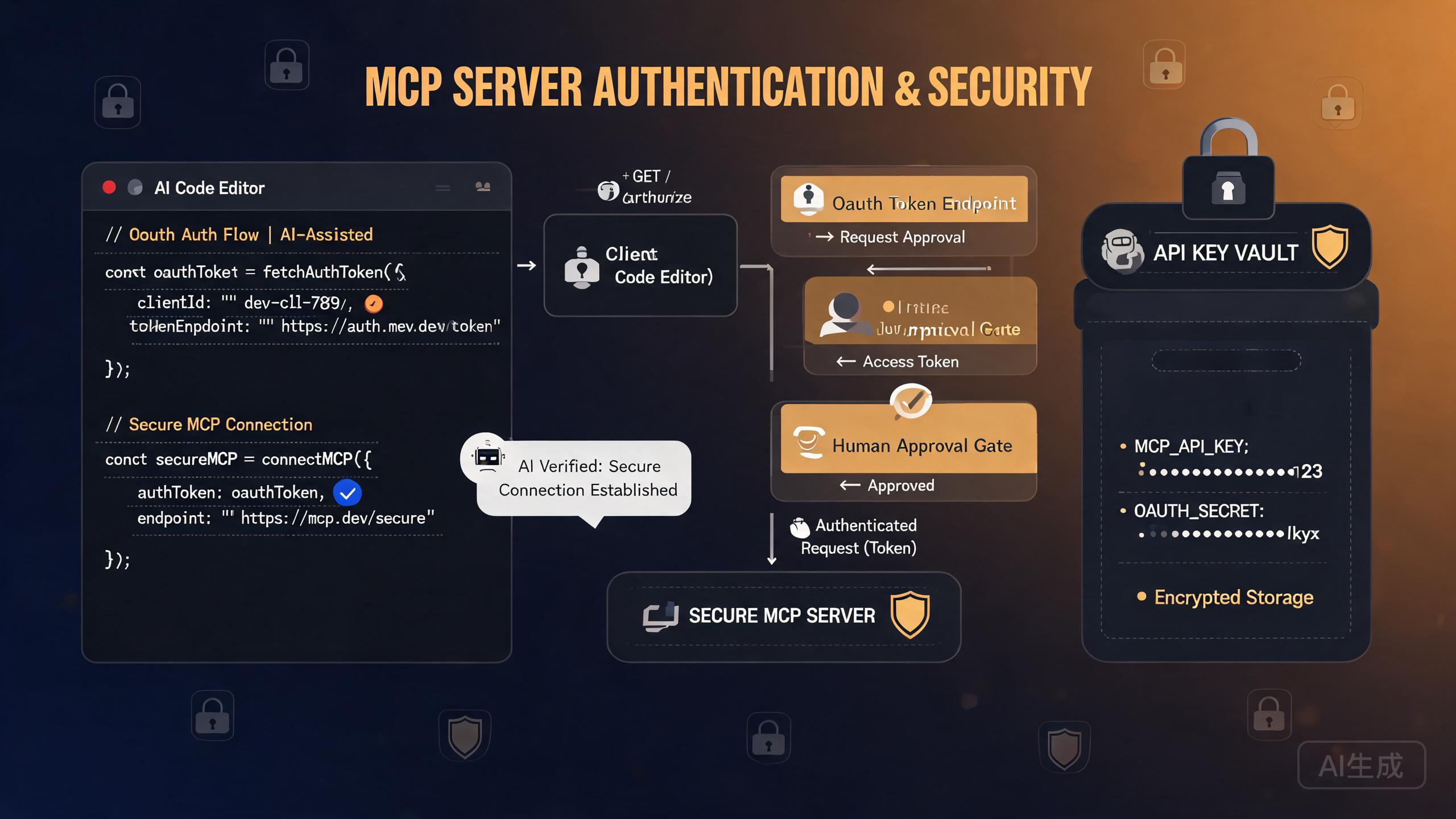
Model Context Protocol (MCP) servers extend Cursor with powerful external capabilities, from querying ad platforms to managing payment workflows. However, every external connection introduces authentication and security considerations. This guide walks you through the full spectrum of MCP server authentication in Cursor, covering OAuth flows, API key management, human approval layers for AI-driven payments, and the specific challenges users face with services like the Live Meta Ads MCP.
Why MCP Authentication Matters
When Cursor connects to an MCP server, that server may need to act on your behalf: reading private data, posting content, or even spending money. Authentication is the gatekeeper that determines what the agent can and cannot do.
The Security Model at a Glance
| Layer | Responsibility | Example |
|---|---|---|
| Cursor | Hosts the MCP client, manages connections | Reads mcp.json, spawns server processes |
| MCP Server | Handles external API calls | Calls Meta Graph API, Stripe API |
| Auth Provider | Validates identity | OAuth token from Meta, API key from provider |
| Human Approval | Gates sensitive actions | Approve before payment is submitted |
Never store production API keys or OAuth tokens in plaintext within your repository. Always use environment variables or a secrets manager. Committing credentials to git is one of the most common security incidents developers face.
Prerequisites
Before configuring MCP authentication in Cursor, ensure you have:
- Cursor installed and updated to the latest version
- Node.js 18+ for running npx-based MCP servers
- An account with the external service you want to connect (e.g., Meta for Developers, Stripe)
- App credentials from the provider (client ID, client secret, or API key)
Understanding MCP Authentication Methods
Cursor supports two primary authentication patterns for MCP servers, and the choice depends entirely on what the server you are connecting to supports.
Method 1: API Key Authentication
The simplest pattern. The MCP server expects a static API key passed via an environment variable or header.
{
  "mcpServers": {
    "my-api-server": {
      "command": "npx",
      "args": ["-y", "@my-org/api-mcp-server"],
      "env": {
        "API_KEY": "${MY_API_KEY}"
      }
    }
  }
}
The ${MY_API_KEY} syntax tells Cursor to read the value from your environment. Set it in your shell profile:
# ~/.zshrc or ~/.bashrc
export MY_API_KEY="sk-your-actual-key-here"
On Windows, set environment variables via PowerShell or System Properties. In PowerShell:
[System.Environment]::SetEnvironmentVariable("MY_API_KEY", "sk-your-key", "User")
Then restart Cursor so it picks up the new variable.
Method 2: OAuth 2.0 Authentication
OAuth is more secure because it avoids static keys and supports scoped, revocable access. However, it is more complex to set up. The MCP server initiates an OAuth flow that opens a browser, asks you to log in to the provider, and returns a token to Cursor.
{
  "mcpServers": {
    "oauth-server": {
      "command": "npx",
      "args": ["-y", "@my-org/oauth-mcp-server"],
      "env": {
        "OAUTH_CLIENT_ID": "${CLIENT_ID}",
        "OAUTH_CLIENT_SECRET": "${CLIENT_SECRET}",
        "OAUTH_REDIRECT_URI": "http://localhost:3000/callback"
      }
    }
  }
}
The OAuth flow proceeds as follows:
- Cursor starts the MCP server process
- The server detects no valid token and initiates OAuth
- Your browser opens to the provider's login page
- You authorize the app
- The provider redirects to
localhost:3000/callbackwith an authorization code - The server exchanges the code for access and refresh tokens
- Tokens are stored locally for future use
Setting Up the Live Meta Ads MCP
The Live Meta Ads MCP is one of the most commonly requested MCP integrations for Cursor. It connects to the Meta Graph API to let your agent query ad performance, campaign data, and audience insights. Forum users frequently report that this MCP fails to authenticate. Here is how to set it up correctly.
Step 1: Create a Meta App
- Go to the Meta for Developers portal
- Click Create App
- Select Business as the app type
- Add the Marketing API product
- Note your App ID and App Secret
Step 2: Generate a Long-Lived Access Token
Meta's default access tokens expire quickly. For MCP use, you need a long-lived token:
# Exchange short-lived token for long-lived token
curl -X GET "https://graph.facebook.com/v19.0/oauth/access_token" \
  -d "grant_type=fb_exchange_token" \
  -d "client_id=$META_APP_ID" \
  -d "client_secret=$META_APP_SECRET" \
  -d "fb_exchange_token=$SHORT_LIVED_TOKEN"
The response includes a token valid for approximately 60 days.
Step 3: Configure the MCP Server in Cursor
{
  "mcpServers": {
    "meta-ads": {
      "command": "npx",
      "args": ["-y", "@mcp/meta-ads-server"],
      "env": {
        "META_ACCESS_TOKEN": "${META_ACCESS_TOKEN}",
        "META_APP_ID": "${META_APP_ID}",
        "META_APP_SECRET": "${META_APP_SECRET}",
        "META_API_VERSION": "v19.0"
      }
    }
  }
}
Step 4: Verify the Connection
Restart Cursor, then open Cursor Settings and navigate to the MCP section. You should see meta-ads listed with a green status indicator. If it shows an error, see the troubleshooting section below.
Meta long-lived tokens expire after 60 days. Set a calendar reminder to refresh the token before it expires. If the token expires, your agent will silently fail to fetch ad data, and the only symptom may be empty results or authentication errors buried in MCP logs.
Common MCP Authentication Failures
Forum users report several recurring issues with MCP authentication in Cursor. Here are the most common failures and their solutions.
Failure 1: Token Not Found in Environment
Symptom: The MCP server starts but returns 401 Unauthorized on every request.
Cause: Cursor did not pick up the environment variable. This often happens when the variable was set in a different shell profile or after Cursor was already running.
Fix:
# Verify the variable exists
echo $META_ACCESS_TOKEN

# If empty, add to your shell profile and restart Cursor
echo 'export META_ACCESS_TOKEN="your-token"' >> ~/.zshrc
source ~/.zshrc
Then fully quit and reopen Cursor.
Failure 2: OAuth Redirect URI Mismatch
Symptom: The OAuth flow opens the browser, but after authorizing, you see an error page.
Cause: The redirect URI in your Meta app configuration does not match the one the MCP server uses.
Fix: In your Meta for Developers dashboard, go to App Settings > Advanced > OAuth Settings and add http://localhost:3000/callback (or whatever URI your MCP server uses) to the allowed redirect URIs.
Failure 3: Expired or Invalid Token
Symptom: The MCP server worked previously but suddenly returns authentication errors.
Cause: The long-lived Meta token has expired (60-day limit) or was revoked.
Fix: Re-run the token exchange flow and update the environment variable.
Failure 4: Permission Scopes Missing
Symptom: Authentication succeeds, but the agent cannot access certain data (e.g., can read campaigns but not audience data).
Cause: The Meta app lacks the required API permissions.
Fix: In the Meta app dashboard, go to Roles > App Review > Permissions and Features and request the additional scopes:
| Scope | What It Enables |
|---|---|
ads_read | Read campaign performance data |
ads_management | Create and manage campaigns |
read_insights | Access detailed analytics |
business_management | Manage business settings |
Building Human Approval Layers for AI Agent Payments
One of the most powerful and dangerous use cases for MCP in Cursor is connecting an AI agent to payment systems. An agent that can make purchases or transfer funds needs a human approval gate. Forum users have built custom approval layers to address this.
Why Approval Layers Are Essential
Without an approval layer, an AI agent with payment MCP access could:
- Charge unexpected amounts to your card
- Send payments to wrong recipients
- Trigger irreversible financial transactions
- Accumulate costs through repeated micro-transactions
Architecture for a Payment Approval Layer
The recommended pattern inserts an approval gateway between Cursor and the payment MCP server:
Cursor Agent  -->  Approval Gateway  -->  Payment MCP Server  -->  Stripe/PayPal API
                     ^
                     |
                  Human Review
Implementing the Approval Gateway
Create a lightweight MCP server that wraps the actual payment server and requires approval:
// approval-gateway.ts
import { Server } from "@modelcontextprotocol/sdk/server/index.js";
import { StdioServerTransport } from "@modelcontextprotocol/sdk/server/stdio.js";

const server = new Server({
  name: "payment-approval-gateway",
  version: "1.0.0",
}, {
  capabilities: { tools: {} },
});

// Pending approvals stored in memory (use a database for production)
const pendingApprovals = new Map();

server.setRequestHandler(ListToolsRequestSchema, async () => ({
  tools: [
    {
      name: "request_payment",
      description: "Request a payment. Requires human approval before execution.",
      inputSchema: {
        type: "object",
        properties: {
          amount: { type: "number", description: "Amount in cents" },
          currency: { type: "string", description: "ISO currency code" },
          recipient: { type: "string", description: "Recipient identifier" },
          reason: { type: "string", description: "Why this payment is needed" },
        },
        required: ["amount", "currency", "recipient", "reason"],
      },
    },
    {
      name: "approve_payment",
      description: "Approve a pending payment by ID",
      inputSchema: {
        type: "object",
        properties: {
          approval_id: { type: "string" },
        },
        required: ["approval_id"],
      },
    },
  ],
}));

server.setRequestHandler(CallToolRequestSchema, async (request) => {
  if (request.params.name === "request_payment") {
    const { amount, currency, recipient, reason } = request.params.arguments;
    const approvalId = `appr_${Date.now()}`;

    pendingApprovals.set(approvalId, {
      amount,
      currency,
      recipient,
      reason,
      status: "pending",
      createdAt: new Date(),
    });

    return {
      content: [{
        type: "text",
        text: `Payment request created. Approval ID: ${approvalId}\n\n` +
              `Amount: ${amount/100} ${currency.toUpperCase()}\n` +
              `Recipient: ${recipient}\n` +
              `Reason: ${reason}\n\n` +
              `To execute this payment, a human must approve it using the approve_payment tool with approval_id: ${approvalId}`,
      }],
    };
  }

  if (request.params.name === "approve_payment") {
    const { approval_id } = request.params.arguments;
    const approval = pendingApprovals.get(approval_id);

    if (!approval) {
      return { content: [{ type: "text", text: "Error: Approval ID not found." }] };
    }

    // Forward to actual payment server here
    approval.status = "approved";
    return {
      content: [{
        type: "text",
        text: `Payment approved and forwarded to payment processor.\nAmount: ${approval.amount/100} ${approval.currency.toUpperCase()}`,
      }],
    };
  }
});

const transport = new StdioServerTransport();
await server.connect(transport);
Configuring the Approval Gateway in Cursor
{
  "mcpServers": {
    "payments": {
      "command": "npx",
      "args": ["tsx", "./mcp-servers/approval-gateway.ts"],
      "env": {
        "STRIPE_SECRET_KEY": "${STRIPE_SECRET_KEY}",
        "APPROVAL_TIMEOUT_MS": "300000"
      }
    }
  }
}
Set an approval timeout so that if a human does not approve within a reasonable window, the request auto-expires. Five minutes is a good default. This prevents stale payment requests from accumulating and being approved out of context.
The approval gateway pattern only works if the AI agent cannot bypass it. Ensure the direct payment MCP server is NOT configured in Cursor. Only the gateway should be exposed. If both are configured, the agent could theoretically call the direct server and skip approval.
Secure MCP Server Configuration
Beyond authentication, the way you configure MCP servers in Cursor has security implications. Follow these best practices.
Use Project-Scoped vs Global Configuration
Cursor supports both global (~/.cursor/mcp.json) and project-scoped (.cursor/mcp.json) configurations.
| Scope | File | Use Case |
|---|---|---|
| Global | ~/.cursor/mcp.json | Personal servers used across all projects |
| Project | .cursor/mcp.json | Servers specific to one project |
Use project-scoped configuration for sensitive servers. This keeps credentials out of your global config and makes it easier to audit which projects have access to which services. Add .cursor/mcp.json to .gitignore if it contains secrets, or use environment variable references exclusively.
Restricting MCP Tool Access
You can limit which tools an MCP server exposes to Cursor by using the disabledTools field:
{
  "mcpServers": {
    "meta-ads": {
      "command": "npx",
      "args": ["-y", "@mcp/meta-ads-server"],
      "env": {
        "META_ACCESS_TOKEN": "${META_ACCESS_TOKEN}"
      },
      "disabledTools": ["delete_campaign", "pause_all_campaigns"]
    }
  }
}
This prevents the agent from using destructive tools even if the MCP server exposes them.
Transport Security
For remote MCP servers (SSE-based), always use HTTPS:
{
  "mcpServers": {
    "remote-server": {
      "url": "https://mcp.example.com/sse",
      "headers": {
        "Authorization": "Bearer ${REMOTE_MCP_TOKEN}"
      }
    }
  }
}
Never use HTTP (unencrypted) for remote MCP servers. The connection carries your authentication tokens, and an attacker on the network could intercept them. Always use HTTPS, and verify the server's TLS certificate.
Token Refresh Patterns
Many OAuth providers issue short-lived access tokens (1 hour) alongside long-lived refresh tokens. Your MCP server must handle refresh automatically to avoid interruptions.
Pattern 1: Server-Side Refresh (Recommended)
The MCP server handles token refresh internally. When an access token expires, the server uses the refresh token to get a new one without user intervention.
// Inside your MCP server
let accessToken = await loadToken();
let tokenExpiry = Date.now() + 3600 * 1000; // 1 hour

async function ensureValidToken() {
  if (Date.now() >= tokenExpiry - 60000) { // refresh 1 min before expiry
    const response = await fetch("https://oauth.provider.com/token", {
      method: "POST",
      headers: { "Content-Type": "application/x-www-form-urlencoded" },
      body: new URLSearchParams({
        grant_type: "refresh_token",
        refresh_token: process.env.REFRESH_TOKEN,
        client_id: process.env.CLIENT_ID,
        client_secret: process.env.CLIENT_SECRET,
      }),
    });
    const data = await response.json();
    accessToken = data.access_token;
    tokenExpiry = Date.now() + data.expires_in * 1000;
    await saveToken(accessToken, tokenExpiry);
  }
  return accessToken;
}
Pattern 2: Cursor-Side Environment Reload
If your MCP server does not support automatic refresh, you can reload the environment in Cursor:
- Refresh the token externally
- Update the environment variable
- Restart the MCP server in Cursor via Settings
Pattern 3: Wrapper Script
Create a wrapper script that refreshes the token before starting the MCP server:
#!/bin/bash
# refresh-and-start.sh

# Refresh the Meta token
NEW_TOKEN=$(node /path/to/refresh-token.js)
export META_ACCESS_TOKEN=$NEW_TOKEN

# Start the MCP server
exec npx -y @mcp/meta-ads-server
Configure Cursor to use the wrapper:
{
  "mcpServers": {
    "meta-ads": {
      "command": "bash",
      "args": ["/path/to/refresh-and-start.sh"]
    }
  }
}
For the Live Meta Ads MCP specifically, the 60-day token expiry is the most common cause of "suddenly stopped working" reports. Automate the refresh process using a cron job or scheduled task. On macOS/Linux, use cron. On Windows, use Task Scheduler.
Troubleshooting MCP Authentication
Check MCP Server Logs
Cursor does not always surface MCP server errors in the UI. To see what is happening:
- Open the Command Palette (
Cmd/Ctrl + Shift + P) - Search for Output: Show Output Channels
- Select MCP from the dropdown
- Review the logs for authentication errors
Test Authentication Independently
Before debugging through Cursor, test the MCP server directly:
# Run the server manually
npx -y @mcp/meta-ads-server

# In another terminal, send a test request
echo '{"jsonrpc":"2.0","method":"tools/list","id":1}' | npx -y @mcp/meta-ads-server
If the server fails to authenticate outside Cursor, the issue is with your credentials, not Cursor.
Verify Environment Variables Are Loaded
# Create a test script
cat > test-env.js << 'EOF'
console.log("META_ACCESS_TOKEN:", process.env.META_ACCESS_TOKEN ? "SET" : "NOT SET");
console.log("META_APP_ID:", process.env.META_APP_ID ? "SET" : "NOT SET");
console.log("META_APP_SECRET:", process.env.META_APP_SECRET ? "SET" : "NOT SET");
EOF

# Run with the MCP server's environment
node test-env.js
If variables show as NOT SET, the issue is with your shell profile or how Cursor loads the environment.
Security Checklist
Before deploying MCP servers in a production context, run through this checklist:
- API keys stored in environment variables, never in config files
-
.cursor/mcp.jsonadded to.gitignoreif it contains secrets - OAuth redirect URIs locked down to
localhost - Destructive tools disabled via
disabledTools - Payment MCP servers wrapped with approval gateways
- Token refresh automated to prevent silent failures
- Remote MCP servers use HTTPS only
- MCP server logs monitored for unexpected authentication failures
- Access tokens scoped to minimum required permissions
- Unused MCP servers removed from configuration
Summary
MCP authentication in Cursor spans a spectrum from simple API key environment variables to complex OAuth flows with automated token refresh. The Live Meta Ads MCP is a common pain point because of its 60-day token expiry and permission scope requirements. By following the patterns in this guide, you can build secure, reliable MCP integrations that gate sensitive actions behind human approval layers and keep your credentials safe.