Collaborative Coding with Cursor: Pair Programming and Team Workflows
Cursor is not just a solo coding tool. With the right setup, it becomes a powerful platform for team collaboration, pair programming, and shared development workflows. This guide covers how teams can use Cursor effectively together, from real-time collaboration to shared configurations.
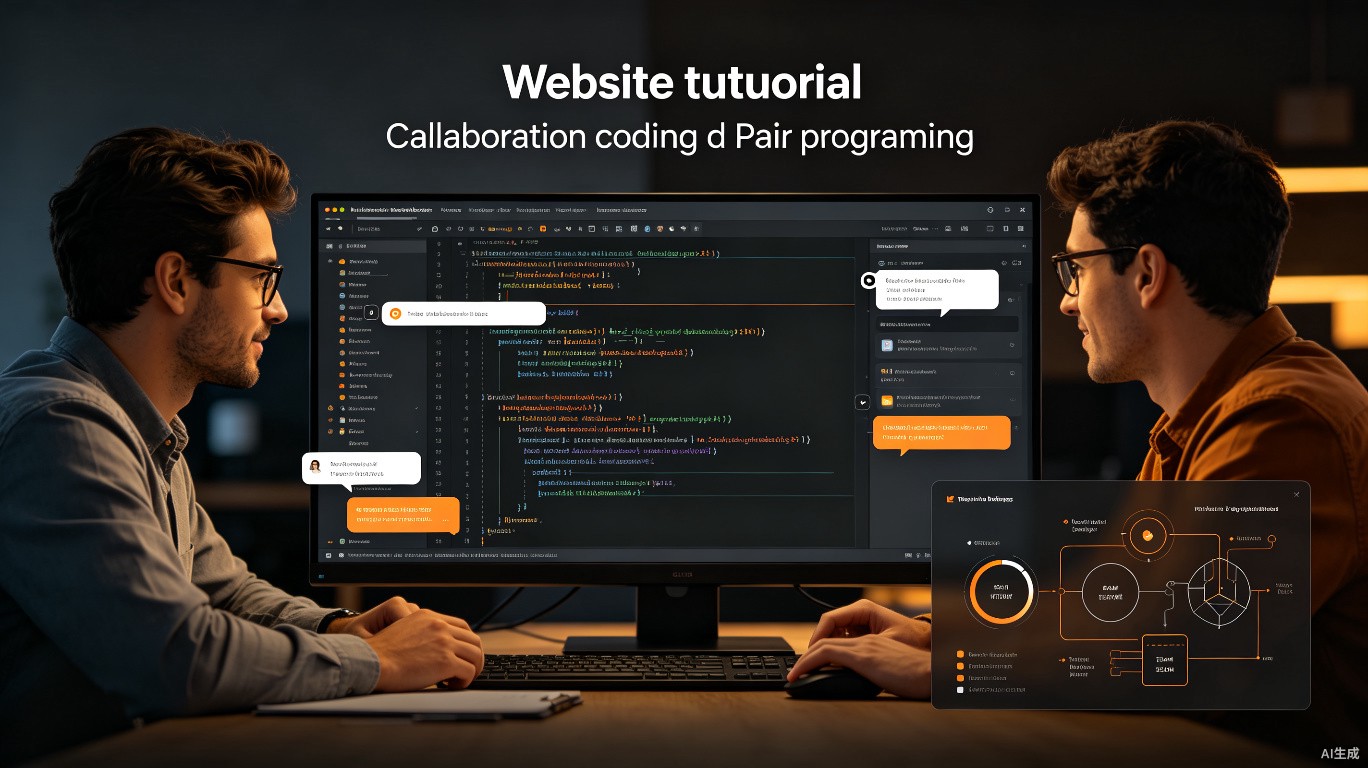
Why Use Cursor for Team Collaboration
Traditional collaborative coding often involves screen sharing, passing control back and forth, or working in separate editors and syncing through git. Cursor changes this by offering:
- Shared AI context: Team members can reference the same codebase understanding
- Consistent environments: Shared rules and configurations ensure uniform AI behavior
- Live Share integration: Real-time collaborative editing within Cursor
- Streamlined reviews: AI-assisted code review integrated into the workflow
Setting Up Live Share in Cursor
Cursor supports VS Code's Live Share extension, enabling real-time collaborative editing.
Installation
- Open the Extensions panel (
Cmd+Shift+X/Ctrl+Shift+X) - Search for "Live Share"
- Install the official Microsoft extension
- Sign in with your Microsoft or GitHub account
Starting a Collaboration Session
# From the Command Palette (Cmd+Shift+P / Ctrl+Shift+P)
# Type: "Live Share: Start Collaboration Session"
Once started, Cursor generates a shareable link:
| Action | Command |
|---|---|
| Start session | Live Share: Start Collaboration Session |
| Join session | Live Share: Join Collaboration Session |
| Copy invite link | Click the Live Share icon in the status bar |
| Stop session | Live Share: Stop Collaboration Session |
Permissions and Security
Control what guests can do:
// .vscode/settings.json
{
  "liveshare.allowGuestDebugControl": true,
  "liveshare.allowGuestTaskControl": false,
  "liveshare.guestApprovalRequired": true,
  "liveshare.shareTerminal": "readOnly"
}
Always require guest approval for external collaborators. Read-only terminal access prevents accidental command execution.
Pair Programming Workflows
Driver-Navigator Pattern with Cursor
The classic pair programming pattern adapts well to Cursor's features:
Driver (typing):
- Uses
Cmd+Kfor quick inline edits - Navigates with
Cmd+Pand shortcuts - Executes terminal commands
Navigator (observing):
- Uses AI chat (
Cmd+L) to research solutions - Asks Cursor to explain complex code sections
- Suggests refactors through comments or chat
Handoff:
- Use Live Share to switch who is driving without physical movement
- Both participants see the same AI suggestions and chat context
Async Pair Programming
When time zones don't align, use Cursor's persistent features:
- Leave context with chat: One developer asks Cursor questions and leaves the chat panel open
- Use @mentions: Reference specific files and symbols so the next person understands context
- Shared notes: Keep a
PAIRING_NOTES.mdin the repo documenting decisions
# Pairing Notes: Auth Refactor

## 2025-07-01 (Alice)
- Asked Cursor about JWT vs session auth
- Decision: JWT with refresh tokens
- @src/auth/jwt.ts contains the implementation

## 2025-07-02 (Bob)
- Reviewed Alice's chat history
- Used Composer to add middleware
- Added tests in @src/auth/jwt.test.ts
Shared Team Configurations
Project-Wide Cursor Rules
Create a .cursorrules file in your repository root to ensure all team members get consistent AI behavior:
# Team Coding Standards

## Tech Stack
- React 18 with TypeScript
- Tailwind CSS for styling
- Zustand for state management
- React Query for server state

## Code Style
- Use functional components with hooks
- Prefer early returns over nested conditionals
- Write tests for all utilities and hooks
- Use explicit types, avoid `any`

## File Organization
- Components: `src/components/{ComponentName}/index.tsx`
- Hooks: `src/hooks/use{HookName}.ts`
- Utils: `src/utils/{category}.ts`
Commit .cursorrules to version control so the entire team benefits from shared context.
Shared Snippets and Prompts
Create a cursor-prompts/ directory in your repo for reusable AI prompts:
# cursor-prompts/review-checklist.md

Review this code for:
1. Type safety issues
2. Missing error handling
3. Performance concerns
4. Accessibility problems
5. Test coverage gaps
Team members can copy-paste these into chat for consistent reviews.
Environment Consistency
Use a .cursor/ directory for team-wide settings:
.cursor/
  settings.json       # Shared editor settings
  extensions.json     # Recommended extensions
  keybindings.json    # Team-specific shortcuts
// .cursor/settings.json
{
  "editor.formatOnSave": true,
  "editor.defaultFormatter": "esbenp.prettier-vscode",
  "cursor.defaultModel": "claude-sonnet-4",
  "cursor.codebaseIndex": true
}
Code Review Workflows
Pre-Review with Cursor
Before submitting a PR, authors should run a self-review:
-
Explain the change: Ask Cursor to summarize what your PR does
Summarize the changes in @src/components/Auth.tsx and explain the design decisions -
Find edge cases: Ask Cursor to identify potential issues
What edge cases are not handled in the new authentication flow? -
Check consistency: Verify the new code matches existing patterns
Does this new component follow the same patterns as @src/components/UserProfile.tsx?
Reviewer Workflow
Reviewers use Cursor to accelerate their analysis:
| Step | Action | Prompt Example |
|---|---|---|
| 1 | Understand context | "Summarize what this PR changes and why" |
| 2 | Check for bugs | "Find potential bugs or null reference exceptions" |
| 3 | Verify patterns | "Does this follow our established error handling pattern?" |
| 4 | Suggest tests | "What test cases are missing for this new feature?" |
Review Comments with AI
When leaving review comments, use Cursor to suggest specific fixes:
- Select the problematic code
- Press
Cmd+Kand describe the fix - Copy the improved version into your review comment
// Reviewer comment:
// Consider handling the undefined case:
function getUserName(user?: User) {
  return user?.name ?? 'Anonymous';
}
Team Onboarding with Cursor
New Developer Setup
Create an onboarding guide that leverages Cursor's AI:
# New Developer Onboarding

## Day 1: Environment Setup
1. Install Cursor
2. Clone the repository
3. Run `npm install`
4. Copy `.env.example` to `.env`
5. Ask Cursor: "Explain the project structure based on @AGENTS.md"

## Day 2: First Contribution
1. Pick up a "good first issue"
2. Ask Cursor: "How do I add a new page in this project?"
3. Follow Cursor's guidance with team verification

## Week 1: Understanding the Codebase
1. Use `@file` mentions to explore key files
2. Ask Cursor to explain complex business logic
3. Review `cursor-prompts/` for standard team prompts
Knowledge Sharing with Chat History
Cursor's chat history persists per workspace. Teams can use this for knowledge transfer:
- Senior developers: Ask complex architectural questions and save the chat
- Junior developers: Review saved chats to understand design decisions
- Team leads: Export important Q&A to documentation
Chat history is stored locally. For persistent team knowledge, copy important AI explanations into markdown files in the repo.
Collaborative Debugging
Shared Debugging Sessions
When debugging together:
- Share the error: Copy the stack trace into Cursor chat
- Ask for analysis: "What's causing this error and how do I fix it?"
- Explore together: Use
@filementions to examine related code - Test fixes: Apply Cursor's suggestions and verify together
# Example shared debugging workflow
# Developer 1 sees an error and shares in chat:
# "TypeError: Cannot read property 'id' of undefined"

# Both developers ask Cursor:
# "Find where user.id is accessed without null checks in @src/api/users.ts"
Terminal Collaboration
With Live Share, team members can share terminal access:
// Allow guests to see terminal output
{
  "liveshare.shareTerminal": "readOnly"
}
Useful for:
- Showing build errors
- Demonstrating CLI workflows
- Debugging deployment issues
Best Practices for Team Cursor Usage
Do's
| Practice | Benefit |
|---|---|
Commit .cursorrules | Consistent AI behavior across team |
| Use shared prompts | Standardized code reviews and checks |
| Document AI decisions | When Cursor suggests a pattern, document why |
| Run AI review before human review | Catches obvious issues early |
| Share successful prompts | Build a team prompt library |
Don'ts
| Practice | Problem |
|---|---|
| Rely solely on AI review | Human judgment is still essential |
Share API keys in .cursorrules | Security risk, use environment variables |
| Ignore AI hallucinations | Verify all AI suggestions before committing |
| Use different models without discussion | Inconsistent code style and quality |
| Forget to save important chats | Knowledge loss when sessions end |
Managing Cursor in Enterprise Teams
For larger organizations:
- Centralized rules: Maintain organization-wide
.cursorrulestemplates - Model policies: Standardize which AI models teams can use
- Privacy mode: Enable privacy mode for sensitive codebases
- Audit practices: Regularly review AI-generated code for quality
// Enterprise cursor configuration
{
  "cursor.privacyMode": true,
  "cursor.defaultModel": "claude-sonnet-4",
  "cursor.allowCustomModels": false,
  "cursor.codebaseIndex": true
}
Summary
Cursor transforms team collaboration by:
- Enabling real-time pair programming through Live Share
- Standardizing AI behavior with shared
.cursorrules - Accelerating code review with AI-assisted analysis
- Preserving team knowledge through persistent chat and documentation
- Reducing onboarding time with AI-guided codebase exploration
The key to success is treating Cursor as a team tool, not just an individual one. Share configurations, document decisions, and build collaborative workflows that leverage AI assistance for the entire team.
Last updated: July 2025. Live Share features require the official VS Code extension.