Cursor Remote Control on Windows
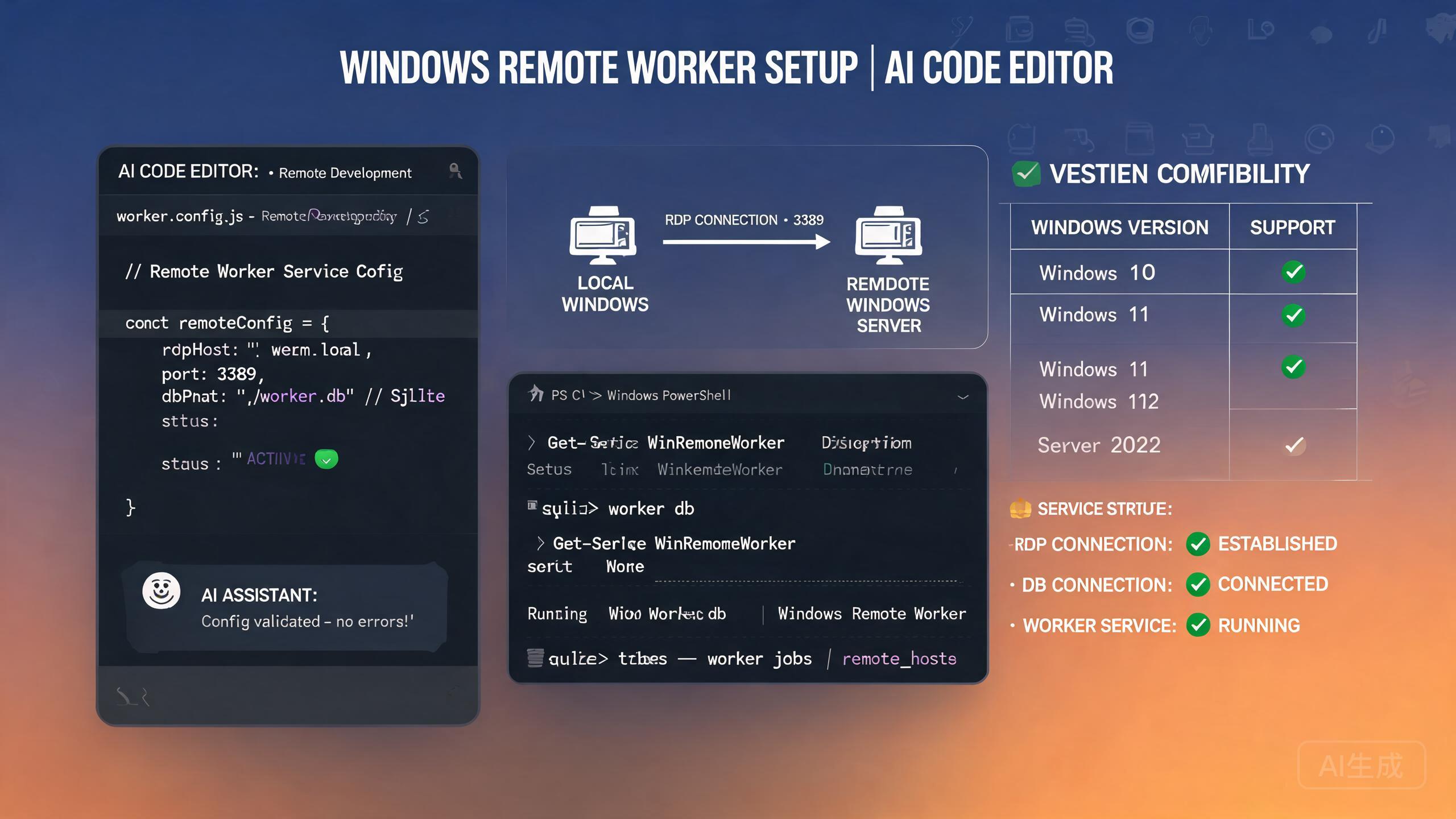
Cursor Remote Control lets you control a Cursor instance from a remote machine, enabling AI-assisted development on headless servers, cloud workstations, or secondary machines. On Windows, the setup involves a worker process, CLI configuration, and a SQLite-based state store. Forum users frequently encounter crashes related to better-sqlite3 and NODE_MODULE_VERSION mismatches. This guide covers the full setup and provides tested solutions for the most common Windows-specific issues.
What Is Cursor Remote Control?
Remote Control consists of two components:
- The Host - The Cursor instance you want to control (typically on a remote or cloud Windows machine)
- The Controller - Your local machine running the Cursor CLI to send commands
The Host runs a worker process that:
- Listens for incoming commands from the CLI
- Maintains state in a local SQLite database (
better-sqlite3) - Executes file operations, terminal commands, and agent tasks
- Streams results back to the Controller
Use Cases
| Scenario | Benefit |
|---|---|
| Cloud development workstation | Use AI on a powerful cloud machine from a lightweight laptop |
| Headless server management | Run Cursor agents on a server without a display |
| Multi-machine workflows | Control multiple Cursor instances from one machine |
| CI/CD integration | Trigger agent tasks from automated pipelines |
Prerequisites
Before setting up Remote Control on Windows:
- Cursor installed on the Host machine (the one being controlled)
- Node.js 18+ installed on both Host and Controller
- Windows 10 or 11 with PowerShell 5.1+ or PowerShell 7
- Network access between Host and Controller (direct TCP or SSH tunnel)
- Administrator access for initial setup on the Host
Setting Up the Remote Control Worker
The worker is the heart of the Host machine. It runs as a background process and handles all incoming commands.
Step 1: Install the Worker
On the Host Windows machine:
# Install the Cursor Remote Control worker globally
npm install -g @cursor/remote-worker

# Verify installation
cursor-remote-worker --version
Step 2: Initialize the Worker
# Initialize the worker with a project path
cursor-remote-worker init --project "H:\Projects\my-app"

# This creates a configuration file at:
# %USERPROFILE%\.cursor-remote\config.json
The generated config looks like:
{
  "workerId": "win-worker-001",
  "projectPath": "H:\\Projects\\my-app",
  "port": 8473,
  "authToken": "auto-generated-token-here",
  "database": {
    "type": "sqlite",
    "path": "%USERPROFILE%\\.cursor-remote\\state.db"
  },
  "logLevel": "info",
  "maxConcurrentTasks": 3
}
Note the authToken value. You will need it to configure the Controller CLI. Treat it like a password. If you need to regenerate it, run cursor-remote-worker regenerate-token.
Step 3: Start the Worker
# Start the worker in the foreground (for testing)
cursor-remote-worker start

# Start the worker as a Windows service (for production)
cursor-remote-worker install-service
cursor-remote-worker start-service
For production use, install it as a Windows service so it survives reboots:
# Verify the service is running
Get-Service -Name "CursorRemoteWorker"

# Expected output:
# Status   Name               DisplayName
# ------   ----               -----------
# Running  CursorRemoteWorker Cursor Remote Worker
Step 4: Configure Firewall
The worker listens on port 8473 by default. Open the firewall:
# Open the port in Windows Firewall
New-NetFirewallRule -DisplayName "Cursor Remote Worker" -Direction Inbound -Protocol TCP -LocalPort 8473 -Action Allow

# Verify the rule was created
Get-NetFirewallRule -DisplayName "Cursor Remote Worker"
Do not expose port 8473 to the public internet. The worker's authentication is token-based but not designed for untrusted networks. Use a VPN, SSH tunnel, or restrict firewall rules to specific IP addresses. Exposing the port publicly is a security risk.
CLI Configuration on the Controller
On your local machine (the Controller), install and configure the CLI to talk to the Host.
Step 1: Install the CLI
npm install -g @cursor/remote-cli

# Verify
cursor-remote --version
Step 2: Add a Remote Host
# Add the remote host configuration
cursor-remote add-host `
  --name "win-cloud-dev" `
  --host "192.168.1.100" `
  --port 8473 `
  --token "auto-generated-token-here" `
  --project "H:\Projects\my-app"
This stores the configuration at %USERPROFILE%\.cursor-remote\hosts.json:
{
  "hosts": [
    {
      "name": "win-cloud-dev",
      "host": "192.168.1.100",
      "port": 8473,
      "token": "auto-generated-token-here",
      "project": "H:\\Projects\\my-app"
    }
  ]
}
Step 3: Test the Connection
# Ping the remote host
cursor-remote ping --host win-cloud-dev

# Expected output:
# Connected to win-cloud-dev (192.168.1.100:8473)
# Worker version: 1.2.3
# Project: H:\Projects\my-app
# Status: ready
Step 4: Start a Remote Session
# Open an interactive session
cursor-remote session --host win-cloud-dev

# You are now in an interactive prompt connected to the remote Cursor instance
# Commands you type are executed on the Host machine
Running Agent Tasks Remotely
Once connected, you can run agent tasks on the remote Host:
# Run a single agent task
cursor-remote agent --host win-cloud-dev --prompt "Refactor the authentication module to use JWT"

# Run with a specific model
cursor-remote agent --host win-cloud-dev --model claude-sonnet-4-0 --prompt "Add input validation to all API endpoints"

# Run with file context
cursor-remote agent --host win-cloud-dev --files "src/auth/auth.ts,src/api/routes.ts" --prompt "Add rate limiting to these routes"
Streaming Output
By default, agent output streams to your terminal in real time:
cursor-remote agent --host win-cloud-dev --prompt "Create a test file" --stream
This shows each step as it happens, including file diffs and tool executions.
For long-running tasks, use the --detach flag to run the task in the background on the Host. You can check on it later:
# Start a detached task
cursor-remote agent --host win-cloud-dev --prompt "Write comprehensive test suite" --detach

# Check task status
cursor-remote tasks --host win-cloud-dev --status running

# Get task output
cursor-remote tasks --host win-cloud-dev --id task_abc123 --output
The better-sqlite3 NODE_MODULE_VERSION Crash
This is the most critical issue Windows users face. The worker uses better-sqlite3 for its state database, and when the Node.js version on the Host does not match the version better-sqlite3 was compiled against, the worker crashes with an error like:
Error: The module 'H:\Projects\my-app\node_modules\better-sqlite3\build\Release\better_sqlite3.node'
was compiled against a different Node.js version using
NODE_MODULE_VERSION 127. This version of Node.js requires
NODE_MODULE_VERSION 137.
Understanding the Error
better-sqlite3 is a native addon. It compiles C++ code into a .node binary that is specific to a Node.js ABI version. The NODE_MODULE_VERSION is a number that corresponds to a specific Node.js major version:
| NODE_MODULE_VERSION | Node.js Version |
|---|---|
| 115 | Node.js 18.x |
| 120 | Node.js 20.x |
| 127 | Node.js 22.x |
| 137 | Node.js 24.x |
When the worker was installed with Node.js 22 (MODULE_VERSION 127) but you later upgraded to Node.js 24 (MODULE_VERSION 137), the precompiled binary no longer matches.
Fix 1: Rebuild better-sqlite3 (Recommended)
# Navigate to the worker installation directory
cd "$env:APPDATA\npm\node_modules\@cursor\remote-worker"

# Rebuild native modules for the current Node.js version
npm rebuild better-sqlite3

# Or force a rebuild from source
npm rebuild better-sqlite3 --build-from-source
You need the Visual Studio Build Tools (or full Visual Studio with C++ workload) to rebuild native addons. If you do not have them installed:
# Install build tools via npm
npm install --global windows-build-tools

# Or install Visual Studio Build Tools manually:
# https://visualstudio.microsoft.com/visual-cpp-build-tools/
After installing, restart your terminal and retry the rebuild.
Fix 2: Downgrade Node.js
If rebuilding is not an option, match your Node.js version to what the worker expects:
# Check which Node.js version the worker was built with
# (Look at the error message for NODE_MODULE_VERSION)

# Install nvm-windows for version management
# https://github.com/coreybutler/nvm-windows
nvm install 22.0.0
nvm use 22.0.0

# Verify
node --version
# v22.0.0

# Restart the worker
cursor-remote-worker stop-service
cursor-remote-worker start-service
Fix 3: Use a Prebuilt Binary
Some versions of better-sqlite3 ship prebuilt binaries for common platforms. If your combination is available:
# Install a version of better-sqlite3 with prebuilds
npm install [email protected] --build-from-source=false

# Or use prebuild-install to fetch the right binary
npx prebuild-install --runtime node --target $(node -v)
Fix 4: Pin the Node.js Version for the Worker
To prevent this from recurring, pin the Node.js version the worker uses, independent of your development Node.js:
# Create a wrapper script that uses a specific Node.js version
# C:\cursor-worker\start-worker.bat
@echo off
set PATH=C:\Program Files\nodejs-v22\;%PATH%
node "C:\Program Files\nodejs-v22\node_modules\@cursor\remote-worker\bin\worker.js" start
Then configure the Windows service to use this batch file instead of the default entry point.
If you use nvm-windows to switch Node.js versions for development, each switch can break the worker if it changes the active Node.js version system-wide. The wrapper script approach (Fix 4) is the most reliable long-term solution because it decouples the worker's Node.js version from your development environment.
Worker Troubleshooting
The Worker Will Not Start
Symptom: cursor-remote-worker start exits immediately with no output.
Diagnostic:
# Check the worker logs
Get-Content "$env:USERPROFILE\.cursor-remote\logs\worker.log" -Tail 50

# Check if the port is already in use
netstat -ano | findstr :8473

# Check if another worker process is running
Get-Process -Name "node" | Where-Object { $_.CommandLine -like "*remote-worker*" }
Fixes:
- Kill any process using port 8473:
Stop-Process -Id <PID> -Force - Delete the lock file:
Remove-Item "$env:USERPROFILE\.cursor-remote\.lock" - Start with verbose logging:
cursor-remote-worker start --log-level debug
The Worker Starts but the Database Is Corrupted
Symptom: Worker starts, but all operations fail with SQLite errors.
Fix:
# Stop the worker
cursor-remote-worker stop-service

# Back up the corrupted database
Copy-Item "$env:USERPROFILE\.cursor-remote\state.db" "$env:USERPROFILE\.cursor-remote\state.db.bak"

# Delete the corrupted database (worker will recreate it)
Remove-Item "$env:USERPROFILE\.cursor-remote\state.db"

# Restart the worker
cursor-remote-worker start-service
The state database only stores task history, worker state, and session metadata. Deleting it does not affect your project files. You will lose the history of past remote tasks, but the worker will function normally after recreating the database.
The Worker Loses Connection Intermittently
Symptom: The CLI can connect sometimes but fails randomly.
Causes and Fixes:
- Firewall rules too restrictive - Ensure the rule allows the Controller's IP range, not just a single IP
- NAT/Router timeout - If connecting over the internet, the NAT table entry may expire. Use an SSH tunnel instead
- Power management - Windows may put the network adapter to sleep. Disable this:
# Disable power management on the network adapter
powercfg /devicequery wake_from_any
# Find your network adapter, then:
powercfg /devicedisablewake "Your Network Adapter Name"
- Antivirus interference - Some antivirus software intercepts TCP connections. Add the worker executable and port 8473 to exclusions.
Version Compatibility Matrix
Ensuring version compatibility across all components is critical for stable Remote Control operation.
| Component | Minimum Version | Notes |
|---|---|---|
| Cursor (Host) | 0.45+ | Remote Control support started here |
| @cursor/remote-worker | 1.0.0+ | Worker package |
| @cursor/remote-cli | 1.0.0+ | CLI package |
| Node.js (Host) | 18.x, 20.x, 22.x | Avoid 24.x until better-sqlite3 ships 137 builds |
| Node.js (Controller) | 18.x+ | More flexible, no native modules |
| better-sqlite3 | 11.0.0+ | Check prebuild availability for your Node version |
| Windows | 10 1903+ / 11 | PowerShell 5.1 minimum |
The worker and CLI versions must be compatible. A worker running v1.0.0 may not work with a CLI running v1.5.0 if there are breaking protocol changes. Always check the changelog when upgrading either component. If you upgrade one, upgrade both.
Checking Version Compatibility
# On the Host, check worker and database versions
cursor-remote-worker --version
cursor-remote-worker --check-deps

# On the Controller, check CLI version
cursor-remote --version

# Check Node.js ABI version
node -e "console.log(process.versions.modules)"
The --check-deps flag runs a diagnostic that checks:
- Node.js version compatibility
- better-sqlite3 binary compatibility
- Required system dependencies
- Port availability
- Write permissions on config directory
Advanced Configuration
SSH Tunnel Setup
For secure connections over the internet, use an SSH tunnel:
# On the Controller, create an SSH tunnel to the Host
ssh -L 8473:localhost:8473 [email protected] -N

# Then connect the CLI to localhost
cursor-remote add-host `
  --name "win-tunneled" `
  --host "127.0.0.1" `
  --port 8473 `
  --token "auto-generated-token-here" `
  --project "H:\Projects\my-app"
This tunnels all traffic through SSH encryption, which is far more secure than exposing the port directly.
Multi-Host Configuration
You can control multiple Host machines from one Controller:
{
  "hosts": [
    {
      "name": "win-cloud-dev",
      "host": "192.168.1.100",
      "port": 8473,
      "token": "token-1",
      "project": "H:\\Projects\\my-app"
    },
    {
      "name": "win-build-server",
      "host": "192.168.1.101",
      "port": 8473,
      "token": "token-2",
      "project": "C:\\Builds\\ci-pipeline"
    }
  ]
}
Switch between hosts:
# Run a task on a specific host
cursor-remote agent --host win-build-server --prompt "Fix the failing CI pipeline test"

# List all hosts and their status
cursor-remote hosts --status
Environment Variable Injection
Pass environment variables to the worker for agent tasks:
cursor-remote agent `
  --host win-cloud-dev `
  --env "DATABASE_URL=Server=prod;Database=myapp;User=admin;Password=secret" `
  --env "NODE_ENV=production" `
  --prompt "Run the database migration and report results"
Environment variables passed via the CLI are visible in the process list on both the Controller and Host machines. Never pass real production secrets this way. Use a secrets manager or environment variable files with restricted permissions instead.
Security Best Practices
- Rotate the auth token regularly:
cursor-remote-worker regenerate-token - Use SSH tunnels for any connection that traverses untrusted networks
- Restrict firewall rules to specific IP addresses, not "any"
- Run the worker as a non-admin user when possible
- Enable worker logging and review logs weekly for unexpected access patterns
- Disable the worker when not in use on shared or cloud machines
- Keep the worker and CLI updated to get security patches
Summary
Cursor Remote Control on Windows is a powerful feature that extends AI-assisted development to remote and headless machines. The setup involves a worker process on the Host and a CLI on the Controller, with communication over TCP. The most common crash, better-sqlite3 NODE_MODULE_VERSION 127 vs 137, is caused by Node.js version mismatches and is resolved by either rebuilding the native addon for your current Node.js version or pinning the worker to a specific Node.js installation. By following the version compatibility guidance and security best practices in this guide, you can maintain a stable, secure Remote Control setup on Windows.