Advanced Git Workflows in Cursor
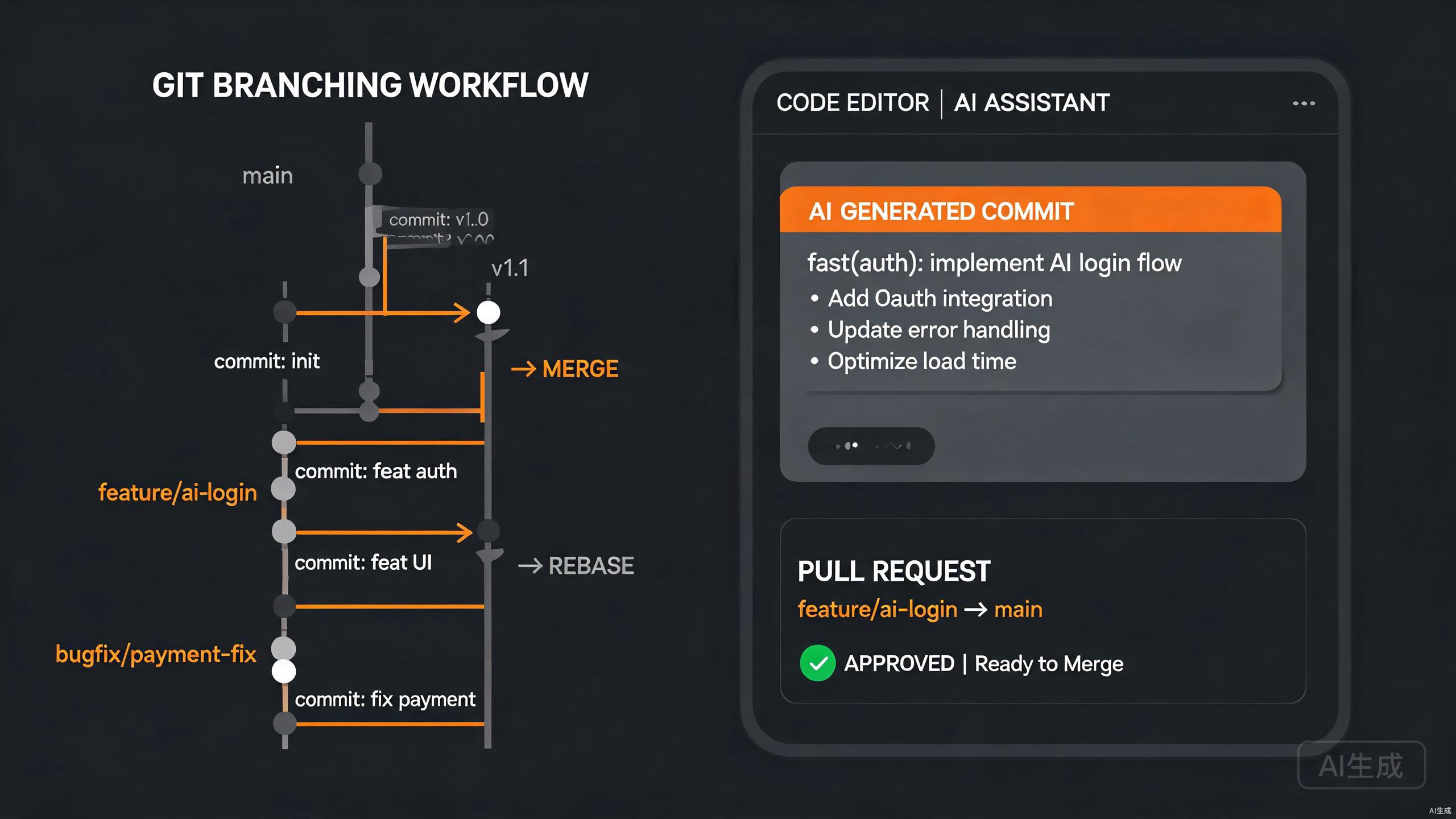
Git is the backbone of modern software development, and mastering advanced workflows separates experienced developers from beginners. Cursor, an AI-powered IDE editor, elevates your Git workflow by integrating intelligent commit message generation, conflict resolution assistance, and visual diff analysis directly into the editing experience. This guide covers branching strategies, rebasing, cherry-picking, AI commit messages, and PR review workflows within Cursor.
Introduction to Git in Cursor
Cursor embeds Git functionality deeply into its interface, going beyond basic commit and push operations. The editor provides:
- Visual diff views with inline change annotations
- AI-generated commit messages based on staged diff content
- Interactive rebase visualization and assistance
- Conflict resolution with contextual AI suggestions
- Pull request review integration
- Branch comparison and history exploration
Understanding these capabilities allows you to maintain clean repository history, collaborate effectively with teams, and resolve complex merge scenarios with confidence.
Branching Strategies
A well-defined branching strategy is essential for team collaboration. Cursor helps you implement and maintain these strategies through visual indicators and workflow automation.
Git Flow Workflow
Git Flow is a robust branching model for projects with scheduled release cycles. In Cursor, you can visualize the Git Flow structure through the branch graph and status indicators.
The core branches in Git Flow are:
main        - Production-ready code
 develop     - Integration branch for features
  feature/*   - Individual feature branches
  release/*   - Release preparation branches
  hotfix/*    - Emergency production fixes
Create a feature branch in Cursor's terminal:
git checkout -b feature/user-authentication develop
As you work on the feature, Cursor tracks your changes and provides inline git blame annotations. Hover over any line to see the commit author, timestamp, and message. This context helps you understand code evolution without leaving the editor.
When the feature is complete, Cursor's AI can generate a descriptive commit message based on your changes:
feat(auth): implement JWT-based user authentication

- Add login and registration endpoints
- Integrate bcrypt for password hashing
- Generate access and refresh tokens
- Add middleware for route protection
Configure Cursor to enforce branch naming conventions using Git hooks. Ask the AI: "Generate a pre-commit hook that validates branch names follow the pattern feature|bugfix|hotfix/description."
Trunk-Based Development
For teams practicing continuous delivery, trunk-based development keeps all work on a single main branch with short-lived feature flags.
# Create a short-lived branch from main
git checkout -b feature/toggle-dark-mode main

# Make minimal changes, merge within hours
git checkout main
git merge --no-ff feature/toggle-dark-mode
Cursor's branch indicator in the status bar shows how many commits ahead or behind your current branch is from the trunk. This visibility encourages frequent integration and reduces merge conflicts.
Interactive Rebasing
Rebasing creates a linear, clean commit history by replaying commits on top of another base. Cursor simplifies interactive rebase operations that are traditionally intimidating for developers.
Rewriting History with Rebase
Suppose you have a feature branch with messy commits that you want to clean up before merging. Start an interactive rebase in Cursor's terminal:
git rebase -i main
Your default editor opens with a list of commits:
pick a1b2c3d Add user model
pick e4f5g6h Fix typo in validation
pick i7j8k9l Implement login endpoint
pick m0n1o2p Add tests for login
Cursor's syntax highlighting distinguishes between rebase commands (pick, squash, fixup, reword, drop) and commit hashes. The AI can suggest which commits to squash or reword based on the diff content.
To squash the typo fix into the previous commit, change the file to:
pick a1b2c3d Add user model
fixup e4f5g6h Fix typo in validation
pick i7j8k9l Implement login endpoint
pick m0n1o2p Add tests for login
Save and close the editor. Cursor's terminal shows the rebase progress, and if conflicts arise, the editor highlights conflict markers with distinctive colors.
Resolving Rebase Conflicts
When rebasing produces conflicts, Cursor displays them clearly:
<<<<<<< HEAD
export const MAX_RETRIES = 3;
=======
export const MAX_RETRIES = 5;
>>>>>>> feature/user-authentication
Cursor's AI can analyze the conflict context and suggest the correct resolution. Select the conflicted block and ask: "Resolve this conflict by keeping the higher retry count and explain why." The AI replaces the markers with the resolved code and provides an explanation.
Never rebase commits that have been pushed to a shared branch. Rewriting public history forces other developers to resolve conflicts in their local copies. Cursor warns you if you attempt to force-push a rebased branch.
Cherry-Picking Commits
Cherry-picking allows you to apply specific commits from one branch to another without merging the entire branch. Cursor makes this precise operation safer and more transparent.
Selective Commit Application
Identify the commit you want to cherry-pick using Cursor's visual log:
git log --oneline --graph --all
Cursor's terminal renders the graph with color-coded branches, making it easy to trace commit relationships. Once you identify the commit hash, cherry-pick it:
git cherry-pick abc1234
If the cherry-pick succeeds without conflicts, Cursor shows the new commit in the status bar. If conflicts occur, the editor highlights them just like merge conflicts.
Cherry-Pick Ranges
For multiple related commits, use a range:
git cherry-pick abc1234^..def5678
Cursor's AI can help you identify which commits belong to a specific feature. Select a range in the git log and ask: "Which commits in this range are related to the authentication feature?" The AI analyzes commit messages and diffs to provide a filtered list.
AI Commit Messages
Writing clear, conventional commit messages is crucial for maintainable history. Cursor's AI generates messages that follow the Conventional Commits specification.
Generating Conventional Commits
Stage your changes in Cursor's source control panel, then use the AI commit message feature. The AI analyzes the diff and produces:
feat(api): add rate limiting middleware

- Implement sliding window algorithm for request throttling
- Add Redis-backed counter storage with TTL
- Return 429 status with Retry-After header
- Include unit tests for edge cases
The generated message includes:
- A type prefix (
feat,fix,docs,style,refactor,test,chore) - A scope indicating the affected area
- A concise description in imperative mood
- A detailed body explaining what and why
Customizing Commit Message Style
If your team uses a different commit message format, instruct Cursor's AI accordingly:
Generate commit messages following this format:
[TICKET-ID] <type>: <description>

Types: ADD, FIX, UPD, DEL
Description: maximum 72 characters, present tense
Example: [PROJ-123] ADD: user registration endpoint
The AI adapts its output to match your team's conventions consistently.
For large changes across multiple files, ask Cursor to generate a summary commit message and then separate commits for logical groups. This produces a cleaner history than a single massive commit.
Advanced Merge Strategies
Not all merges are equal. Cursor helps you choose and execute the right merge strategy for each situation.
Merge vs. Rebase vs. Squash
Understand when to use each integration strategy:
| Strategy | Use Case | History Result |
|---|---|---|
| Merge | Preserving feature branch context | Non-linear, complete history |
| Rebase | Clean, linear history before merge | Linear, rewritten commits |
| Squash | Single commit for entire feature | Linear, condensed history |
In Cursor, initiate each strategy through the command palette or terminal. The editor visualizes the resulting history graph so you can confirm the outcome before pushing.
Octopus Merges
For combining multiple feature branches simultaneously, use an octopus merge:
git checkout main
git merge feature/auth feature/dashboard feature/reports
Cursor's merge conflict resolution handles multiple branch conflicts in a single view, color-coding contributions from each branch differently.
Pull Request Reviews
Cursor streamlines the PR review process by integrating diff viewing, inline comments, and AI-assisted analysis.
Reviewing PRs Locally
Fetch a pull request branch for local review:
git fetch origin pull/123/head:pr-123
git checkout pr-123
Cursor displays the PR diff in the editor with side-by-side comparison. Navigate between files using the file explorer, and use the AI chat to ask questions about specific changes.
For example, select a complex diff and ask: "Explain the refactoring in this file and identify any potential regressions." Cursor analyzes the before and after states, highlighting logic changes and flagging risky modifications.
Automated Review Checks
Configure Cursor to run automated checks during review:
# Run tests for modified files
npx jest --changedSince=main

# Check TypeScript errors
npx tsc --noEmit

# Lint changed files
npx eslint $(git diff --name-only main...HEAD)
Integrate these commands into Cursor's task runner so they execute with a single keyboard shortcut during PR review.
Stashing and Reflog
Advanced Git workflows require confidence in recovering work. Cursor's integration with stash and reflog provides safety nets for experimental changes.
Strategic Stashing
Use stashes to context-switch without committing incomplete work:
# Stash with a descriptive message
git stash push -m "WIP: refactoring auth middleware"

# List stashes
git stash list

# Apply specific stash without removing it
git stash apply stash@{1}

# Pop the most recent stash
git stash pop
Cursor's source control panel displays your stash list with messages, making it easy to identify which stash to apply. The AI can suggest when to stash based on your current branch state and uncommitted changes.
Recovering with Reflog
The reflog is Git's safety net for recovering lost commits. Cursor makes reflog exploration intuitive:
git reflog
Output appears with timestamps and actions in Cursor's terminal. To recover a dropped commit:
git checkout abc1234
Cursor warns you when you are in detached HEAD state and provides options to create a new branch or merge the recovered commits.
The reflog is local and expires after a configurable period (default 90 days). Do not rely on reflog as a backup strategy; use explicit branches or tags for important checkpoints.
Hooks and Automation
Git hooks automate quality checks and enforce team standards. Cursor helps you write and maintain hooks using JavaScript via Husky.
Setting Up Husky in Cursor
Install Husky and configure hooks:
npx husky-init && npm install
Create a pre-commit hook that runs linting and tests:
#!/bin/sh
. "$(dirname "$0")/_/husky.sh"

echo "Running pre-commit checks..."

npx lint-staged
npx tsc --noEmit
Cursor's AI can generate hooks tailored to your tech stack. Ask: "Create a pre-push hook that prevents force pushes to main and runs integration tests." The AI produces a shell script with the appropriate protections.
Commit Message Validation
Enforce conventional commits using a commit-msg hook:
#!/bin/sh
. "$(dirname "$0")/_/husky.sh"

commit_regex='^(feat|fix|docs|style|refactor|test|chore)(\(.+\))?: .{1,72}$'

if ! grep -iqE "$commit_regex" "$1"; then
  echo "ERROR: Commit message must follow conventional commit format"
  echo "Example: feat(auth): add OAuth2 login support"
  exit 1
fi
Cursor validates your commit messages against this regex in real time, showing a warning if the format is incorrect before the hook rejects it.
Bisect for Bug Hunting
Git bisect performs a binary search through history to find the commit that introduced a bug. Cursor's visual interface makes this powerful tool accessible.
Automated Bisect Workflow
Start bisecting and mark known good and bad commits:
git bisect start
git bisect bad HEAD
git bisect good v1.2.0
Cursor checks out the midpoint commit. Run your tests and tell Git the result:
npm test

# If tests pass
git bisect good

# If tests fail
git bisect bad
Git narrows the range and checks out the next midpoint. Repeat until Git identifies the first bad commit. Cursor highlights this commit in the history graph and shows the exact diff that introduced the regression.
Automate bisect with a test script: git bisect run npm test. Cursor executes this unattended and reports the offending commit when complete.
Conclusion
Advanced Git workflows in Cursor transform version control from a necessary overhead into a strategic advantage. By leveraging AI for commit messages, visual tools for history manipulation, and integrated conflict resolution, you maintain cleaner repositories and collaborate more effectively.
Key takeaways from this guide:
- Choose branching strategies that match your release cadence and team size
- Use interactive rebase to craft clean, meaningful commit history
- Apply cherry-picks surgically for selective code propagation
- Generate consistent commit messages with AI assistance
- Review PRs locally with full editor capabilities and AI analysis
- Protect your work with strategic stashing and reflog awareness
- Automate quality checks with Git hooks configured in Cursor
- Use bisect systematically to identify regression sources
Mastering these workflows within Cursor ensures that your version control practices enhance rather than hinder your development velocity.