iOS Development with Remote Mac Build Servers
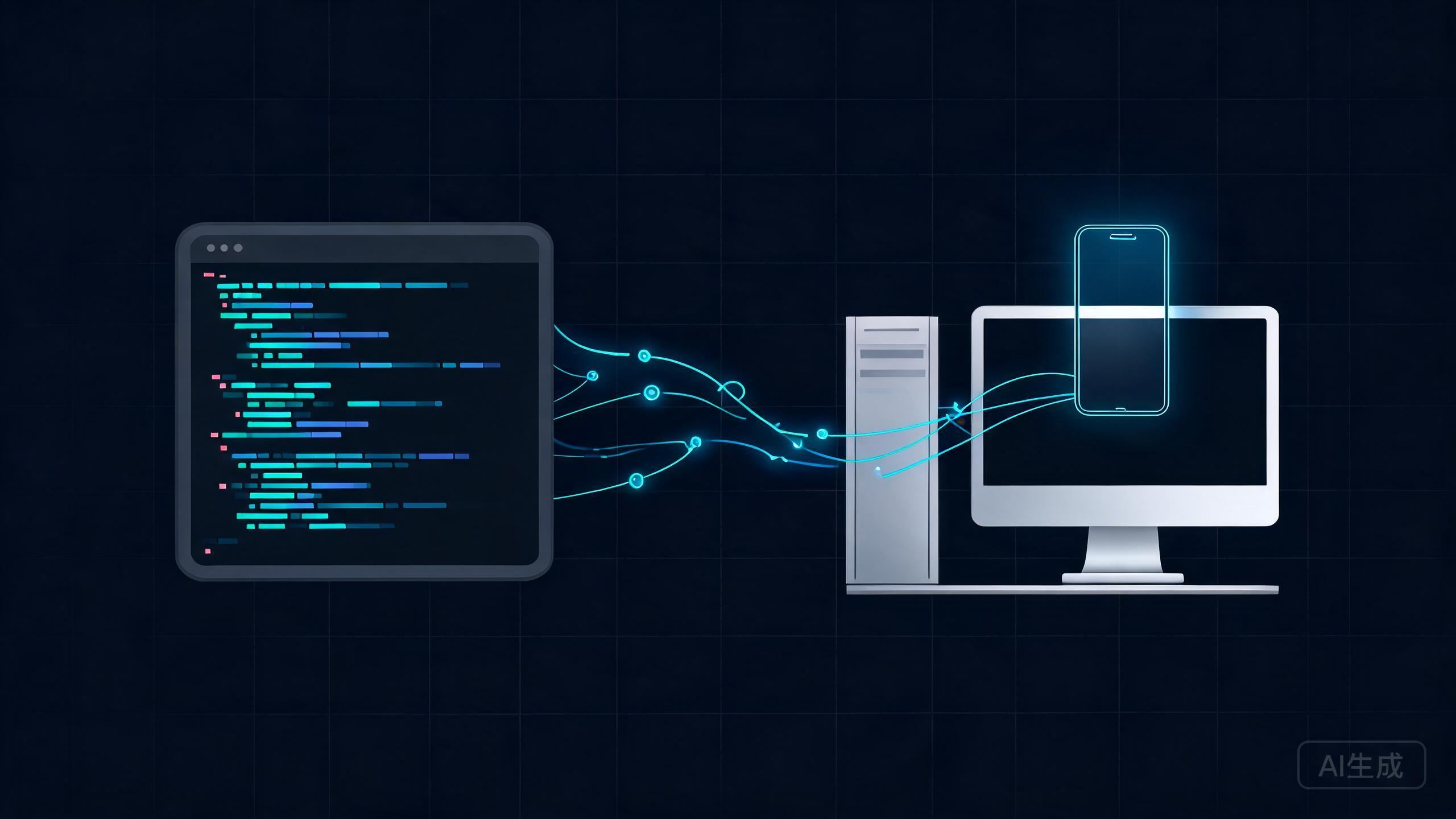
Building an iOS app requires macOS somewhere in the loop, but that does not mean your editor has to run on a Mac. With Cursor's Remote-SSH support, you can keep a fast local editing experience on Windows or Linux while a Mac machine handles compilation, signing, and simulator runs. This guide walks through the architecture options, the setup, the build commands, and the pitfalls that waste the most time.
Why a Mac Is Required
Apple's toolchain only runs on macOS, and several parts of the iOS workflow depend on it directly.
- Code signing: signing identities live in the macOS keychain and are used to produce signed artifacts.
- Provisioning profiles: profiles that bind an app ID to devices and certificates are managed through Apple tooling.
- iOS Simulator: the Simulator is a macOS application; there is no supported Linux or Windows equivalent for real device fidelity.
- xcodebuild toolchain: the compiler, linker, and SDKs ship inside Xcode on macOS.
- App Store submission: uploading to App Store Connect requires Apple's tooling, typically via Transporter or
altool/notarytoolon macOS.
Because all of these are macOS-bound, the practical question is not whether you need a Mac, but where that Mac lives.
Architecture Options
There is no single best answer; the right choice depends on your team size, your budget, and how often you build.
| Option | How it works | Pros | Cons |
|---|---|---|---|
| Remote-SSH into a Mac | Cursor connects over SSH; files and terminal live on the Mac | Single source of truth, full toolchain access, real Simulator | Needs a persistent, reachable Mac |
| rsync / git push to a Mac | Edit locally, push to the Mac, build there | Works offline for editing, simple mental model | Sync drift, slow large transfers, no live LSP |
| Cloud CI macOS runners | Push to Git, CI builds on a hosted macOS runner | No hardware to own, reproducible, good for releases | Not interactive, per-minute cost, cold starts |
| Cloud Mac providers | Rent a Mac (MacStadium, AWS EC2 Mac) via SSH | Real hardware on demand, scalable | Hourly cost, provisioning and teardown overhead |
For day-to-day development, Remote-SSH into a Mac is usually the best balance. Cloud CI fits release pipelines. Cloud Mac providers fit teams that want a fleet without owning desks.
Use Remote-SSH for interactive development, cloud CI for releases, and cloud Mac instances for scale or short bursts. Most mature teams run at least two of these rather than forcing one option to do everything.
Setting Up a Remote Mac
These steps run once on the Mac that will act as the build server. You need admin rights and a stable network connection.
1. Install Xcode and Command Line Tools
Install Xcode from the Mac App Store, then install the command line tools so xcodebuild and related binaries are available:
xcode-select --install

# Point the toolchain at the full Xcode app, not the standalone CLT
sudo xcode-select -s /Applications/Xcode.app/Contents/Developer
2. Accept the License
On a fresh install, xcodebuild refuses to run until the license is accepted:
sudo xcodebuild -license accept
3. Create a Build User
Avoid building as a personal account. Create a dedicated user so credentials and keychains stay isolated:
# Create a build user (adjust the short name and full name)
sudo dscl . -create /Users/builduser
sudo dscl . -create /Users/builduser UserShell /bin/zsh
sudo dscl . -create /Users/builduser RealName "Build User"
sudo dscl . -create /Users/builduser UniqueID 510
sudo dscl . -create /Users/builduser PrimaryGroupID 20
sudo dscl . -create /Users/builduser NFSHomeDirectory /Users/builduser
sudo passwd builduser
4. Enable Remote Login
Turn on SSH so the Mac accepts connections:
sudo systemsetup -setremotelogin on
5. Install the SSH Public Key
Add your local public key to the build user's authorized_keys so you can connect without a password:
mkdir -p /Users/builduser/.ssh
# Paste your public key (id_ed25519.pub) into authorized_keys
chmod 700 /Users/builduser/.ssh
chmod 600 /Users/builduser/.ssh/authorized_keys
chown -R builduser:staff /Users/builduser/.ssh
A build Mac exposed to the internet should not allow password logins for the build user. Disable password authentication, restrict the allowed source addresses where possible, and keep the private key on your local machine only.
Connecting Cursor via Remote-SSH
Once the Mac is reachable, connect Cursor to it. The remote becomes the environment where extensions, terminals, and builds run.
1. Install the Remote-SSH Extension
Open Cursor, go to the Extensions view (Ctrl+Shift+X), and install Remote - SSH (the Microsoft-packaged extension is available in Cursor's marketplace).
2. Add an SSH Config Entry
Edit your local SSH config, typically at ~/.ssh/config, and add a host alias:
# ~/.ssh/config
Host mac-build
    HostName 203.0.113.10
    User builduser
    IdentityFile ~/.ssh/id_ed25519
    ServerAliveInterval 30
    ServerAliveCountMax 4
    TCPKeepAlive yes
The keep-alive settings reduce disconnects on flaky networks. Note that native macOS OpenSSH does not support mosh, so keep-alives are your first line of defence.
3. Connect
Open the Command Palette (Ctrl/Cmd+Shift+P) and run Remote-SSH: Connect to Host, then choose mac-build. Alternatively, run it in one step:
cursor --remote ssh-remote+mac-build /Users/builduser/projects/MyiOSApp
4. The Window Reloads
Cursor reloads into a remote window. The status bar shows the remote host name. All terminals, tasks, and language servers now execute on the Mac, while the UI and rendering stay local.
5. Extensions Install on the Remote
When you open a Swift file, Cursor prompts you to install the language extensions on the remote. Accept that. Swift tooling, debug adapters, and the Swift extension belong on the Mac, not on your local machine.
UI-only extensions such as themes run locally. Extensions that spawn processes, including the Swift language server and any debug adapter, run on the remote Mac. Cursor manages the split for you if you let it.
Editing Locally and Building Remotely
The productive pattern is: edit in Cursor, run builds in the integrated terminal, which is a terminal on the Mac. Files always live on the Mac, so there is no sync step to drift.
Basic Build
Build a scheme for the generic iOS destination, which avoids needing a specific device:
xcodebuild \
  -project MyApp.xcodeproj \
  -scheme MyApp \
  -configuration Debug \
  -destination 'generic/platform=iOS' \
  build
If you use a workspace instead of a project, swap -project for -workspace:
xcodebuild -workspace MyApp.xcworkspace -scheme MyApp -destination 'generic/platform=iOS' build
Archiving for Release
Archiving produces a .xcarchive that the export step converts into an .ipa for distribution:
xcodebuild \
  -workspace MyApp.xcworkspace \
  -scheme MyApp \
  -configuration Release \
  -destination 'generic/platform=iOS' \
  -archivePath build/MyApp.xcarchive \
  archive
Exporting the Archive
After archiving, export using an export options plist that describes the distribution method:
xcodebuild -exportArchive \
  -archivePath build/MyApp.xcarchive \
  -exportPath build/export \
  -exportOptionsPlist ExportOptions.plist
An ExportOptions.plist for App Store style distribution looks roughly like this:
<?xml version="1.0" encoding="UTF-8"?>
<!DOCTYPE plist PUBLIC "-//Apple//DTD PLIST 1.0//EN"
  "http://www.apple.com/DTDs/PropertyList-1.0.dtd">
<plist version="1.0">
<dict>
  <key>method</key>
  <string>app-store-connect</string>
  <key>teamID</key>
  <string>ABCDE12345</string>
  <key>signingStyle</key>
  <string>automatic</string>
  <key>uploadSymbols</key>
  <true/>
</dict>
</plist>
Building for generic/platform=iOS avoids binding the build to a specific device or simulator UDID, which makes the same command work on any build machine without config changes.
Running Tests and Reading Logs
Tests run the same way as builds, just with the test action and a concrete destination.
Running Tests
xcodebuild test \
  -workspace MyApp.xcworkspace \
  -scheme MyApp \
  -destination 'platform=iOS Simulator,name=iPhone 16,OS=latest'
Making Logs Readable
Raw xcodebuild output is enormous and hard to scan. Pipe it through a formatter to collapse it into readable lines:
# xcbeautify: modern, fast formatter
xcodebuild test -workspace MyApp.xcworkspace -scheme MyApp \
  -destination 'platform=iOS Simulator,name=iPhone 16' | xcbeautify

# xcpretty: older but widely available alternative
xcodebuild test -workspace MyApp.xcworkspace -scheme MyApp \
  -destination 'platform=iOS Simulator,name=iPhone 16' | xcpretty
For a persistent log file plus a readable stream, tee the output:
xcodebuild build -scheme MyApp -destination 'generic/platform=iOS' \
  2>&1 | tee build.log | xcbeautify
Since the terminal is remote, the log file lands on the Mac. Read it from the same remote window with Cursor's file explorer, or stream it locally with a second SSH session if you prefer.
Taking Simulator Screenshots
Because the Simulator runs on the Mac, you capture it with xcrun simctl over SSH rather than taking a local screenshot.
List and Boot a Simulator
# List available devices
xcrun simctl list devices available

# Boot a specific simulator by UDID or name
xcrun simctl boot "iPhone 16"

# Open the Simulator UI if a desktop session is available
open -a Simulator
Install and Launch Your App
# Install a built .app onto the booted simulator
xcrun simctl install booted ./build/Build/Products/Debug-iphonesimulator/MyApp.app

# Launch it by bundle identifier
xcrun simctl launch booted com.example.MyApp
Capture a Screenshot
# Save a screenshot to a file on the Mac
xcrun simctl io booted screenshot /Users/builduser/shots/home.png
Because that file is on the remote, open it directly in the Cursor remote window. The image preview works over Remote-SSH, so you do not need to copy it down.
simctl can boot a simulator without a GUI, but some UI-driven tests and richer screenshot scenarios expect a logged-in desktop session. On a headless Mac, keep a persistent logged-in session, or expect limitations on Simulator UI features.
Code Signing
Signing is the part most likely to fail on a fresh machine, so set it up deliberately.
Certificates in the Keychain
Signing identities live in the build user's keychain. Import a .p12 exported from your Apple developer account:
security import /path/to/distribution.p12 \
  -k /Users/builduser/Library/Keychains/login.keychain-db \
  -P "p12-password" \
  -T /usr/bin/codesign \
  -T /usr/bin/security
The -T flags grant codesign and security access to the imported identity so builds do not stall on an access prompt.
Provisioning Profiles
Place profiles where Xcode expects them for the build user:
mkdir -p /Users/builduser/Library/MobileDevice/Provisioning\ Profiles
cp ~/profiles/MyApp_AppStore.mobileprovision \
  /Users/builduser/Library/MobileDevice/Provisioning\ Profiles/
Automatic vs Manual Signing
- Automatic signing: simpler, requires the build user to be logged into an Apple developer account and to have network access to Apple's services. Good for a single trusted Mac.
- Manual signing: more reproducible for CI. You specify
CODE_SIGN_STYLE=Manualand point at a specific identity and profile, avoiding account-dependent behavior.
xcodebuild archive \
  -workspace MyApp.xcworkspace \
  -scheme MyApp \
  -destination 'generic/platform=iOS' \
  CODE_SIGN_STYLE=Manual \
  CODE_SIGN_IDENTITY="Apple Distribution: Example Corp (ABCDE12345)" \
  PROVISIONING_PROFILE_SPECIFIER="MyApp AppStore Profile" \
  -archivePath build/MyApp.xcarchive
On an unattended Mac, unlock the login keychain before building so codesign can reach the identity without a GUI prompt. Keep the unlock password in a secret store, never in a committed script.
Cost Comparison
Prices change, so treat the following as rough ranges for planning rather than current quotes.
| Option | Rough monthly cost | Notes |
|---|---|---|
| Own a Mac mini as a build server | Hardware purchase, then near zero recurring | Cheapest at steady use; you own the maintenance |
| Cloud Mac provider (MacStadium, EC2 Mac) | Hourly, often several hundred per month at 24/7 use | Scale up or down; provisioning overhead |
| Cloud CI macOS runners | Per-minute, billed only while building | Cheapest for occasional builds; cold starts hurt |
| rsync / git to a shared Mac | Cost of the Mac only | Fine for individuals, awkward for teams |
A dedicated Mac mini usually wins for a small team that builds throughout the day. Cloud CI wins when builds are infrequent or strictly release-time. Cloud Mac instances win when you need capacity on demand and do not want to own hardware.
Common Pitfalls
Most remote-build pain comes from a small set of recurring mistakes. Check these before you debug anything exotic.
License Not Accepted
xcodebuild fails immediately with a license error. Fix it once with:
sudo xcodebuild -license accept
Wrong Xcode Version Selected
Multiple Xcode installs confuse the toolchain. Select the intended one explicitly:
sudo xcode-select -s /Applications/Xcode-16.app/Contents/Developer
xcodebuild -version
Missing Signing Identity
A build that archives but fails to export usually has no matching identity or profile. Confirm what the keychain actually holds:
security find-identity -v -p codesigning
If the list is empty for the identity you need, import the .p12 again and verify the profile matches the app's bundle identifier.
Slow Sync
If you are syncing code rather than editing over SSH, prefer git over rsync. Git transfers deltas and gives you history and conflict handling; rsync moves whole trees and drifts silently. When you edit directly over Remote-SSH, there is no sync at all, which is the fastest option.
Network Drops Breaking SSH
Long builds over a flaky link can drop the connection and kill the build. Mitigate with SSH keep-alives in your config, and run long builds inside tmux or screen on the Mac so they survive a disconnect:
tmux new-session -s build 'xcodebuild archive -workspace MyApp.xcworkspace -scheme MyApp -destination "generic/platform=iOS" -archivePath build/MyApp.xcarchive'
Reconnect later and reattach with tmux attach -t build.
Simulator Not Running Headless
Some test flows assume a visible Simulator. On a headless Mac, boot the simulator with simctl, and either keep a logged-in desktop session or accept reduced Simulator UI coverage.
If you build over a network you do not fully control, run every long xcodebuild inside tmux. The build keeps running on the Mac regardless of whether your SSH session survives, and you can reattach to watch it finish.
Remote builds turn a hard platform constraint into a workflow choice. Pick the architecture that fits your team, set up the Mac once, and let Cursor's Remote-SSH keep the editing experience fast while the Mac does the work macOS requires.