Using Bugbot for Automated Code Review in Cursor
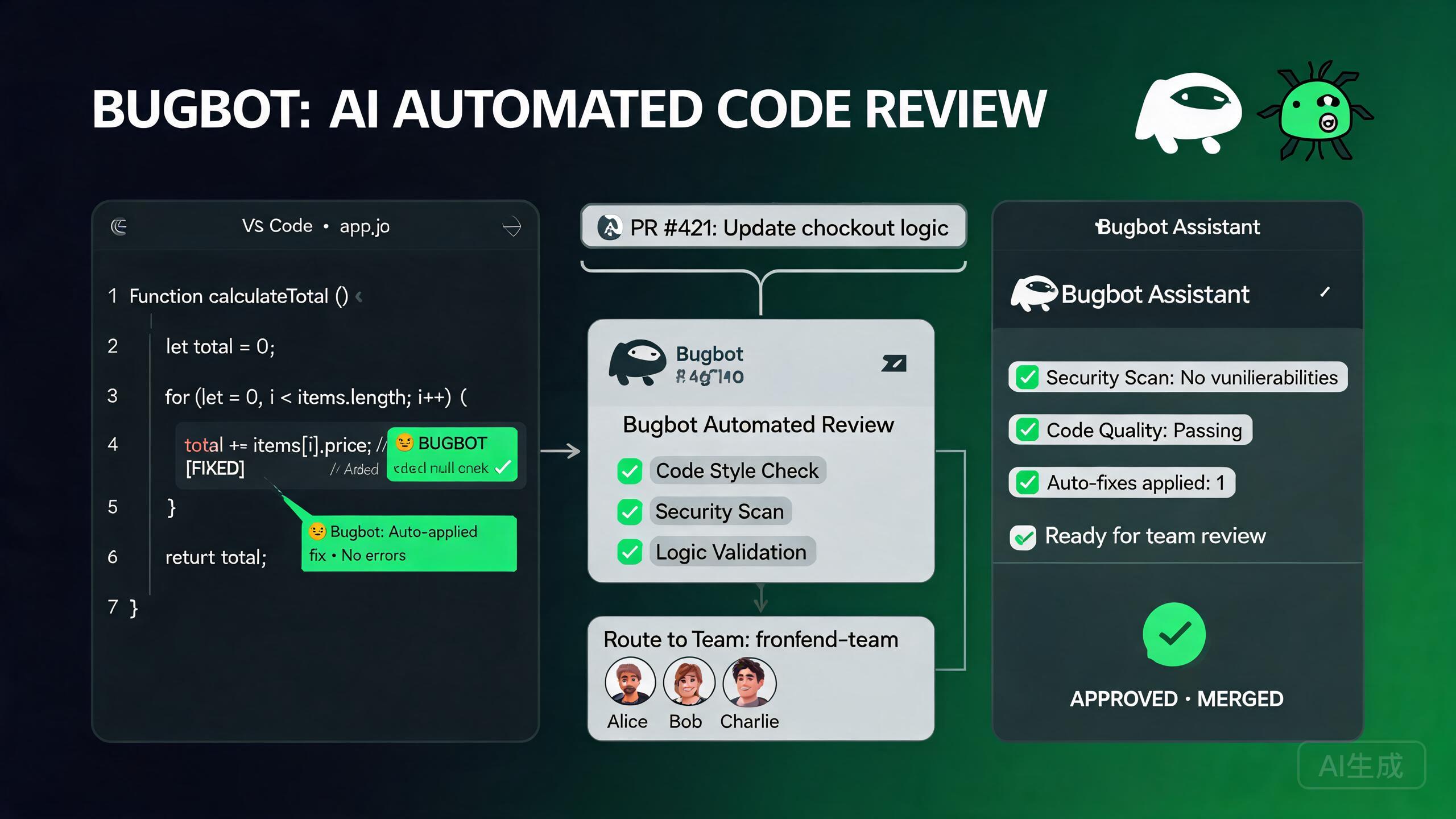
Bugbot is Cursor's built-in automated code review agent that integrates directly with your GitHub repositories. When you open a pull request, Bugbot analyzes the diff, identifies potential bugs, suggests improvements, and leaves inline comments on your PR. This guide covers everything from initial setup to advanced configuration, including the PR routing and GitHub Teams integration issues that forum users frequently encounter.
What Bugbot Does
Bugbot performs several layers of analysis on every pull request:
- Bug detection - Identifies logic errors, null reference risks, and edge cases
- Security scanning - Flags potential vulnerabilities like SQL injection or hardcoded secrets
- Style and consistency - Checks for deviations from your codebase patterns
- Performance hints - Highlights inefficient patterns like N+1 queries
- Test coverage - Notes when changes lack corresponding tests
Bugbot runs entirely in the cloud. You do not need to keep Cursor open for reviews to happen. Once enabled on a repository, Bugbot reviews every PR automatically, whether you are at your desk or not.
Prerequisites
Before setting up Bugbot, ensure you have:
- Cursor Pro or Business plan - Bugbot is not available on the free tier
- A GitHub repository with pull request workflows enabled
- Admin or maintainer access to the repository (required for app installation)
- GitHub Teams configured if you want team-based PR routing
Enabling Bugbot on a Repository
The most common issue forum users report is Bugbot saying "disabled for this repository." This almost always traces back to the GitHub app installation step being skipped or partially completed.
Step 1: Install the Cursor GitHub App
Bugbot operates through a GitHub App. If you have not installed it:
- Open Cursor and navigate to Settings > Features > Bugbot
- Click Connect GitHub Account
- You will be redirected to GitHub to authorize the Cursor app
- Choose the scope:
- All repositories - Cursor can review any repo in your account
- Selected repositories - Pick specific repos for review
If you selected specific repositories during installation and later create a new repository, Bugbot will not work on the new repo until you explicitly add it. This is the number one cause of the "disabled for this repository" error. To fix it, go to GitHub > Settings > Integrations > Applications > Cursor > Configure, and add the new repository.
Step 2: Enable Bugbot in Cursor Settings
Once the GitHub app is installed:
- Open Cursor Settings (
Cmd/Ctrl + ,) - Navigate to Features > Bugbot
- Toggle Enable Bugbot to ON
- Select which repositories to activate Bugbot on
Step 3: Verify the Connection
Create a test pull request and check whether Bugbot responds:
# Create a test branch
git checkout -b test-bugbot-connection

# Make a small change
echo "// Bugbot test" >> README.md
git add README.md
git commit -m "test: verify bugbot connection"
git push origin test-bugbot-connection
Open a PR on GitHub. Within 30-60 seconds, Bugbot should post a comment. If it does not, proceed to the troubleshooting section below.
PR Routing and Reviewer Assignment
Bugbot can route pull requests to specific reviewers based on file paths, code ownership, or team membership. Forum users report that PR routing does not always work as expected, particularly with GitHub Teams.
Understanding PR Routing
PR routing determines who receives the review request when Bugbot analyzes a PR. The routing logic follows this priority:
- CODEOWNERS file - If present, the owners of changed files become reviewers
- GitHub Teams mapping - Team-based routing via Bugbot configuration
- Fallback - All maintainers receive the review request
Configuring CODEOWNERS
Create a CODEOWNERS file in your repository root (or .github/CODEOWNERS):
# Default owners
*                           @team-leads

# Frontend files
src/components/             @frontend-team
src/pages/                  @frontend-team
src/styles/                 @frontend-team

# Backend files
src/api/                    @backend-team
src/models/                 @backend-team
src/middleware/             @backend-team

# Infrastructure
terraform/                  @devops-team
docker/                     @devops-team
.github/workflows/           @devops-team

# Security-sensitive files
src/auth/                   @security-team @team-leads
.env*                       @security-team
GitHub Teams Integration
For team-based routing, Bugbot reads your GitHub Teams membership. To configure:
- Ensure your GitHub organization has teams set up under Org Settings > Teams
- Add members to each team
- Reference team names (with
@prefix) in CODEOWNERS - In Cursor, go to Settings > Features > Bugbot > Advanced
- Enable Use GitHub Teams for routing
GitHub team names in CODEOWNERS must match exactly. A common mistake is using display names instead of the team slug. For example, if your team is named "Frontend Engineers" with slug frontend-engineers, the CODEOWNERS entry must be @frontend-engineers, not @Frontend Engineers.
Common PR Routing Issues
Issue: PR Routed to Wrong Team
Symptom: A PR changing backend files gets routed to the frontend team.
Cause: Overlapping CODEOWNERS patterns. The first matching pattern wins, and patterns are evaluated top to bottom.
Fix: Reorder your CODEOWNERS file so more specific patterns come before general ones:
# Specific first
src/auth/                   @security-team @team-leads
src/api/                    @backend-team

# Then general
src/                        @all-developers
*                           @team-leads
Issue: Team Not Receiving Review Requests
Symptom: Bugbot reviews the PR but no GitHub team members are added as reviewers.
Cause: The GitHub team is set to "secret" (not visible) or has no members.
Fix: Go to GitHub > Organization > Teams > [Team Name] > Settings. Ensure the team visibility is not set to "Secret" if you want it to receive review requests. Verify that the team has active members.
Bugbot Configuration
Beyond basic enablement, Bugbot offers several configuration options to tailor its behavior.
Review Severity
Control how aggressive Bugbot is with its findings:
{
  "bugbot.severity": "balanced",
  "bugbot.maxComments": 20,
  "bugbot.autoResolve": false
}
| Severity | Behavior |
|---|---|
| strict | Reports all findings, including minor style issues |
| balanced | Reports bugs, security issues, and significant style problems (default) |
| lenient | Only reports bugs and security vulnerabilities |
File Exclusions
Prevent Bugbot from reviewing generated or vendored files:
{
  "bugbot.excludePaths": [
    "**/*.min.js",
    "**/*.min.css",
    "node_modules/**",
    "dist/**",
    "build/**",
    "*.lock",
    "package-lock.json",
    "yarn.lock"
  ]
}
Security Agent Configuration
Bugbot includes a dedicated security agent that scans for vulnerabilities. Configure it independently:
{
  "bugbot.securityAgent": {
    "enabled": true,
    "sensitivityLevel": "high",
    "scanForSecrets": true,
    "scanForDependencies": true,
    "ignorePatterns": [
      "test/**",
      "__mocks__/**"
    ]
  }
}
The security agent scans for hardcoded secrets (API keys, passwords, tokens) in your PR diff. If it finds what it believes is a secret, it will flag it as a critical issue. This is a safety feature. Never dismiss these warnings without verifying that the flagged string is not a real secret. Even test fixtures that look like real keys can be dangerous if someone copies them into production code.
Approval Workflows
Bugbot integrates with GitHub's review approval system. You can configure whether Bugbot's findings block PR merging.
Setting Required Reviews
In your GitHub repository settings:
- Go to Settings > Branches > Branch protection rules
- Edit the rule for your main branch
- Under Require pull request reviews before merging:
- Set required approving reviews (e.g., 2)
- Enable Dismiss stale pull request approvals when new commits are pushed
- Enable Require review from Code Owners
Bugbot as a Required Reviewer
You can configure Bugbot to act as a required reviewer. When enabled, PRs cannot be merged until Bugbot has completed its review and either approved or the review is dismissed.
In Cursor:
- Settings > Features > Bugbot > Workflow
- Enable Block merge on critical findings
- Set the severity threshold for blocking (default: critical and high)
Use the blocking feature judiciously. If you set the threshold too low (blocking on low-severity findings), developers may get frustrated when style issues prevent merging. Start with "critical and high" and adjust based on your team's experience.
Handling Bugbot Disagreements
Sometimes Bugbot flags something that the developer believes is a false positive. The recommended workflow:
- Click Resolve conversation on the Bugbot comment in GitHub
- Add a comment explaining why it is a false positive
- If it is a recurring false positive on the same pattern, add a
// bugbot-ignorecomment:
# bugbot-ignore: This is intentionally using eval for a DSL interpreter
result = eval(user_expression)
Troubleshooting "Disabled for This Repository"
This is the single most reported Bugbot issue. Follow this diagnostic flowchart.
Diagnostic Step 1: Check GitHub App Installation
# Check if the Cursor app has access to your repo
gh api repos/{owner}/{repo}/installation --jq '.id'
If this returns a 404, the GitHub app is not installed for this repository.
Fix: Go to GitHub > Settings > Integrations > Applications > Cursor > Configure, and add the repository.
Diagnostic Step 2: Check Repository Settings in Cursor
- Open Cursor Settings
- Navigate to Features > Bugbot
- Look for your repository in the enabled list
- If it is not there, click Add Repository and select it
Diagnostic Step 3: Check Branch Protection Rules
Bugbot requires that your repository allow the GitHub app to post review comments. If your branch protection rules are too restrictive:
- Go to GitHub > Settings > Branches
- Edit your branch protection rule
- Ensure Allow specified actors to bypass requirements includes the Cursor app
- Ensure the app is not blocked by Restrict who can push to matching branches
Diagnostic Step 4: Check for Conflicting Apps
If you have other automated review tools installed (CodeRabbit, GitHub Copilot, SonarQube), they may conflict with Bugbot.
Fix: Disable other review bots temporarily and check if Bugbot starts working. If it does, you will need to configure the tools to coexist, which may require adjusting webhook settings or review triggers.
Diagnostic Step 5: Check Bugbot Status
# Check Cursor service status
curl -s https://status.cursor.sh/api/v2/incidents.json | jq '.incidents[] | select(.status != "resolved")'
If there is an active incident, wait for it to resolve and retry.
Bugbot sometimes shows as "disabled" immediately after a Cursor update. This is a known issue where the GitHub token needs re-authentication. Go to Settings > Features > Bugbot, click Disconnect, then Reconnect your GitHub account. This refreshes the token without losing your configuration.
Bugbot and GitHub Teams Integration Deep Dive
Synchronizing Team Membership
Bugbot caches GitHub team membership for performance. If you add or remove a team member, the change may not be reflected immediately.
To force a sync:
- Open Cursor Settings
- Go to Features > Bugbot > Advanced
- Click Sync GitHub Teams
- Wait for the sync to complete (usually under 30 seconds)
Multi-Team Membership
When a developer belongs to multiple teams, Bugbot routes based on the CODEOWNERS match. If a file is owned by multiple teams and the developer is in both, they receive a single review request, not duplicates.
Team-Based Review Policies
You can configure different review requirements per team:
{
  "bugbot.teamPolicies": {
    "security-team": {
      "requiredReviews": 2,
      "blockOnHighSeverity": true,
      "additionalScanners": ["dependency-check"]
    },
    "frontend-team": {
      "requiredReviews": 1,
      "blockOnHighSeverity": false
    }
  }
}
Bugbot Performance and Limits
Review Speed
Bugbot typically completes a review within 30-90 seconds of a PR being opened or updated. Factors affecting speed:
| Factor | Impact |
|---|---|
| PR size (lines changed) | Large diffs take longer to analyze |
| Number of files | Each file requires individual analysis |
| Repository size | Larger codebases require more context gathering |
| Current load | Peak times may see slower responses |
Comment Limits
By default, Bugbot posts a maximum of 20 comments per review. This prevents overwhelming the PR author. You can adjust this:
{
  "bugbot.maxComments": 50
}
If Bugbot is hitting the comment limit on every PR, consider raising the severity threshold. Hitting the limit means Bugbot is finding many low-priority issues. Filtering those out will make the review more actionable.
Rate Limits
Bugbot respects GitHub API rate limits. If your organization has many PRs opened simultaneously, reviews may be queued. Bugbot processes them in order, and all reviews complete eventually.
Best Practices for Bugbot Adoption
Start with Read-Only Mode
When first enabling Bugbot on an existing repository, start in read-only mode (no merge blocking). This lets the team see what Bugbot finds without disrupting their workflow. After a week or two of reviewing the findings, adjust the configuration and enable merge blocking if appropriate.
Use Bugbot Findings as Learning Tools
Bugbot findings are not just about fixing the current PR. They are learning opportunities:
- Track recurring finding types (e.g., "null reference risk" appears on 30% of PRs)
- Create
.cursor/rulesentries to prevent the pattern in future code - Share interesting findings in team channels
Regular Configuration Review
Review your Bugbot configuration monthly:
- Are the file exclusions still appropriate?
- Are the severity thresholds calibrated correctly?
- Are there new false positive patterns to suppress?
- Is the comment limit appropriate for your current PR sizes?
Summary
Bugbot brings automated, intelligent code review to every pull request in your Cursor-connected GitHub repositories. The most common issue, "disabled for this repository," is almost always resolved by verifying the GitHub App installation scope and ensuring the repository is explicitly added. By configuring PR routing with CODEOWNERS, tuning the security agent, and adopting an incremental approach to merge blocking, your team can leverage Bugbot as a reliable first line of defense against bugs and security vulnerabilities.