Internationalization (i18n) and Localization (l10n) in Cursor: react-intl, i18next, and RTL Support
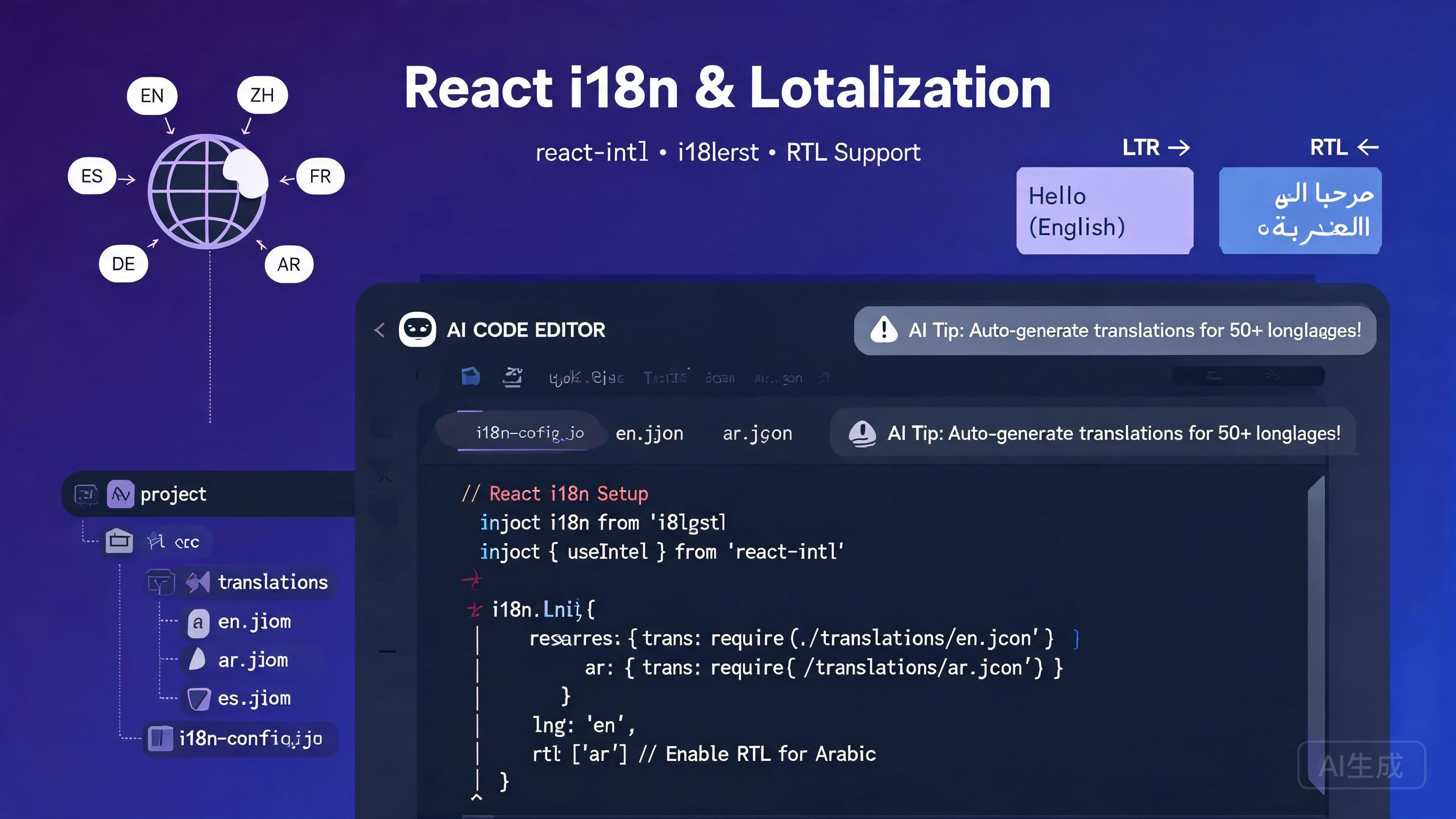
Internationalization (i18n) and localization (l10n) make your application accessible to users across different languages, regions, and cultural conventions. Cursor, an AI-powered IDE editor, accelerates every phase of the i18n workflow: extracting translatable strings, configuring translation libraries, generating locale files, implementing right-to-left (RTL) layouts, and automating translation with AI-powered pipelines. This guide covers react-intl, i18next, translation file management, RTL support, locale-aware formatting, and AI-assisted translation workflows.
Prerequisites
Before you begin, make sure you have the following:
- Cursor (latest version recommended) as your IDE editor
- Node.js 18 or higher
- A React project (Vite or Next.js recommended)
- Basic familiarity with JSON and React component patterns
Plan your i18n strategy before writing any UI code. Retrofitting i18n into an existing application is significantly harder than building it in from the start. Ask Cursor to set up your translation infrastructure in the first sprint so every component is internationalized from day one.
Understanding i18n vs l10n
- Internationalization (i18n): The engineering work of preparing your application to support multiple languages. This includes extracting strings, using locale-aware formatters, supporting RTL layouts, and designing flexible UI components.
- Localization (l10n): The actual translation and cultural adaptation of content for a specific locale, including translating strings, adapting date and currency formats, and adjusting imagery for local norms.
Cursor helps with both: it generates the i18n infrastructure and assists with l10n through AI-powered translation and locale file generation.
Setting Up i18next
i18next is the most popular i18n framework for JavaScript. Its React companion, react-i18next, provides hooks and components for seamless integration.
Installation and Configuration
Ask Cursor to set up i18next in your React project:
Set up i18next with react-i18next in my Vite + React + TypeScript project.
Support English (en), Spanish (es), Japanese (ja), and Arabic (ar).
Include a language switcher component, lazy-loaded translation
namespaces, and locale-aware date formatting. Configure the
detector to remember the user's choice in localStorage.
Cursor generates the configuration:
// src/i18n/index.ts
import i18n from 'i18next';
import { initReactI18next } from 'react-i18next';
import LanguageDetector from 'i18next-browser-languagedetector';
import HttpBackend from 'i18next-http-backend';

export const supportedLanguages = [
  { code: 'en', name: 'English', dir: 'ltr' as const },
  { code: 'es', name: 'Espanol', dir: 'ltr' as const },
  { code: 'ja', name: '日本語', dir: 'ltr' as const },
  { code: 'ar', name: 'العربية', dir: 'rtl' as const },
];

export const defaultLanguage = 'en';

i18n
  .use(HttpBackend)
  .use(LanguageDetector)
  .use(initReactI18next)
  .init({
    fallbackLng: defaultLanguage,
    supportedLngs: supportedLanguages.map((l) => l.code),
    ns: ['common', 'navigation', 'forms', 'errors'],
    defaultNS: 'common',
    backend: { loadPath: '/locales/{{lng}}/{{ns}}.json' },
    detection: {
      order: ['localStorage', 'navigator', 'htmlTag'],
      lookupLocalStorage: 'i18nextLng',
      caches: ['localStorage'],
    },
    interpolation: { escapeValue: false },
    react: { useSuspense: true, bindI18n: 'languageChanged loaded' },
  });

export default i18n;
Translation File Structure
public/
  locales/
    en/
      common.json
      navigation.json
      forms.json
      errors.json
    es/
      common.json
      ...
    ja/
      common.json
      ...
    ar/
      common.json
      ...
Example English translations:
// public/locales/en/common.json
{
  "app": {
    "title": "My Application",
    "tagline": "Build better, ship faster"
  },
  "welcome": "Welcome, {{name}}!",
  "items_count": "You have {{count}} item",
  "items_count_other": "You have {{count}} items",
  "lastUpdated": "Last updated: {{date}}"
}
// public/locales/en/forms.json
{
"labels": {
"email": "Email Address",
"password": "Password",
"firstName": "First Name",
"lastName": "Last Name"
},
"placeholders": {
"password": "Enter your password"
},
"buttons": {
"submit": "Submit",
"cancel": "Cancel"
},
"validation": {
"emailRequired": "Email is required",
"emailInvalid": "Please enter a valid email address",
"passwordMinLength": "Password must be at least {{min}} characters"
}
}
Organize translations into namespaces (common, navigation, forms, errors) rather than a single monolithic file. Namespaces let you lazy-load only the translations needed for the current page, reducing initial bundle size. Ask Cursor to suggest namespace boundaries based on your route structure.
Never hard-code user-facing strings in your components. Even if you only support one language initially, extracting strings into translation files from the start is a 10-minute investment that saves weeks of refactoring later. Use the t() function for every visible string, including button labels, error messages, and tooltips.
Using react-i18next Hooks
The useTranslation hook is the primary way to access translations in function components.
Basic Usage
// src/components/LoginForm.tsx
import { useTranslation } from 'react-i18next';
import { useState } from 'react';

export function LoginForm() {
  const { t } = useTranslation(['forms', 'errors']);
  const [email, setEmail] = useState('');
  const [password, setPassword] = useState('');
  const [errors, setErrors] = useState<Record<string, string>>({});

  function handleSubmit(e: React.FormEvent) {
    e.preventDefault();
    const newErrors: Record<string, string> = {};

    if (!email) {
      newErrors.email = t('forms:validation.emailRequired');
    } else if (!/^[^\s@]+@[^\s@]+\.[^\s@]+$/.test(email)) {
      newErrors.email = t('forms:validation.emailInvalid');
    }

    if (password.length < 8) {
      newErrors.password = t('forms:validation.passwordMinLength', { min: 8 });
    }

    setErrors(newErrors);
  }

  return (
    <form onSubmit={handleSubmit} className="max-w-md space-y-4">
      <div>
        <label htmlFor="email" className="block text-sm font-medium">
          {t('forms:labels.email')}
        </label>
        <input
          id="email"
          type="email"
          value={email}
          onChange={(e) => setEmail(e.target.value)}
          placeholder={t('forms:placeholders.email')}
          className="mt-1 w-full rounded border px-3 py-2"
          aria-invalid={!!errors.email}
        />
        {errors.email && (
          <p className="mt-1 text-sm text-red-600" role="alert">
            {errors.email}
          </p>
        )}
      </div>

      <div>
        <label htmlFor="password" className="block text-sm font-medium">
          {t('forms:labels.password')}
        </label>
        <input
          id="password"
          type="password"
          value={password}
          onChange={(e) => setPassword(e.target.value)}
          placeholder={t('forms:placeholders.password')}
          className="mt-1 w-full rounded border px-3 py-2"
          aria-invalid={!!errors.password}
        />
        {errors.password && (
          <p className="mt-1 text-sm text-red-600" role="alert">
            {errors.password}
          </p>
        )}
      </div>

      <button type="submit" className="w-full rounded bg-blue-600 px-4 py-2 text-white">
        {t('forms:buttons.submit')}
      </button>
    </form>
  );
}
Pluralization and Interpolation
i18next handles pluralization rules automatically based on the locale. Different languages have different plural forms (English has 2, Arabic has 6, Japanese has 1).
// src/components/ShoppingCart.tsx
import { useTranslation } from 'react-i18next';

export function ShoppingCart({ itemCount }: { itemCount: number }) {
  const { t } = useTranslation('common');

  return (
    <div className="p-4">
      <h2 className="text-lg font-bold">{t('shoppingCart')}</h2>
      {/* i18next automatically selects singular or plural form */}
      <p>{t('items_count', { count: itemCount })}</p>
    </div>
  );
}
The Arabic translation file handles all six plural forms:
// public/locales/ar/common.json (Arabic has 6 plural forms per CLDR rules)
{
  "items_count_0": "لا توجد عناصر",
  "items_count_1": "لديك عنصر واحد",
  "items_count_2": "لديك عنصران",
  "items_count_3": "لديك {{count}} عناصر",
  "items_count_4": "لديك {{count}} عنصرًا",
  "items_count_5": "لديك {{count}} عنصر"
}
Ask Cursor to generate pluralization rules for every locale you support. A prompt like "Create the correct plural form keys for Arabic, Russian, and Polish for the items_count translation key, following CLDR plural rules" produces locale-correct plural forms without you needing to memorize CLDR rules.
Setting Up react-intl
react-intl is an alternative i18n library from the FormatJS suite. It is popular in enterprise applications because of its strict type safety and ICU Message Format support.
Provider Configuration
// src/i18n/IntlProvider.tsx
import { IntlProvider } from 'react-intl';
import { useState, useEffect, ReactNode, createContext, useContext } from 'react';

export type Locale = 'en' | 'es' | 'ja' | 'ar';

const messages: Record<Locale, () => Promise<Record<string, string>>> = {
  en: () => import('../locales/en.json').then((m) => m.default),
  es: () => import('../locales/es.json').then((m) => m.default),
  ja: () => import('../locales/ja.json').then((m) => m.default),
  ar: () => import('../locales/ar.json').then((m) => m.default),
};

export function IntlAppProvider({ children }: { children: ReactNode }) {
  const storedLocale = localStorage.getItem('locale') as Locale | null;
  const browserLocale = navigator.language.split('-')[0] as Locale;
  const [locale, setLocale] = useState<Locale>(storedLocale || browserLocale || 'en');
  const [localeMessages, setLocaleMessages] = useState<Record<string, string>>({});

  useEffect(() => {
    messages[locale]().then((msgs) => {
      setLocaleMessages(msgs);
      document.documentElement.dir = locale === 'ar' ? 'rtl' : 'ltr';
      document.documentElement.lang = locale;
      localStorage.setItem('locale', locale);
    });
  }, [locale]);

  return (
    <IntlProvider
      locale={locale}
      messages={localeMessages}
      defaultLocale="en"
      onError={(err) => import.meta.env.DEV && console.warn('[Intl]', err.message)}
    >
      <LanguageContext.Provider value={{ locale, changeLocale: setLocale }}>
        {children}
      </LanguageContext.Provider>
    </IntlProvider>
  );
}

interface LanguageContextType { locale: Locale; changeLocale: (locale: Locale) => void; }
const LanguageContext = createContext<LanguageContextType | null>(null);
export function useLanguage() {
  const ctx = useContext(LanguageContext);
  if (!ctx) throw new Error('useLanguage must be used within IntlAppProvider');
  return ctx;
}
Using react-intl Components
react-intl provides declarative components for formatting. The FormattedMessage component handles ICU Message Format, while FormattedNumber, FormattedDate, and FormattedTime adapt to the user's locale automatically.
// src/components/ProductCard.tsx
import { FormattedMessage, FormattedNumber, FormattedDate } from 'react-intl';
import { useLanguage } from '../i18n/IntlProvider';

export function ProductCard({ product }: { product: Product }) {
  const { locale } = useLanguage();

  return (
    <div className="rounded-lg border p-4">
      <h3 className="text-lg font-bold">{product.name}</h3>
      {/* Currency adapts to locale automatically */}
      <p className="text-xl text-green-600">
        <FormattedNumber
          value={product.price}
          style="currency"
          currency={locale === 'ja' ? 'JPY' : locale === 'ar' ? 'SAR' : 'USD'}
        />
      </p>
      <p className="text-sm text-gray-500">
        <FormattedMessage
          id="product.addedOn"
          defaultMessage="Added on {date}"
          values={{
            date: <FormattedDate value={new Date(product.addedAt)} year="numeric" month="long" day="numeric" />,
          }}
        />
      </p>
      <div className="mt-2">
        <FormattedMessage
          id="product.reviews"
          defaultMessage="{count, plural, one {# review} other {# reviews}}"
          values={{ count: product.reviewCount }}
        />
      </div>
    </div>
  );
}
react-intl uses ICU Message Format, which embeds pluralization, selection, and formatting directly in the message string. This means translators can adjust the structure of a sentence without modifying code. Ask Cursor to explain ICU Message Format syntax with practical examples if you are migrating from simple key-value translation files.
Right-to-Left (RTL) Support
RTL support is essential for languages like Arabic, Hebrew, and Persian. Cursor helps you implement RTL-aware layouts that work correctly in both directions.
CSS Logical Properties
Use logical properties (margin-inline-start) instead of physical ones (margin-left) so layouts flip automatically in RTL mode.
/* src/styles/rtl.css */
.card {
  padding-inline-start: 1rem;
  padding-inline-end: 1rem;
  border-inline-start: 3px solid var(--accent);
}
.flex-container { display: flex; flex-direction: row; gap: 0.5rem; }
.nav-bar { inset-inline-start: 0; inset-inline-end: 0; }

/* Flip directional icons in RTL */
[dir="rtl"] .icon-rtl-flip { transform: scaleX(-1); }
RTL-Aware React Component
// src/components/RTLNavigation.tsx
import { useTranslation } from 'react-i18next';
import { useMemo } from 'react';

export function RTLNavigation({ items }: { items: NavItem[] }) {
  const { i18n } = useTranslation();
  const isRTL = i18n.dir() === 'rtl';
  const flipIcons = useMemo(() => new Set(['arrow', 'chevron', 'back', 'forward']), []);

  return (
    <nav
      className="flex items-center gap-4 px-4 py-2"
      style={{ direction: isRTL ? 'rtl' : 'ltr' }}
      aria-label="Main navigation"
    >
      {items.map((item) => (
        <a key={item.id} href={item.href} className="flex items-center gap-2 rounded px-3 py-1 hover:bg-gray-100">
          {item.icon && (
            <span
              className="inline-block"
              style={{ transform: isRTL && flipIcons.has(item.icon) ? 'scaleX(-1)' : 'scaleX(1)' }}
            >
              <Icon name={item.icon} />
            </span>
          )}
          <span>{i18n.t(item.labelKey)}</span>
        </a>
      ))}
    </nav>
  );
}
Do not use text-align: left or text-align: right in your CSS. Use text-align: start and text-align: end instead. Physical properties do not flip automatically in RTL mode, causing misaligned text and broken layouts. Ask Cursor to scan your CSS for physical directional properties and convert them to logical equivalents.
Test your RTL layout by adding Arabic as a locale early in development. Flipping your layout to RTL reveals hard-coded physical properties, non-mirroring flex layouts, and icons that should flip. Fixing these issues during development is far cheaper than discovering them after launch.
Language Switcher Component
// src/components/LanguageSwitcher.tsx
import { useTranslation } from 'react-i18next';
import { supportedLanguages } from '../i18n';

export function LanguageSwitcher() {
  const { i18n } = useTranslation();
  const currentLanguage = supportedLanguages.find((l) => l.code === i18n.language) || supportedLanguages[0];

  function changeLanguage(code: string) {
    i18n.changeLanguage(code);
    const lang = supportedLanguages.find((l) => l.code === code);
    document.documentElement.dir = lang?.dir || 'ltr';
    document.documentElement.lang = code;
  }

  return (
    <div className="flex items-center gap-2">
      <select
        id="language-select"
        value={currentLanguage.code}
        onChange={(e) => changeLanguage(e.target.value)}
        className="rounded border px-2 py-1 text-sm"
        aria-label="Select language"
      >
        {supportedLanguages.map((lang) => (
          <option key={lang.code} value={lang.code}>
            {lang.name}
          </option>
        ))}
      </select>
    </div>
  );
}
Locale-Aware Formatting
Date, number, and currency formatting must adapt to the user's locale. Both i18next and react-intl provide formatting utilities.
Using the Intl API Directly
// src/lib/locale-formatters.ts

export function formatDate(date: Date, locale: string, options?: Intl.DateTimeFormatOptions): string {
  return new Intl.DateTimeFormat(locale, options || { year: 'numeric', month: 'long', day: 'numeric' }).format(date);
}

export function formatNumber(value: number, locale: string, options?: Intl.NumberFormatOptions): string {
  return new Intl.NumberFormat(locale, options).format(value);
}

export function formatCurrency(value: number, locale: string, currency: string): string {
  return new Intl.NumberFormat(locale, { style: 'currency', currency, minimumFractionDigits: 2 }).format(value);
}

export function formatRelativeTime(date: Date, locale: string): string {
  const diff = (date.getTime() - Date.now()) / 1000;
  const rtf = new Intl.RelativeTimeFormat(locale, { numeric: 'auto' });
  const units: Array<[Intl.RelativeTimeFormatUnit, number]> = [
    ['year', 60 * 60 * 24 * 365], ['month', 60 * 60 * 24 * 30],
    ['day', 60 * 60 * 24], ['hour', 60 * 60], ['minute', 60], ['second', 1],
  ];
  for (const [unit, secs] of units) {
    if (Math.abs(diff) >= secs) return rtf.format(Math.round(diff / secs), unit);
  }
  return rtf.format(0, 'second');
}
Formatting Examples Across Locales
// Dates adapt to locale conventions automatically:
formatDate(new Date('2026-09-02'), 'en-US'); // "September 2, 2026"
formatDate(new Date('2026-09-02'), 'es-ES'); // "2 de septiembre de 2026"
formatDate(new Date('2026-09-02'), 'ja-JP'); // "2026年9月2日"
formatDate(new Date('2026-09-02'), 'ar-SA'); // "٢ سبتمبر ٢٠٢٦"

// Currency formatting respects local symbols and decimal rules:
formatCurrency(1234.56, 'en-US', 'USD'); // "$1,234.56"
formatCurrency(1234.56, 'ja-JP', 'JPY'); // "¥1,235" (no decimals for JPY)
formatCurrency(1234.56, 'ar-SA', 'SAR'); // "١٬٢٣٤٫٥٦ ر.س"

// Relative time uses natural language per locale:
formatRelativeTime(new Date(Date.now() - 3600000), 'en'); // "1 hour ago"
formatRelativeTime(new Date(Date.now() - 3600000), 'ja'); // "1時間前"
formatRelativeTime(new Date(Date.now() - 3600000), 'ar'); // "منذ ساعة واحدة"
Always use the native Intl API for formatting instead of writing custom formatters. The Intl API uses the CLDR (Common Locale Data Repository) data baked into the JavaScript engine, which is maintained by the platform vendor and handles edge cases like non-Gregorian calendars (Japanese era, Hijri calendar) automatically.
AI-Assisted Translation Workflows
Cursor can generate translations for entire locale files using AI. This is not a replacement for professional human translators, but it produces high-quality first drafts that a translator can review and refine.
Generating Translations from a Source File
Read my English translation file at src/locales/en/common.json and
generate equivalent translations for Spanish (es), Japanese (ja),
and Arabic (ar). Preserve all interpolation variables like {{name}},
pluralization keys, and namespace structure exactly. Output three
separate JSON files in the correct locale directories.
Cursor reads the source file and produces three translated JSON files. The AI preserves ICU Message Format variables, pluralization suffixes, and JSON structure.
Extracting Strings from Source Code
Scan all .tsx files in my src/ directory and extract every hard-coded
user-facing string into a translation key. Create a new common.json
file with the extracted strings organized by component. Then replace
each hard-coded string in the source with a useTranslation() call.
Cursor performs a codebase-wide refactor: it identifies string literals in JSX, generates a structured translation file, and replaces each occurrence with the appropriate t() call.
AI-generated translations should always be reviewed by a native speaker before shipping to production. AI can mistranslate context-dependent terms, miss cultural nuances, and produce grammatically correct but unnatural phrasing. Use AI translations as a draft, not a final product. Flag any AI-translated files with a "needs review" status in your translation management workflow.
Batch Translation Script
// scripts/translate.ts
import * as fs from 'fs/promises';
import * as path from 'path';

interface TranslationFile {
  [key: string]: string | TranslationFile;
}

const SOURCE_LOCALE = 'en';
const TARGET_LOCALES = ['es', 'ja', 'ar'];
const SOURCE_DIR = path.join(__dirname, '../public/locales', SOURCE_LOCALE);
const OUTPUT_BASE = path.join(__dirname, '../public/locales');

async function translateFile(
  source: TranslationFile,
  targetLocale: string
): Promise<TranslationFile> {
  const result: TranslationFile = {};
  for (const [key, value] of Object.entries(source)) {
    if (typeof value === 'string') {
      // Replace with actual AI translation API call
      result[key] = `[${targetLocale}] ${value}`;
    } else {
      result[key] = await translateFile(value, targetLocale);
    }
  }
  return result;
}

async function runBatchTranslation() {
  const namespaces = await fs.readdir(SOURCE_DIR);

  for (const locale of TARGET_LOCALES) {
    const outputDir = path.join(OUTPUT_BASE, locale);
    await fs.mkdir(outputDir, { recursive: true });

    for (const nsFile of namespaces.filter((f) => f.endsWith('.json'))) {
      const sourceData = JSON.parse(
        await fs.readFile(path.join(SOURCE_DIR, nsFile), 'utf-8')
      ) as TranslationFile;

      const translated = await translateFile(sourceData, locale);
      const outputPath = path.join(outputDir, nsFile);
      await fs.writeFile(outputPath, JSON.stringify(translated, null, 2), 'utf-8');
      console.log(`Translated ${nsFile} for ${locale} -> ${outputPath}`);
    }
  }
  console.log('Batch translation complete.');
}

runBatchTranslation().catch(console.error);
Add the batch translation script to your CI pipeline. When a developer adds new English strings, the CI job automatically generates draft translations for all target locales and creates a pull request with the new keys marked as needing review. This keeps all locale files in sync without manual coordination.
Missing Translation Detection
Render this component once at the root of your application. In development, it logs missing keys to the console. In production, route reports to an error tracking service.
// src/components/MissingTranslationLogger.tsx
import { useTranslation } from 'react-i18next';
import { useEffect, useRef } from 'react';

export function MissingTranslationLogger() {
  const { i18n } = useTranslation();
  const reportedKeys = useRef(new Set<string>());

  useEffect(() => {
    i18n.on('missingKey', (lngs: string[], ns: string, key: string) => {
      const fullKey = `${ns}:${key}`;
      if (reportedKeys.current.has(fullKey)) return;
      reportedKeys.current.add(fullKey);

      if (import.meta.env.DEV) {
        console.warn(`[i18n] Missing: ${fullKey} for ${lngs.join(', ')}`);
      }
      // In production: reportToErrorService({ type: 'missing_translation', key: fullKey, locales: lngs });
    });
  }, [i18n]);

  return null;
}
Summary
Internationalization and localization in Cursor give you the tools to build truly global applications. By following the patterns in this guide, i18next or react-intl configuration, namespace-based translation files, ICU-aware pluralization, RTL logical CSS properties, native Intl API formatting, and AI-assisted translation pipelines, you can support any language and locale from day one. Plan your i18n strategy early, use logical CSS properties instead of physical ones, let AI generate first-draft translations, and always have a native speaker review before shipping to production.