Troubleshooting Common Cursor Agent Issues
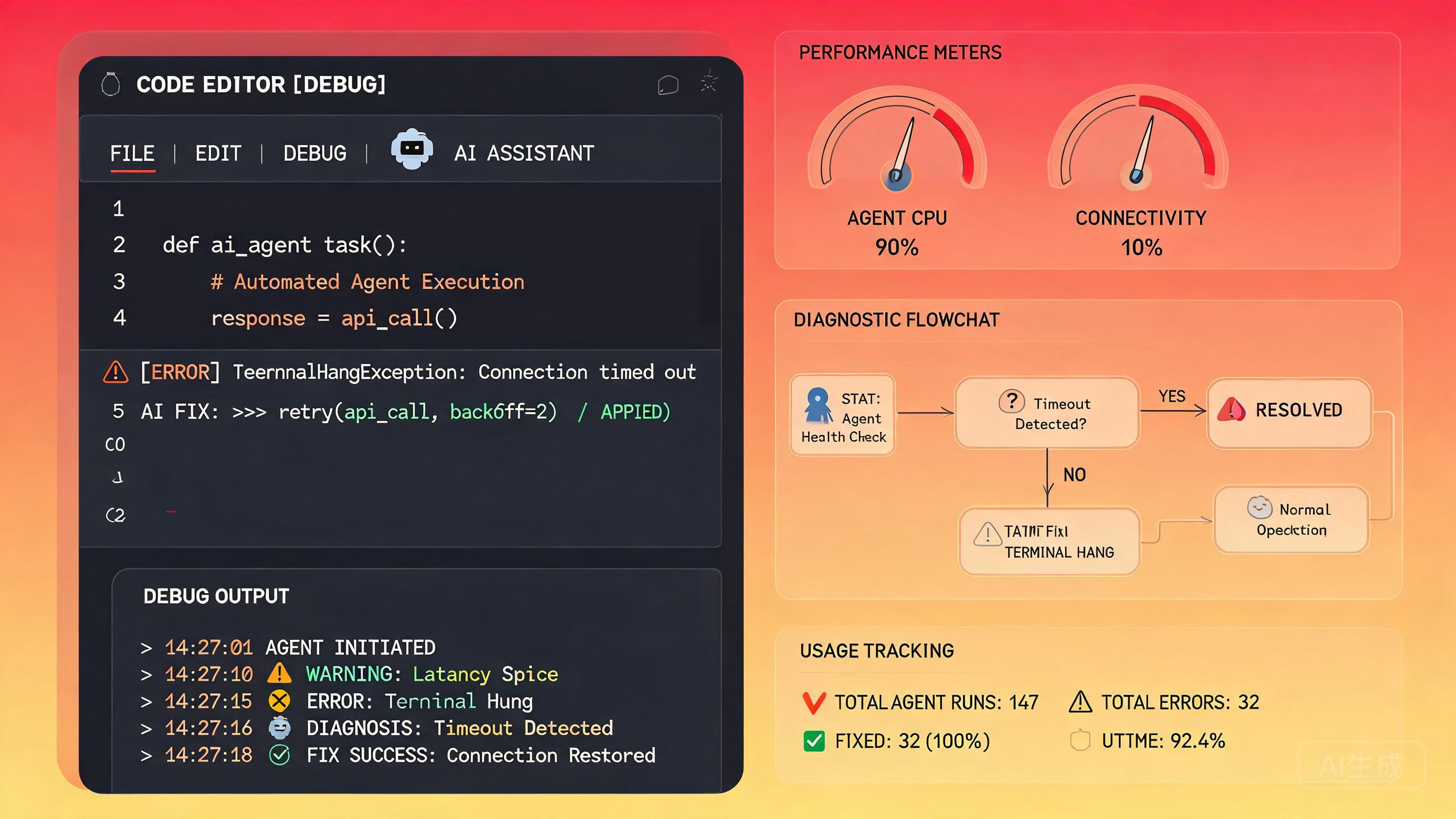
Cursor's agent mode is powerful, but when things go wrong, the symptoms can be confusing. An agent that hangs indefinitely, performance that degrades without explanation, or usage meters that hit 100% after far fewer tokens than expected, these are all issues that forum users report regularly. This guide provides concrete, tested solutions for the most common agent problems in Cursor.
Agent Hangs on "Taking Longer Than Expected"
This is the single most reported agent issue. The agent starts a task, begins working, and then stalls with the message "Taking longer than expected." Sometimes it eventually completes, sometimes it never does.
Understanding the Message
"Taking longer than expected" is not an error. It is a notification that the agent's current operation has exceeded a time threshold. The agent is likely waiting on something:
| Wait Cause | Likelihood | Fix Difficulty |
|---|---|---|
| Network request to AI provider | High | Easy |
| Tool execution timeout | Medium | Medium |
| Large file reading/indexing | Medium | Easy |
| Terminal command hang | Medium | Medium |
| MCP server not responding | Low | Medium |
| Internal Cursor bug | Low | Hard |
Diagnostic Step 1: Check Network Connectivity
The agent depends on Cursor's cloud to run the AI model. If your network is unstable or behind a proxy, the agent will hang.
# Test connectivity to Cursor's API
curl -w "Time: %{time_total}s\n" -o /dev/null -s https://api2.cursor.sh/health

# Check if you are behind a proxy
echo $HTTP_PROXY
echo $HTTPS_PROXY
If you are on a corporate VPN or behind a proxy, the agent may hang intermittently. Configure proxy settings in Cursor under Settings > General > HTTP Proxy. Ensure the proxy allows WebSocket connections, which Cursor uses for streaming agent responses.
Diagnostic Step 2: Check if a Tool Is Stuck
The agent may be waiting for a tool execution (e.g., a terminal command, a file search, or an MCP tool call). Look at the agent's activity indicator. If it says something like "Running command..." or "Searching files...", the hang is in tool execution, not the AI model.
Fix: Cancel the current agent run (Cmd/Ctrl + .) and retry. If it consistently hangs on the same tool, that tool has a problem. See the terminal hang and MCP sections below.
Diagnostic Step 3: Reduce Context Size
Large context windows slow down the agent because more data must be processed per step. If your project is large or you have many files open:
- Close files you do not need for the current task
- Use
@mentions to reference only relevant files - Avoid
@codebasefor large projects unless necessary - Clear the chat history if it has grown very long
The @codebase mention instructs the agent to search the entire indexed codebase. For a project with 10,000+ files, this can take significant time and may trigger the "Taking longer than expected" message. Use targeted @file or @folder mentions instead for better performance.
Diagnostic Step 4: Restart the Agent Process
If none of the above helps, the agent process itself may be in a bad state:
- Open Command Palette (
Cmd/Ctrl + Shift + P) - Type Developer: Reload Window
- After the reload, start a new agent session
This clears in-memory state without closing your project.
Slow Agent Performance
When the agent is slow but not fully hung, the experience can be frustratingly sluggish. Forum users describe "ultra slow" performance where each step takes 30+ seconds.
Common Performance Culprits
1. Large Codebase Indexing
If Cursor is indexing your codebase while you are using the agent, performance will degrade significantly. Check the status bar for an indexing indicator.
Fix:
- Wait for indexing to complete before starting heavy agent tasks
- Add large directories to
files.excludeto skip unnecessary indexing:
{
  "files.exclude": {
    "**/node_modules": true,
    "**/dist": true,
    "**/build": true,
    "**/.next": true,
    "**/coverage": true,
    "**/.git/objects": true
  }
}
2. Too Many Open Tabs
Each open file consumes memory and context. Cursor tracks open files for the agent's context awareness.
Fix: Close files you are not actively working on. Use Cmd/Ctrl + W to close the current tab. You can always reopen them.
3. Background Agent Conflicts
If you have background agents running while using the foreground agent, they compete for resources.
Fix: Check for running background agents in the status bar. Pause or cancel them while doing foreground work.
4. Outdated Cursor Version
Performance improvements ship with each Cursor update. Running an old version means missing optimizations.
Fix:
# Check your Cursor version
# Help > About (or Cursor > About on macOS)
If you are more than 2 versions behind, update immediately.
Performance Optimization Checklist
- Codebase indexing complete
- Large directories excluded from indexing
- No more than 10-15 open files
- Background agents paused or completed
- Cursor updated to latest version
- No VPN/proxy issues (test with
curl) - Sufficient system RAM (8GB minimum, 16GB recommended)
- Disk has at least 20% free space
whois.exe Conflicts on Windows
A surprisingly common and specific issue on Windows: the agent hangs or crashes when the whois.exe process is involved. Forum users have traced agent instability to this Windows system utility.
What Is whois.exe?
whois.exe is a Windows Sysinternals tool that performs domain name lookups. It is not part of standard Windows but is commonly installed by developers. Some Cursor extensions or MCP servers may invoke it during network operations.
The Conflict
The issue arises when:
- An MCP server or extension spawns
whois.exeas a child process whois.exemakes a network request that hangs (e.g., querying a domain behind a firewall)- The child process does not time out
- The agent waits indefinitely for the child process to complete
- The agent appears hung
Fix 1: Remove whois.exe from PATH
If you do not need whois.exe for development:
# Check if whois.exe is in your PATH
where.exe whois

# If found, remove it from PATH (adjust the path as needed)
$path = [System.Environment]::GetEnvironmentVariable("PATH", "User")
$newPath = ($path -split ";" | Where-Object { $_ -notlike "*Sysinternals*" }) -join ";"
[System.Environment]::SetEnvironmentVariable("PATH", $newPath, "User")
Restart Cursor after making this change.
Fix 2: Identify What Is Calling whois.exe
Use Process Monitor to find which process spawns whois.exe:
- Download Process Monitor from Sysinternals
- Start Process Monitor
- Set a filter:
Process Name contains whois.exe - Start an agent task in Cursor
- Observe which process spawns
whois.exe
Once identified, configure that MCP server or extension to disable the network lookup that triggers whois.exe.
If an MCP server is spawning whois.exe to verify domains, check the server's configuration for a verifyDomains or dnsLookup setting. Disabling domain verification in MCP servers that do not need it for security will prevent the hang.
Fix 3: Set a Process Timeout
For MCP servers that spawn child processes, configure a timeout:
{
  "mcpServers": {
    "problematic-server": {
      "command": "npx",
      "args": ["-y", "@org/server"],
      "env": {
        "CHILD_PROCESS_TIMEOUT_MS": "10000",
        "DISABLE_WHOIS": "true"
      }
    }
  }
}
Terminal Selection Hangs
A related but distinct issue: when the agent tries to select text in the integrated terminal, it hangs. The agent enters a state where it appears to be selecting text but never completes the action.
Cause
This typically happens when:
- The terminal has a large scrollback buffer
- The terminal application running inside is in an alternate screen mode (e.g., vim, less, top)
- The agent tries to select text that spans across screen boundaries
Fix 1: Clear Terminal Scrollback
Before starting an agent task that involves the terminal:
- Kill the current terminal (
Cmd/Ctrl + Shift + - Open a new terminal
- Start the agent task
Fix 2: Avoid Alternate Screen Programs
The agent cannot reliably interact with full-screen terminal applications. If your workflow involves the agent running terminal commands:
- Avoid launching
vim,nano,less,top, orhtopin the agent's terminal - Use non-interactive alternatives:
catinstead ofless,headinstead ofless
Fix 3: Configure Terminal Settings
{
  "terminal.integrated.scrollback": 1000,
  "terminal.integrated.enablePersistentSessions": false
}
Reducing scrollback limits the amount of text the agent needs to process when selecting, preventing hangs.
If the agent consistently hangs when interacting with the terminal, consider whether the task actually requires terminal interaction. Many terminal tasks (running tests, checking output) can be done through Cursor's built-in panels instead, which are more reliable for agent interaction.
Usage Hitting 100% with Fewer Tokens
A frustrating issue reported by many forum users: the usage dashboard shows 100% usage, but the user knows they have not used that many tokens. This creates the impression of being throttled or rate-limited prematurely.
Understanding Usage Calculation
Cursor's usage meter tracks several things, not just raw token count:
| Component | What It Counts | Approximate Weight |
|---|---|---|
| Input tokens | Tokens sent to the model | High |
| Output tokens | Tokens generated by the model | High |
| Context retrieval | Codebase indexing and retrieval | Medium |
| Tool calls | Each tool execution | Low per call, accumulates |
| File reads | Each file the agent reads | Low per read, accumulates |
| MCP operations | Each MCP server interaction | Medium |
A single agent task that reads 50 files, makes 10 tool calls, and generates 5000 output tokens may consume the same "usage" as a task that generates 15000 output tokens. The usage meter is not a pure token counter. It is a weighted combination of all computational resources the agent consumed.
Why Usage Hits 100% Sooner Than Expected
Reason 1: Context Bloat
Each step of an agent task sends the entire conversation context plus referenced files to the model. If your conversation has 20 turns and references 10 files, step 21 sends all of that plus the new content. The token count grows quadratically, not linearly.
Fix:
- Start a new chat for each distinct task
- Use
/clearbetween unrelated tasks - Avoid referencing the entire codebase; use specific files
Reason 2: Repeated File Reads
The agent may read the same file multiple times across different steps. Each read counts toward usage.
Fix:
- If you notice the agent re-reading files, explicitly tell it: "You already have the contents of file X. Do not read it again."
- Use
@filementions to preload files into context once
Reason 3: Plan Model Overhead
When using Plan mode, the agent generates a plan before executing. This plan generation consumes tokens that are counted toward usage even though no code was changed.
Fix: Use Plan mode selectively, not for every task.
Monitoring Real Usage
To see the actual token breakdown:
- Click the usage indicator in the status bar
- View the detailed breakdown
- Check "Context tokens" vs "Generated tokens"
If context tokens vastly exceed generated tokens, your usage is being consumed by context bloat, not by actual code generation.
If your usage consistently hits 100% with seemingly minimal activity, check for runaway background agents. A background agent that is stuck in a loop will consume usage rapidly. Check the Background Agents panel for any agents showing continuous activity without producing results, and cancel them.
Dashboard Cost Visibility
Forum users report that the Cursor dashboard does not clearly show cost breakdowns, making it hard to understand where money is going.
What the Dashboard Shows
The Cursor dashboard (accessible via Settings > Usage) displays:
- Total usage - A percentage of your plan's limit
- Model breakdown - Which models consumed the most
- Timeline - Usage over the billing period
What the Dashboard Does Not Show
- Per-task token counts (you must check individual chats)
- Cost in dollars (for Pro/Business plans, usage is shown as percentage, not dollar amount)
- Context vs generation token split (only available per-chat, not aggregated)
- MCP server usage (token usage by MCP calls is not separated)
Workarounds for Better Visibility
Track Usage Per Task
After each significant agent task, note the usage percentage. This builds a mental model of which task types are most expensive:
Task: Refactor auth module - 15% usage
Task: Write unit tests - 8% usage
Task: Debug API endpoint - 5% usage
Use the API for Detailed Metrics
If you are on a Business plan, you can query the API for detailed usage:
# Get usage details (Business plan API)
curl -H "Authorization: Bearer $CURSOR_API_KEY" \
  https://api2.cursor.sh/usage/details?period=current
This returns a JSON breakdown of token usage by model, task type, and date.
Sticky Prompt Header Fix
A UI issue that affects agent usability: the prompt input header sticks to the top of the window and does not scroll away, taking up screen space and obscuring content.
The Problem
When the agent response is long, the prompt input bar remains fixed at the top. On smaller screens, this can consume 20-30% of the visible area, leaving little room for the actual response.
Fix 1: Toggle Full-Screen Chat
Press Cmd/Ctrl + Shift + L to toggle the chat panel to full-screen mode. This gives the response more room and makes the sticky header proportionally smaller.
Fix 2: Adjust Chat Layout
{
  "cursor.chat.stickyHeader": false,
  "cursor.chat.compactMode": true
}
Setting stickyHeader to false allows the prompt header to scroll away with the rest of the content.
If the stickyHeader setting is not available in your Cursor version, it may be called cursor.chat.inputBehavior. Check Settings > Features > Chat for the option to configure input bar behavior. The exact setting name has changed across versions.
Fix 3: Use a Wider Window
If the sticky header is not the problem but screen space is, increase your Cursor window width. The chat panel is more usable at 800px+ width. On a 13-inch laptop, consider an external monitor for agent-heavy work.
General Troubleshooting Workflow
When the agent is misbehaving and you are not sure which specific issue applies, follow this systematic approach.
Step 1: Reproduce Isolated
- Start a new chat
- Give a simple task: "Create a file called test.txt with the content 'hello'"
- If this fails, the issue is environmental (network, Cursor installation, system resources)
- If this succeeds, the issue is task-specific (large context, specific tools, MCP)
Step 2: Check Logs
- Open the Output panel (
Cmd/Ctrl + Shift + U) - Select Cursor Agent from the dropdown
- Look for error messages, timeouts, or exceptions
Step 3: Safe Mode
Disable all extensions and MCP servers:
Cmd/Ctrl + Shift + P> Extensions: Disable All Installed Extensions- Remove MCP server config temporarily
- Restart Cursor
- Test the agent
If the agent works in safe mode, the issue is caused by an extension or MCP server. Re-enable them one by one to isolate the culprit.
Step 4: Collect Diagnostic Info
If you need to report the issue to Cursor support:
# Cursor version
cursor --version

# System info
# macOS: system_profiler SPHardwareDataType
# Windows: systeminfo | findstr /B /C:"OS Name" /C:"Total Physical Memory"
# Linux: uname -a && free -h

# Cursor logs location
# macOS: ~/Library/Application Support/Cursor/logs/
# Windows: %APPDATA%/Cursor/logs/
# Linux: ~/.config/Cursor/logs/
Summary
Agent issues in Cursor fall into a few categories: network and connectivity problems causing hangs, resource contention causing slowness, Windows-specific conflicts like whois.exe, terminal interaction limitations, and usage calculation quirks that make it feel like you are burning through your quota faster than expected. By following the diagnostic steps in this guide, you can identify the root cause of most agent issues and apply a targeted fix rather than blindly restarting and hoping for the best.