Troubleshooting and Optimizing Context Sync in Cursor
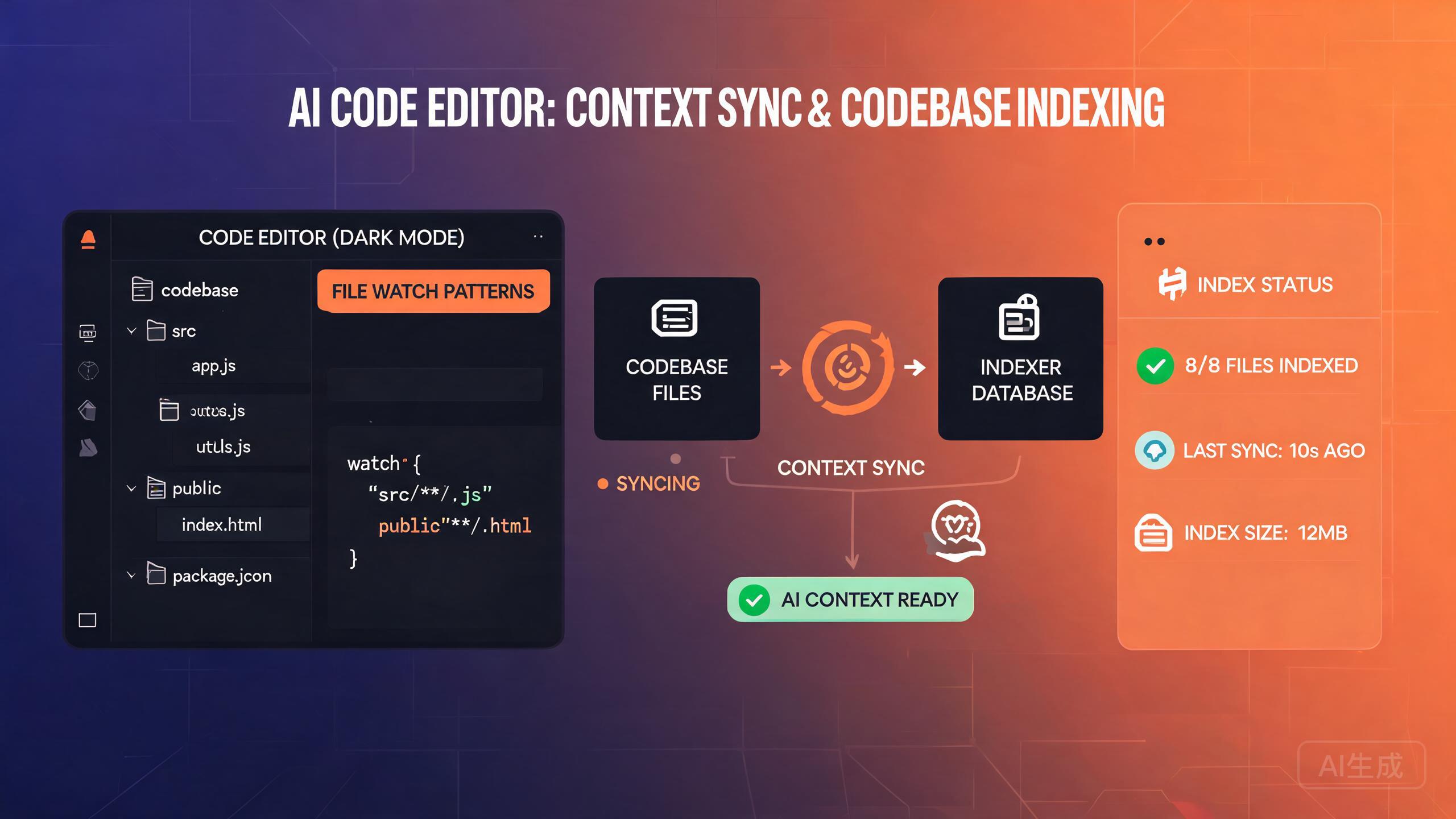
Context Sync is the mechanism Cursor uses to index your codebase and provide relevant context to the AI assistant. When it works correctly, it enables accurate code suggestions, precise file references, and intelligent project-aware responses. When it breaks, you may experience stale suggestions, missing file references, or the dreaded "Context Sync is not running" error. This guide walks through diagnosis, repair, and optimization.
Understanding Context Sync
Context Sync operates in the background, continuously scanning your project files and building a searchable index. This index allows the AI to understand your project structure, find relevant files, and provide contextually accurate responses.
How Indexing Works
The indexing process follows these stages:
- Discovery: Cursor scans the workspace for all files, respecting
.gitignoreand custom exclusion rules - Parsing: Each file is parsed to extract symbols, imports, and structural metadata
- Embedding: Code chunks are converted into vector embeddings for semantic search
- Storage: The index is stored locally and optionally synced to the cloud
- Updates: File changes trigger incremental index updates
The first indexing of a large codebase can take several minutes. During this time, you may notice higher CPU usage and slower AI responses. This is normal and will resolve once the initial index is complete.
Context Window Management
The context window determines how much information the AI can work with at once. Cursor manages this automatically, but understanding the limits helps you optimize your workflow:
| Plan | Context Window | Max Indexed Files |
|---|---|---|
| Free | 25,000 tokens | 500 files |
| Pro | 200,000 tokens | 5,000 files |
| Business | 200,000 tokens | 25,000 files |
| Enterprise | Custom | Custom |
Diagnosing Context Sync Issues
Checking Sync Status
The first step in troubleshooting is to check the current Context Sync status. Cursor provides several ways to do this:
Method 1: Status Bar
Look at the bottom-right corner of the Cursor window. A spinning icon indicates active syncing, while a checkmark means sync is up to date. If you see an error icon, hover over it for details.
Method 2: Command Palette
# Open the command palette (Ctrl+Shift+P / Cmd+Shift+P)
# Type: Cursor: Show Context Sync Status
This opens a detailed panel showing:
- Current sync state (running, paused, error)
- Number of files indexed
- Last sync timestamp
- Any error messages
- Index size on disk
Method 3: Output Panel
# View > Output
# Select "Cursor Indexing" from the dropdown
The output panel shows real-time indexing logs, including file-by-file progress and error messages.
If the Context Sync status shows "not running" and there are no visible errors, this can indicate a silent failure. Check the output panel for error messages that may not have surfaced to the UI. Look for lines containing "ERROR" or "FATAL".
Common Error Messages
Here are the most frequently encountered Context Sync errors and what they mean:
"Context Sync is not running"
This is a generic error that can have multiple causes. The sync process has stopped and needs to be restarted. See the repair section below for step-by-step instructions.
"Index corruption detected"
The local index file has become corrupted, usually due to an unexpected shutdown or disk error. The solution is to delete the index and rebuild it from scratch.
"File watcher limit reached"
The operating system's file watcher limit has been exceeded. This is common on Linux systems with large workspaces. The solution is to increase the system's inotify limit.
"Embedding service unavailable"
The cloud embedding service is temporarily unavailable. This is usually transient and resolves on its own within a few minutes.
"Rate limit exceeded for indexing"
You have hit the indexing rate limit. This happens when too many files are modified in a short period. Wait a few minutes and the sync will resume automatically.
Repairing Context Sync
Quick Fix: Restart Context Sync
The simplest fix for most Context Sync issues is to restart the sync process:
# Command Palette (Ctrl+Shift+P / Cmd+Shift+P)
# Type: Cursor: Restart Context Sync
Alternatively, you can use the settings to force a restart:
// In settings.json
{
  "cursor.contextSync.forceRestart": true
}
After saving this setting, Cursor will restart the sync process on the next window reload.
Full Reindex
When a quick restart does not resolve the issue, a full reindex is needed. This deletes the existing index and rebuilds it from scratch.
# Step 1: Clear the index cache
# Command Palette: Cursor: Clear Index Cache

# Step 2: Trigger a full reindex
# Command Palette: Cursor: Reindex Workspace
A full reindex on a large codebase can take 10-30 minutes. During this time, AI features will have limited or no context. Plan reindexing during a break or when you do not immediately need AI assistance.
Manual Index Repair
If the built-in commands do not work, you can manually clear the index files:
On Windows:
# Close Cursor first
# Clear the index directory
Remove-Item -Recurse -Force "$env:APPDATA\Cursor\index"
Remove-Item -Recurse -Force "$env:APPDATA\Cursor\codebase-index"

# Clear the cache
Remove-Item -Recurse -Force "$env:APPDATA\Cursor\cache"

# Restart Cursor and let it rebuild the index
On macOS:
# Close Cursor first
rm -rf ~/Library/Application\ Support/Cursor/index
rm -rf ~/Library/Application\ Support/Cursor/codebase-index
rm -rf ~/Library/Application\ Support/Cursor/cache

# Restart Cursor
On Linux:
# Close Cursor first
rm -rf ~/.config/Cursor/index
rm -rf ~/.config/Cursor/codebase-index
rm -rf ~/.config/Cursor/cache

# Restart Cursor
Before deleting the index, check its size. If the index directory is unusually large (several GB for a small project), corruption is likely. Note the size before deleting for comparison after rebuilding.
Indexing Configuration
Optimizing Index Scope
Controlling which files get indexed is the most effective way to improve Context Sync performance. By default, Cursor respects .gitignore, but you can add custom exclusions.
// In settings.json
{
  "cursor.contextSync.exclude": [
    "**/node_modules/**",
    "**/dist/**",
    "**/build/**",
    "**/.next/**",
    "**/coverage/**",
    "**/*.min.js",
    "**/*.map",
    "**/vendor/**",
    "**/.cache/**",
    "**/*.lock",
    "**/package-lock.json",
    "**/yarn.lock",
    "**/*.png",
    "**/*.jpg",
    "**/*.gif",
    "**/*.svg"
  ],
  "cursor.contextSync.include": [
    "**/*.ts",
    "**/*.tsx",
    "**/*.js",
    "**/*.jsx",
    "**/*.py",
    "**/*.go",
    "**/*.rs",
    "**/README.md",
    "**/*.json"
  ]
}
Including binary files (images, compiled binaries, lock files) in the index wastes space and degrades search quality. Always exclude binary and generated files from indexing. The AI cannot meaningfully process binary content, and these files add noise to the index.
Setting Index Limits
For very large codebases, you can limit the maximum number of files and the maximum file size that will be indexed:
{
  "cursor.contextSync.maxFiles": 10000,
  "cursor.contextSync.maxFileSize": 1048576,
  "cursor.contextSync.maxLinesPerFile": 5000
}
These limits prevent the index from growing uncontrollably and ensure that the most important files are prioritized.
File Watcher Configuration
On Linux systems, the default inotify watcher limit is often too low for large projects. Increase it to prevent "file watcher limit reached" errors:
# Check the current limit
cat /proc/sys/fs/inotify/max_user_watches

# Temporarily increase the limit
sudo sysctl fs.inotify.max_user_watches=524288

# Permanently increase the limit
echo "fs.inotify.max_user_watches=524288" | sudo tee -a /etc/sysctl.conf
sudo sysctl -p
On Windows, the equivalent setting is the MaxExtendedTdiHandleCount registry value, but it rarely needs adjustment.
Performance Tuning
Measuring Index Performance
Before optimizing, establish a baseline measurement of your current index performance:
# Command Palette: Cursor: Show Index Statistics
This displays:
Index Statistics
================
Total files:      3,247
Indexed files:    2,891 (89%)
Excluded files:   356
Index size:       142 MB
Last full index:  2026-09-14 14:30:22
Index duration:   4m 32s
Incremental updates today: 127
Average update time: 1.2s
Embedding cache hit rate: 87%
A high embedding cache hit rate (above 80%) means most file changes do not require new embeddings. If the hit rate is low, it may indicate that files are being modified too frequently or that the cache is too small.
Optimizing for Large Monorepos
Large monorepos present unique challenges for Context Sync. Here are strategies to handle them:
Strategy 1: Project-Specific Indexing
Instead of indexing the entire monorepo, index only the project you are currently working on:
{
  "cursor.contextSync.workspaceRoot": "packages/web-app",
  "cursor.contextSync.exclude": [
    "packages/**",
    "!packages/web-app/**"
  ]
}
This tells Cursor to exclude all packages except the one you are actively working on.
Strategy 2: Symbol-Based Indexing
Enable symbol-based indexing, which focuses on function and class definitions rather than full file contents:
{
  "cursor.contextSync.indexingMode": "symbols",
  "cursor.contextSync.symbolTypes": [
    "function",
    "class",
    "interface",
    "type",
    "method",
    "variable"
  ]
}
Strategy 3: Priority-Based Indexing
Assign priority levels to different directories so that critical code is indexed first:
{
  "cursor.contextSync.priority": {
    "src/core/**": "high",
    "src/api/**": "high",
    "src/components/**": "medium",
    "src/utils/**": "medium",
    "src/tests/**": "low",
    "docs/**": "low"
  }
}
Priority-based indexing does not exclude low-priority files, it just indexes them last. During the initial indexing phase, high-priority files become available first, which can be useful if you need to start working before the full index is complete.
Optimizing Incremental Updates
Incremental updates are triggered when files change. You can control how aggressive these updates are:
{
  "cursor.contextSync.incremental": {
    "enabled": true,
    "debounceMs": 2000,
    "batchSize": 10,
    "maxConcurrentUpdates": 3
  }
}
debounceMs: Wait this long after the last file change before updating the index. Higher values reduce update frequency but batch more changes.batchSize: Number of files to process in each update batch.maxConcurrentUpdates: Maximum number of parallel update workers.
Cloud Sync Optimization
If you have cloud sync enabled, it can impact performance on slower connections:
{
  "cursor.contextSync.cloud": {
    "enabled": true,
    "syncInterval": 300000,
    "compressBeforeSync": true,
    "maxSyncSize": 50000000
  }
}
If you work offline frequently, increase the sync interval to avoid unnecessary connection attempts. The local index remains fully functional without cloud sync, it just will not be shared across devices.
Advanced Troubleshooting
Diagnosing Stale Index
If the AI is referencing outdated code or missing recent changes, the index may be stale:
# Command Palette: Cursor: Validate Index Integrity
This command checks for:
- Files in the index that no longer exist on disk
- Files on disk that are not in the index
- Files whose content hash does not match the indexed version
- Orphaned index entries
# Sample output
Index Integrity Report
======================
Total discrepancies: 14
  Missing from index:      3 files
  Stale entries:          8 files
  Orphaned entries:       3 files

Recommended action: Run "Cursor: Reindex Workspace" to fix all discrepancies.
Debugging File Watcher Issues
If file changes are not being picked up by Context Sync, the file watcher may not be working correctly:
# Command Palette: Cursor: Test File Watcher
This command creates a temporary test file and monitors whether the watcher detects it:
File Watcher Test
=================
Creating test file: .cursor-test-watcher-12345.txt
Waiting for watcher response...
Watcher detected change: YES (after 0.3s)
File watcher is functioning correctly.

If you are experiencing sync issues, the problem may be with
specific directories. Check your exclude patterns.
Checking Embedding Service Health
// In settings.json, enable embedding diagnostics
{
  "cursor.contextSync.debugEmbeddings": true
}
With this enabled, the output panel will show detailed embedding information:
[DEBUG] Embedding request: file=src/auth/login.ts, chunks=3, tokens=1842
[DEBUG] Embedding response: success, cache=hit, duration=12ms
[DEBUG] Embedding request: file=src/auth/register.ts, chunks=4, tokens=2103
[DEBUG] Embedding response: success, cache=miss, duration=894ms
[DEBUG] Embedding batch complete: 7 files, 24 chunks, 6 cache hits
If all embedding requests show cache=miss and long durations, the embedding cache may be corrupted or too small. Try increasing the cache size in settings or clearing the cache entirely.
Log Analysis
For persistent issues, collect a diagnostic log and analyze it:
# Command Palette: Cursor: Generate Diagnostic Report
This creates a comprehensive report that includes:
- Context Sync configuration
- Index statistics
- Recent error log
- File watcher status
- Embedding service health
- System information
The report is saved to:
# Windows
%USERPROFILE%\Desktop\cursor-diagnostic-report.txt

# macOS / Linux
~/Desktop/cursor-diagnostic-report.txt
Best Practices for Context Sync
Regular Maintenance
- Weekly: Run "Validate Index Integrity" to catch discrepancies early
- Monthly: Review and update exclude patterns based on project changes
- After major refactors: Trigger a full reindex to ensure structural changes are captured
- After dependency updates: Clear the cache to prevent stale embeddings
Workspace Organization
// Recommended settings for most projects
{
  "cursor.contextSync.exclude": [
    "**/node_modules/**",
    "**/dist/**",
    "**/build/**",
    "**/.git/**",
    "**/*.log",
    "**/*.min.*",
    "**/coverage/**"
  ],
  "cursor.contextSync.maxFileSize": 1048576,
  "cursor.contextSync.incremental": {
    "enabled": true,
    "debounceMs": 2000
  }
}
If you work on multiple projects within the same workspace, use multi-root workspace files to separate index contexts. Each root folder gets its own index, which improves relevance and reduces index size.
Handling Large Generated Files
Generated files like type definitions, compiled output, and auto-generated API clients can bloat the index. Use a separate .cursorignore file for fine-grained control:
# .cursorignore
# Exclude all generated type files
src/types/generated/**
# Exclude large schema files
schema/**/*.json
# Exclude test fixtures
test/fixtures/**
# Exclude migration files (they are rarely needed for AI context)
migrations/**
If you exclude migration files, make sure to include them when working on database-related tasks. You can temporarily remove the exclusion or use the Cursor: Index File command to index specific files on demand.
Conclusion
Context Sync is the backbone of Cursor's intelligent code assistance. By understanding how indexing works, knowing how to diagnose and repair common issues, and applying the optimization strategies in this guide, you can ensure that your AI assistant always has accurate, up-to-date context about your codebase.
The key takeaways are: keep your exclude patterns updated, perform regular integrity checks, and do not hesitate to do a full reindex when things seem off. A healthy index means faster, more accurate AI responses, which translates directly to improved developer productivity.