Configuring and Using Subagents in Cursor
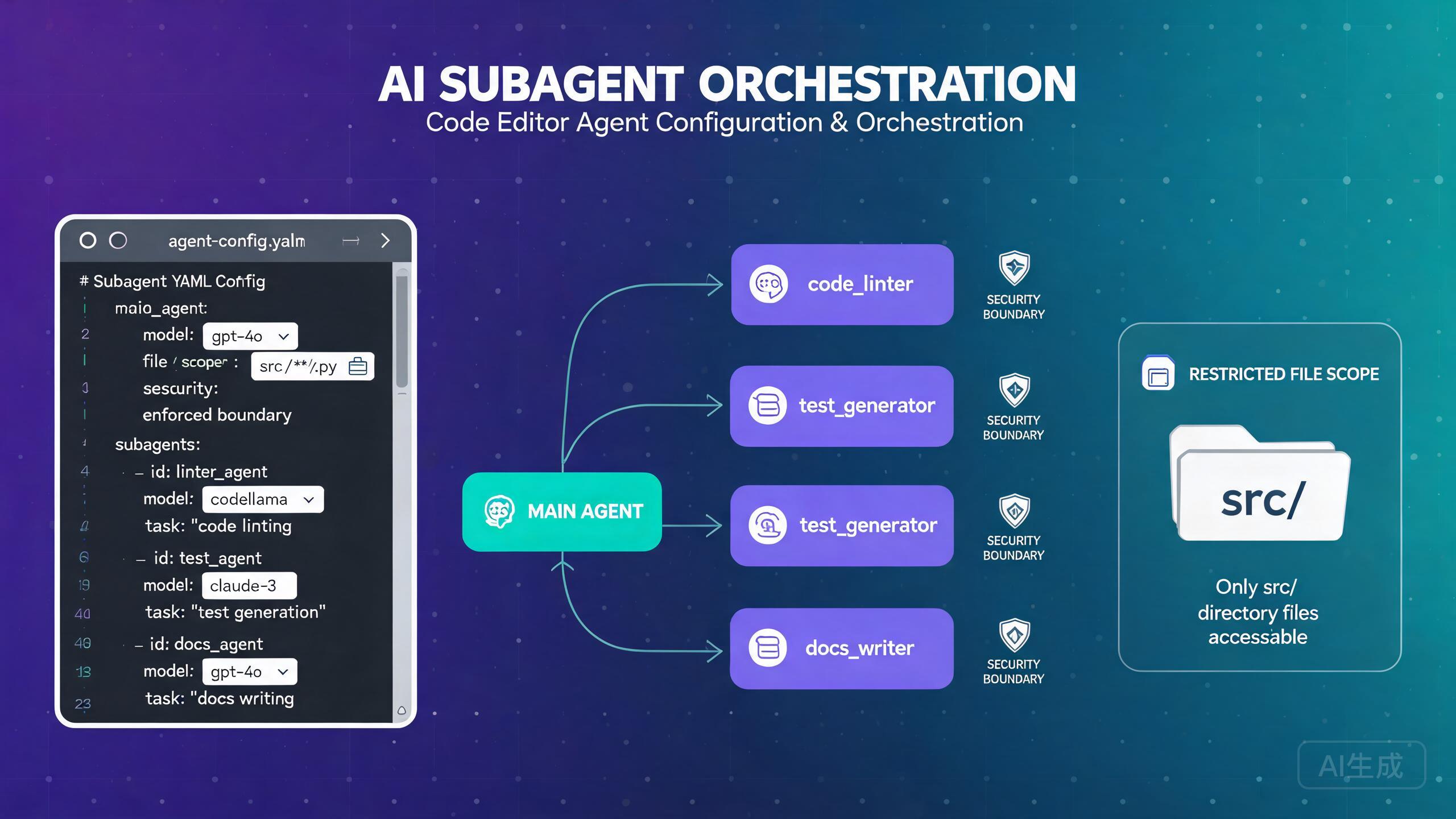
Subagents in Cursor allow you to decompose complex tasks into smaller, specialized units that can run in parallel or sequence. A planner agent orchestrates the overall task while subagents handle specific subtasks with their own models, scopes, and security boundaries. This guide covers everything from model selection to security configuration, helping you build robust multi-agent workflows.
Understanding Subagents
What Are Subagents?
Subagents are independent agent instances that operate under the direction of a planner agent. Each subagent can have its own:
- Model: Different AI models for different task types
- Scope: Restricted file and directory access
- Security boundaries: Limits on what actions they can take
- Context: Isolated context window to prevent interference
The planner agent breaks down a complex task, assigns subtasks to subagents, collects their results, and synthesizes a final output. This architecture mirrors how human teams divide work among specialists.
When to Use Subagents
Subagents shine in scenarios where a single agent would struggle with the breadth or complexity of a task:
- Large refactoring spanning multiple modules
- Implementing a feature that requires both frontend and backend changes
- Running tests, fixing bugs, and updating documentation simultaneously
- Code review across multiple repositories
- Generating and validating code changes in parallel
For simple, single-file tasks, a subagent architecture adds overhead without benefit. Use subagents when the task naturally divides into independent or semi-independent subtasks. If you can describe the task in one sentence, you probably do not need subagents.
Model Selection
Choosing Models for Planner vs Subagents
One of the most important decisions in a subagent setup is which model to assign to the planner and which to assign to the subagents. Different models have different strengths, costs, and speed characteristics.
Available Models
| Model | Strengths | Speed | Cost | Best For |
|---|---|---|---|---|
cursor-pro | Balanced reasoning and speed | Medium | Medium | Planner, general tasks |
cursor-fast | Fast iteration, simple tasks | Fast | Low | Simple subagents |
cursor-max | Deep reasoning, complex logic | Slow | High | Complex subagents |
cursor-think | Extended reasoning, architecture | Slowest | Highest | Planner for complex tasks |
Configuration
Configure model assignments in your Cursor settings or project configuration:
// In settings.json
{
  "cursor.subagents.enabled": true,
  "cursor.subagents.plannerModel": "cursor-pro",
  "cursor.subagents.defaultModel": "cursor-fast",
  "cursor.subagents.maxConcurrent": 4,
  "cursor.subagents.timeout": 300000
}
Per-Subagent Model Configuration
You can assign different models to different subagents based on their task:
# .cursor/subagents/config.yaml
planner:
  model: cursor-pro
  description: "Orchestrates the overall task and synthesizes results"
  maxSubagents: 5

subagents:
  - name: "frontend-agent"
    model: cursor-max
    description: "Handles React component changes"
    scope:
      files: ["src/components/**", "src/pages/**"]
    tools: ["read", "write", "edit"]

  - name: "backend-agent"
    model: cursor-max
    description: "Handles API and server logic"
    scope:
      files: ["src/api/**", "src/server/**", "src/models/**"]
    tools: ["read", "write", "edit", "terminal"]

  - name: "test-agent"
    model: cursor-fast
    description: "Writes and runs tests"
    scope:
      files: ["test/**", "src/**/*.test.*"]
    tools: ["read", "write", "terminal"]

  - name: "docs-agent"
    model: cursor-fast
    description: "Updates documentation"
    scope:
      files: ["docs/**", "README.md", "CHANGELOG.md"]
    tools: ["read", "write"]
Use a powerful model like cursor-max for subagents that handle complex logic or critical code paths. Use cursor-fast for simpler tasks like formatting, documentation, or running predefined commands. This balances cost and quality effectively.
Model Selection Best Practices
When deciding on model assignments, consider these guidelines:
- The planner needs strong reasoning: The planner must understand the full task, decompose it, and synthesize results. Use
cursor-proorcursor-thinkfor the planner. - Match model to complexity: Simple file edits do not need
cursor-max. Reserve expensive models for tasks requiring deep understanding. - Consider context window: Complex subtasks may need larger context windows.
cursor-maxsupports more context thancursor-fast. - Cost-aware scaling: Running four
cursor-fastsubagents is cheaper than onecursor-maxagent. But if quality matters, invest in better models for critical subtasks.
// Cost-optimized configuration
{
  "cursor.subagents.plannerModel": "cursor-pro",
  "cursor.subagents.models": {
    "frontend-agent": "cursor-fast",
    "backend-agent": "cursor-max",
    "test-agent": "cursor-fast",
    "docs-agent": "cursor-fast"
  }
}

// Quality-optimized configuration
{
  "cursor.subagents.plannerModel": "cursor-think",
  "cursor.subagents.models": {
    "frontend-agent": "cursor-max",
    "backend-agent": "cursor-max",
    "test-agent": "cursor-max",
    "docs-agent": "cursor-fast"
  }
}
Using expensive models for all subagents can quickly consume your plan's token budget. Monitor your usage with the Cursor: Show Token Usage command. If you approach your limit, downgrade non-critical subagents to cursor-fast.
Scope Control
File Access Restrictions
Scope control determines which files and directories each subagent can access. This is both a security measure and a quality improvement, as it prevents subagents from making unintended changes.
Configuring File Scopes
# .cursor/subagents/scopes.yaml
subagents:
  - name: "auth-module-agent"
    scope:
      # Files this agent can read and modify
      files:
        include:
          - "src/auth/**"
          - "src/middleware/auth.ts"
          - "config/auth.json"
        exclude:
          - "src/auth/legacy/**"
      # Directories this agent can list and explore
      directories:
        - "src/auth"
        - "src/middleware"
      # Whether the agent can access files outside its scope
      strictMode: true
When strictMode is true, the subagent cannot read, list, or modify any files outside its declared scope. This is the recommended setting for most use cases.
Users have reported that agents sometimes explore files outside the opened directory, even when scope restrictions are configured. This typically happens when:
- The
strictModesetting is not explicitly set totrue(it defaults tofalse) - The subagent uses terminal commands to access files (bypassing file-scope checks)
- The scope configuration uses relative paths that resolve differently than expected
- The subagent inherits the planner's broader scope
To prevent this, always set strictMode: true and also restrict terminal tool access. See the Security Boundaries section below.
Common Scope Patterns
Module-Based Scope: Restrict an agent to a specific module:
- name: "user-module-agent"
  scope:
    files:
      include: ["src/modules/user/**"]
    strictMode: true
Layer-Based Scope: Restrict an agent to a specific architectural layer:
- name: "api-layer-agent"
  scope:
    files:
      include:
        - "src/api/routes/**"
        - "src/api/controllers/**"
        - "src/api/middleware/**"
    strictMode: true
Read-Only Scope: Allow reading but not modifying files:
- name: "code-review-agent"
  scope:
    files:
      include: ["src/**"]
    tools: ["read"]  # No write or edit tools
    strictMode: true
Shared File Scope: Multiple agents can access shared configuration files:
- name: "config-aware-agent"
  scope:
    files:
      include:
        - "src/features/feature-a/**"
        - "src/shared/config.ts"  # Shared config file
        - "src/shared/types.ts"   # Shared type definitions
    strictMode: true
Security Boundaries
Tool Restrictions
Each subagent can be restricted to specific tools. This prevents subagents from performing actions they should not be able to do.
# .cursor/subagents/security.yaml
subagents:
  - name: "read-only-analyzer"
    description: "Analyzes code without modifying anything"
    tools:
      - read
    # No write, edit, or terminal tools
    scope:
      files:
        include: ["src/**"]
      strictMode: true

  - name: "test-runner"
    description: "Runs tests and reports results"
    tools:
      - read
      - terminal
    scope:
      files:
        include: ["test/**", "src/**"]
      strictMode: true
    terminal:
      allowedCommands:
        - "npm test"
        - "npm run test:unit"
        - "npm run test:integration"
      blockedCommands:
        - "rm"
        - "git push"
        - "npm publish"

  - name: "file-editor"
    description: "Edits source files only"
    tools:
      - read
      - write
      - edit
    # No terminal access
    scope:
      files:
        include: ["src/**"]
      strictMode: true
The allowedCommands and blockedCommands settings for terminal access provide a double layer of security. Even if a subagent somehow gains terminal access, it can only run explicitly approved commands. This is especially important when running agents in CI/CD pipelines or automated environments.
Preventing Cross-Subagent Interference
Subagents should operate independently. To prevent them from interfering with each other:
- Non-overlapping file scopes: Ensure subagents do not have overlapping write access to the same files
- Separate branches: Consider having each subagent work on a separate Git branch
- Staged execution: Use sequential execution when subagents depend on each other's output
# Example: Sequential execution with dependency
execution:
  strategy: sequential
  steps:
    - agent: "schema-agent"
      description: "Generate database schema first"
      scope:
        files:
          include: ["src/models/**", "migrations/**"]
      tools: ["read", "write", "edit"]

    - agent: "api-agent"
      description: "Build API endpoints based on schema"
      dependsOn: "schema-agent"
      scope:
        files:
          include: ["src/api/**"]
      tools: ["read", "write", "edit"]

    - agent: "test-agent"
      description: "Write tests for the new API"
      dependsOn: "api-agent"
      scope:
        files:
          include: ["test/**"]
      tools: ["read", "write", "terminal"]
If two subagents write to the same file simultaneously, you will get merge conflicts that the planner cannot automatically resolve. Always verify that file scopes do not overlap for write-capable subagents. Use the Cursor: Validate Subagent Scopes command to check for overlaps before running.
Environment Variable Access
Control which environment variables each subagent can access:
- name: "deploy-agent"
  scope:
    env:
      allow:
        - "DEPLOY_TARGET"
        - "CI_COMMIT_SHA"
      deny:
        - "AWS_SECRET_ACCESS_KEY"
        - "DATABASE_PASSWORD"
This ensures sensitive secrets are not exposed to subagents that do not need them.
Parallel Agent Execution
Configuring Parallel Execution
Parallel execution lets multiple subagents run simultaneously, significantly reducing total task completion time.
// In settings.json
{
  "cursor.subagents.execution": {
    "strategy": "parallel",
    "maxConcurrent": 4,
    "staggerDelay": 1000
  }
}
maxConcurrent: Maximum number of subagents running at the same timestaggerDelay: Milliseconds to wait between starting each subagent (prevents resource spikes)
Parallel Execution Example
# .cursor/subagents/parallel-config.yaml
planner:
  model: cursor-pro
  description: "Refactor the authentication system across frontend and backend"

execution:
  strategy: parallel

subagents:
  - name: "frontend-auth"
    model: cursor-max
    description: "Refactor React authentication components to use new auth context"
    scope:
      files:
        include: ["src/components/auth/**", "src/contexts/AuthContext.tsx"]
      strictMode: true
    tools: ["read", "write", "edit"]

  - name: "backend-auth"
    model: cursor-max
    description: "Refactor backend authentication middleware and JWT handling"
    scope:
      files:
        include: ["src/api/middleware/auth.ts", "src/utils/jwt.ts"]
      strictMode: true
    tools: ["read", "write", "edit"]

  - name: "auth-tests"
    model: cursor-fast
    description: "Update authentication tests for the new structure"
    scope:
      files:
        include: ["test/auth/**"]
      strictMode: true
    tools: ["read", "write", "terminal"]

  - name: "auth-docs"
    model: cursor-fast
    description: "Update authentication documentation"
    scope:
      files:
        include: ["docs/auth/**", "README.md"]
      strictMode: true
    tools: ["read", "write"]
In this configuration, all four subagents start simultaneously (with a 1-second stagger) and work on their respective areas in parallel.
Handling Parallel Execution Results
The planner collects results from all parallel subagents and synthesizes them:
// Planner synthesis configuration
{
  "cursor.subagents.planner": {
    "synthesisStrategy": "merge",
    "conflictResolution": "planner-decides",
    "generateSummary": true,
    "summaryFormat": "markdown"
  }
}
If parallel subagents produce conflicting changes, the planner can resolve them by choosing one approach over another. Enable generateSummary so the planner explains its conflict resolution decisions in a human-readable format. Review this summary before accepting the changes.
Subagent Orchestration
Orchestration Strategies
The planner can use different strategies to orchestrate subagents:
Strategy 1: Fan-Out / Fan-In
The planner decomposes the task, assigns subtasks to parallel subagents, collects all results, and synthesizes them.
execution:
  strategy: parallel
  synthesis:
    type: "merge"
    order: "completion"  # Collect results as they complete
Strategy 2: Pipeline
Subagents execute in sequence, each consuming the output of the previous one.
execution:
  strategy: sequential
  pipeline:
    - agent: "schema-generator"
      output: "schema_result"
    - agent: "api-builder"
      input: "schema_result"
      output: "api_result"
    - agent: "test-writer"
      input: "api_result"
      output: "test_result"
Strategy 3: Adaptive
The planner dynamically decides whether to run subagents in parallel or sequentially based on task dependencies.
execution:
  strategy: adaptive
  rules:
    - condition: "no_dependencies"
      action: "parallel"
    - condition: "has_dependencies"
      action: "sequential"
    - condition: "partial_dependencies"
      action: "mixed"
Dynamic Subagent Creation
The planner can create subagents dynamically based on what it discovers during task execution:
// In settings.json
{
  "cursor.subagents.dynamicCreation": true,
  "cursor.subagents.dynamicMaxAgents": 8,
  "cursor.subagents.dynamicTemplate": {
    "model": "cursor-fast",
    "tools": ["read", "write", "edit"],
    "scope": {
      "strictMode": true
    }
  }
}
With dynamic creation enabled, the planner can spawn new subagents as needed. For example, if the planner discovers that the task involves both Python and TypeScript files, it can create a Python-specific subagent and a TypeScript-specific subagent on the fly.
Dynamic subagent creation can lead to runaway agent spawning if the planner overestimates the need for parallelism. Always set dynamicMaxAgents to a reasonable limit (4-8) and monitor the total token usage. If the planner creates too many subagents, it may exhaust the token budget before the task is complete.
Orchestrating with Checkpoints
Add checkpoints between subagent runs to allow for human review or automated validation:
execution:
  strategy: sequential
  checkpoints:
    - after: "schema-generator"
      action: "validate"
      validator: "npm run typecheck"
      onFail: "retry"
      maxRetries: 2

    - after: "api-builder"
      action: "review"
      reviewer: "human"
      timeout: 300000
      onTimeout: "proceed"
Checkpoints are especially valuable in CI/CD integrations where you want to validate intermediate results before proceeding. A validate checkpoint runs a command and only proceeds if it exits successfully, while a review checkpoint pauses for human input.
Monitoring and Debugging
Viewing Subagent Status
Monitor all running subagents from the Cursor sidebar:
# Command Palette: Cursor: Show Subagent Dashboard
The dashboard shows:
Subagent Dashboard
==================
Planner: [running] cursor-pro
  Task: "Refactor authentication system"
  Steps: 3/5

Subagents:
  [completed] frontend-auth (cursor-max)
    Files changed: 4
    Tokens used: 12,400

  [running] backend-auth (cursor-max)
    Current file: src/api/middleware/auth.ts
    Tokens used: 8,200

  [running] auth-tests (cursor-fast)
    Current file: test/auth/login.test.ts
    Tokens used: 3,100

  [queued] auth-docs (cursor-fast)
    Waiting for: backend-auth to complete

Total tokens: 23,700 / 100,000
Debugging Scope Violations
If a subagent attempts to access files outside its scope, the attempt is logged:
# View scope violation log
# Command Palette: Cursor: Show Subagent Logs
[WARN] Subagent "frontend-auth" attempted to read src/api/routes.ts
       Access denied: file is outside the agent's scope
       Scope includes: src/components/auth/**, src/contexts/AuthContext.tsx

[WARN] Subagent "backend-auth" attempted to run terminal command: npm install
       Command blocked: not in allowedCommands list
       Allowed commands: npm test, npx tsc, git status
If you see repeated scope violations from the same subagent, its scope may be too restrictive. Review the task and consider expanding the scope to include the files it keeps trying to access. A frustrated subagent that cannot access needed files will waste tokens on failed attempts.
Best Practices
- Use
cursor-proor better for the planner, cheaper models for simple subagents - Always set
strictMode: truefor file scopes to prevent unwanted access - Configure
allowedCommandsfor any subagent with terminal access - Ensure write scopes do not overlap between parallel subagents
- Set a
maxConcurrentlimit to control resource usage - Use checkpoints for critical tasks that require validation
- Monitor token usage across all subagents to avoid budget exhaustion
- Start with sequential execution and move to parallel once you verify scopes are correct
- Review the planner's synthesis summary before accepting parallel results
- Version control your subagent configuration for team consistency
Subagents inherit the planner's system prompt by default. If your system prompt contains sensitive information, consider using subagent-specific prompts that exclude unnecessary context. Configure this with the cursor.subagents.inheritPlannerPrompt setting set to false.
Conclusion
Subagents in Cursor provide a powerful way to decompose complex tasks into manageable, specialized units. By carefully selecting models, configuring strict file scopes, setting up security boundaries, and choosing the right orchestration strategy, you can build multi-agent workflows that are both efficient and safe.
The most important considerations are: match the model to the task complexity, use strict scope enforcement to prevent file access issues, and start with sequential execution before moving to parallel. With these practices, subagents become a reliable tool for handling large-scale development tasks that would be overwhelming for a single agent.