Using Cursor Canvas for Visual Project Planning
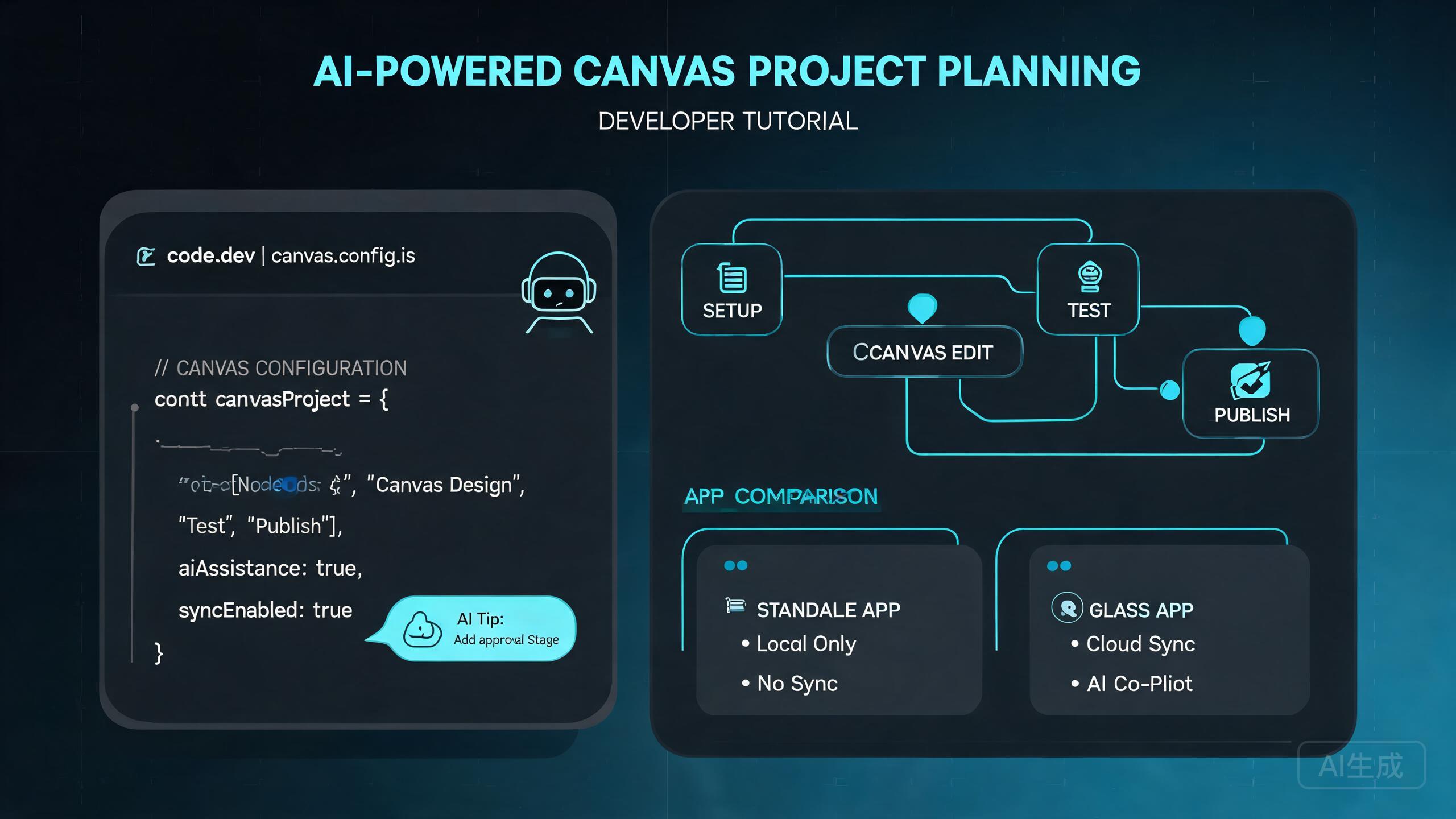
Cursor Canvas is a visual planning surface that lives inside your IDE. It lets you sketch architecture diagrams, map out feature flows, plan sprint tasks, and share visual context with your team, all without leaving Cursor. Unlike a static whiteboard, Canvas integrates with your codebase, allowing you to link diagrams to actual files, functions, and data models. This guide covers everything from creating your first canvas to publishing it and troubleshooting the infamous "Canvas file not found" error.
What Is Cursor Canvas?
Canvas is a visual workspace where you can:
- Draw architecture diagrams with boxes, arrows, and annotations
- Link code artifacts by dragging files, functions, or classes onto the canvas
- Plan features visually before writing any code
- Share with your team by publishing canvases as standalone links
- Annotate decisions with notes, TODOs, and design rationale
The key differentiator from external tools like Miro or Figma is that Canvas is context-aware. When you place a component on the canvas, it knows the actual file path, exports, and dependencies of that component.
Prerequisites
- Cursor version 0.42 or newer (Canvas was introduced in late 2024)
- A project folder open in Cursor (Canvas works within a project context)
- Cursor account for publishing features (free tier is sufficient)
Creating Your First Canvas
Step 1: Open the Canvas Editor
There are three ways to open a new canvas:
- Command Palette:
Cmd/Ctrl + Shift + Pand type Canvas: New Canvas - Sidebar: Click the Canvas icon in the activity bar (left sidebar)
- Keyboard shortcut:
Cmd/Ctrl + Shift + C(configurable in settings)
Step 2: Add Elements to the Canvas
Start with a blank canvas. You can add the following element types:
| Element | How to Add | Purpose |
|---|---|---|
| File node | Drag a file from the explorer | Shows the file and its relationships |
| Function node | Right-click a function > "Add to Canvas" | Visualize function call graphs |
| Text box | Double-click empty canvas space | Add notes, labels, or decisions |
| Shape | Click the shape tool in the toolbar | Draw boxes, circles, arrows |
| Image | Drag an image file or paste from clipboard | Include screenshots or mockups |
Step 3: Connect Elements
Draw arrows between elements to show relationships:
- Hover over an element until connection points appear
- Click and drag from a connection point to another element
- Release to create a connection
- Optionally label the connection (e.g., "imports", "calls", "extends")
Step 4: Save the Canvas
Canvases are saved as .canvas files in your project:
my-project/
  .cursor/
    canvases/
      architecture-overview.canvas
      feature-auth-flow.canvas
      sprint-planning.canvas
Name your canvases descriptively. Canvas files are version-controllable, so your team can track diagram evolution over time. Add a canvases/ folder to your repository and commit them alongside your code.
Canvas Publishing
Publishing a canvas generates a shareable link that anyone can view in a browser, even without Cursor installed. This is useful for sharing architecture decisions with stakeholders or onboarding new team members.
How to Publish
- Open the canvas you want to publish
- Click the Publish button in the top-right toolbar
- Choose visibility:
- Private - Only people with the link and a Cursor account can view
- Unlisted - Anyone with the link can view (no account required)
- Public - Discoverable and viewable by anyone
- Click Publish
- Copy the generated URL and share it
How Publishing Works Internally
When you publish a canvas, Cursor:
- Serializes the canvas to a portable format
- Uploads it to Cursor's cloud storage
- Generates a unique project key for the published version
- Returns a URL containing that key
Published canvases are point-in-time snapshots. If you update the canvas after publishing, the published version does not automatically update. You must re-publish to share the latest version. This is by design, to prevent stakeholders from seeing half-finished edits.
Project Key Management
Every canvas, whether local or published, is associated with a project key. Understanding how project keys work is essential for troubleshooting publishing issues.
What Is a Project Key?
A project key is a unique identifier that links a canvas to its project context. It allows the published canvas to reference the correct code structure, file paths, and metadata.
The Per-Launch Temp Project Key Problem
Forum users frequently report that canvas publishing fails with "Canvas file not found." The root cause is that Cursor generates a temporary project key on each launch when it cannot find a persistent one.
Here is what happens:
- You open Cursor, and it assigns a temp project key like
tmp_abc123 - You create and work on a canvas, which is associated with
tmp_abc123 - You click Publish
- The publish endpoint looks up the canvas by the current project key
- If the key has changed (because Cursor was restarted), the lookup fails
- You see "Canvas file not found"
Fixing the Project Key Issue
Solution 1: Create a Persistent Project Key
Add a .cursor/project.json file to your project root:
{
  "projectKey": "persistent-key-my-project-2024",
  "projectName": "My Project",
  "createdAt": "2024-01-15T10:00:00Z"
}
This ensures the project key remains stable across Cursor restarts.
Use a descriptive, unique project key. Do not use generic values like project1 or test. If two projects on your machine have the same key, canvas lookups may collide, and publishing will fail intermittently.
Solution 2: Re-associate the Canvas
If you already have a canvas with a stale temp key:
- Close the canvas in Cursor
- Open the
.canvasfile in a text editor - Find the
projectKeyfield - Update it to match your persistent key
- Save and reopen in Cursor
- Try publishing again
The .canvas file is JSON-based, and the relevant section looks like:
{
  "version": "1.0",
  "projectKey": "tmp_abc123",
  "elements": [...],
  "connections": [...]
}
Change tmp_abc123 to your persistent key.
Solution 3: Clear Canvas Cache
If the above solutions do not work, the local canvas cache may be corrupted:
- Close Cursor
- Navigate to the Cursor cache directory:
- macOS:
~/Library/Application Support/Cursor/canvas-cache/ - Windows:
%APPDATA%/Cursor/canvas-cache/ - Linux:
~/.config/Cursor/canvas-cache/
- macOS:
- Delete the contents of the
canvas-cachefolder - Reopen Cursor
- Reopen your canvas file
- Try publishing again
Clearing the canvas cache will not delete your .canvas files (those live in your project). It only removes the temporary lookup tables that map project keys to canvas metadata. Your actual canvas content is preserved.
Standalone vs Glass App Canvas
Canvas is available in two contexts within the Cursor ecosystem, and there are important differences.
Standalone Canvas (Cursor IDE)
This is the canvas you access from within the Cursor editor:
- Lives in your
.cursor/canvases/directory - Directly linked to your open project
- Can drag files from the explorer onto the canvas
- Uses the project key from
.cursor/project.json - Best for: developer-facing diagrams, architecture planning, code mapping
Glass App Canvas
Glass is Cursor's standalone visual app (separate from the IDE). Canvas within Glass:
- Lives in Glass's own storage, not your project directory
- Can be linked to a project but operates independently
- Has a different project key namespace
- Supports richer visual elements (animations, interactive components)
- Best for: presentations, stakeholder demos, cross-team sharing
Key Differences
| Feature | Standalone Canvas | Glass App Canvas |
|---|---|---|
| Storage location | .cursor/canvases/ | Glass cloud storage |
| Project key source | .cursor/project.json | Glass project settings |
| File drag-and-drop | Yes, from explorer | No, must import |
| Real-time collaboration | No | Yes |
| Publish scope | Cursor account | Glass workspace |
| Offline editing | Yes | No (requires connection) |
If you primarily work in the Cursor IDE, use standalone Canvas for development planning. Use Glass App Canvas when you need to present to non-technical stakeholders or collaborate in real time. The two are not interchangeable, and trying to use Glass Canvas for code-mapping tasks will be frustrating because it cannot reference live files.
Migrating Between Standalone and Glass
You can export a standalone canvas and import it into Glass:
- Open the canvas in Cursor
- Click Export > Export as Glass-compatible
- Save the
.glass-canvasfile - Open Glass
- Click Import and select the file
Note that file references in the exported canvas will be converted to static references (they will not update if the underlying code changes).
Visual Workflow Design
Canvas is not just for architecture diagrams. It is a general-purpose visual workspace. Here are common workflow patterns.
Feature Planning Workflow
- Create a canvas named
feature-[name]-plan.canvas - Add text boxes for the feature requirements
- Add file nodes for the files that will be modified
- Draw arrows showing data flow
- Add TODO text boxes for open questions
- Share the canvas with the team before implementation
- Use the canvas as a reference during implementation
Code Review Workflow
- Create a canvas for the PR under review
- Drag the changed files onto the canvas
- Draw the call graph of the changed functions
- Annotate potential issues with red text boxes
- Publish the canvas and link it in the PR description
Onboarding Workflow
- Create a
project-architecture.canvasfile - Add the main entry points (e.g.,
index.ts,app.tsx) - Add the core modules and services
- Draw the dependency graph
- Add annotations explaining each module's responsibility
- Publish as an unlisted link
- Share with new team members on their first day
Keep onboarding canvases high-level. A canvas with 200 nodes is harder to understand than reading the code directly. Aim for 10-20 elements that show the big picture, and let new hires drill into the code for details.
Advanced Canvas Features
Code-Aware Connections
When you add a function or class to the canvas, Canvas can automatically detect its dependencies and offer to add them:
- Right-click a function node
- Select Show Dependencies
- Canvas lists all functions, modules, and types the function uses
- Click any dependency to add it to the canvas with an auto-drawn connection
Canvas Templates
Create reusable canvas templates for common diagram types:
{
  "version": "1.0",
  "template": "microservice-architecture",
  "elements": [
    {"type": "text", "label": "API Gateway", "x": 400, "y": 50},
    {"type": "text", "label": "Auth Service", "x": 200, "y": 200},
    {"type": "text", "label": "User Service", "x": 600, "y": 200},
    {"type": "text", "label": "Database", "x": 400, "y": 350}
  ],
  "connections": [
    {"from": 0, "to": 1, "label": "routes to"},
    {"from": 0, "to": 2, "label": "routes to"},
    {"from": 1, "to": 3, "label": "reads/writes"},
    {"from": 2, "to": 3, "label": "reads/writes"}
  ]
}
Save this as .cursor/canvases/templates/microservice.canvas and use Canvas: New from Template to instantiate it.
Embedding Canvases in Documentation
You can embed published canvas links in your project documentation:
## Architecture Overview

See our [visual architecture diagram](https://canvas.cursor.sh/c/persistent-key-my-project-2024/architecture-overview) for the full system map.

Key components:
- API Gateway handles routing
- Auth Service manages JWT verification
- User Service handles profile CRUD
Troubleshooting Common Issues
Issue: "Canvas file not found" on Publish
This is the most common error. Follow the project key troubleshooting steps above. If those do not resolve it:
- Check that the
.canvasfile exists on disk - Verify the file is not open in another application (file lock)
- Ensure you have write permissions on the
.cursor/canvases/directory - Check your internet connection (publishing requires uploading to cloud)
Issue: Canvas Elements Disappear After Restart
Cause: The canvas file references elements by internal IDs that may change if the underlying code structure changes (e.g., a file was renamed or deleted).
Fix:
- Open the canvas
- Click any remaining element
- Use Reconnect to file to re-link it to the current file path
- Re-add any missing elements
Issue: Publish Link Shows Blank Page
Cause: The project key in the published URL does not match any stored canvas.
Fix: Re-publish the canvas after ensuring a persistent project key is set. Old links from temp-key canvases will not resolve.
Issue: Canvas Performance Degradation
Cause: Large canvases with 100+ elements can slow down rendering.
Fix:
- Split large canvases into multiple smaller ones
- Use the Collapse feature on groups of elements
- Remove unused connections
- Avoid adding entire directories as single nodes (use individual files instead)
Do not add node_modules/ or other large directories to a canvas. Each file becomes a separate node, and a directory with 10,000 files will make Cursor unresponsive. Always add specific files or functions, not entire folders.
Best Practices
Keep Canvases Focused
One canvas should answer one question. Instead of a single "Everything" canvas, create:
data-flow.canvas- How data moves through the systemauth-architecture.canvas- Authentication and authorization flowdeployment-topology.canvas- Infrastructure and deployment mapsprint-3-plan.canvas- Current sprint's visual plan
Version Control Your Canvases
.canvas files are text-based JSON. Commit them to your repository:
git add .cursor/canvases/
git commit -m "docs: update architecture canvas for new auth flow"
This gives you a history of how your architecture evolved and lets team members review diagram changes through PRs.
Regular Canvas Hygiene
Every sprint, review your canvases:
- Delete outdated diagrams
- Update changed architectures
- Remove references to deleted files
- Re-publish any that are shared externally
Summary
Cursor Canvas transforms project planning from a disconnected activity into an integrated visual workflow. The "Canvas file not found" error, the most common issue users face, is rooted in the per-launch temp project key mechanism and is fully resolved by creating a persistent project key in .cursor/project.json. Understanding the differences between standalone and Glass App canvases ensures you use the right tool for each context, while following the visual workflow patterns in this guide will make your planning more effective and your architecture more communicable.