Plan vs Act Dual-Mode Agent Workflow in Cursor
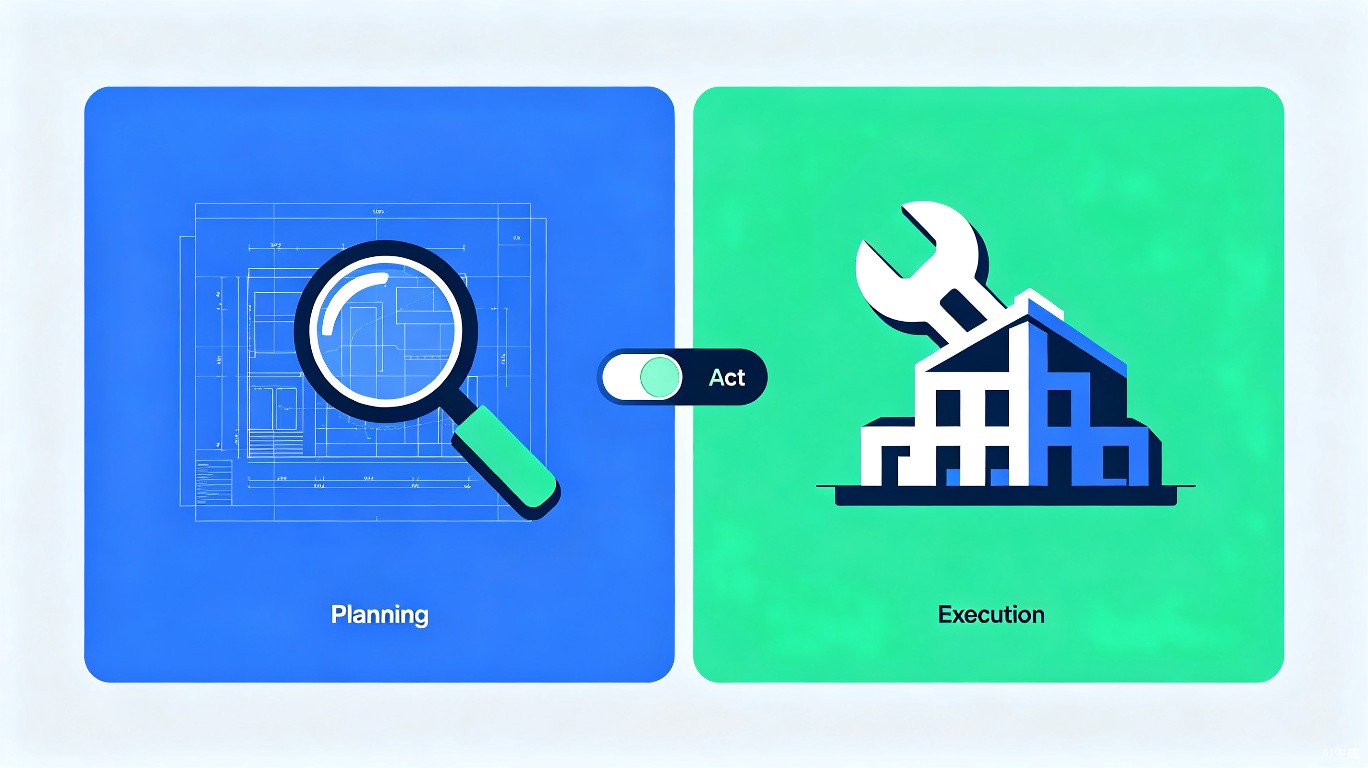
One of the biggest challenges with AI coding agents is preventing them from making unauthorized changes. The Plan vs Act dual-mode workflow solves this by requiring the agent to propose changes in "Plan mode" before executing them in "Act mode." This guide shows you how to implement this powerful safety pattern in Cursor.
What is Plan vs Act?
Plan Mode (Read-Only)
In Plan mode, the agent:
- Reads and analyzes code
- Proposes changes in a structured format
- Cannot modify any files
- Presents a detailed plan for user review
Act Mode (Read-Write)
In Act mode, the agent:
- Executes only approved changes
- Has full read-write access
- Follows the exact plan provided
- Reports what was done
Why Use This Pattern?
| Without Plan/Act | With Plan/Act |
|---|---|
| AI changes files unexpectedly | All changes require approval |
| Hard to review what changed | Clear plan presented first |
| Rollbacks are difficult | Changes are tracked and reversible |
| Context drift over long sessions | Focused execution per task |
Implementation Method 1: Cursor Rules
Create .cursor/rules/plan-act-workflow.mdc:
---
description: 'Plan vs Act dual-mode workflow'
globs: ['**/*']
alwaysApply: true
---

# Plan vs Act Workflow

## CRITICAL RULE
You MUST NOT modify any files without explicit user approval.

## Plan Mode (Default)
When given a task:
1. READ and analyze relevant files
2. CREATE a detailed plan with specific changes
3. PRESENT the plan in this format:

### Plan: [Task Name]

#### Files to Modify
- `file/path/one.ts` - What to change
- `file/path/two.ts` - What to change

#### Changes Summary
1. Change 1 description
2. Change 2 description

#### New Files (if any)
- `new/file/path.ts` - Purpose

#### Testing Plan
- How to verify changes work

4. WAIT for user to type "PROCEED" or "ACT"

## Act Mode (After Approval)
Only after user says "PROCEED":
1. Implement changes from the plan
2. Make ONLY the approved changes
3. Report completion with file list
4. Suggest testing steps

## NEVER
- Skip the planning phase
- Add unplanned changes
- Modify files during Plan mode
- Ask for approval more than once per plan
Implementation Method 2: Custom Mode
Create a custom mode in Cursor settings:
- Open Cursor Settings (
Cmd/Ctrl + ,) - Navigate to "Modes" or "AI Features"
- Click "Add Custom Mode"
- Configure:
{
  "name": "Planner",
  "description": "Planning mode - read-only analysis",
  "systemPrompt": "You are in PLANNING mode. You can READ files but NEVER modify them. Analyze the codebase, understand requirements, and present a detailed plan. Wait for user approval before any changes.",
  "tools": ["read", "grep", "search"],
  "fileWrite": false
}
{
  "name": "Executor",
  "description": "Execution mode - implement approved changes",
  "systemPrompt": "You are in EXECUTION mode. Implement ONLY the changes that were approved in the plan. Do not deviate from the approved scope. Report each change as you make it.",
  "tools": ["read", "write", "edit"],
  "fileWrite": true
}
Implementation Method 3: Chat-Based Workflow
Step 1: Start in Plan Mode
[PLAN MODE] I need to add user authentication to this app.
Please analyze the codebase and create a plan.
Do NOT make any changes yet.
Step 2: Agent Presents Plan
## Plan: Add User Authentication

### Files to Modify
1. `src/app.ts` - Add auth middleware
2. `src/routes/users.ts` - Add login/register endpoints
3. `src/models/user.ts` - Add password hashing

### New Files
1. `src/middleware/auth.ts` - JWT verification
2. `src/services/auth.ts` - Auth logic
3. `tests/auth.test.ts` - Unit tests

### Implementation Details
- Use bcrypt for password hashing
- JWT tokens with 15min expiry
- Refresh token rotation

### Testing
- Test login with valid/invalid credentials
- Test token refresh
- Test protected routes
Step 3: Review and Approve
You review the plan and either:
- Type
PROCEEDto approve - Ask for modifications
- Reject and start over
Step 4: Execute
[ACT MODE] PROCEED with the authentication plan.
Implement exactly what was approved.
Step 5: Verification
After execution:
Verify all changes were made correctly:
1. Check auth middleware is applied
2. Test login endpoint
3. Run auth tests
Advanced: Automated Plan Parsing
For complex projects, use a structured plan format:
## Plan ID: AUTH-001
## Status: PENDING_APPROVAL
## Priority: HIGH
## Estimated Time: 30 minutes

### Scope
- Add JWT-based authentication
- Implement login/logout/register
- Add password reset flow

### Changes

#### File: src/middleware/auth.ts (NEW)
```typescript
import jwt from 'jsonwebtoken';

export const verifyToken = (req, res, next) => {
  // Implementation
};
File: src/routes/auth.ts (NEW)
// Login, register, logout endpoints
File: src/app.ts (MODIFY)
- Line 15: Add
app.use('/auth', authRoutes)
Rollback
- Delete: src/middleware/auth.ts
- Delete: src/routes/auth.ts
- Revert: src/app.ts line 15
Tests
- Login with valid credentials
- Login with invalid credentials
- Access protected route without token
- Access protected route with valid token
## Integration with Version Control

### Pre-Execution Checkpoint

Before executing a plan:

```bash
# Create a checkpoint branch
git checkout -b plan/auth-implementation

# Commit current state
git add -A && git commit -m "checkpoint: before auth implementation"
Post-Execution Verification
# Review changes
git diff

# If something is wrong, revert
git checkout -- .

# Or revert to checkpoint
git reset --hard HEAD~1
Team Workflow
For Code Reviews
- Developer creates plan in Cursor
- Developer pastes plan in PR description
- Reviewer approves plan before execution
- Developer executes with Plan vs Act workflow
- Reviewer verifies execution matches plan
PR Template
## Plan
[Paste the AI-generated plan here]

## Execution
- [ ] All planned changes implemented
- [ ] No unplanned modifications
- [ ] Tests pass
- [ ] Plan matches execution

## Verification
[Describe testing performed]
Common Pitfalls
| Pitfall | Solution |
|---|---|
| Agent skips planning | Enforce with rules and mode restrictions |
| Plans are too vague | Require specific file paths and line numbers |
| User approval fatigue | Group related changes into single plans |
| Execution drifts from plan | Compare diff with plan after execution |
| Too much back-and-forth | Allow minor deviations, flag major ones |
Quick Start Checklist
- Create
.cursor/rules/plan-act-workflow.mdc - Test with a small, safe task
- Verify agent respects read-only mode
- Practice approving and rejecting plans
- Set up git checkpoints before execution
- Document the workflow for your team